
A non-responsive touchpad on your HP OmniBook 5 14 turns a portable laptop into a desktop setup. Whether the cursor is frozen, taps don't work, or two-finger scrolling is gone, these steps will get it working again.
Toggle the Touchpad On
Your OmniBook has a dedicated key to turn the touchpad off and on. Look for the key with a touchpad icon, usually on the top row of the keyboard. Press the Fn key and that touchpad key together. Also, check in Windows by going to Settings > Bluetooth & devices > Touchpad and make sure the touchpad is set to "On."
Restart Your OmniBook
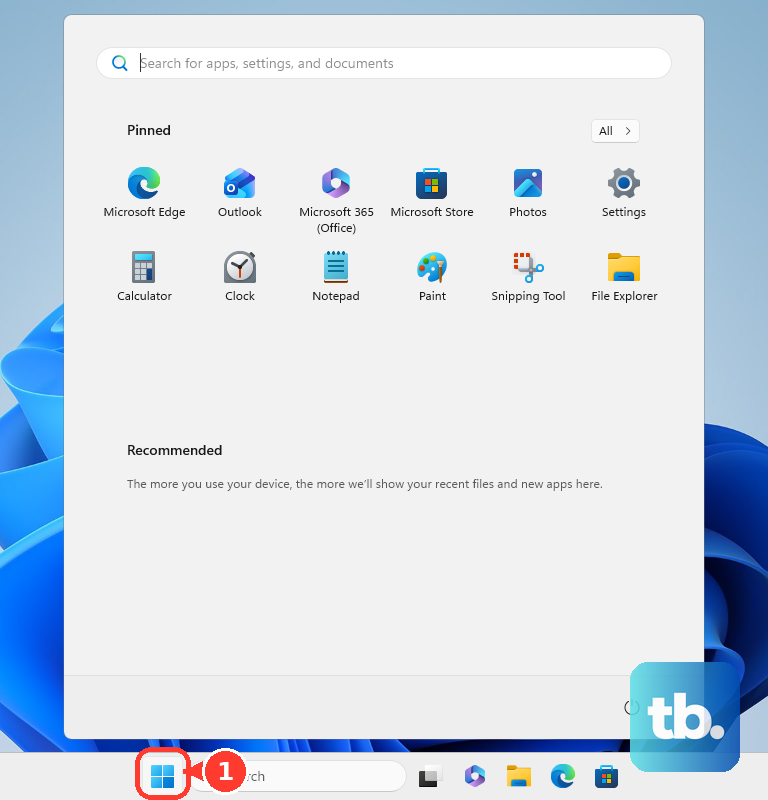
This is the most reliable fix for a touchpad that stopped working after sleep or an update. Since you can't use the touchpad, use your keyboard. Press the Windows key, then use the Tab key to navigate to the power icon, hit Enter, and choose Restart. This reloads all the drivers.
Unplug Any External Mouse
Windows sometimes disables the internal touchpad when it detects a USB or Bluetooth mouse. Unplug any wired mouse or disconnect your Bluetooth mouse in Settings > Bluetooth & devices. After a moment, check if the touchpad starts responding.
Update Drivers with HP Support Assistant
For the OmniBook 5 14, I'd start with the HP Support Assistant. This app is designed to find the correct drivers for your specific HP model, which is crucial for this new laptop. Open it and check for updates, especially under the "Updates" or "My devices" tab. It will find the latest touchpad driver.
Clean the Touchpad Surface
Oils from your fingers or a bit of moisture can make the touchpad unresponsive. Power off the laptop and gently wipe the touchpad surface with a dry, soft microfiber cloth. For stubborn smudges, dampen a corner of the cloth with water, wipe, then dry it immediately.
Check the Touchpad in BIOS
You can see if the touchpad is disabled at a hardware level by entering the BIOS. Restart your OmniBook and immediately press the F10 key repeatedly. Inside the BIOS, look for a "System Configuration" or "Advanced" menu. Find an option for "Internal Pointing Device" or "TouchPad" and ensure it is set to "Enabled."
Reinstall the Touchpad Driver
If an update didn't help, a fresh install might. Press the Windows key and type "Device Manager" to open it. Expand "Mice and other pointing devices." Right-click on the listed touchpad (it might be called a Synaptics, ELAN, or HID-compliant touchpad) and select "Uninstall device." Restart your laptop, and Windows will install a basic driver. Then, use HP Support Assistant again to get the full-featured HP driver.
Run a System Scan
Corrupted Windows files can cause hardware issues. Open the Start menu, type "cmd," and right-click on "Command Prompt" to select "Run as administrator." In the window, type sfc /scannow and press Enter. Let the scan complete and restart your computer if it finds and repairs any issues.
Consider App Compatibility
The HP OmniBook 5 14 runs on a Qualcomm Snapdragon chip, which is an ARM processor. Some older applications or utilities that interact with hardware inputs might not be fully compatible. If the touchpad stopped working after installing a specific app, try uninstalling it to see if that resolves the conflict.