
A slow laptop can make even simple tasks feel like a chore. If your HP OmniBook 5 14 is feeling sluggish, there are several straightforward things you can try to get it running smoothly again. Most slowdowns are caused by software, not hardware, and are completely fixable.
Restart Your OmniBook
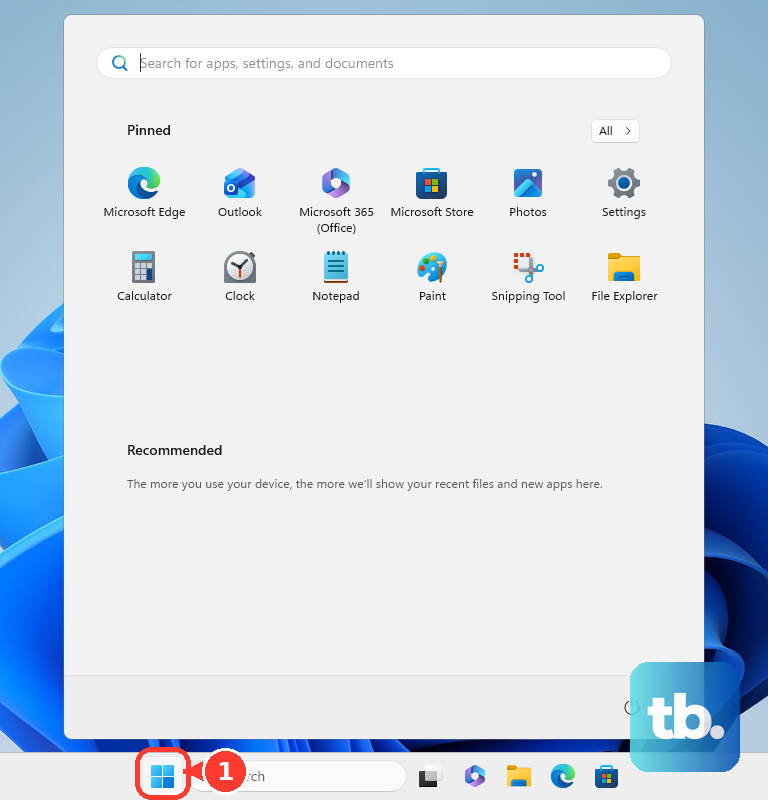
It sounds simple, but a full restart clears out temporary files and stops any background processes that might be stuck. Click the Start menu > Power icon > Restart. Avoid just using sleep mode for days on end, as this can lead to memory leaks over time. I'd start with this one, as it often provides an immediate boost.
Use HP Support Assistant for Drivers
Since the OmniBook 5 14 is a newer model with a Qualcomm Snapdragon processor, having the latest drivers is crucial. Open the HP Support Assistant app that came pre-installed. Run a check for updates, which will find the latest firmware, chipset, and driver packages specifically tuned for your ARM-based system. Outdated drivers are a common culprit for performance hiccups.
Check Task Manager for Resource Hogs
Press Ctrl + Shift + Esc to open Task Manager directly. Click on the CPU, Memory, or Disk column headers to sort by what's using the most. Look for any single process consuming a huge percentage. If you see an app you don't recognize or one that's gone rogue, you can right-click it and select End task.
Manage Startup Programs
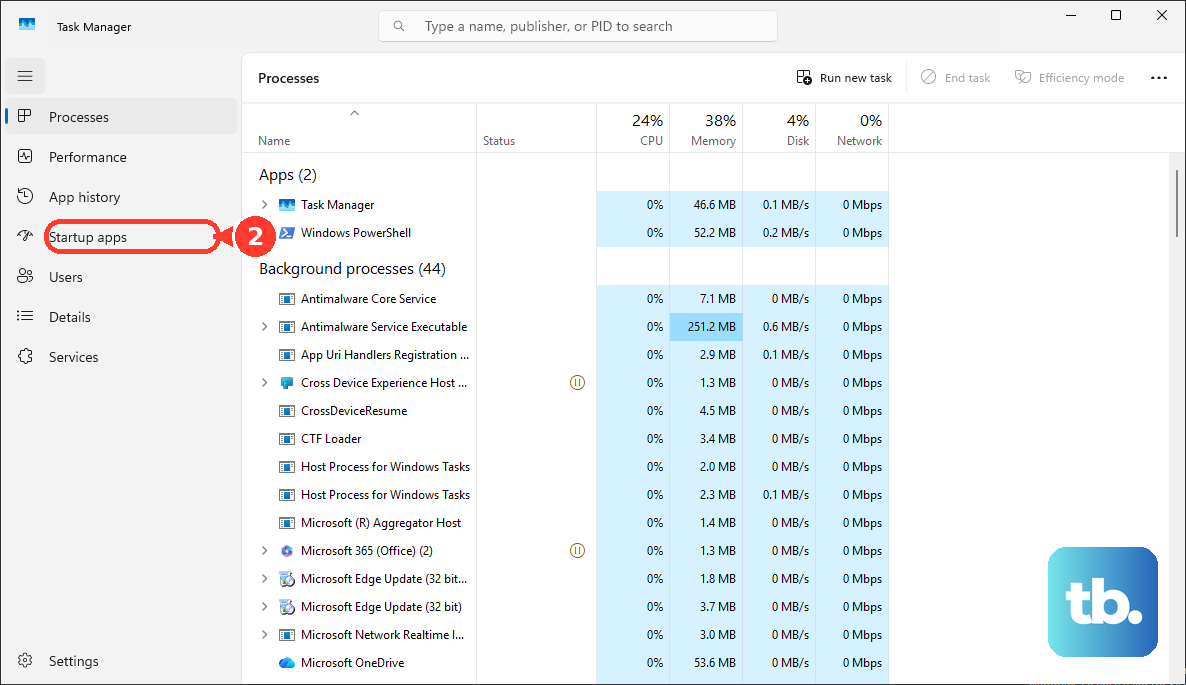
Too many apps launching at boot will slow down your startup and run in the background. In Task Manager, click the Startup apps tab. Review the list and set any non-essential program to Disabled. Things like messaging apps, cloud storage services, or media helpers can often wait until you need them. This frees up RAM and CPU cycles from the moment you log in.
Free Up Storage Space
Windows needs room to breathe. Go to Settings > System > Storage. The system will show you what's taking up space. Click on Temporary files and select items like "Delivery Optimization Files" and "Windows Update Cleanup" to remove. For ongoing cleanup, turn on Storage Sense to automatically handle temporary files. Aim to keep at least 20% of your SSD free.
Verify App Compatibility
The OmniBook 5 14 runs Windows on an ARM architecture. While it emulates most x64 apps beautifully, some older or very specialized x86 applications might run slower. Check the app's official website to see if there's an ARM64-native version available. You can also right-click an app's shortcut, select Properties, and check the Compatibility tab, though the emulation is mostly handled automatically by Windows.
Adjust Your Power Plan
Windows might be limiting performance to save battery. Plug in your laptop and click the battery icon in the system tray. Move the slider all the way to the right to Best performance. For more control, go to Settings > System > Power & battery and set the Power mode to Best performance. This ensures your Snapdragon chip isn't being unnecessarily throttled.
Run a Malware Scan
Background malware can consume massive resources. Open Windows Security from the Start menu. Go to Virus & threat protection and click Scan options. Choose Microsoft Defender Antivirus (offline scan) for the most thorough check. This will restart your PC and scan before Windows loads, catching deeply hidden threats.
Update Windows
Microsoft constantly releases performance and compatibility improvements, especially for Windows on ARM systems. Go to Settings > Windows Update and click Check for updates. Install all available feature and quality updates. After major updates, it's a good idea to also revisit the HP Support Assistant to see if new drivers have been released.
Disable Unnecessary Visual Effects
Search for "Adjust the appearance and performance of Windows" in the Start menu and open it. In the Visual Effects tab, you can select Adjust for best performance to turn off all animations. Alternatively, choose Custom and manually disable effects like "Animate windows when minimizing and maximizing" and "Transparency effects." This can free up GPU resources.
Consider a Cloud Reset
If the system still feels bogged down after all else, a refresh can help. Go to Settings > System > Recovery. You'll see an option for Reset this PC. Choose Keep my files to remove all apps and settings while keeping your personal documents. For the OmniBook 5 14, there's also a "Download from the cloud" option during reset, which ensures you get the freshest possible Windows image.