
When your HP OmniBook 5 14's keyboard stops responding, it can feel like you've hit a brick wall. Whether it's a few keys acting up or the entire board going silent, the solutions are usually software-related, especially on this new ARM-based model.
It takes a minute to confirm the board itself with a keyboard test. Press every key once and you will have a clear picture of what actually fails.
Let's jump straight into the most common fix. A simple restart can clear out temporary software glitches that lock up the keyboard driver. If the keyboard is completely dead, hold down the power button for about 10 seconds to force a shutdown, then press it again to turn the laptop back on.
Check for Physical Debris
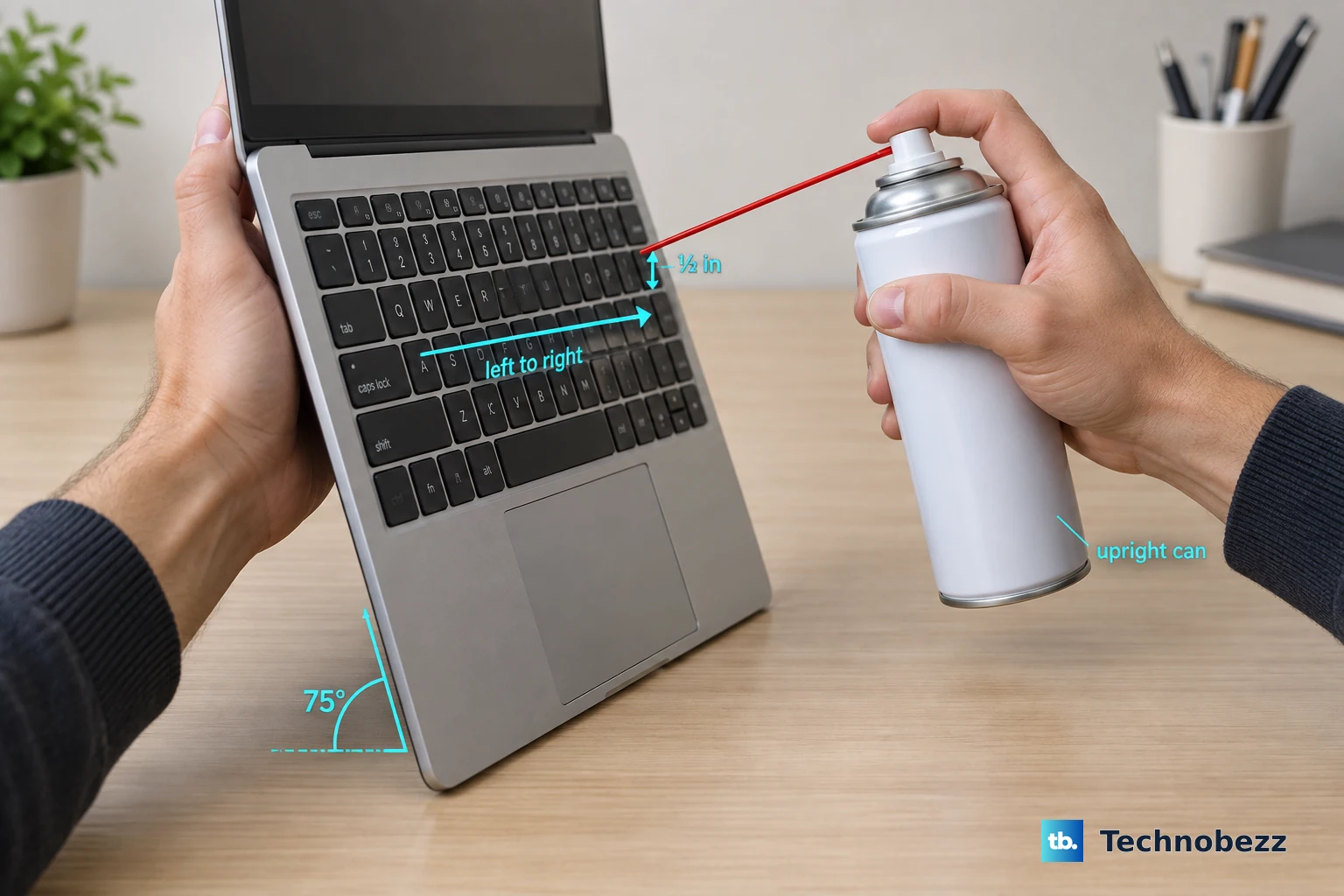
Turn the laptop upside down and give it a gentle shake to dislodge any crumbs or small debris. A can of compressed air is great for blowing out particles stuck between the keys. Sometimes, a single tiny obstruction is all it takes to prevent a key from making proper contact.
Disable Filter Keys in Windows
An accessibility feature called Filter Keys can sometimes get turned on by accident, making the keyboard seem incredibly slow or unresponsive. You can check this by going to Settings > Accessibility > Keyboard.
Make sure the toggle for Filter keys is switched off. While you're there, it's a good idea to also check that Sticky keys is disabled, as that can cause similar confusion.
Update or Reinstall the Keyboard Driver
Since the OmniBook 5 14 runs on a Qualcomm Snapdragon chip, having the correct ARM-optimized drivers is crucial. Press the Windows key + X and select Device Manager. Expand the Keyboards section, right-click on the listed keyboard, and choose Update driver.
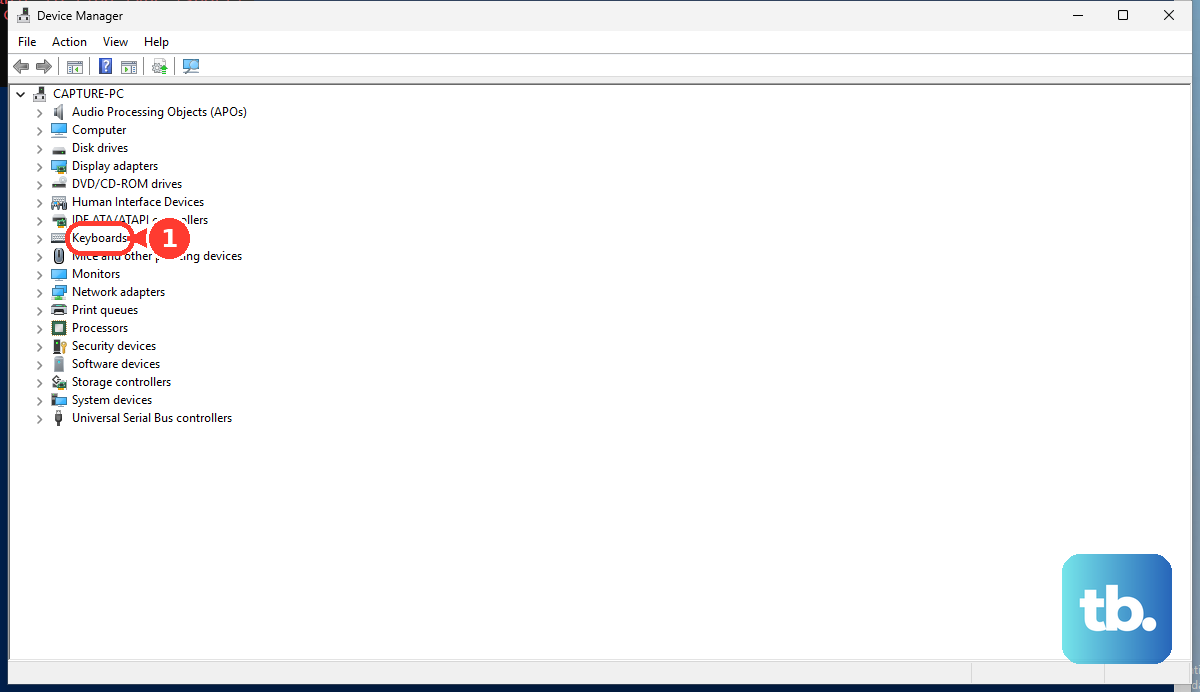
If that doesn't help, try selecting Uninstall device and then restart your laptop. Windows will automatically reinstall a fresh driver when it boots back up. For the absolute latest drivers, I'd recommend using the HP Support Assistant app.
Verify Your Keyboard Language and Layout
If your keys are typing the wrong characters, your keyboard layout might have been switched. Head to Settings > Time & language > Typing > Advanced keyboard settings.
Ensure your preferred language is set correctly here. You can also click on Language bar options to remove any extra keyboard layouts you don't use, which prevents accidental switching with a keyboard shortcut.
Boot into Safe Mode to Isolate Software
If the keyboard works perfectly in Safe Mode, you know a third-party app is causing the conflict. To boot into Safe Mode, go to Settings > System > Recovery and click Restart now next to "Advanced startup."
After the restart, choose Troubleshoot > Advanced options > Startup Settings > Restart. When your laptop reboots, press 4 or F4 to enable Safe Mode. If the keyboard works here, uninstall any recently added software.
Install All Windows Updates
Microsoft is continuously refining Windows for ARM, and updates often include critical driver fixes. Go to Settings > Windows Update and click Check for updates. Install everything available.
If the keyboard issue started right after a specific update, you can roll it back. Go to Settings > Windows Update > Update history > Uninstall updates and remove the most recent ones.
Test with an External Keyboard
Plugging in a USB keyboard is a great diagnostic step. If the external keyboard works flawlessly, it strongly suggests a hardware issue with the laptop's internal keyboard or its connection.
This could be a loose ribbon cable or, in unfortunate cases, liquid damage. Since the OmniBook 5 14 is a new model, a hardware fault would likely be covered under warranty.
Run the Built-in HP Hardware Diagnostics
HP includes a powerful diagnostic suite you can access at startup. Turn off your laptop, then turn it back on and immediately press the F2 key repeatedly. This will launch the HP PC Hardware Diagnostics UEFI.
From there, you can run a comprehensive system test or a specific component test for the keyboard. This will tell you definitively if there's a hardware failure that needs professional attention.