
When your HP OMEN 16 won't connect to WiFi, it stops your game or work dead in its tracks. You might see no networks at all, get stuck on "Connecting...", or have a connection that keeps dropping out mid-session. The fixes below work for all those frustrating scenarios.
Run the Windows Network Troubleshooter
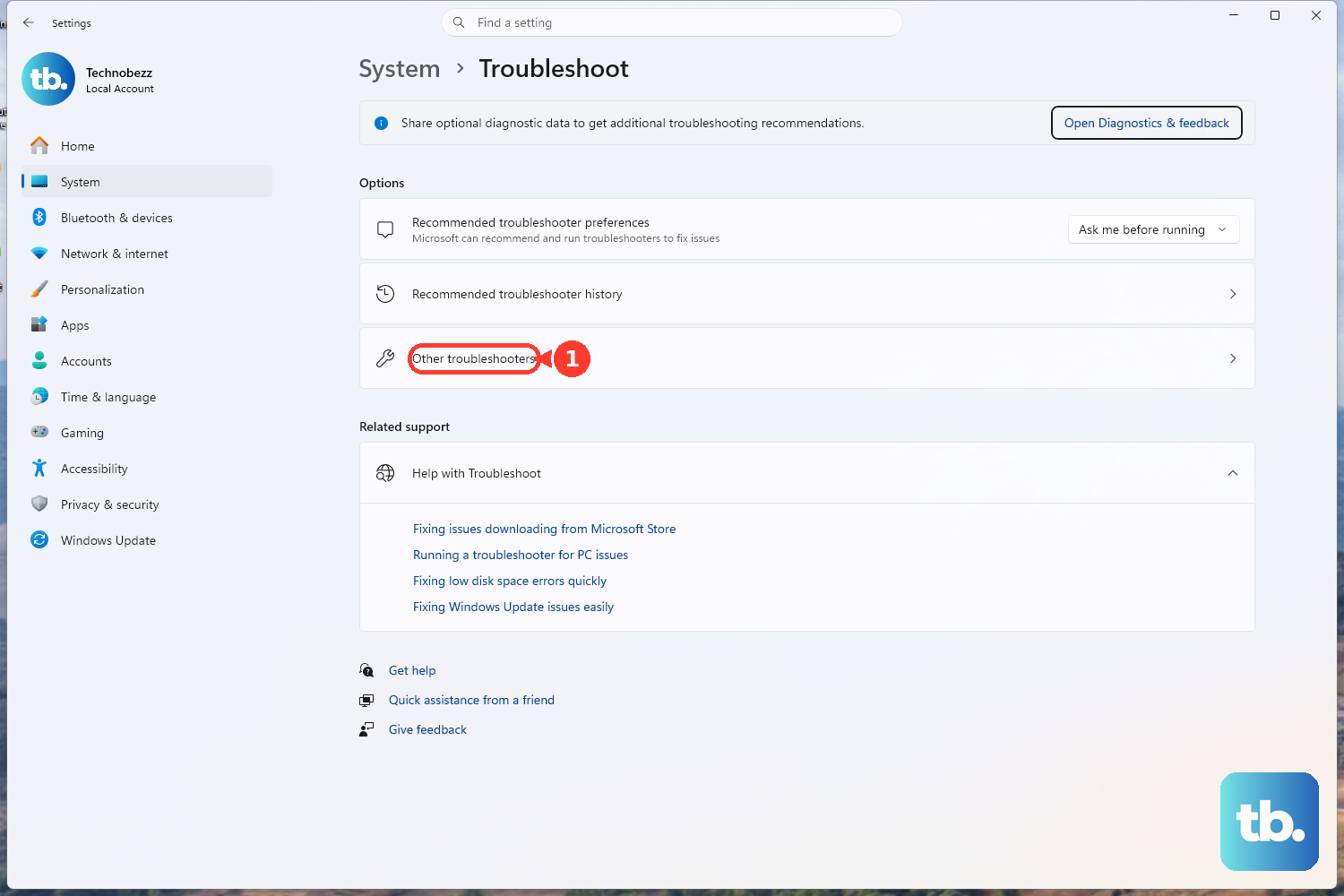
This is the quickest place to start. Right-click the WiFi icon in your taskbar and select Troubleshoot network problems. Windows will scan for common glitches and often fix them automatically. On Windows 11, you can also navigate to Settings > System > Troubleshoot > Other troubleshooters and run the Network and Internet troubleshooter from there.
Toggle WiFi Off and On
Click the network icon in your taskbar and flip the WiFi switch off. Give it a solid ten seconds, then turn it back on. This simple action refreshes your laptop's wireless adapter. You can also toggle Airplane mode on and off for a more comprehensive reset of all radios.
Forget and Reconnect to Your Network
Corrupted network profiles are a frequent culprit. Go to Settings > Network & Internet > WiFi > Manage known networks. Find your home network, click on it, and select Forget. Now, scan for networks again, select yours, and re-enter the password. This establishes a fresh, clean connection.
Update Your WiFi Driver
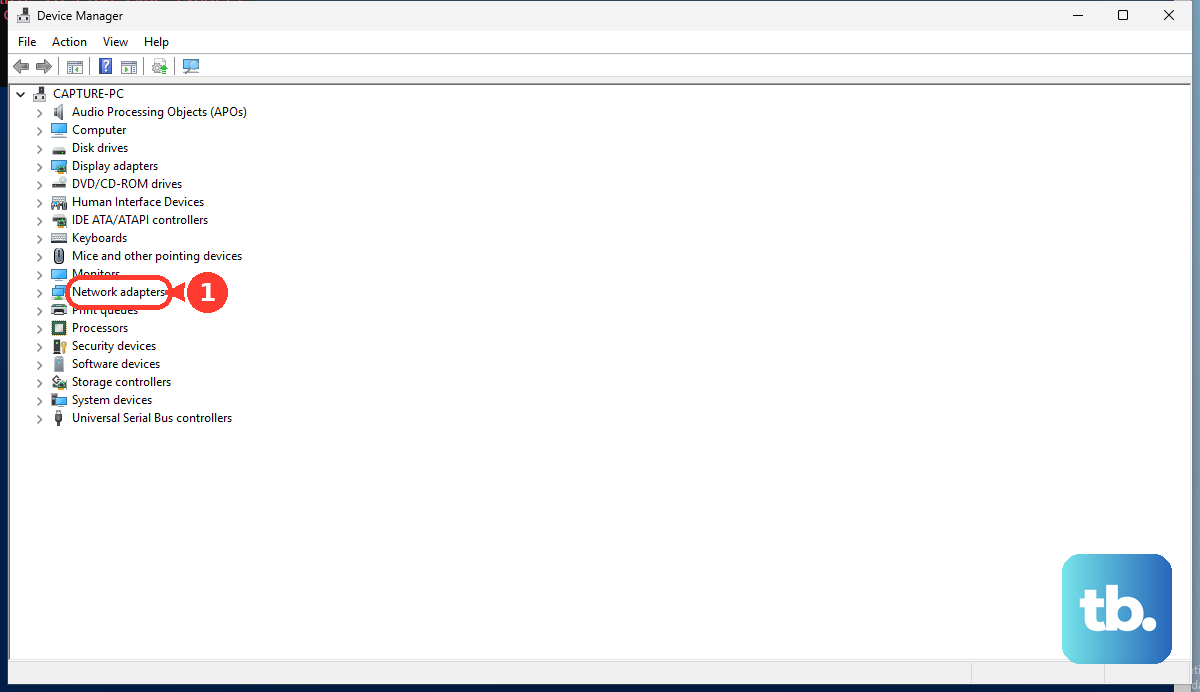
Outdated or buggy drivers are a common cause of WiFi problems on gaming laptops. Press Windows Key + X and choose Device Manager. Expand the Network adapters section, right-click your wireless adapter (it might be from Intel, Realtek, or MediaTek), and select Update driver > Search automatically for drivers.
If that doesn't find anything new, you should visit the official HP support site, enter your OMEN 16's exact model number, and download the latest WiFi driver directly. I've found that manufacturer drivers can sometimes be more stable than the generic ones Windows Update provides.
Restart Your OMEN Laptop
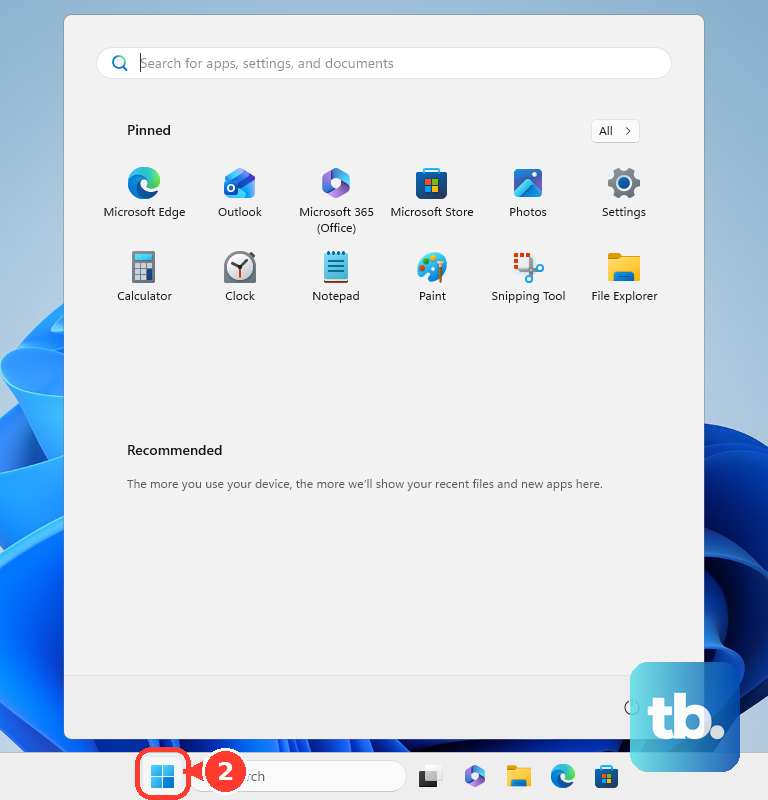
Don't just put it to sleep. Click Start > Power > Restart for a full shutdown and boot. This clears the network stack and reloads all drivers from scratch. Many transient WiFi issues are resolved by this basic step, especially if you haven't rebooted in a while.
Disable and Re-Enable the WiFi Adapter
This is like a targeted restart for just your network hardware. Go back into Device Manager > Network adapters, right-click your wireless adapter, and choose Disable device. Wait a moment, then right-click it again and select Enable device. It forces the adapter to reinitialize without needing a full system reboot.
Reset Your Network Settings
If you're still stuck, a network reset can wipe out deeper configuration problems. Go to Settings > Network & Internet > Advanced network settings > Network reset. Click Reset now and confirm. This will remove and reinstall all network adapters and set everything back to defaults.
Be aware, you'll need to reconnect to all your WiFi networks and re-enter their passwords after this completes. It's a solid fix for persistent, weird connection issues.
Flush DNS and Reset TCP/IP via Command Prompt
Sometimes the issue is with cached network data. Search for "Command Prompt," right-click it, and select Run as administrator. Type the following commands one at a time, pressing Enter after each:
netsh winsock reset
netsh int ip reset
ipconfig /flushdns
ipconfig /release
ipconfig /renew
After running them all, restart your laptop. This sequence clears old DNS records and resets your core internet protocols.
Check for Windows and OMEN Software Updates
Head to Settings > Windows Update and install any available feature or quality updates. Microsoft frequently patches network-related bugs. Also, open the OMEN Gaming Hub app and check for updates there.
Software conflicts, sometimes with lighting or performance utilities, can interfere with connectivity. Keeping everything updated ensures compatibility and stability. I'd make sure the Gaming Hub itself is on the latest version.
Check Your Router and Environment
If other devices in your home also can't connect, the problem is likely your router or internet service. Restart your router and modem by unplugging them for 30 seconds. Try connecting your OMEN 16 to a different network, like your phone's mobile hotspot, to confirm its WiFi hardware is working.
Also, consider your laptop's placement. The aggressive fan curve on the OMEN 16 means it can get loud, but make sure the rear vents aren't completely blocked, as extreme thermal throttling could potentially affect system stability. Using the OMEN Gaming Hub to manually adjust the fan profile can help keep things cool during long online sessions.