
Screen flickering on a gaming laptop like the HP OMEN 16 is especially disruptive, whether you're in a competitive match or just trying to work. The display might flash, show black frames, or have horizontal lines tearing across the screen. Here's how to fix it.
Check Task Manager to Identify the Cause
Press Ctrl + Shift + Esc to open Task Manager. Watch if Task Manager itself flickers. If Task Manager flickers along with everything else, a display driver is probably causing the problem. If Task Manager stays perfectly stable while your game or desktop flickers, the problem is likely with a specific application.
Update Your GPU Drivers Directly
For the OMEN 16, you should get drivers straight from the source. Go to the NVIDIA or AMD website, use their auto-detect tool or manually select your exact GPU model, and download the latest Game Ready or Adrenalin driver. I've found that using the manufacturer's installer is more reliable than Windows Update for gaming laptops.
During installation, choose the "Custom" or "Advanced" option and select "Perform a clean installation." This removes old driver files that can cause conflicts and flickering.
Use OMEN Gaming Hub for Performance Tuning
Open the OMEN Gaming Hub software. Go to the Performance Control section. If you've changed performance settings, try returning them to their defaults. Try switching to the "Default" or "Balanced" performance profile to see if it stabilizes the display.
You can also check for software updates for the Gaming Hub itself, especially if the flickering occurs while the app is open.
Adjust Your Display's Refresh Rate
Right-click your desktop and go to Display settings > Advanced display. Next to Choose a refresh rate, try another rate offered for your display. The available rates depend on what your display supports. A rate marked with an asterisk changes the resolution too. If the flickering stops, the change may help narrow down the problem.
Update or Uninstall the Suspected App
If flickering appears linked to a specific app, update it. If updating does not help, uninstall the suspected app and restart your laptop to check whether the flickering stops. Do this for any other app where the flickering is most noticeable.
Boot Into Safe Mode to Test
If the flickering is constant, hold Shift while clicking Restart in Windows (Start > Power > Restart). In Windows Recovery Environment, go to Troubleshoot > Advanced options > Startup Settings > Restart, then select Enable Safe Mode using the number or function key shown. If your device is encrypted, have your BitLocker recovery key ready. Safe Mode starts Windows with a limited set of files and drivers.
If the screen is stable in Safe Mode, default settings and basic device drivers aren't causing the issue, which helps narrow down the source. You can then use Safe Mode to uninstall recent graphics drivers or software you suspect.
Roll Back a Problematic Display Driver
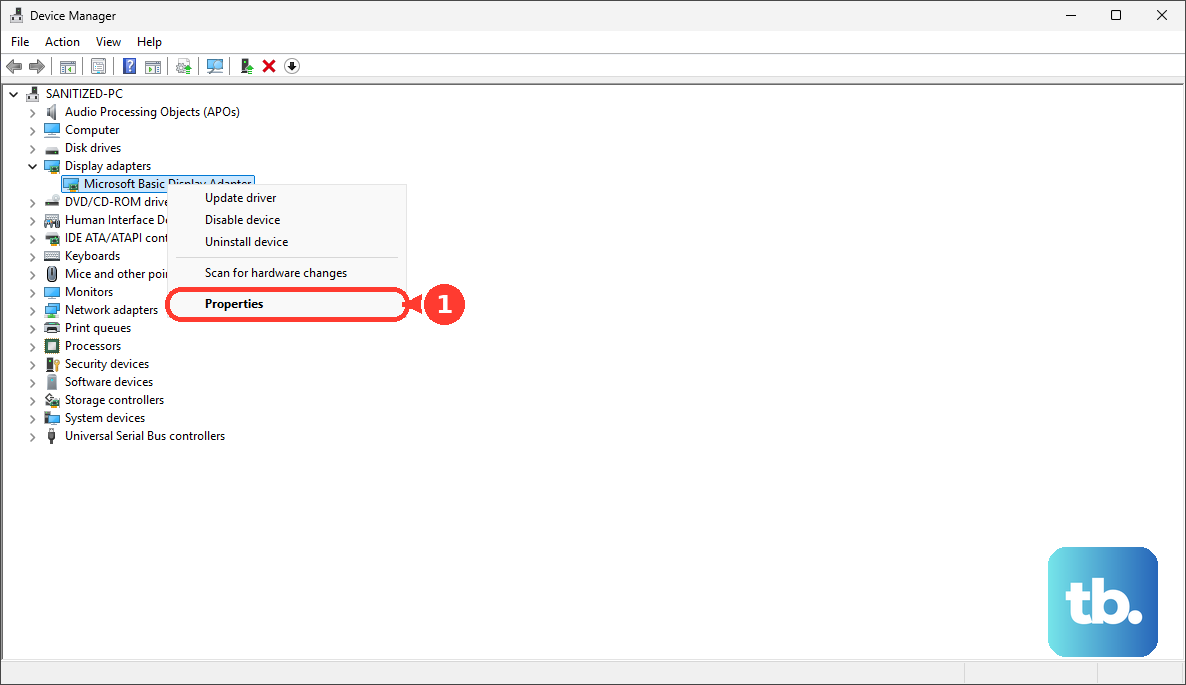
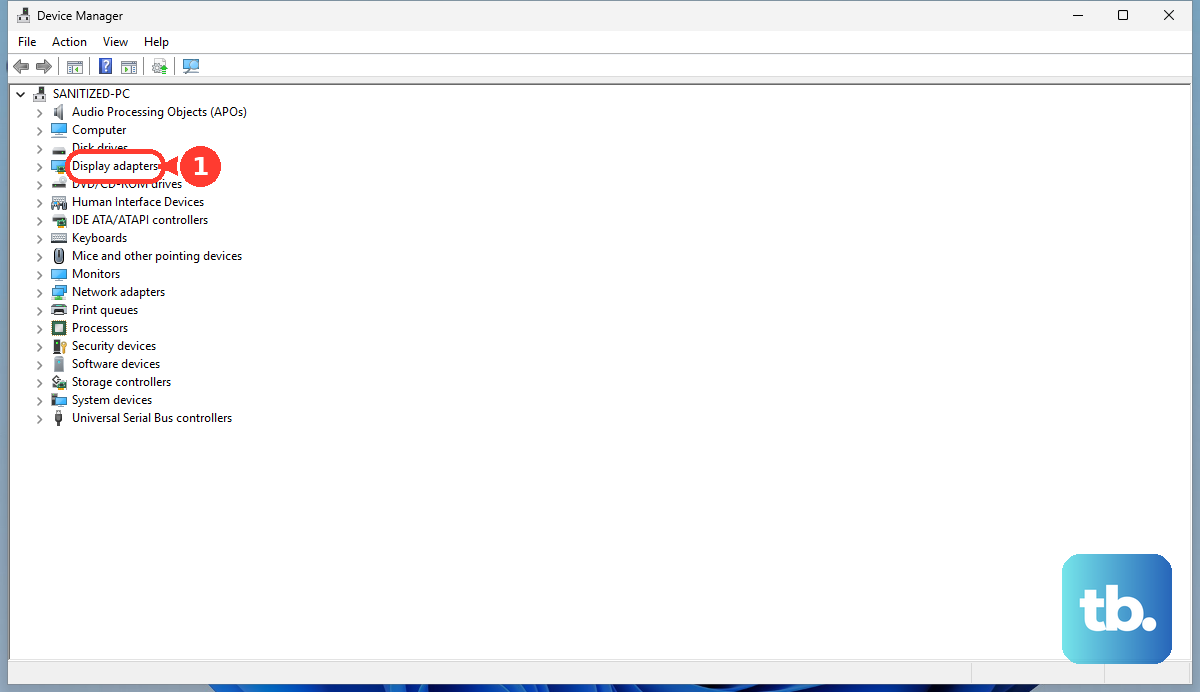
Press Windows Key + X and select Device Manager. Expand Display adapters, right-click the display adapter, and select Properties. Go to the Driver tab and click Roll Back Driver, then select Yes and restart your laptop. You need administrator privileges. If the option is unavailable, Windows has no previous driver to restore.
Use this if the flickering started right after you installed a new driver update. Reverting to the previous version may resolve the flickering.
Check for Loose Internal Connections
If the flickering happens or changes when you adjust the laptop screen's angle, the internal display cable might be loose. Note whether normal changes in the screen's position affect the flickering. While not a simple DIY fix for most, a suspected internal connection problem is best checked by a repair technician.
Run the HP Hardware Diagnostics
Restart your OMEN 16 and immediately press the F2 key repeatedly. This boots into the HP Hardware Diagnostics UEFI. Run the system tests, and pay special attention to the video memory and display tests. This can help rule out a failing GPU or display hardware as the cause of the blinking.