
A gaming laptop that can't keep up is incredibly frustrating, especially when you're trying to enjoy a session. If your HP OMEN 16 is feeling sluggish, it's often a software or settings issue you can resolve yourself.
Restart Your OMEN 16
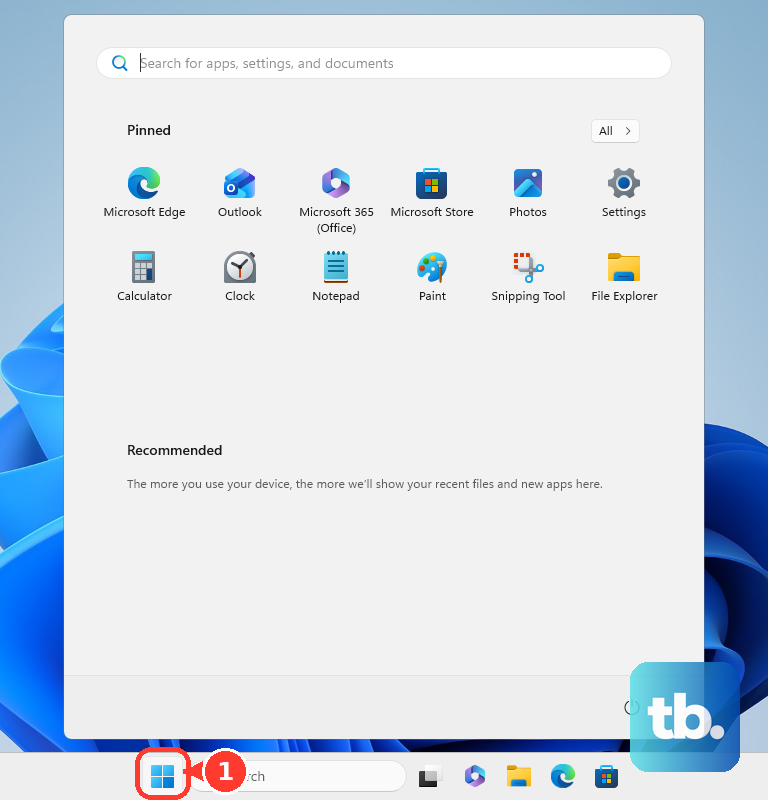
If you regularly put your laptop to sleep instead of shutting down, background processes and memory can get clogged over time. Click Start > Power > Restart. This fully clears the system memory and stops any errant processes, which can provide an immediate speed boost.
Use OMEN Gaming Hub for Performance Tuning
This is your control center. Open the OMEN Gaming Hub and navigate to the Performance Control section. Here, you can switch to a more aggressive performance mode and manually adjust the fan curve. The default curve can sometimes be too conservative, leading to thermal throttling that slows down your CPU and GPU.
Check Task Manager for Resource Hogs
Press Ctrl + Shift + Esc to open Task Manager. Click the CPU, Memory, or GPU columns to sort by usage. Look for any single process using an unusually high percentage. Right-click and End task on non-essential items. Common culprits can include background RGB lighting services or game launchers.
Update Your Graphics Drivers Directly
For the best gaming performance, avoid relying solely on Windows Update for GPU drivers. If you have an NVIDIA GPU, use the NVIDIA app. For AMD graphics, use the AMD Adrenalin software. Downloading drivers directly from the chipmaker ensures you get the latest performance optimizations and game-ready drivers.
Manage Startup and Background Apps
Open Task Manager and click the Startup apps tab. Disable any programs you don't need launching automatically when Windows boots, like chat apps or various utility managers. Also, check Settings > Apps > Startup to disable other background services that can drain resources.
Adjust Windows Power Plan for Maximum Performance
Go to Settings > System > Power & battery. For the power mode, select Best performance. For more granular control, search for "Edit power plan" in the Start menu, choose your plan, and click Change advanced power settings. Ensure the processor power management is set to 100% for both minimum and maximum states.
Free Up Storage Space on Your Drive
A drive that's nearly full, especially if it's a slower hard disk drive (HDD), will slow everything down. Open Settings > System > Storage and run the Cleanup Recommendations. Manually check and delete large files or games you no longer play. If your OMEN 16 has an SSD, still try to keep at least 10-15% free space.
Check for Malware and Run System Diagnostics
Run a full scan with Windows Security. Malware can consume resources in the background. For hardware checks, restart your laptop and press F2 repeatedly as it boots to launch the HP Hardware Diagnostics. This can identify if a failing component is contributing to the slowdown.
Clean Your Laptop's Vents and Fans
Thermal throttling is a known issue during extended gaming. Dust buildup in the heatsinks and fans forces the CPU and GPU to slow down to prevent overheating. I'd recommend using a can of compressed air to gently blow out the vents. Do this with the laptop powered off for the best and safest results.
Reset or Refresh Your Windows Installation
If all else fails, a clean start can remove software conflicts and bloat. Go to Settings > System > Recovery. You can choose Reset this PC and select to keep your files, which reinstalls Windows. For a less nuclear option, try a system restore to a point before the slowdown began.