
When your HP OMEN 16 is plugged in but the battery percentage won't budge, it's a real buzzkill. The problem could be with the power brick, the port, a software setting, or even the battery itself. Let's walk through the fixes, starting with the most common culprit.
Check Your Power Adapter and Cable
First, take a close look at the large power brick and the cable that runs from it to your laptop. Look for any obvious damage, kinks, or fraying, especially near the connectors. Make sure the brick is firmly plugged into a working wall outlet.
The LED light on the HP power adapter should be solid white when it's receiving power. If it's off or blinking, that's a sign the adapter itself might have failed. These bricks can overheat during long gaming sessions, which sometimes leads to internal failure.
Perform a Hard Reset
This is a great first step that resets the laptop's hardware, including the power management controller. Shut down your OMEN completely. Once it's off, unplug the power adapter and disconnect any peripherals.
Now, hold down the power button for a full 15 seconds. This drains any residual power from the system. After that, plug just the power adapter back in (leave it disconnected from the wall for a moment if you want to be thorough) and try turning the laptop on. I've seen this clear up phantom charging issues more times than I can count.
Inspect and Clean the Charging Port
The barrel-style charging port on the OMEN 16 can collect dust and lint over time. Grab a bright flashlight and take a peek inside. If you see debris, use a wooden toothpick or a can of compressed air to gently clean it out.
Be very careful not to use anything metal, as you could damage the central pin. A poor connection here means the laptop isn't seeing the full power from the adapter, which can prevent charging.
Check for a Battery Charge Limit in the BIOS
HP includes a useful feature to prolong your battery's lifespan, but it can confuse you if you don't know it's on. Open the OMEN Gaming Hub software and look for a setting called "Battery Saver" or "Adaptive Battery Optimizer."
If this is enabled, it might be intentionally capping your maximum charge at 80%. This is great for keeping your battery healthy if the laptop is always plugged in, but you'll need to disable it if you want to charge to 100% for a gaming session on the go.
Update Your Battery Drivers in Windows
Corrupted power drivers can make Windows misreport charging status. Press the Windows key + X and select Device Manager. Expand the "Batteries" section.
Right-click on both "Microsoft ACPI-Compliant Control Method Battery" and "ACPI Compliant Control Method Battery" and choose "Uninstall device." Don't restart when prompted. After uninstalling both, go to the "Action" menu at the top and select "Scan for hardware changes." Windows will reinstall the drivers fresh.
Run a Battery Health Report
Let's see what shape your battery is actually in. Open Command Prompt as an administrator and type the command powercfg /batteryreport and hit Enter.
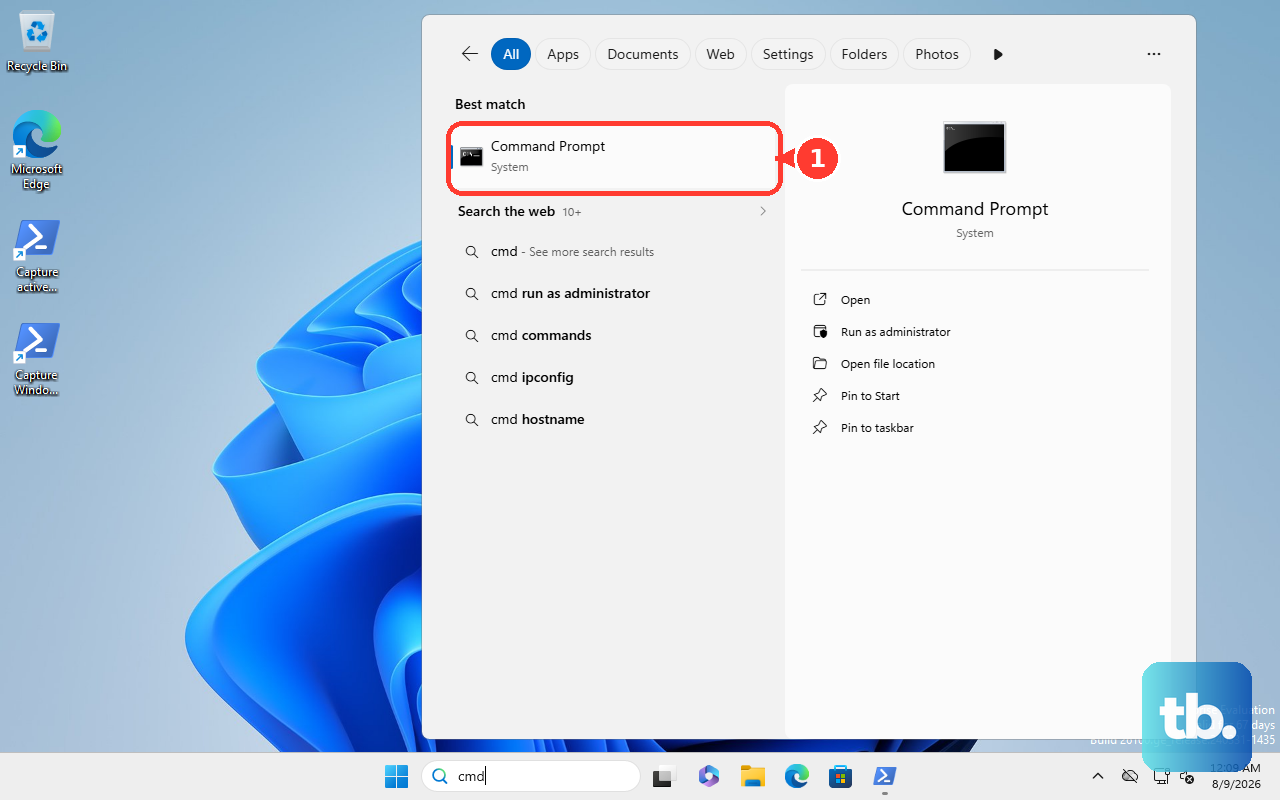
This generates an HTML file on your drive. Open it, and look for the "Design Capacity" versus "Full Charge Capacity." If the full charge capacity is significantly lower (like less than 50%), the battery itself is worn out and needs replacement, which would explain why it's not holding a charge.
Test with a Different Charger
If you can, try borrowing a compatible HP charger from a friend or using a universal laptop charger with the correct tip and wattage. The OMEN 16 requires a substantial amount of power, especially when the GPU is under load.
A charger that's degraded or doesn't meet the required wattage might power the laptop but won't be able to actually charge the battery while it's running. The original adapter is typically 200W or more for these models.
Update Your BIOS and Chipset Drivers
Power management fixes are common in BIOS updates. You can check for the latest version directly through the OMEN Gaming Hub in the "Updates" section, or visit the official HP support site for your specific OMEN 16 model.
While you're there, also update your chipset drivers. These control how the system components, including the power subsystem, communicate. An outdated chipset driver can sometimes cause charging hiccups.
Check for Physical Damage and Thermal Throttling
If your laptop was recently dropped or suffered a spill, there could be internal damage to the power circuit or the battery connector. Also, the OMEN 16 is known for aggressive thermal throttling under heavy load.
If the system is extremely hot, it might intentionally slow or stop charging to reduce heat. Use the OMEN Gaming Hub to manually adjust the fan curve to a more aggressive setting and ensure your laptop's vents are clean and unobstructed for better cooling.