
When your HP OMEN 16's audio cuts out mid-game or while watching a movie, start with the quick checks: output selection, mute state, Windows audio diagnostics, HP's Audio Check, and audio drivers before assuming the speakers have failed.
Before changing anything, play a quick online speaker test in your browser. It sends a tone to the left and right channels separately, so you immediately know whether the speakers produce any sound at all.
Check Volume and Output Device
First, select the speaker icon on the taskbar. Make sure the volume is turned up and not muted, then select the arrow to the right of the volume slider to open the output-device list. Choose the OMEN's built-in speakers or your intended headphones. Also check the laptop's mute light or speaker-mute key, because HP manuals show the mute light is on when computer sound is off.
Run the Windows Audio Troubleshooter
On Windows 11, open Get Help, search for audio troubleshooter, approve diagnostics if prompted, and follow the prompts. If that does not resolve it and HP Support Assistant is installed, run HP's Audio Check for the laptop before moving into driver changes.
Restart Your OMEN Laptop
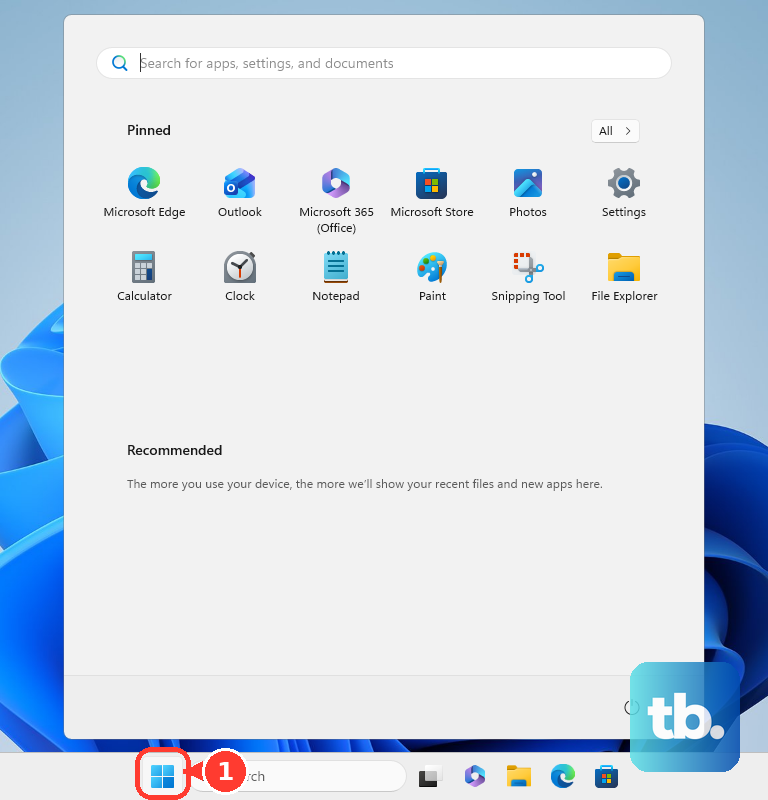
This is the classic IT fix for a reason. A full restart reloads all your audio drivers and clears any stuck processes. Click Start > Power > Restart. I've found this works most often if the sound stopped after a Windows update or when waking the laptop from sleep mode.
Update Your Audio Drivers
Outdated or corrupted drivers are a frequent culprit. Press Windows Key + X and select Device Manager. Expand the Sound, video and game controllers section. Right-click on your audio device (it's often Realtek Audio) and choose Update driver > Search automatically for drivers. If that doesn't work, you can try Uninstall device and then restart your laptop, which forces Windows to install a fresh driver.
Check HP and OMEN Audio Settings
If your OMEN Gaming Hub shows audio features such as Cam & Voice Enhancer, noise removal, or an audio mode, turn those effects off temporarily and test again. Also check any installed HP audio app such as DTS:X Ultra or OMEN Audio Control. Do not assume every OMEN 16 has the same audio/equalizer page, because HP marks many OMEN Gaming Hub features as model-dependent.
Verify App-Specific Volume
Sometimes, the system volume is fine, but a specific app is muted. Right-click the speaker icon and select Open Volume mixer. You'll see individual volume sliders for every open application. Ensure the app you're using (like your game, browser, or media player) isn't set to zero or muted independently.
Disable Audio Enhancements
Windows audio enhancements can sometimes clash with your laptop's hardware. Go to Settings > System > Sound, click on your OMEN speakers, and scroll down to find Audio enhancements. Try setting this to Off to see if it resolves crackling or complete audio loss. This is a quick test that rules out software processing issues.
Restart the Windows Audio Service
If the audio service has crashed, nothing will work. Press Windows Key + R, type services.msc, and hit Enter. Scroll down to find Windows Audio. Right-click it and select Restart. Do the same for the Windows Audio Endpoint Builder service just below it. This can bring sound back instantly.
Check for Physical and Port Issues
If you're using the headphone jack, unplug and reconnect the headphones, then test with another pair if available. HP's OMEN manual says the internal speakers are disabled when a device is connected to the combo audio jack, so remove anything in that port when testing the built-in speakers. For speaker output, check the bottom speaker openings and avoid blocking them with a desk mat or your lap.
Roll Back a Recent Driver Update
If the speakers stopped working right after a Windows or driver update, you can revert. Go back to Device Manager, double-click your audio device, and go to the Driver tab. If the Roll Back Driver button is clickable, use it. This reinstalls the previous driver version that was working. If the button is grayed out, a newer driver wasn't recently installed.