
When your HP OMEN 16's keyboard stops responding, it can completely halt your gaming or work. Whether it's a few keys, the entire keyboard, or keys typing the wrong characters, here are the steps to get it working again.
To separate a hardware fault from a driver or settings issue, try a online keyboard tester. What registers on screen tells you exactly where to focus.
Force Restart Your OMEN
This is the quickest fix and often resolves temporary software glitches. Hold down the power button for about 15 seconds until the laptop completely powers off. Wait a few seconds, then press the power button again to turn it back on.
Check for OMEN Gaming Hub Conflicts
The OMEN Gaming Hub software is powerful, but I've seen its performance profiles or lighting controls occasionally interfere with keyboard input. Open the Gaming Hub and try switching to the Default performance profile. Also, check the Lighting Studio section to see if any custom RGB effects are running that might cause a conflict.
As a test, you can also try closing the OMEN Gaming Hub application entirely from the system tray to see if keyboard function returns.
Update Your Keyboard Drivers
Outdated or corrupted drivers are a common culprit. Press the Windows key + X and select Device Manager. Expand the Keyboards section, right-click on Standard PS/2 Keyboard or the HID keyboard device, and choose Update driver.
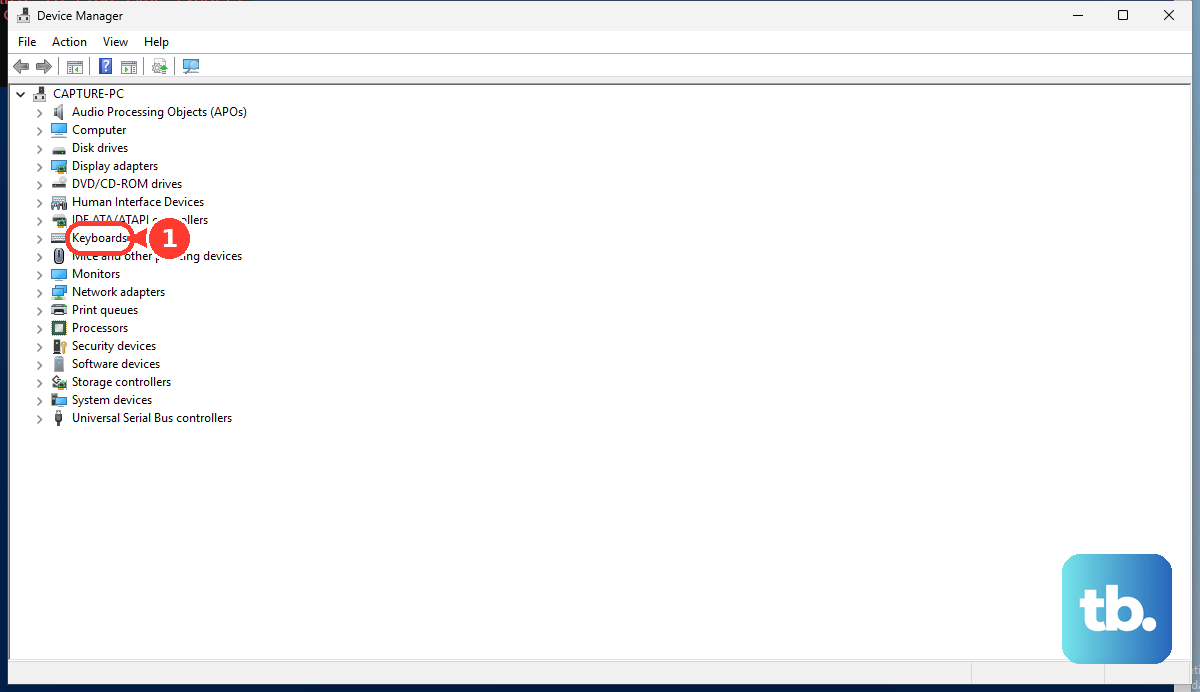
Select Search automatically for drivers. If that doesn't help, right-click the device again and choose Uninstall device. Restart your laptop, and Windows will automatically reinstall a fresh driver.
Run the HP Hardware Diagnostics
HP builds a diagnostic tool right into the BIOS. Restart your OMEN 16 and immediately press the F2 key repeatedly as it boots. This will launch the HP PC Hardware Diagnostics UEFI.
Select Component Tests, then Keyboard. The test will check each key. If it finds a hardware failure, you'll know the issue is physical.
Disable Filter Keys and Sticky Keys
Windows accessibility features can sometimes turn on accidentally, making the keyboard feel laggy or unresponsive. Go to Settings > Accessibility > Keyboard.
Make sure the toggles for Sticky keys, Filter keys, and Toggle keys are all switched off. It's worth checking this even if you didn't enable them.
Check Your Keyboard Language and Layout
If your keys are typing the wrong symbols or letters, your input language may have switched. Click the language abbreviation in your taskbar (like "ENG") or go to Settings > Time & language > Typing > Advanced keyboard settings.
Ensure your preferred language is set correctly. Remove any extra keyboard layouts you don't use from the list to prevent accidental switching.
Boot Into Safe Mode
If the keyboard works in Safe Mode, a third-party application is likely causing the problem. To boot into Safe Mode, go to Settings > System > Recovery and click Restart now next to "Advanced startup."
After the reboot, choose Troubleshoot > Advanced options > Startup Settings > Restart. Press the 4F4 key to enable Safe Mode. If the keyboard works here, uninstall any recently added software.
Clean the Keyboard
Dust, crumbs, or spilled liquid can block key mechanisms. Turn the laptop off and unplug it. Use a can of compressed air to blow debris out from between the keys.
For more stubborn grime, lightly dampen a cotton swab with isopropyl alcohol (90% or higher) and carefully clean around the edges of the problematic keys. Let it dry completely before powering on.
Use an External Keyboard and Check for Updates
Plug in a USB keyboard as a temporary workaround. If it works perfectly, it strongly points to an issue with your laptop's internal keyboard hardware or its connection.
While you have input, check for overall system updates. Go to Settings > Windows Update and install any pending updates. Also, consider updating your GPU drivers directly from the NVIDIA or AMD website, as chipset drivers included can sometimes affect system input.