
When you plug your HP OMEN 16 into a second monitor and get nothing but a blank screen, it's a real momentum killer. The problem usually sits with the cable, a Windows setting, or the graphics drivers. Let's get your dual-screen setup working.
Press Windows + P First
This is the fastest thing to try. Press the Windows + P keys together. A menu will pop up on the right side of your screen. Make sure it's not set to PC screen only. Choose Duplicate or Extend instead. Sometimes Windows just needs a nudge to send the signal out.
Check Your Cable and Ports
Unplug the HDMI or DisplayPort cable from both your laptop and the monitor, then plug it back in firmly. I've seen loose connections cause this more often than you'd think. If you have a spare cable, try it. Also, double-check that your monitor is set to the correct input source, like HDMI 1 or DisplayPort 2.
Restart With the Monitor Connected
Shut down your OMEN 16 completely, not just sleep. With the external monitor still plugged in, power the laptop back on. This forces the NVIDIA or AMD graphics card to re-initialize and detect the display during the boot process, which can clear up a lot of handshake issues.
Update Your Graphics Drivers
For the OMEN 16, you'll get the best results by going straight to the source. Don't just rely on Windows Update. Visit the NVIDIA or AMD website directly and download the latest Game Ready or Adrenalin driver for your specific GPU model. HDMI and DisplayPort support are constantly being improved in these updates.
You can also use the OMEN Gaming Hub software, as it sometimes offers driver updates tailored for your system. After installing, a restart is usually required for the changes to take full effect.
Use Windows Display Settings
Right-click on your desktop and select Display settings. On this page, click the Detect button. If Windows sees your monitor, it will appear as a second screen. Click on it and scroll down to ensure the display resolution and refresh rate are set to values your monitor supports.
If the resolution is set too high, the monitor might not display anything. Try setting it to a common resolution like 1920x1080 to see if that works, then adjust from there.
Try a Different Video Port
The OMEN 16 typically has multiple video outputs. If you're using the HDMI port, try a USB-C to DisplayPort or HDMI adapter instead. If the signal works through the USB-C port but not the dedicated HDMI, it could point to a physical issue with the HDMI port itself.
Test With Another Monitor or TV
To completely rule out your primary monitor as the problem, plug your laptop into a different screen. An old TV or a friend's monitor will do. If the second screen works fine, then you know the issue is with your original monitor's settings or its input port.
Refresh the Display Adapter in Device Manager
Press Windows + X and select Device Manager. Expand the Display adapters section. Right-click on your NVIDIA or AMD graphics card and select Disable device. Wait about ten seconds, then right-click it again and choose Enable device.
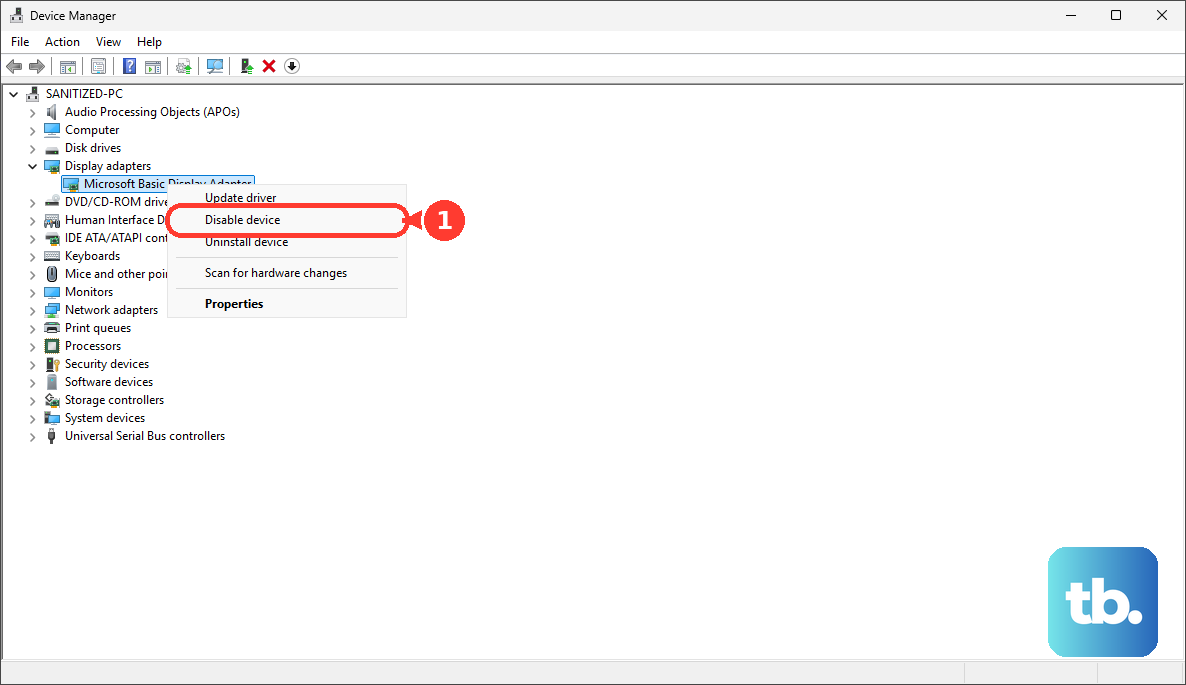
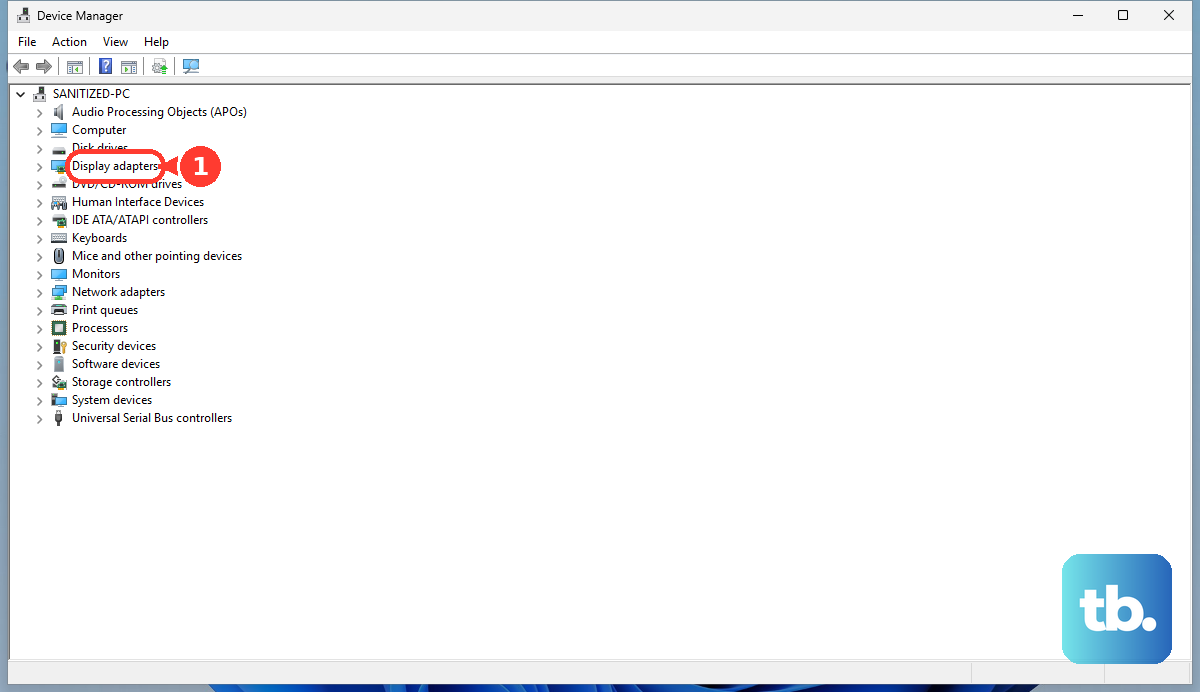
This resets the GPU driver and can often jolt an external display back to life. Your screen will flicker as it does this.
Check for BIOS Settings
This is a less common fix, but worth checking if you've recently updated your BIOS. Restart your OMEN 16 and immediately press the F10 key repeatedly to enter the BIOS setup. Look for any settings related to display output, primary display, or graphics configuration.
Make sure nothing is set to disable external displays. If you're unsure, you can often find a option to "Load Setup Defaults" or "Restore Factory Settings" in the BIOS, which will revert any accidental changes. Just be sure to save and exit.