
That sudden blue screen crash on your HP OMEN 16 is Windows hitting the emergency brake. It's usually a driver conflict, a hardware hiccup, or a system file that's gotten corrupted. The specific error code on the screen points to the cause, but the fixes below work for most of them.
Write Down the Stop Code
When the blue screen flashes, look for the all-caps stop code like "VIDEO_TDR_FAILURE" or "SYSTEM_SERVICE_EXCEPTION." Jot it down. That code is your biggest clue, but starting with these general troubleshooting steps often solves the problem before you even need to search for it.
Perform a Full Restart
A single blue screen can sometimes be a random glitch. Hold the power button down for about 10 seconds to force a full shutdown. Wait a moment, then power it back on. If it boots to Windows and runs normally, it might have been a one-off event. If the blue screen comes back quickly, you've got a recurring issue to tackle.
For a more thorough restart that clears the system's temporary memory, shut down the laptop completely. Unplug the power adapter and hold the power button for 15 seconds. Plug it back in and turn it on. I've seen this simple power cycle resolve weird driver states that cause crashes.
Boot Into Safe Mode
If the laptop crashes before you can log in, you'll need to boot into Safe Mode. From the sign-in screen, hold the Shift key while you click the power icon and select Restart. After it reboots to a blue menu, go to Troubleshoot > Advanced options > Startup Settings > Restart. When it restarts again, press the 4 key to enable Safe Mode.
Safe Mode loads Windows with only the essential drivers. If your OMEN 16 is stable in Safe Mode, it strongly points to a software or driver problem you recently installed. This gives you a stable environment to start removing the culprit.
Roll Back a Problematic Update
Think about when the crashes started. If it was right after a Windows Update, you can uninstall it. Go to Settings > Windows Update > Update history > Uninstall updates. Look for the most recent quality update, right-click it, and select Uninstall. The same goes for any driver update you installed just before the trouble began.
Update Your Drivers, Especially the GPU
Outdated or buggy drivers are the most common cause of blue screens on a gaming laptop. Don't just rely on Windows Update for this. For your NVIDIA or AMD graphics card, go directly to the manufacturer's website and download the latest Game Ready or Adrenalin driver. Use the custom install option and check the box for a clean installation.
Also, visit the official HP support page for your specific OMEN 16 model. Download and install the latest chipset, audio, and network drivers from there. Conflicts between generic Windows drivers and HP's optimized versions can sometimes cause instability.
Use the OMEN Gaming Hub for Stability
The OMEN Gaming Hub isn't just for RGB lights. Open it and check your performance settings. An unstable overclock or an overly aggressive fan curve that isn't keeping up can lead to thermal throttling and crashes. Try switching to the "Default" or "Balanced" performance profile to see if it stabilizes your system.
Also, check for software conflicts. Some third-party system monitoring or lighting control apps can interfere with the OMEN Command Center background processes. Try closing non-essential apps running in your system tray.
Scan for Corrupted System Files
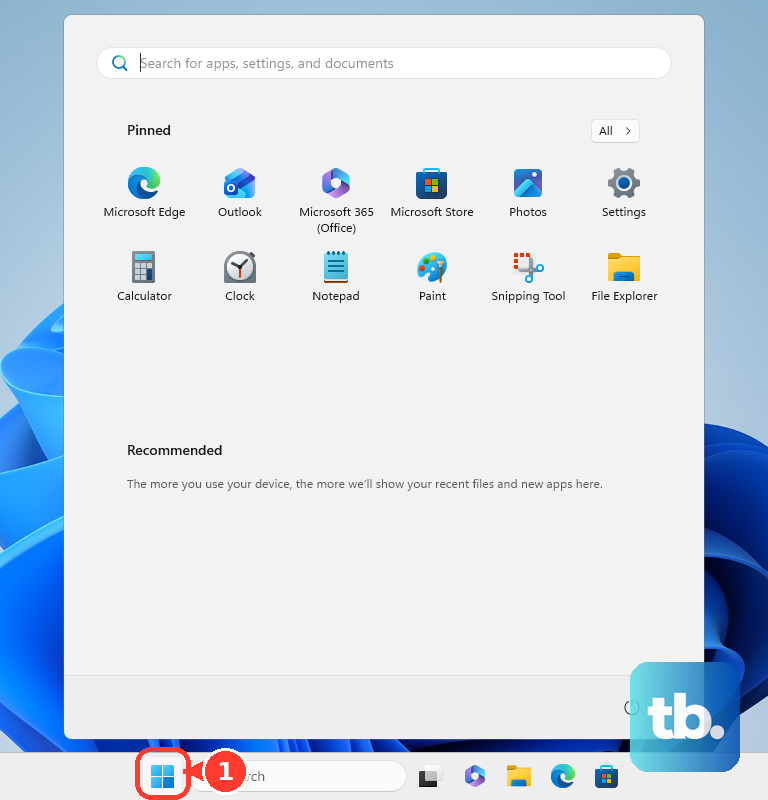
Open the Start menu, type "cmd," right-click on Command Prompt, and select Run as administrator. In the black window, type sfc /scannow and press Enter. This System File Checker will scan and repair corrupted Windows files. If it finds problems it can't fix, run DISM /Online /Cleanup-Image /RestoreHealth first, then try sfc again.
Test Your Laptop's Memory
Faulty RAM is a classic blue screen culprit. Your HP OMEN 16 has a built-in hardware diagnostic tool. Restart the laptop and immediately press the F2 key repeatedly to launch HP PC Hardware Diagnostics. From there, you can run a comprehensive memory test. If it finds errors, you may need to reseat the RAM modules or have them replaced.
You can also use the Windows tool. Search for "Windows Memory Diagnostic" in the Start menu, run it, and choose to restart and check for problems. The test runs before Windows loads and will show results after you boot back up.
Check Your SSD for Errors
Open an Administrator Command Prompt like before. Type chkdsk C: /f /r and press Enter. It will schedule a disk check for the next restart. Type "Y" to confirm, restart your laptop, and let the check run. A failing SSD can cause all sorts of critical errors. If chkdsk reports a large number of bad sectors, it's a sign the drive is failing.
Address Overheating and Thermal Throttling
Gaming laptops live on the thermal edge. If blue screens happen during intense gaming or rendering, overheating is a prime suspect. Use the OMEN Gaming Hub to monitor your CPU and GPU temperatures. Make sure the laptop's vents are clear of dust and it's sitting on a hard, flat surface for proper airflow.
Consider using a cooling pad for long sessions. I'd start by cleaning the fans and vents with a can of compressed air. Thermal throttling, where the CPU/GPU slows down to cool off, can sometimes manifest as instability and crashes if the system can't manage the heat load effectively.
Reset Your PC
If you've tried everything and the blue screens won't stop, a reset is your next major step. Go to Settings > System > Recovery and click Reset this PC. Choose Keep my files to reinstall Windows while preserving your personal documents. This will remove all your apps and drivers, giving you a fresh start with a clean system, which often resolves deep-seated software conflicts.