
When your HP Envy x360 15 shows "USB Device Not Recognized" or simply doesn't detect a connected device, it's a common hiccup. The convertible design and multiple USB ports mean there are a few specific things to check on this model.
Check the Physical Connection and Port
Unplug the device and try a different USB port on your laptop. The Envy x360 15 typically has both USB-A and USB-C ports. If the device works in another port, the original one might have a loose connection or physical debris inside. I'd start with this simple swap, as it's the quickest way to rule out a hardware fault with the port itself.
Perform a Full Restart
Close all your programs and do a full restart of your laptop, not just putting it to sleep. This reloads the USB drivers and resets the USB controller, which can clear up temporary glitches. For the Envy x360, make sure it's in laptop mode before restarting to avoid any potential sensor confusion during the boot process.
Test the USB Device Elsewhere
Connect the problematic USB device to another computer. If it fails to be recognized there as well, the issue is almost certainly with the device or its cable. If it works perfectly on another machine, then the problem is isolated to your Envy x360's configuration or drivers.
Inspect and Swap the Cable
For devices like external hard drives or phones, the cable is a frequent point of failure. Try a different, known-good cable. A cable can often continue to provide power (so a light might turn on) but have broken internal data wires, which is why the laptop can't communicate with the device.
Update or Reinstall USB Drivers
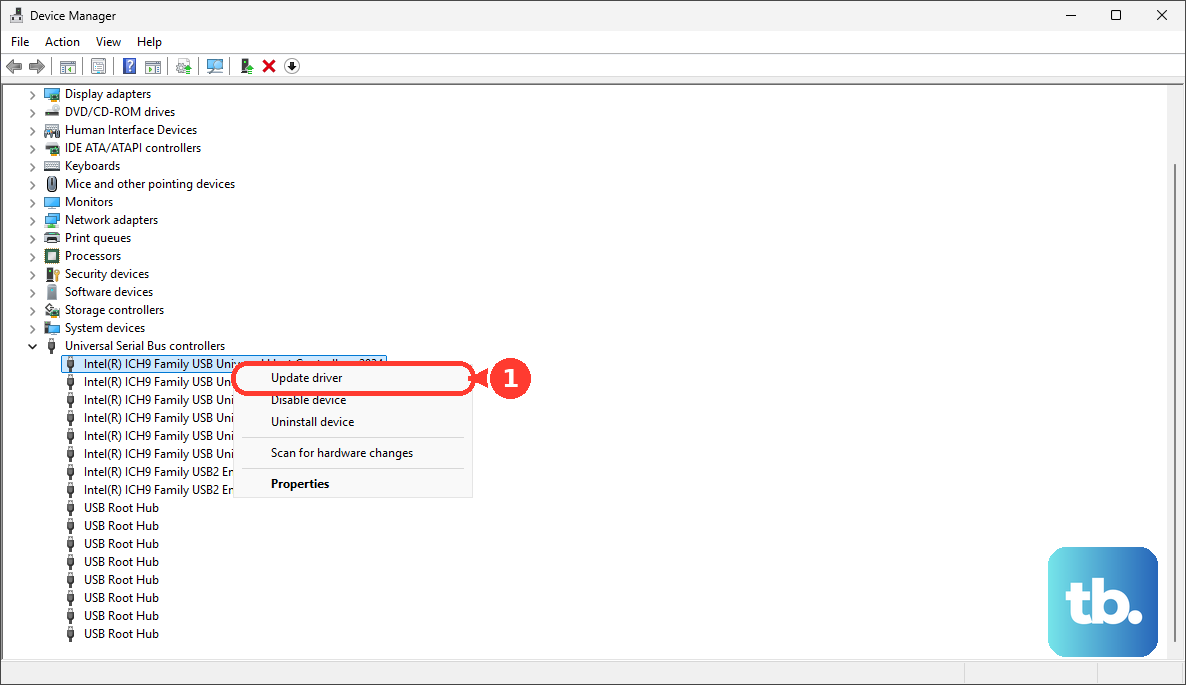
Press the Windows key + X and select Device Manager. Look for the section called Universal Serial Bus controllers and expand it. Right-click on any entry with a yellow exclamation mark and choose Update driver. If there are no errors, you can try right-clicking on your USB device (if it appears under "Other devices" as an unknown device) and selecting Uninstall device, then restart your laptop to let Windows reinstall it fresh.
Use HP Support Assistant
Your Envy x360 comes with HP Support Assistant pre-installed. Open it and run a check for updates. This tool is tailored for HP hardware and can often find and install newer, more compatible drivers for your chipset and USB controllers than the standard Windows Update might offer. It's a good first stop for driver-related issues.
Disable USB Selective Suspend
This Windows power-saving feature can sometimes turn off USB ports prematurely. To disable it, go to Control Panel > Hardware and Sound > Power Options. Click Change plan settings next to your selected plan, then Change advanced power settings. In the new window, expand USB settings and then USB selective suspend setting. Set both "On battery" and "Plugged in" to Disabled.
Check for Windows Updates
Go to Settings > Windows Update and click Check for updates. Install all available updates, especially any optional driver updates. Microsoft and HP frequently release patches that improve hardware compatibility and stability, including for USB.
Run the Hardware Diagnostics
HP includes a built-in hardware test suite. Restart your Envy x360 and immediately press the F2 key repeatedly as it boots. This will launch the HP PC Hardware Diagnostics UEFI. You can run a system quick test, or a more thorough component test, which will check the functionality of your USB ports and controllers at a hardware level.
Scan for Hardware Changes in Device Manager
With your USB device plugged in, go back to Device Manager. Click on the Action menu at the top and select Scan for hardware changes. This prompts Windows to immediately re-check all connections and often triggers the detection of a device it previously missed.