
An overheating HP Envy x360 15 can feel uncomfortably hot to the touch, cause the fans to run at full blast, and lead to performance throttling or sudden shutdowns. This is a common issue with convertible laptops due to their compact design, but there are several effective ways to cool it down.
Clean the Vents and Fans Thoroughly
Dust is the most common culprit for overheating. The Envy x360's intake vents are along the bottom and sides, and they can clog up quickly. Grab a can of compressed air and give those vents several short bursts to blow the dust out. I'd avoid using a vacuum cleaner, as it can create static electricity that might harm the internal components.
For a laptop that's a year or more old, a good cleaning can make a significant difference in temperature and fan noise. If you're comfortable, you can remove the bottom panel for a more thorough cleaning, but compressed air through the vents is a great start.
Always Use a Hard, Flat Surface
This is critical for any laptop, but especially for a 2-in-1 like the Envy x360. Using it on a bed, blanket, or your lap blocks the bottom air intakes completely. The heat has nowhere to go, so the internal temperature skyrockets.
Make sure you're always working on a desk, table, or a dedicated lap desk. Even propping up the back of the laptop with a book or a stand can improve airflow dramatically and help the cooling system work as intended.
Adjust Windows Power Plans
Windows is often set to a balanced or high-performance mode by default, which keeps the CPU ready for action and generates more heat. For general browsing and office work, you can switch to a more efficient plan. Click the battery icon in your system tray and move the slider to Best power efficiency.
You can create a custom plan for more control. Go to Settings > System > Power & battery and click on Power mode. Setting this to "Best power efficiency" will help keep things cooler during everyday tasks.
Manage Background Tasks and Startup Apps
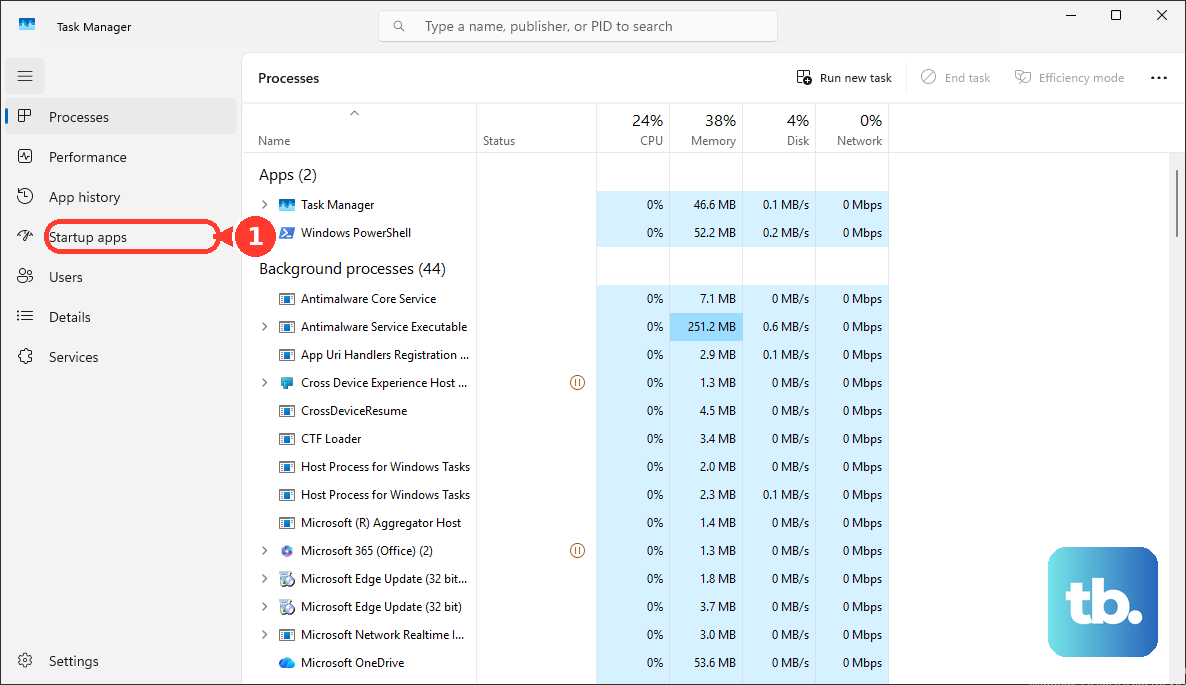
Too many programs running in the background will keep your CPU busy and hot. Press Ctrl + Shift + Esc to open Task Manager and click on the CPU column to sort by usage. Look for any unexpected apps using a high percentage.
Also, check your startup apps. Go to the Startup apps tab in Task Manager and disable anything you don't need launching automatically when Windows boots. Fewer background processes mean less heat.
Update Drivers and BIOS with HP Support Assistant
Outdated drivers, especially for the chipset and graphics, can cause poor thermal management. HP makes this easy. Open the HP Support Assistant app that came pre-installed on your laptop. It will scan for and recommend the latest driver and BIOS updates specifically for your model.
A BIOS update from HP can include improved fan control algorithms and thermal profiles. It's a good step that many people overlook. You can also press F10 during startup to enter the BIOS settings directly, but let the Support Assistant handle updates first.
Consider a Laptop Cooling Pad
If you use your Envy x360 for extended gaming sessions, video editing, or other intensive work, a cooling pad is a worthwhile investment. These pads have built-in fans that push extra air up into your laptop's bottom vents.
Look for a pad with larger fans or ones that align well with your laptop's intake areas. A good pad can lower your internal temperatures by a noticeable 5 to 10 degrees Celsius under load, which also helps with sustained performance.
Lower Screen Brightness and Check for Malware
The display is a major source of heat. Reducing your screen brightness to a comfortable level can have an immediate cooling effect. You can adjust this quickly with the Fn + F2/F3 keys or in Settings > System > Display.
Also, malware or crypto-mining scripts can max out your CPU without your knowledge. Run a full scan with Windows Security or your installed antivirus to rule out any malicious software causing the overheating.
Check for HP-Specific Driver Conflicts
Some Envy x360 models have had reported issues with audio drivers, particularly from Realtek, causing high CPU usage. If you notice the "System" or a service like "Audiodg" using high CPU in Task Manager, try updating your audio drivers through HP Support Assistant.
If the problem persists, you can try rolling back the audio driver to a previous version via Device Manager to see if it stabilizes CPU usage and reduces heat.
Repaste the Thermal Compound (Advanced)
If your laptop is several years old and still overheating after all other fixes, the thermal paste between the processor and the heatsink may have dried out. Replacing this paste with a fresh, high-quality compound like Arctic MX-4 can dramatically improve heat transfer.
This requires carefully removing the bottom panel and the cooling assembly. If you're not experienced with laptop hardware, I'd recommend having this done by a professional technician to avoid any damage.
Run HP Hardware Diagnostics
If you're concerned the overheating might be due to a failing fan or sensor, HP has a built-in diagnostic tool. Restart your laptop and immediately press the F2 key repeatedly. This will boot into the HP PC Hardware Diagnostics UEFI menu.
You can run system tests, including a fan test, to check if the hardware is functioning correctly. This can help you determine if the issue is software-related or a potential hardware fault needing service.