
When your HP Envy x360 15 says it's plugged in but the battery percentage isn't going up, it's a frustrating roadblock. The issue usually comes down to the power adapter, the USB-C port, a software glitch, or the battery itself. Let's get it sorted.
Start With the Power Adapter and Cable
First, check the physical hardware. Look at the USB-C cable for any kinks, fraying, or damage to the connectors. Make sure the power brick is firmly plugged into the wall outlet and that the outlet is working.
The LED light on the HP power adapter should be on when it's connected to power. If it's not lit, that's your first clue the problem is with the adapter or the wall socket. I'd try a different outlet first.
Perform a Full Restart
Shut down your laptop completely, don't just put it to sleep. Once it's fully off, plug the charger back in and turn it on. This simple step resets the laptop's power management controller and can often force it to re-recognize the charger.
For a more thorough reset, you can try a hard reset. Turn the laptop off, unplug the charger, and hold down the power button for about 15 seconds. Then, plug the charger back in and power it on normally.
Run HP's Built-In Diagnostics
HP includes a hardware diagnostic tool that can check the battery and adapter. Restart your Envy x360 and immediately press the F2 key repeatedly as it boots up.
This will launch the HP PC Hardware Diagnostics UEFI. You can run the component tests, specifically the power test, to see if the system detects a problem with your battery or power supply.
Check for a Software Charge Limit
Some HP software, like HP Command Center or the BIOS, can set a battery charge limit to prolong battery lifespan. If this is enabled, charging will stop at a certain percentage, like 80%.
Open the HP Command Center from your Start menu and check the power settings. Also, you can enter the BIOS by pressing F10 at startup and look for a Battery Care or similar setting.
Update or Reinstall Battery Drivers
A corrupted driver can stop Windows from communicating correctly with the battery. Press the Windows key + X and select Device Manager. Expand the Batteries section.
Right-click on Microsoft ACPI-Compliant Control Method Battery and select Uninstall device. Do the same for the ACPI-Compliant Control Method Battery listing if you see it. Restart your laptop, and Windows will automatically reinstall fresh drivers.
Use HP Support Assistant
This is a great tool for Envy owners. Open the HP Support Assistant app. It can automatically find, download, and install the latest drivers and BIOS updates specifically for your model.
I've seen this resolve charging issues that were tied to outdated power management firmware. Let it run all recommended updates, especially any BIOS or system firmware updates.
Inspect and Clean the USB-C Port
The USB-C port on the Envy x360 can be sensitive. Over time, pocket lint and dust get packed into the bottom of the port, preventing the charger from clicking in fully.
Shine a light into the port and look for debris. Use a wooden or plastic toothpick to very gently scrape around the center tab to dislodge anything. Avoid using metal, like a paperclip, as it can damage the contacts.
Test With a Different Charger
If you can, try a different USB-C charger that you know is working, preferably one rated for 65W or higher. Lower-wattage phone chargers often won't charge a powerful laptop like the Envy x360 15, especially while it's on.
Also, make sure you're plugging into the correct USB-C port if your model has more than one. Not all USB-C ports on every laptop support charging.
Update Your System BIOS
HP frequently releases BIOS updates that fix power management and charging bugs. Go to the official HP support website, enter your exact Envy x360 15 model number, and look under "Driver - BIOS."
Download and install the latest BIOS update following HP's instructions exactly. Make sure your laptop is plugged in and don't interrupt the process while it updates.
Check the Battery's Physical Health
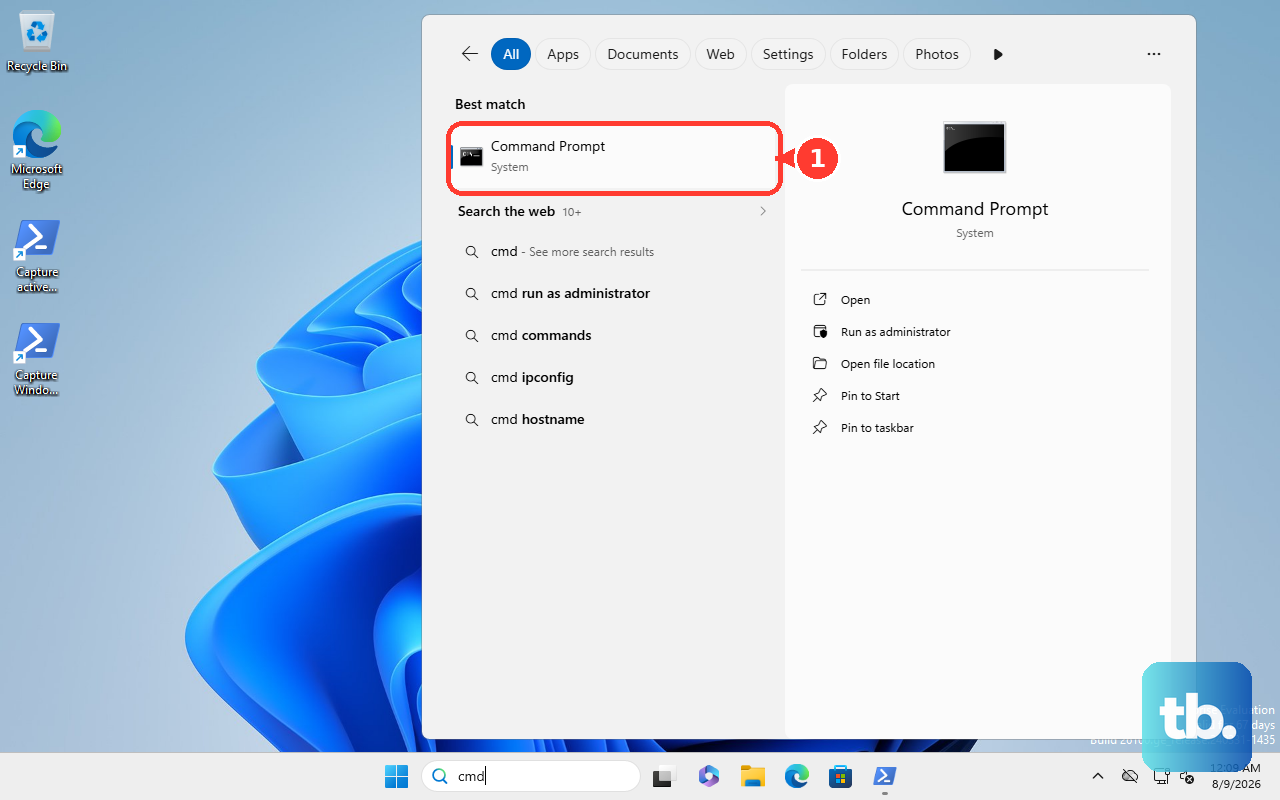
You can get a detailed report on your battery's condition. Open Command Prompt as an administrator and type the command: powercfg /batteryreport.
This saves an HTML file to your computer. Open it and look for "DESIGN CAPACITY" versus "FULL CHARGE CAPACITY." If the full charge capacity is significantly lower than design capacity, the battery may be worn out and struggling to accept a charge.