
When your HP Envy x360 15's keyboard stops responding, it can feel like you've hit a brick wall. The keys might be completely dead, some might not register, or they could be typing the wrong characters entirely. I'd start with a simple restart, as that clears up a surprising number of these glitches.
Before assuming a key is dead, open a keyboard test in your browser and press the keys in question. If they light up there, the hardware works and the problem is software related.
Force a Full Shutdown and Restart
If the keyboard is totally unresponsive, you'll need to use the power button. Hold it down for about 15 seconds until the laptop's lights go off and the screen goes completely black. Wait a few seconds, then press the power button once normally to turn it back on. This forces a full hardware reset and reloads all the drivers, including the one for your keyboard.
Check for Physical Debris
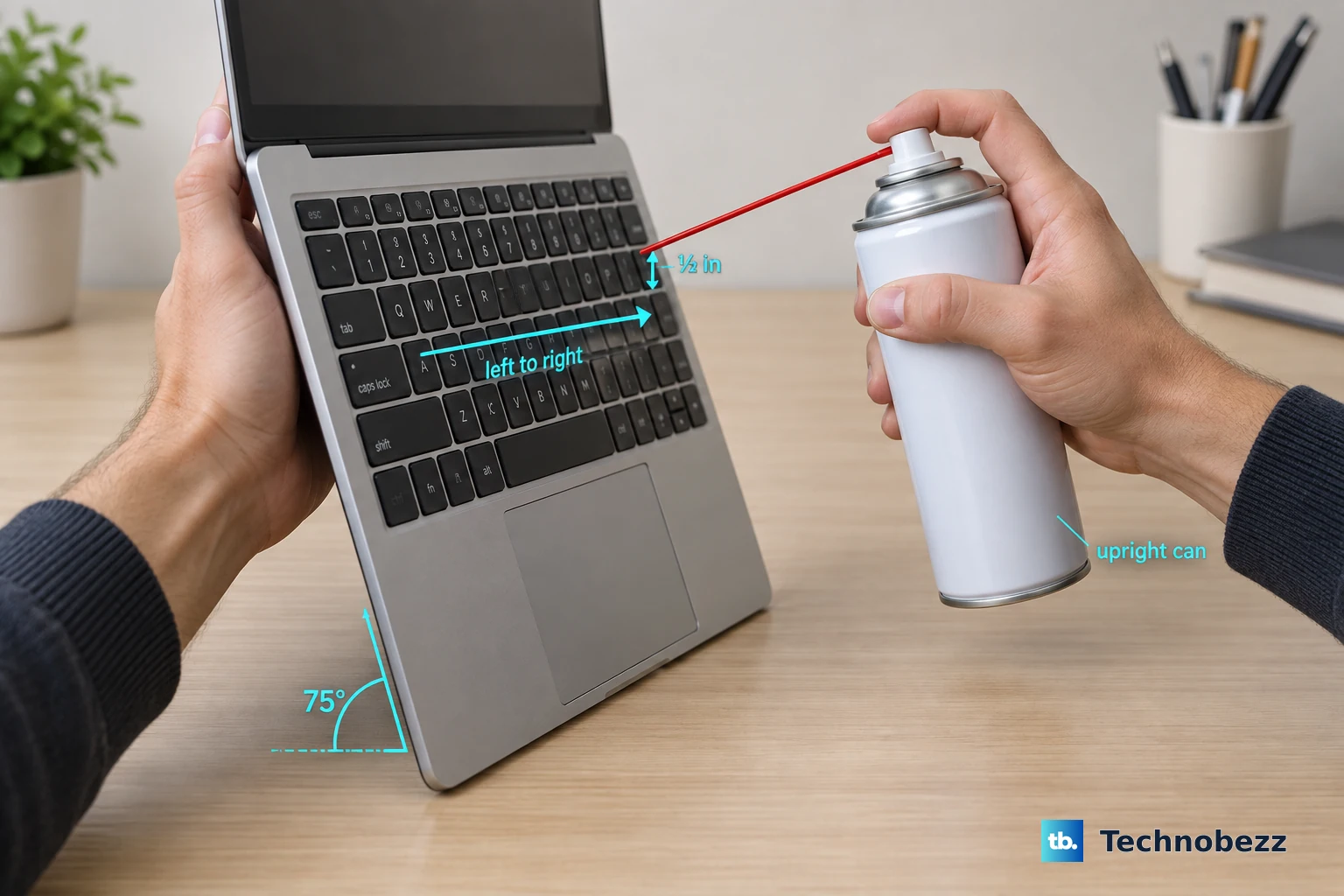
The convertible design of the Envy x360 means it can be used in tablet or tent mode, which sometimes leads to crumbs or small debris finding their way under the keys. Gently turn the laptop on its side and tap the bottom. You can also use a can of compressed air to blow between the keycaps, which often dislodges the culprit.
Disable Filter Keys in Windows
An accidentally enabled accessibility feature can make your keyboard seem broken. Press the Windows key to open the Start menu, type "Filter Keys," and select "Turn Filter Keys on or off." Make sure the toggle is set to Off. While you're there, check that Sticky Keys is also turned off, as it can cause similar confusion.
Update or Reinstall the Keyboard Driver
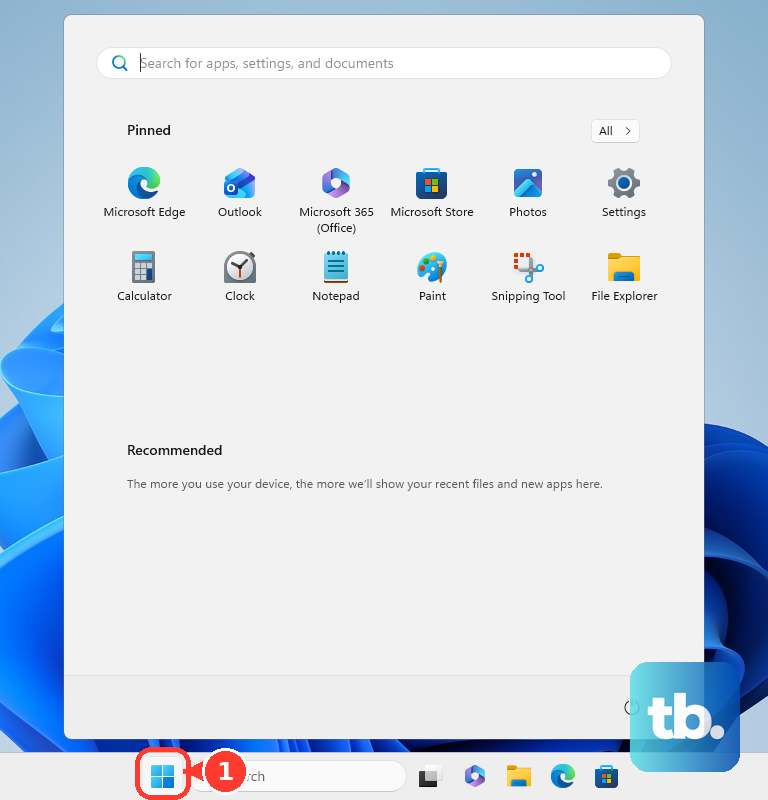
Open the Start menu and type "Device Manager," then select it. Expand the "Keyboards" section, right-click on "Standard PS/2 Keyboard" or a similar listing, and choose "Update driver." Let Windows search automatically. If that doesn't help, right-click again and select "Uninstall device." Don't worry, just restart your laptop and Windows will automatically reinstall a fresh driver upon booting.
Run the HP Hardware Diagnostics
HP builds a great diagnostic tool right into the BIOS. Restart your Envy x360 and immediately begin pressing the F2 key repeatedly until the HP PC Hardware Diagnostics UEFI menu appears. From there, you can run a system test or a specific component test for the keyboard. This will tell you definitively if there's a hardware failure.
Use HP Support Assistant
Your laptop likely came with HP Support Assistant pre-installed. Open it and check for updates. This tool is smart, it often finds and applies driver updates and fixes specifically for your Envy model that the standard Windows Update might miss. I've seen it resolve conflicts, especially with audio drivers that can sometimes interfere with system input.
Check Your Keyboard Language and Layout
If keys are producing the wrong symbols, your input language might have switched. Click the language abbreviation in your taskbar (like "ENG" or "USA") and verify the correct layout is selected. You can also go to Settings > Time & Language > Language & Region and remove any keyboard layouts you don't use to prevent accidental switching.
Boot into Safe Mode
If the keyboard works in Safe Mode, you know a recently installed program is causing the conflict. To get into Safe Mode, go to Settings > System > Recovery and click "Restart now" under Advanced startup. After the reboot, choose Troubleshoot > Advanced options > Startup Settings > Restart. Press 4 or F4 to enable Safe Mode. Once in, you can uninstall any new software.
Plug in an External Keyboard
This is a great diagnostic step. Plug any USB keyboard into one of your Envy's ports. If the external keyboard works flawlessly, it strongly points to a hardware issue with the built-in keyboard, like a loose internal ribbon cable or possible liquid damage. It also gives you a way to keep working while you figure out the permanent fix.
Check for Windows Updates and Driver Rollbacks
Head to Settings > Windows Update and install any available updates. If the problem started right after a recent update, you can roll that driver back. Go back to Device Manager, right-click your keyboard under "Keyboards," choose "Properties," go to the "Driver" tab, and select "Roll Back Driver" if the option is available.