
When your HP Envy x360 15 doesn't recognize a connected monitor or TV, it's usually a quick settings or driver fix. The convertible design can sometimes add a wrinkle, but I'd start with the basics.
Press Windows + P First
This is the fastest thing to try. Press the Windows + P keys together to bring up the projection menu. Make sure it's not set to "PC screen only," which disables the external output. Try selecting Duplicate or Extend to see if your second screen wakes up.
Check Your Physical Connections
Unplug the HDMI or USB-C cable from both your laptop and the monitor, then firmly reconnect them. If you're using an adapter, make sure it's fully seated. The USB-C ports on the Envy x360 can be a bit sensitive, so a loose connection is a common culprit.
Also, verify the monitor itself is powered on and set to the correct input source, like HDMI 1 or DisplayPort. Try a different cable if you have one handy, as cables do fail over time.
Run the Display Detect Feature
Go to Settings > System > Display. Near the top, you should see a button labeled Detect. Click it. Windows will actively search for any connected displays. If it finds your monitor, it will appear here and you can adjust its arrangement and resolution.
Update Your Graphics Drivers
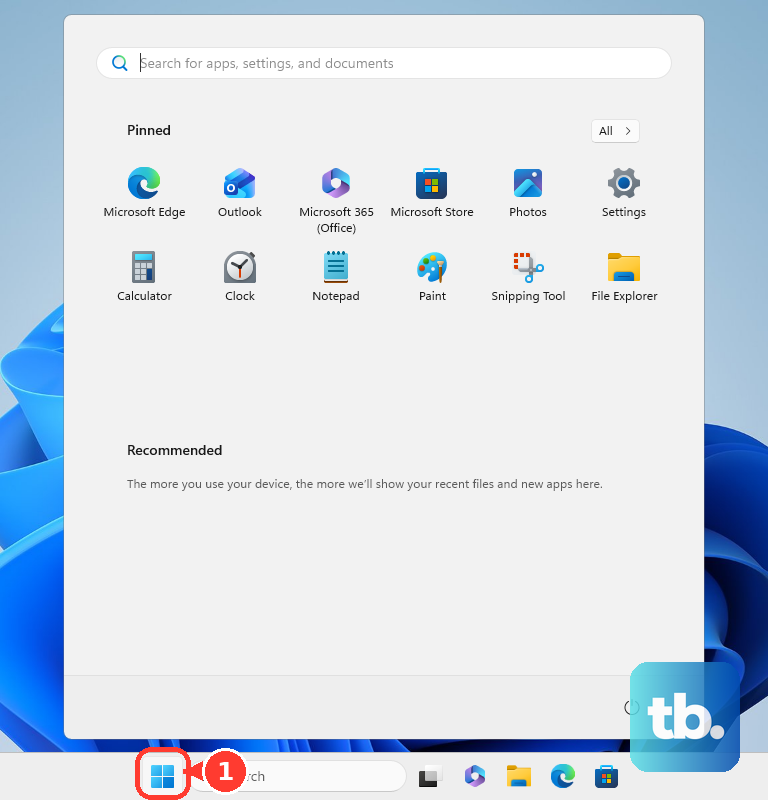
Outdated or corrupted display drivers are a frequent cause. Open the Start Menu, type "Device Manager," and open it. Expand the Display adapters section, right-click on your GPU (Intel Iris Xe, AMD Radeon, or NVIDIA), and select Update driver.
Choose "Search automatically for drivers." For the best results, especially with AMD or NVIDIA chips, I'd recommend visiting the manufacturer's website directly to download the latest driver package. HP also bundles tested drivers in their Support Assistant.
Restart Your Laptop While Connected
With the external display still plugged in, go ahead and restart your Envy x360. Sometimes the graphics card only initializes the external ports during the boot sequence. A fresh start with everything connected can force it to recognize the second screen.
Use HP Support Assistant
HP includes a handy tool for this. Open HP Support Assistant from your Start Menu. Look for a "Troubleshoot" or "Fix and Optimize" section. It can automatically run diagnostics and apply known fixes for common display and driver issues, which can save you a lot of manual steps.
Disable and Re-enable the Display Adapter
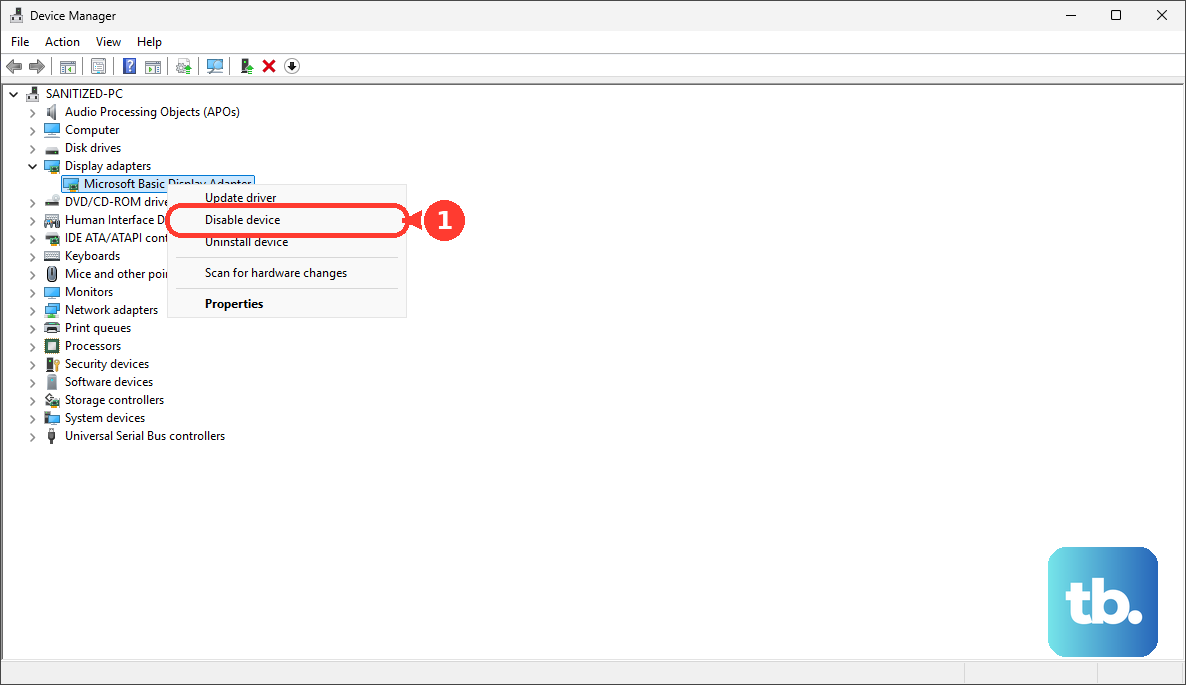
Back in Device Manager, under Display adapters, right-click on your graphics driver again. This time, select Disable device. Wait about ten seconds, then right-click it again and choose Enable device. This performs a quick refresh of the graphics system and can re-establish the connection to your external monitor.
Check for BIOS Settings
On the Envy x360, you can press F10 repeatedly as the computer starts up to enter the BIOS setup. Navigate using the arrow keys and look for any display or video-related settings. Ensure nothing is set to disable external video output. This isn't common, but a BIOS update can sometimes reset preferences.
Test a Different Port or Display
If your monitor has multiple inputs, try a different one. More importantly, if your Envy x360 has both an HDMI port and a USB-C port that supports video, try the other one. You might need a USB-C to HDMI adapter.
Finally, connect your laptop to a different TV or monitor if possible. This will tell you if the issue is with your laptop's output or the original display's input.