
When your HP Envy x360 15's camera shows a black screen, it can throw a wrench into your video calls and online meetings. The issue can stem from software settings, driver conflicts, or even the laptop's unique convertible design. Let's get it working again.
Check the Physical Privacy Shutter
First, look at the top bezel of your screen where the camera is located. Many Envy models have a tiny physical slider right next to the camera lens. If this slider is covering the lens, you'll just see a black screen. Gently slide it to the side to uncover the camera.
Run HP Support Assistant
HP includes a handy tool for exactly these kinds of problems. Open the HP Support Assistant app from your Start menu. Look for a "Troubleshoot" or "Fix and Optimize" section. It can automatically scan for and fix common camera issues, including driver problems, which I've found resolves things quickly.
Update Your Camera Drivers
Press the Windows key and type "Device Manager," then open it. Expand the section called "Cameras," "Imaging devices," or even "Sound, video and game controllers." Right-click on your HP camera (it might be listed as an "HP HD Camera" or "HP Wide Vision HD Camera") and select "Update driver." Choose "Search automatically for drivers."
If that doesn't find anything, you can visit the official HP support site, enter your specific Envy x360 15 model number, and download the latest camera driver directly from there. Installing it manually often works better.
Check Windows Privacy Settings
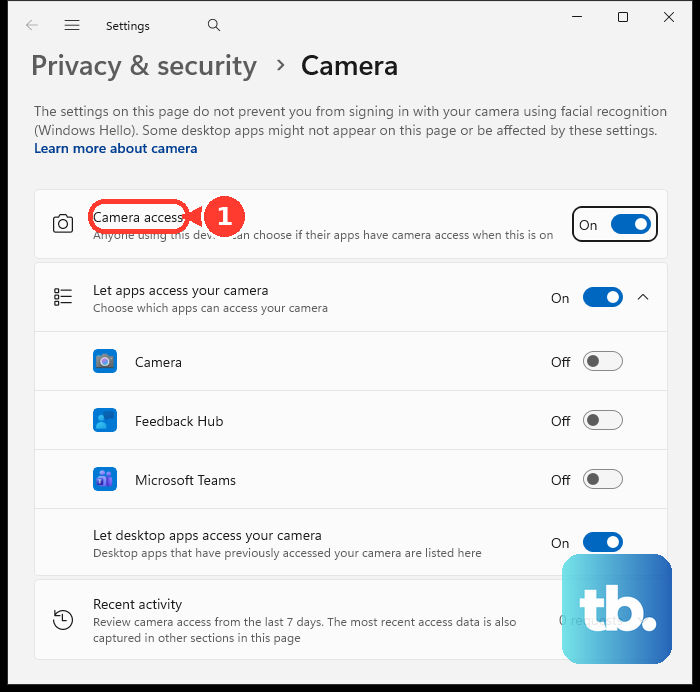
Windows has a global camera privacy switch. Go to Settings > Privacy & security > Camera. Ensure "Camera access" is turned On. Then, scroll down to "Let apps access your camera" and make sure it's also enabled.
Finally, check the individual app list further down the page. Find the app you're having trouble with (like Zoom, Microsoft Teams, or Chrome) and toggle its camera access to On. A mismatch here is a very common culprit.
Close Other Apps Using the Camera
Your camera can only be used by one program at a time. If you have another app running in the background, even if it's not visibly on screen, it can lock the camera. Press Ctrl + Shift + Esc to open Task Manager.
Look under the "Processes" tab for any video conferencing apps, browsers with video tabs open, or the Camera app itself. Select any you find and click "End task." Then try your camera again in the app you want to use.
Test in the Windows Camera App
Open the built-in "Camera" app from your Start menu. This is a great diagnostic tool. If the camera works perfectly here but fails in another app like Zoom, you know the hardware is fine. The problem is isolated to that other app's settings.
In that case, go into the problematic app's video or settings menu and make sure it's selected to use your "HP HD Camera" or "HP Wide Vision HD Camera," not a different or non-existent device.
Reinstall the Camera Driver
If updating didn't help, a clean reinstall might. Go back to Device Manager, right-click on your HP camera driver, and select "Uninstall device." Check the box that says "Attempt to remove the driver for this device" if you see it. Restart your laptop.
When Windows boots back up, it will automatically detect the camera hardware and reinstall a fresh driver. This clears out any corrupted files that were causing the black screen.
Check for Windows Updates
Sometimes, a Windows update itself includes a fix for camera compatibility. Go to Settings > Windows Update and click "Check for updates." Install any available feature or quality updates.
After the update, also click on "Advanced options" and then "Optional updates." There's often a driver update listed here specifically for your HP camera or chipset that didn't come through the standard update channel.
Consider Your Laptop's Physical Mode
The Envy x360 is a convertible. If you're using it in tablet, tent, or stand mode, Windows might be disabling the rear-facing camera (if your model has one) or getting confused about which sensor to use. Try folding it back into a standard laptop clamshell position and test the camera again.
You can also check your display rotation settings. An incorrect rotation can sometimes cause the camera feed to appear black. Press Ctrl + Alt + Arrow keys to cycle through rotations, or adjust it in Settings > System > Display.











