
When your HP EliteBook 840 won't connect to WiFi, it's like hitting a brick wall in the middle of your workday. Whether you see no networks at all, get stuck on "Connecting," or have a connection that keeps dropping, these solutions are tailored for the common quirks of this business laptop.
Toggle the WiFi Switch and Restart
First, check for the physical WiFi switch or key. On many EliteBook 840 models, there's a dedicated key on the function row (often F12) with a wireless icon. Press it to ensure WiFi isn't turned off. If that doesn't work, give the laptop a full restart by clicking Start > Power > Restart. I've seen this clear up driver glitches that a simple sleep/wake cycle won't fix.
Run the Windows Network Troubleshooter
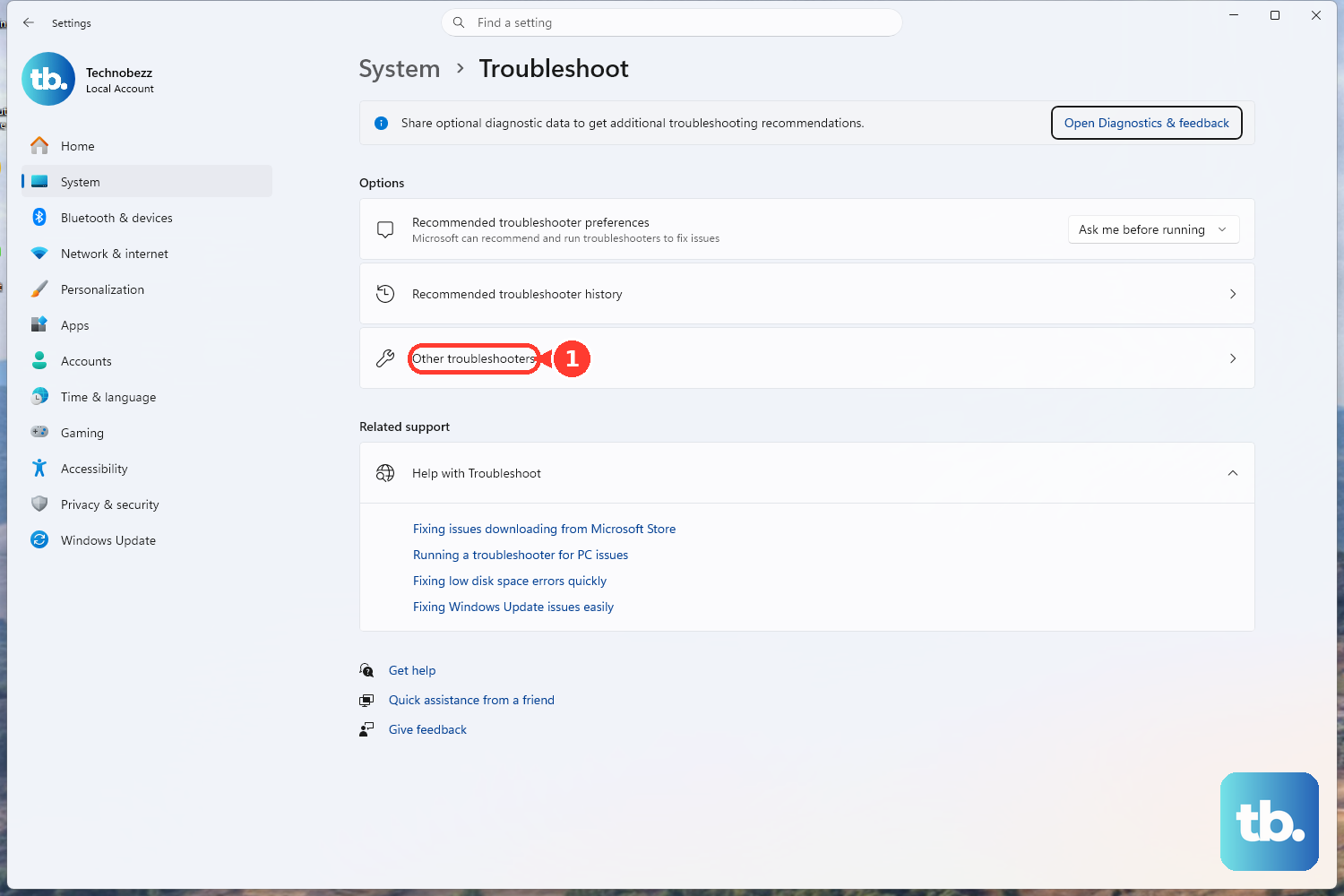
Right-click the WiFi icon in your system tray and select Troubleshoot problems. Let Windows scan for issues and apply automatic fixes. For a more thorough check, you can also navigate to Settings > System > Troubleshoot > Other troubleshooters and run the Network and Internet troubleshooter from there.
Forget and Re-add Your Network
Go to Settings > Network & Internet > Wi-Fi > Manage known networks. Find your problematic network, click on it, and select Forget. Then, scan for networks again and reconnect by entering your password fresh. This is a reliable fix for corrupted network profiles, which happen more often than you'd think.
Update Your WiFi Driver with HP Support Assistant
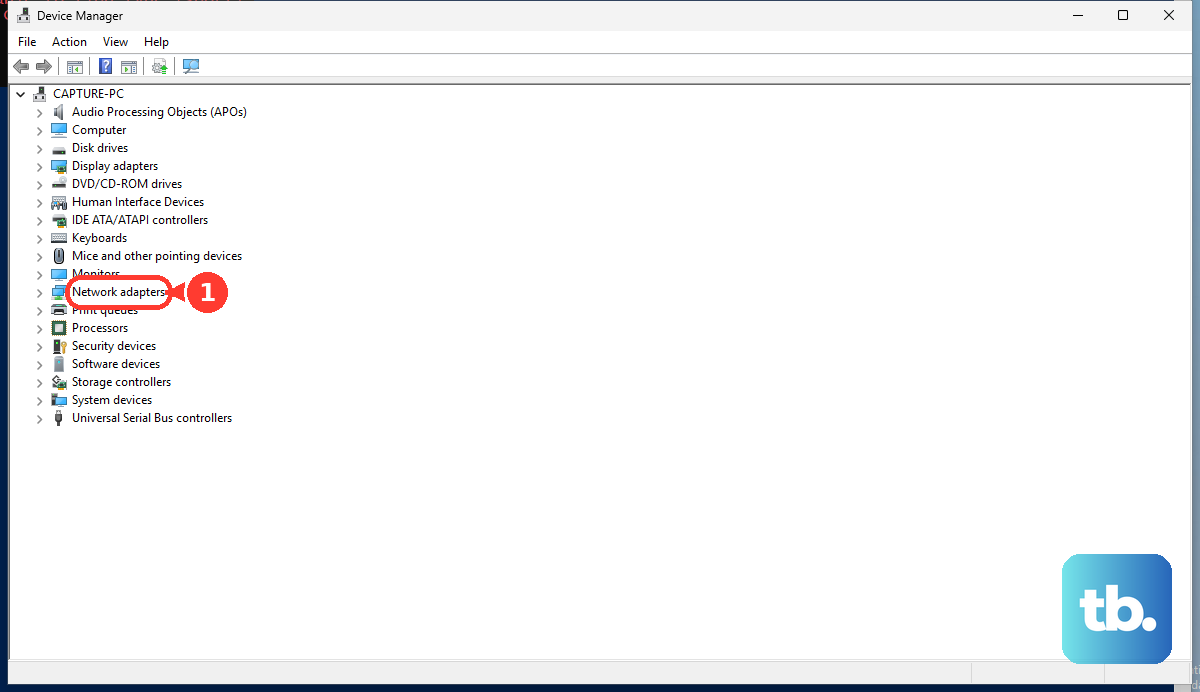
For an EliteBook, your best bet is often the HP Support Assistant. Open it, go to the updates section, and check for new network driver packages. If you prefer the manual route, press Windows + X, select Device Manager, expand Network adapters, right-click your Intel or Realtek wireless adapter, and choose Update driver > Search automatically for drivers.
If Windows finds nothing, you'll need to visit the official HP support site. Enter your specific EliteBook 840 model number, download the latest wireless LAN driver, and install it manually. This is especially important if your company uses enterprise security software that can conflict with generic drivers.
Disable and Re-enable the Network Adapter
In Device Manager under Network adapters, right-click your wireless adapter and select Disable device. Wait about ten seconds, then right-click it again and choose Enable device. This forces the adapter to reinitialize, which can resolve issues where it's stuck in a bad state without requiring a full reboot.
Reset Your Network Stack
Go to Settings > Network & Internet > Advanced network settings > Network reset. Click Reset now. This will remove and reinstall all your network adapters and reset protocols like TCP/IP. Be aware you'll need to re-enter all your WiFi passwords after this completes and the laptop restarts.
Flush DNS and Reset Winsock via Command Prompt
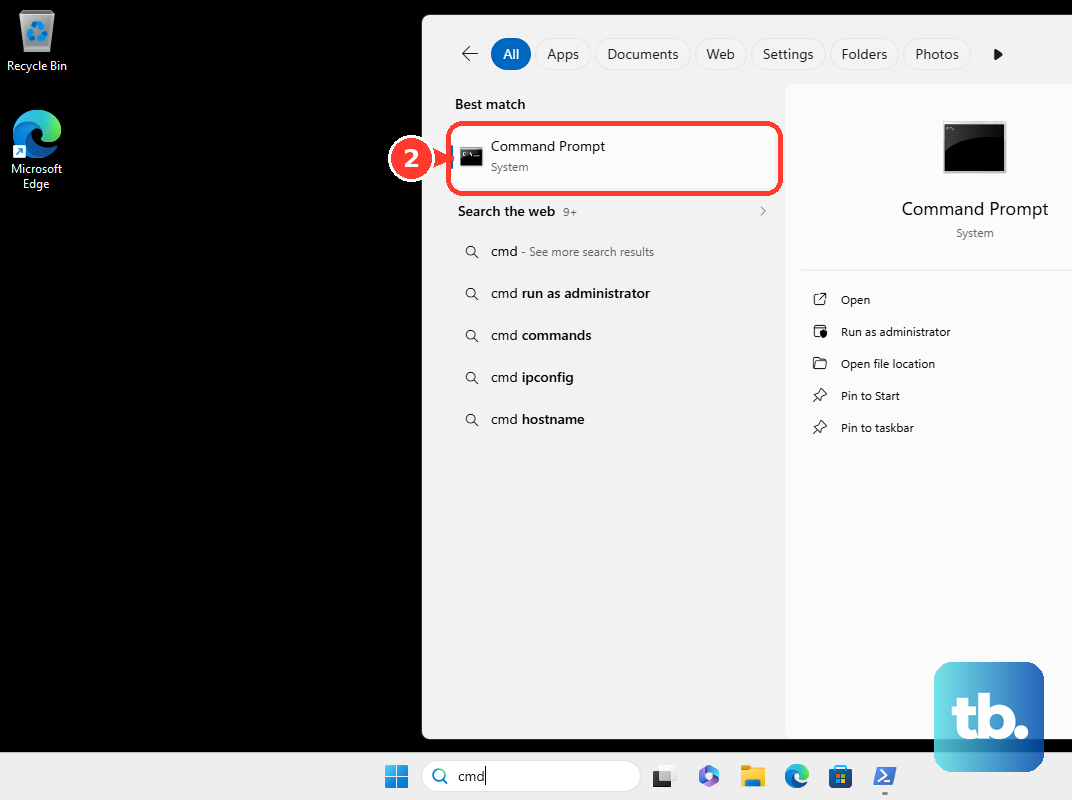
Open Command Prompt as an administrator. Type the following commands one at a time, pressing Enter after each: ipconfig /flushdns, netsh winsock reset, and netsh int ip reset. After running them all, restart your laptop. This clears out old DNS caches and resets core networking components that can get corrupted.
Check for Conflicts with Docking Stations
If you're using a USB-C or Thunderbolt docking station, try disconnecting it and connecting directly to WiFi. Some docking station firmware or drivers can interfere with the laptop's built-in wireless adapter. Connect your Ethernet and WiFi through the dock separately to see if that resolves the conflict.
Check BIOS and Run HP Diagnostics
Restart your EliteBook and press F10 repeatedly to enter the BIOS setup. Look for any network-related settings, like Wireless Radio Control, and ensure they are enabled. For a hardware check, press F2 during startup to launch HP PC Hardware Diagnostics. Run the network test to see if it detects a fault with the wireless component itself.
Don't worry if you see prompts about HP Sure Start during this process. It's the system's BIOS protection and recovery feature, and it usually handles itself automatically if it detects corruption.
Check Your Router and Environment
Finally, rule out the network source. If other devices also can't connect, restart your router and modem. For enterprise environments, check if a recent group policy or firewall rule change is blocking access. Try connecting your EliteBook to a different network, like a phone's mobile hotspot, to confirm the laptop's WiFi hardware is functioning properly.