
When your HP EliteBook 840 shows "USB Device Not Recognized" or simply doesn't react to a connected flash drive, mouse, or docking station, it's a common but fixable hiccup. The cause is usually a driver conflict, a power setting, or a port-specific issue.
Try a Different Port on Your EliteBook
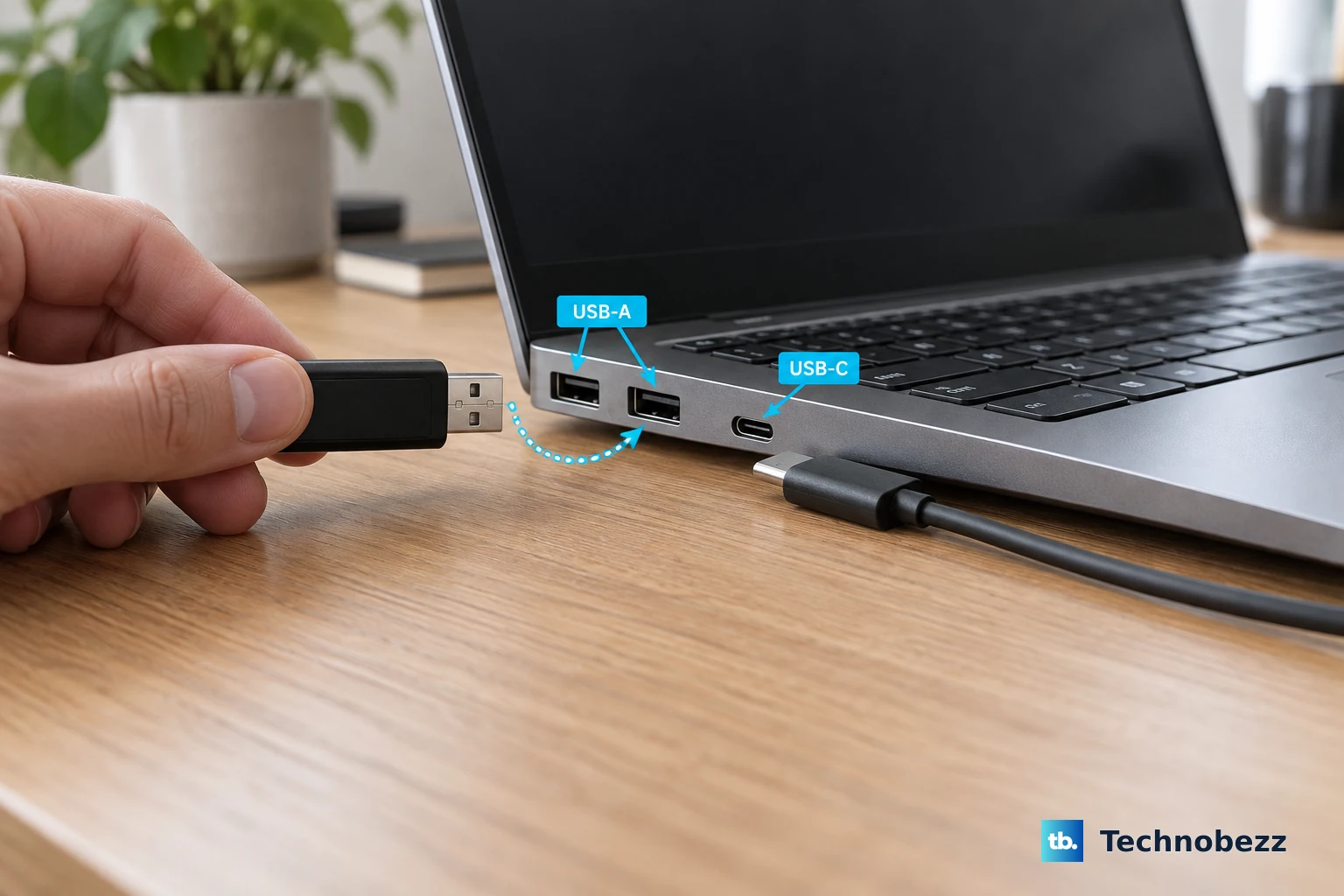
Unplug the device and connect it to another USB port on your laptop. The EliteBook 840 typically has both USB-A and USB-C ports. If the device works in a different port, the original one might be physically damaged or have a software conflict. This is the quickest way to isolate the problem.
Perform a Full Restart
A complete restart reloads all the USB drivers and resets the controller. Many transient detection errors are cleared this way. Make sure you select "Restart" from the Windows menu, not just closing the lid to put it to sleep. I've seen this resolve docking station issues on the 840 more times than I can count.
Test the Device on Another Computer
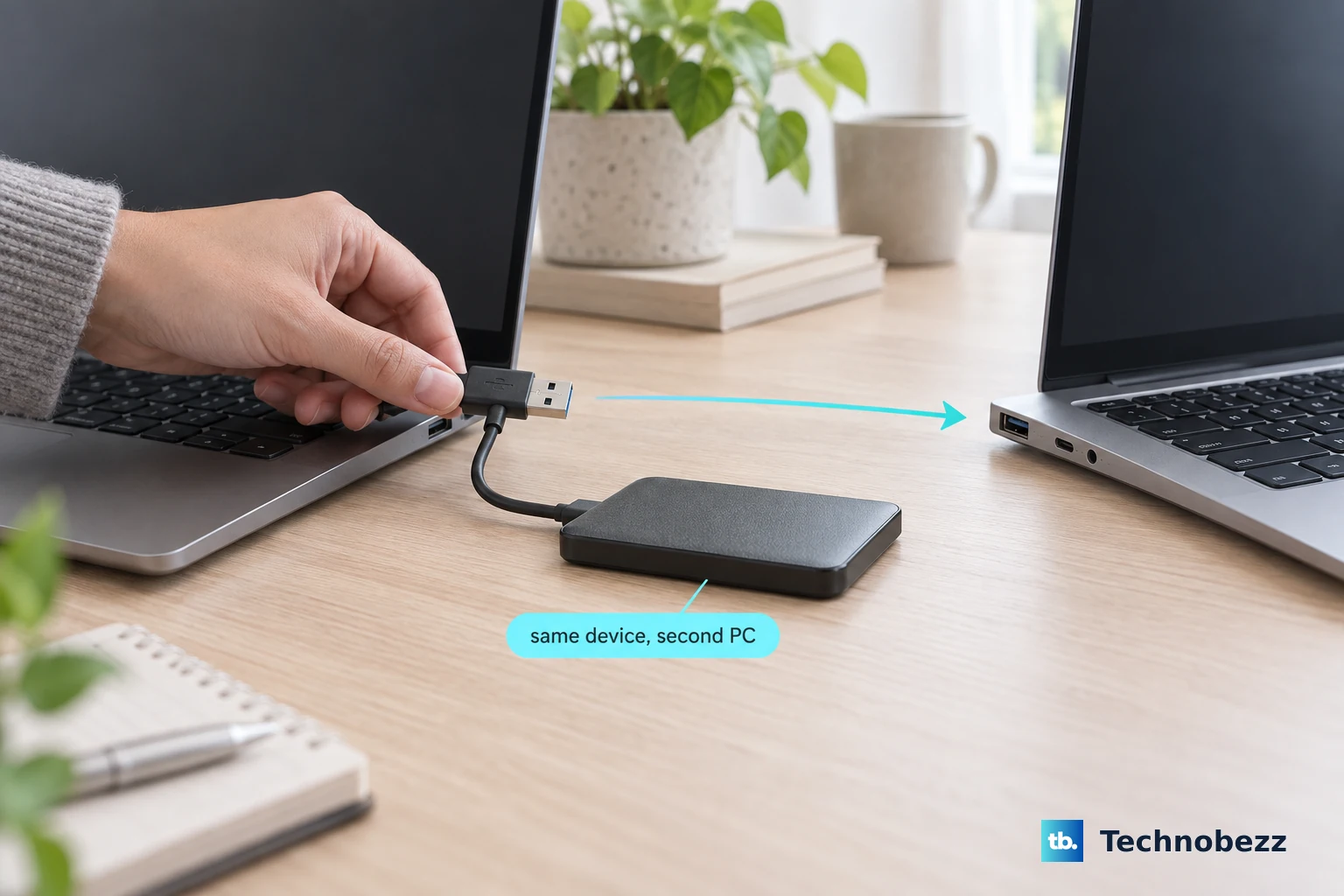
Take your USB device and plug it into a different PC. If it isn't recognized there either, the fault lies with the device or its cable. If it works perfectly on another machine, you know the issue is specific to your EliteBook's configuration.
Swap Out the USB Cable
For devices like external hard drives or phones, the cable is a frequent point of failure. Cables can degrade, especially near the connectors, and sometimes they'll carry power for charging but fail to transmit data. Always try a known-good, high-quality cable before digging deeper.
Update or Reinstall USB Drivers via Device Manager
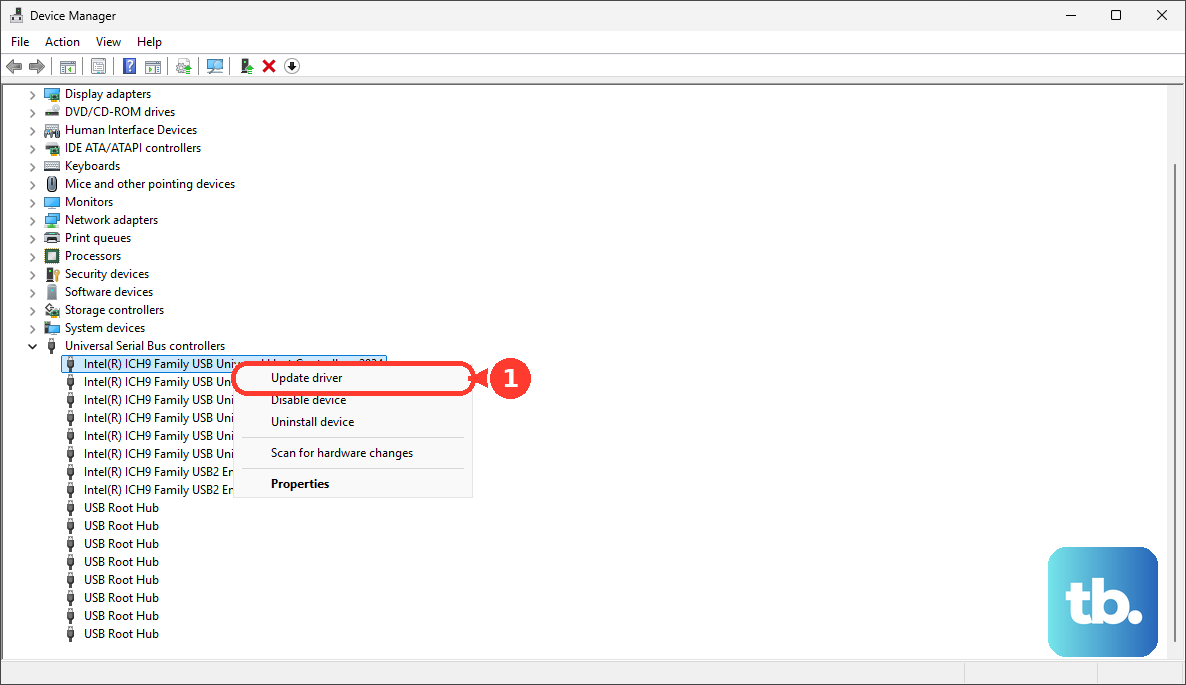
Press Windows key + X and select Device Manager. Expand the Universal Serial Bus controllers section. Look for any entries with a yellow exclamation mark. Right-click on them and choose Update driver > Search automatically for drivers. If that doesn't work, right-click the device, select Uninstall device, then restart your laptop. Windows will reinstall the driver fresh upon reboot.
Use HP Support Assistant for Enterprise Drivers
For the EliteBook 840, HP's own tools are often more reliable for driver management, especially in enterprise environments where security firmware can conflict. Open the HP Support Assistant app and run a check for updates. It can provide specific chipset and USB controller drivers that generic Windows Update might miss.
Disable USB Selective Suspend in Power Plans
This power-saving feature can sometimes turn off ports prematurely. Go to Control Panel > Power Options. Click Change plan settings next to your selected plan, then Change advanced power settings. In the new window, expand USB settings and then USB selective suspend setting. Set both "On battery" and "Plugged in" to Disabled. Click Apply and OK.
Run the HP PC Hardware Diagnostics
This built-in tool can test your USB hardware. Restart your EliteBook 840 and immediately press the F2 key repeatedly to launch the diagnostics from the BIOS. From there, you can run a system test or a specific component test on the USB ports to check for hardware failure.
Check the BIOS for USB Configuration Settings
Restart your laptop and press F10 to enter the BIOS Setup. Navigate using the arrow keys and look for a section like "System Configuration" or "Advanced." Ensure that USB ports are enabled. Also, if you're using a USB-C docking station, look for settings related to "USB Power Share" or "Always On USB" and try toggling them. Exit saving changes.
If you've recently recovered from a BIOS corruption via HP Sure Start, double-check that all settings were restored correctly, as this can sometimes reset configurations. After trying these steps, go back to Device Manager and click Action > Scan for hardware changes to give Windows a final nudge to detect your device.