
A non-responsive trackpad on your HP EliteBook 840 turns a portable powerhouse into a desktop anchor. Whether the cursor is frozen, taps aren't registering, or two-finger scrolling is dead, the issue is usually a quick software glitch rather than a hardware failure.
Check the Physical Toggle and Function Key
First, look at the top-left corner of your EliteBook's trackpad. Many 840 models have a tiny, backlit LED indicator that shows if the trackpad is enabled or disabled. A double-tap on this corner acts as a physical toggle. Also, try the function key combination; it's often Fn + F11 or Fn + F5 on the EliteBook. You'll see a touchpad icon on the key.
Perform a Full Restart
If the trackpad stopped working after waking from sleep or a recent update, a full restart is the most reliable first step. Use your keyboard to navigate: press the Windows key, then use the arrow keys to highlight the power icon, press Enter, and select Restart. This reloads all drivers, including the one for your pointing device.
Disconnect All Docking Stations and External Mice
Unplug your EliteBook from any USB-C or Thunderbolt docking station, as some dock firmware can conflict with the internal trackpad. Also, disconnect any wired or Bluetooth mouse. Some Windows settings automatically disable the internal trackpad when an external pointer is detected, so removing all peripherals helps isolate the problem.
Update Drivers via HP Support Assistant
For enterprise devices like the EliteBook, I'd start with the HP Support Assistant. It's designed to manage HP-specific drivers, including critical firmware and chipset updates that generic Windows Update might miss. Open the app and check for all recommended updates, paying special attention to any listed under "Input" or "Synaptics."
Clean the Trackpad Surface
Skin oils, lotion, or moisture can make the trackpad unresponsive or jumpy. Power off the laptop and gently wipe the trackpad surface with a lint-free cloth slightly dampened with water. Make sure it's completely dry before turning the laptop back on. Avoid using harsh cleaners.
Verify the Setting in BIOS (F10)
Restart your EliteBook and immediately press the F10 key repeatedly to enter the BIOS Setup. Navigate using the arrow keys to the System Configuration menu. Look for an option like "Internal Pointing Device" or "TouchPad" and ensure it is set to Enabled. Save and exit (usually F10).
Reinstall the Trackpad Driver in Device Manager
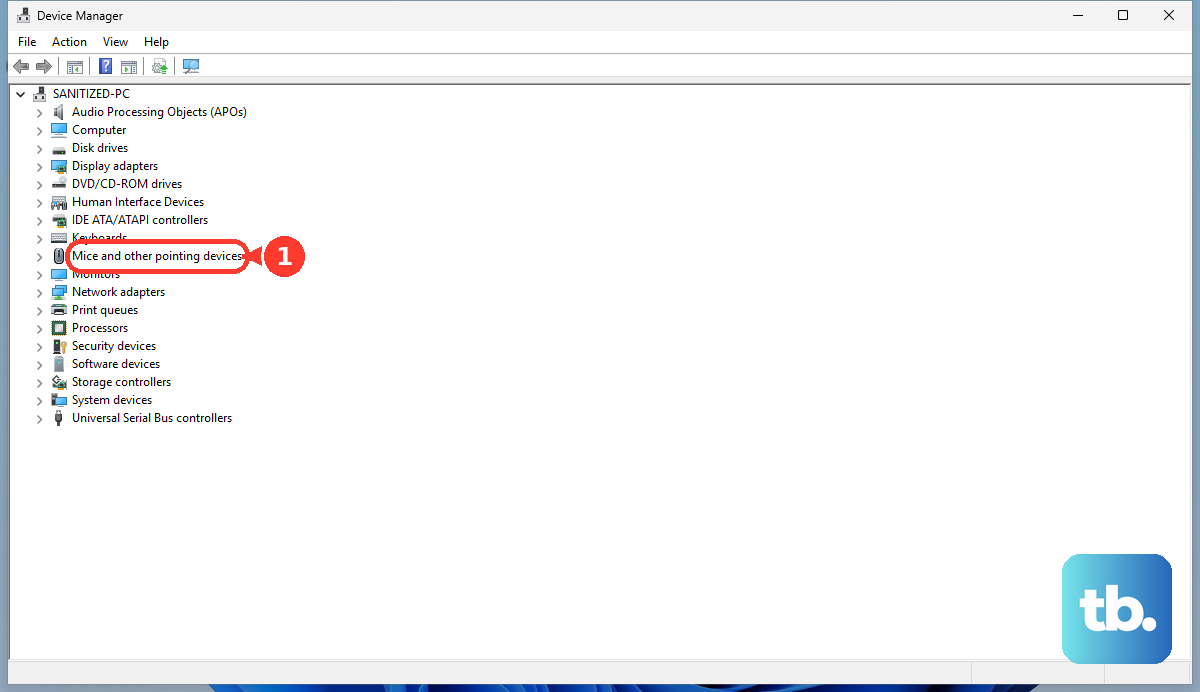
Press Windows key + X and select Device Manager. Expand the Mice and other pointing devices category. Right-click on the device listed (often "Synaptics HID Device" or "HP Pointing Stick") and select Uninstall device. Check the box that says "Delete the driver software for this device" if it appears, then restart. Windows will install a basic driver, after which you should use HP Support Assistant to get the full-featured one.
Run the HP PC Hardware Diagnostics (F2)
This built-in tool can test your trackpad hardware independently of Windows. Restart your EliteBook and immediately press the F2 key repeatedly. Select Component Tests > Input Devices > TouchPad / Pointing Stick Test. If the test fails, it strongly suggests a hardware issue.
Check for Enterprise Security Software Conflicts
EliteBooks often run in managed enterprise environments. Deep security software, disk encryption tools, or endpoint protection can sometimes interfere with input drivers. Try booting into Windows Safe Mode (hold Shift while clicking Restart in the power menu) to see if the trackpad works there. If it does, a third-party security service is likely the culprit.