
When you plug your HP EliteBook 840 into an external monitor and the screen stays blank, it's usually a quick settings or connection fix. Let's get that second screen working.
It is worth viewing a few test patterns from a online monitor test before changing hardware. Faults that persist across every pattern point firmly at the display itself.
The fastest thing to try is the Windows projection shortcut. With your monitor connected, press Windows Key + P on your keyboard. A menu will pop up on the right. Select Extend or Duplicate. If it was set to "PC screen only," that change should immediately send the signal to your external display.
Inspect Your Physical Connections
Start by unplugging the video cable from both your laptop and the monitor, then firmly reconnect it. I'd recommend trying a different cable if you have one handy, as they can fail internally without any visible damage.
Make sure your monitor is powered on and set to the correct input source, like HDMI 1 or DisplayPort 2. If you're using a USB-C or Thunderbolt docking station, try connecting the monitor directly to your laptop's HDMI or USB-C port instead to rule out the dock as the issue.
Run the Built-In HP Diagnostics
Your EliteBook has a dedicated hardware check tool. Restart the laptop and immediately press the F2 key repeatedly to launch HP PC Hardware Diagnostics. Run the video test from the component tests menu.
This will check your graphics hardware for failures. If it passes, you can be fairly confident the problem is with software or settings, not a broken port or GPU.
Update Your Graphics Drivers
Outdated or corrupted display drivers are a common culprit. For the cleanest result, get the driver directly from HP. Open the HP Support Assistant app, which is pre-installed on your laptop for enterprise driver management.
Check for updates in the app. It will find the correct, HP-tested driver for your specific EliteBook 840 model and graphics chip (usually Intel UHD or Iris Xe). Install any available graphics driver updates and restart your laptop.
Configure Your Display Settings in Windows
Right-click on your desktop and select Display settings. In the settings window, click the Detect button. Windows will search for the connected display.
If the monitor appears, click on its representation and scroll down. Ensure the display resolution and refresh rate are set to values your monitor supports, often labeled as "Recommended."
Check Your Power and Sleep Settings
Windows can sometimes turn off displays to save power. Go to Settings > System > Power & sleep. Look at the settings for when plugged in.
Set the "Screen" and "Sleep" options to longer durations or "Never" while you're troubleshooting. This prevents the system from inadvertently blanking the external monitor.
Disable and Re-enable the Display Adapter
This refreshes the graphics driver. Press Windows Key + X and choose Device Manager. Expand the "Display adapters" section, right-click on your Intel or AMD graphics device, and select Disable device.
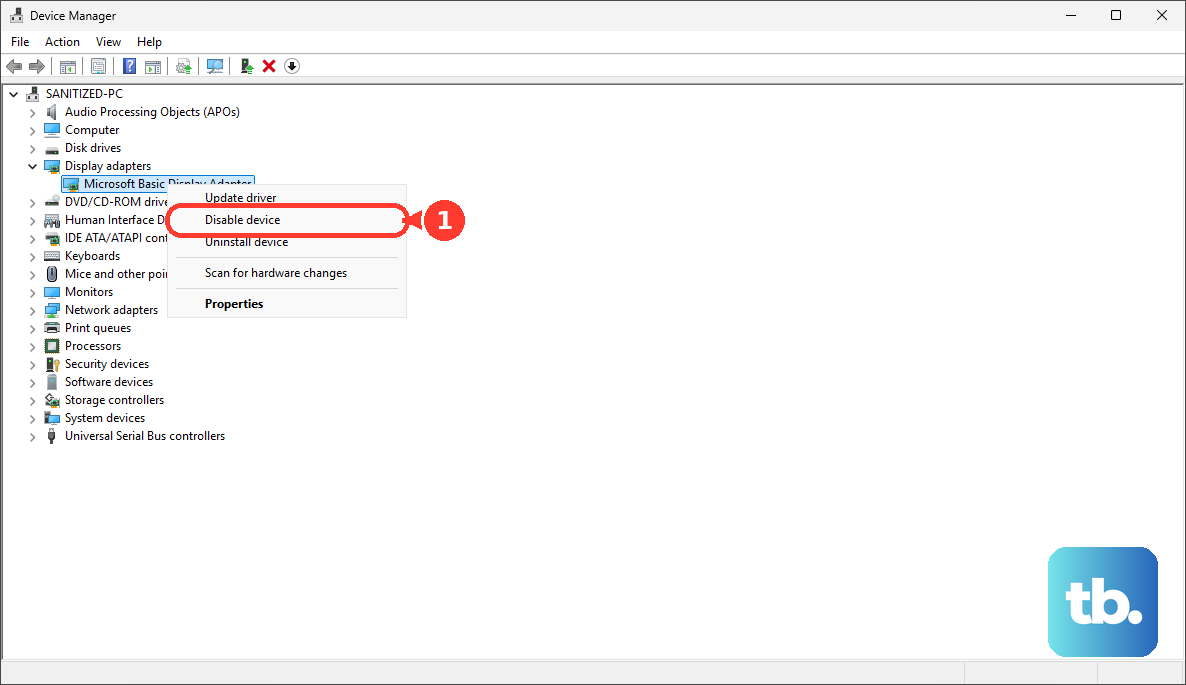
Confirm if prompted. Wait about 10 seconds, then right-click the same device and choose Enable device. Your screen will flicker as the driver reloads, which often reinitializes the external video output.
Review Your BIOS/UEFI Settings
Restart your EliteBook and immediately press the F10 key repeatedly to enter the BIOS setup. Navigate using the arrow keys. Look for settings related to video, display, or ports.
Ensure any options for external display support or specific video ports are enabled. If you're unsure, you can choose "Restore Factory Defaults" or "Load Setup Defaults" from the main menu, then save and exit. HP Sure Start, a feature on many EliteBooks, can auto-recover a corrupted BIOS, but a reset is a good manual step.
Consider Enterprise Security Software Conflicts
If your laptop is managed by a corporate IT department, certain security or encryption firmware can sometimes interfere with display output. This is more common when using docking stations.
While you may not be able to adjust these settings yourself, knowing this is a known issue on some enterprise-configured EliteBooks can help your IT support team diagnose the problem faster if the standard fixes don't work.