
When Bluetooth stops working on your HP EliteBook 840, your wireless mouse, headset, or keyboard suddenly becomes useless. You might see the Bluetooth toggle missing, devices failing to pair, or connections that keep dropping. Here's how to get it working again.
Toggle Bluetooth and Restart
First, click the network icon in your taskbar and make sure the Bluetooth tile is turned on. If it's not there, go to Settings > Bluetooth & devices and enable it. If that doesn't work, toggle it off, wait a moment, and turn it back on.
Next, restart your EliteBook. I'd start with this one, as a full reboot reloads the Bluetooth driver and clears any temporary glitches, especially after waking from sleep. It's the simplest fix that works most of the time.
Remove and Re-Pair Your Device
Go to Settings > Bluetooth & devices and find the problematic device. Click the three dots next to it and select Remove device. Now, put your Bluetooth device into pairing mode.
Back on your laptop, click Add device and select Bluetooth to search for it. Pair it fresh. Corrupted pairing data is a very common cause of connection problems on Windows laptops.
Use the Windows Troubleshooter
Windows has a built-in tool for this. Go to Settings > System > Troubleshoot > Other troubleshooters. Find the Bluetooth troubleshooter and click Run.
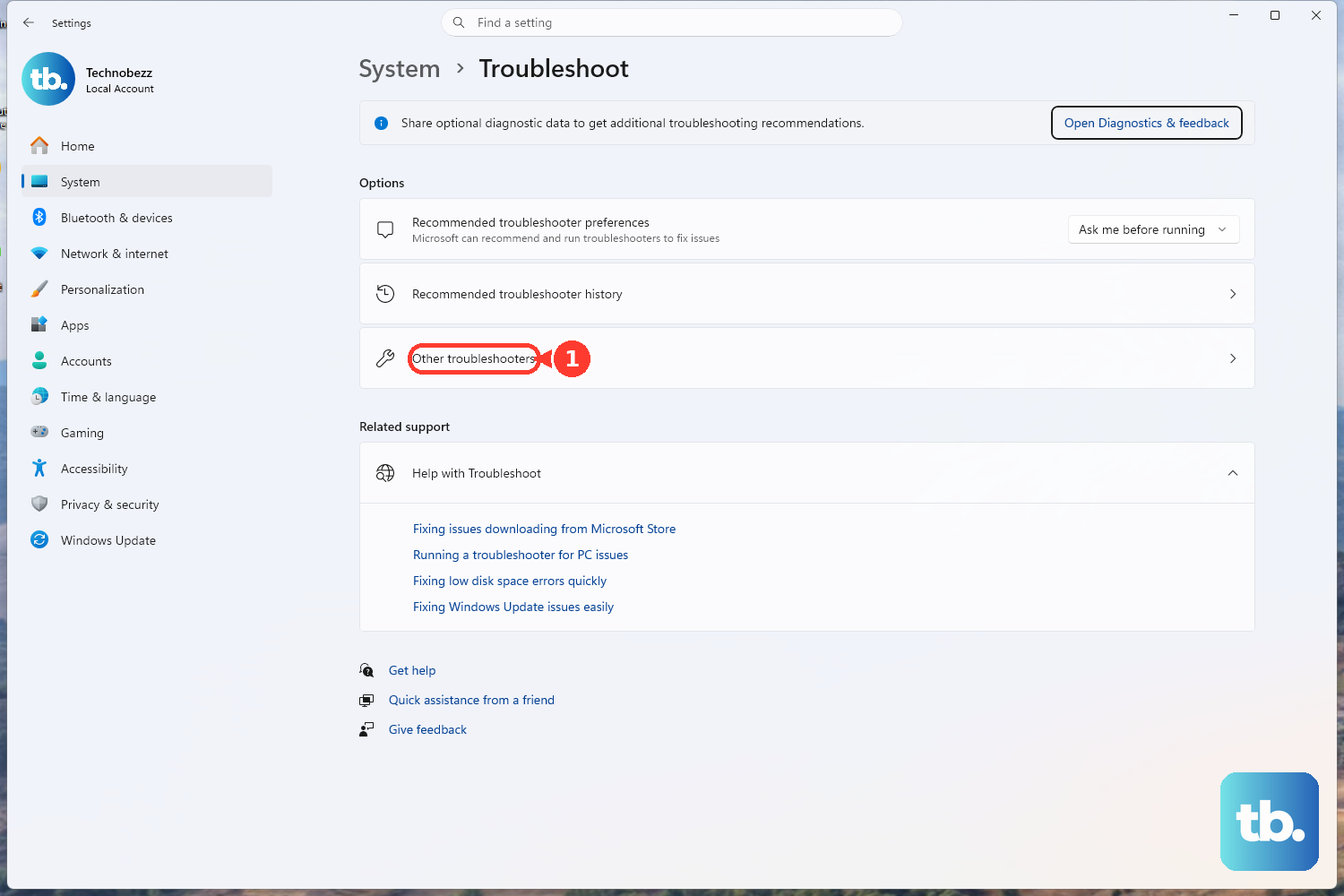
It will scan for common configuration issues and try to apply automatic fixes. It's a good, hands-off step to try before digging into drivers.
Update Your Bluetooth Drivers
Outdated or corrupt drivers are a frequent culprit. Press Windows Key + X and select Device Manager. Expand the Bluetooth section, right-click your adapter (it might be listed as Intel or Realtek), and choose Update driver.
Select Search automatically for drivers. If Windows doesn't find a new one, you should use the HP Support Assistant. This tool is great for enterprise driver management and will find the correct, HP-tested driver for your specific EliteBook model.
Check for Interference and Proximity
Bluetooth uses the 2.4GHz band, which can get crowded. WiFi, USB 3.0 ports, and even some docking stations can cause interference. Try moving your Bluetooth device closer to the laptop.
If you're using a USB-C docking station, try connecting your Bluetooth device directly to the laptop's USB port instead. Some users have reported USB-C dock issues that affect Bluetooth stability on the 840.
Restart Bluetooth Services
Sometimes the background service that manages Bluetooth stops. Press Windows Key + R, type services.msc, and hit Enter. Scroll down to find Bluetooth Support Service.
Right-click it and select Restart. While you're there, double-click it to open its properties and ensure the Startup type is set to Automatic.
Reinstall the Bluetooth Adapter
This gives you a completely clean driver slate. In Device Manager, right-click your Bluetooth adapter and select Uninstall device. Check the box that says Attempt to remove the driver for this device if it appears.
After uninstalling, restart your EliteBook. Windows will automatically detect the hardware on boot and reinstall the default Bluetooth driver. You can then update it via HP Support Assistant for the best performance.
Check for Windows and HP Updates
Go to Settings > Windows Update and click Check for updates. Install any available feature or quality updates, as Microsoft often patches Bluetooth issues.
Also, open the HP Support Assistant to check for any firmware or BIOS updates from HP. These can resolve deeper hardware compatibility problems.
Check BIOS and Security Settings
On the EliteBook 840, certain enterprise security features in the BIOS can sometimes interfere. Restart your laptop and immediately press F10 repeatedly to enter the BIOS Setup.
Look for any settings related to wireless radios, Bluetooth, or security modules and ensure Bluetooth is enabled. Use caution here, and if you're on a managed company device, you may need to check with your IT department about security firmware conflicts.
Run HP Hardware Diagnostics
If you suspect a hardware fault, HP's built-in diagnostics can test the Bluetooth module. Restart your EliteBook and immediately press F2 repeatedly to launch HP PC Hardware Diagnostics.
Run the system diagnostics, which includes a check on the wireless components. If a hardware failure is detected, you'll know the issue is likely with the physical adapter. Remember, the HP Sure Start feature on these models is designed to auto-recover a corrupted BIOS, so that's usually not the root of a Bluetooth problem.