
That sudden blue screen on your HP EliteBook 840 can be a real jolt, especially if it just started after a Windows update. It's Windows hitting the emergency brake because something went wrong, often a driver conflict or a corrupted file. The fixes below are tailored for the EliteBook 840 and will help you get back to work.
Write Down the Stop Code
When the blue screen appears, look for the all-caps error code like CRITICAL_PROCESS_DIED or SYSTEM_SERVICE_EXCEPTION. Jot it down. This code points to the type of failure, which is useful if the general fixes don't work. You can search for it specifically later.
Perform a Simple Restart
First, just restart the laptop. A one-time BSOD can be a fluke caused by a temporary driver hiccup. If it boots normally and runs fine, you might be in the clear. If the blue screen comes back quickly, especially during startup, you have a persistent issue to solve.
Boot into Windows Safe Mode
If crashes prevent a normal boot, you need Safe Mode. From the sign-in screen, hold the Shift key and click the power icon, then Restart. After the restart, select Troubleshoot > Advanced options > Startup Settings > Restart. When it reboots, press 4 or F4 for Safe Mode. This loads Windows with minimal drivers, which can bypass the faulty one causing the crash.
Uninstall Problematic Updates or Drivers
Since this started after an update, that's your prime suspect. In Safe Mode or normal Windows, go to Settings > Windows Update > Update history > Uninstall updates. Look for the most recent quality update or feature update and remove it. For EliteBooks, I've seen certain cumulative updates conflict with enterprise security or management firmware.
Update Drivers with HP Support Assistant
Outdated drivers are the most common BSOD culprit on business laptops. Don't just use Windows Update for drivers. Open the HP Support Assistant app. It's designed for your specific 840 model and will find the correct, enterprise-tested drivers for your chipset, graphics, and management controllers. This is more reliable than generic updates.
Run System File Checker and DISM
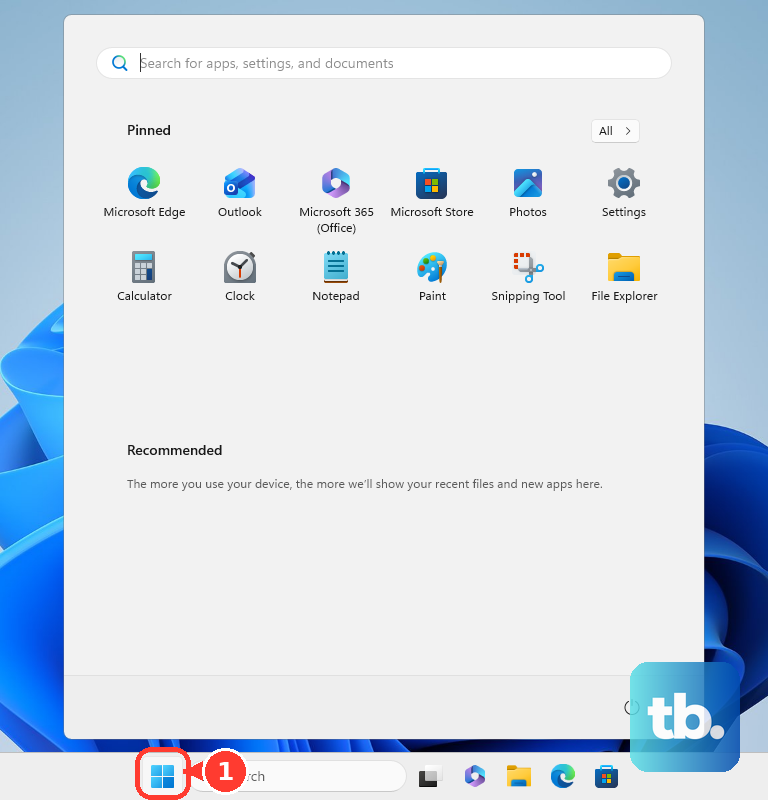
Corrupted Windows system files can cause crashes. Open the Start menu, type cmd, right-click Command Prompt, and select Run as administrator. In the black window, type sfc /scannow and press Enter. Let it scan and repair files. If it finds issues it can't fix, run DISM /Online /Cleanup-Image /RestoreHealth first, then try sfc again.
Check Your RAM with HP Diagnostics
Faulty memory is a classic BSOD cause. HP has a built-in tool. Restart your EliteBook and immediately press the F2 key repeatedly to launch HP PC Hardware Diagnostics. From the main menu, select Component Tests > Memory > Extensive Test. This will check your RAM thoroughly and report any errors, which would mean you need to reseat or replace the memory module.
Scan Your Drive for Errors
Open an Administrator Command Prompt as before. To check your main drive, type chkdsk C: /f /r and press Enter. It will schedule a scan for the next restart. Type Y to confirm, then restart your laptop. The check will run before Windows boots, looking for and repairing filesystem errors or bad sectors on your SSD.
Manage BIOS with HP Sure Start and F10
A corrupted BIOS can lead to instability. The good news is your EliteBook 840 likely has HP Sure Start, which can auto-recover a damaged BIOS. If you suspect a setting is wrong, restart and press F10 to enter the BIOS Setup. A safe bet here is to load Setup Defaults, save, and exit. This can resolve conflicts caused by incorrect hardware configurations.
Reset Your PC as a Last Resort
If all else fails, a Windows reset can clear deep-seated software issues. Go to Settings > System > Recovery and click Reset this PC. Choose Keep my files to reinstall Windows while preserving your personal data. This will remove all your apps and drivers, giving you a clean slate while keeping your documents intact.