You want to open a Windows 10 PC from another device and control it as if you were at the keyboard. The official Microsoft route is Remote Desktop, but the PC has to be a supported edition, Remote Desktop has to be switched on, and the sign-in account has to be allowed. Start with the host PC, then choose the device you are connecting from.
1. Confirm the Windows 10 PC can accept Remote Desktop
Check the edition first: Remote Desktop hosting works on Windows 10 Pro, Windows 10 Enterprise, and Windows 10 Education. Windows 10 Home works as the device you connect from, but it does not accept incoming Remote Desktop connections.
On the Windows 10 PC you want to control, select Start. Open Settings > System > About. Under Windows specifications, read Edition. If it says Windows 10 Pro, Windows 10 Enterprise, or Windows 10 Education, continue with Remote Desktop setup.
Mainstream Windows 10 editions (version 22H2 Home, Pro, Enterprise, and Education) reached the end of free support on October 14, 2025. In July 2026, keep that PC covered by ESU or move it to Windows 11 before relying on it for remote access. LTSC and IoT Enterprise LTSC editions follow their own lifecycle; Enterprise LTSC 2021 is serviced through January 12, 2027, and IoT Enterprise LTSC 2021 through January 13, 2032, so they may not need ESU yet.
2. Switch on Remote Desktop on the host PC
On the Windows 10 computer you want to access, select Start. Do this on the host PC, not on the laptop, phone, tablet, or Chromebook you are using to connect.
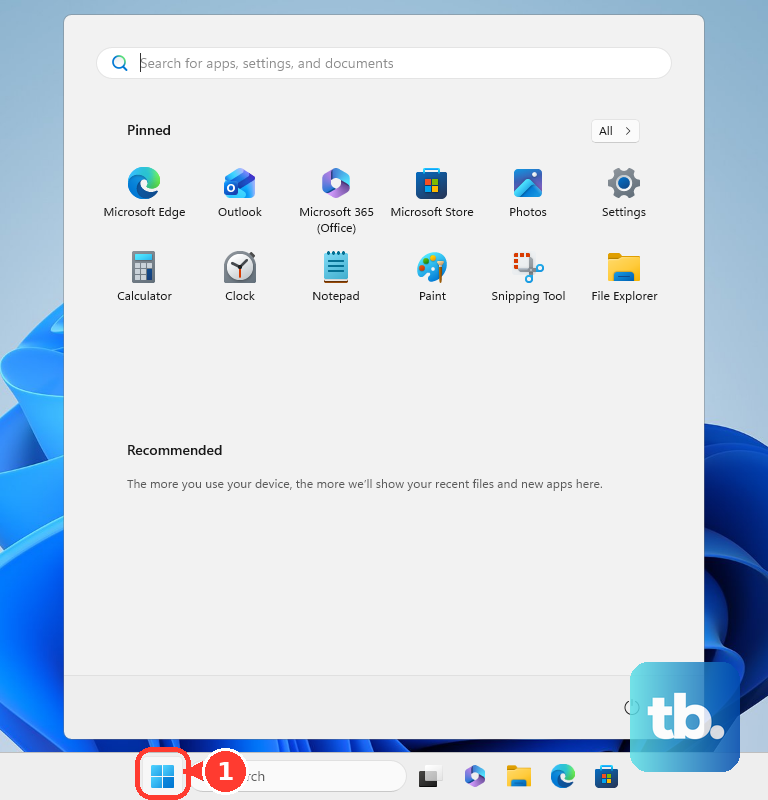
Open Settings > System > Remote Desktop. Turn on Enable Remote Desktop, then select Confirm. Under How to connect to this PC, copy the PC name. That PC name is the address you enter from the other device, or use the PC's IP address instead when your network setup requires it.
3. Add the user account that will sign in
Administrators are already covered; any other account has to be added before you leave the host PC. Members of the Administrators group already have Remote Desktop access.
For any other account, open Settings > System > Remote Desktop. Select Select users that can remotely access this PC or, in later releases, Remote Desktop users. Select Add, type the username for the account on that Windows 10 PC, and select OK. Use that same account when the Remote Desktop sign-in prompt appears.
4. Connect from another Windows PC
On the Windows PC you are connecting from, select the taskbar search box. Type Remote Desktop Connection, then open Remote Desktop Connection. Enter the PC name or IP address of the Windows 10 PC. Select Connect and sign in with an account that is allowed to access the remote PC.
The built-in Windows client is Remote Desktop Connection, also known as mstsc.exe. Use it for the standard Windows-to-Windows setup.
For a command-line connection, open Command Prompt, Windows Terminal, or Run. Then enter mstsc.exe /v:<server>. For a custom port, enter mstsc.exe /v:<server>:<port>.
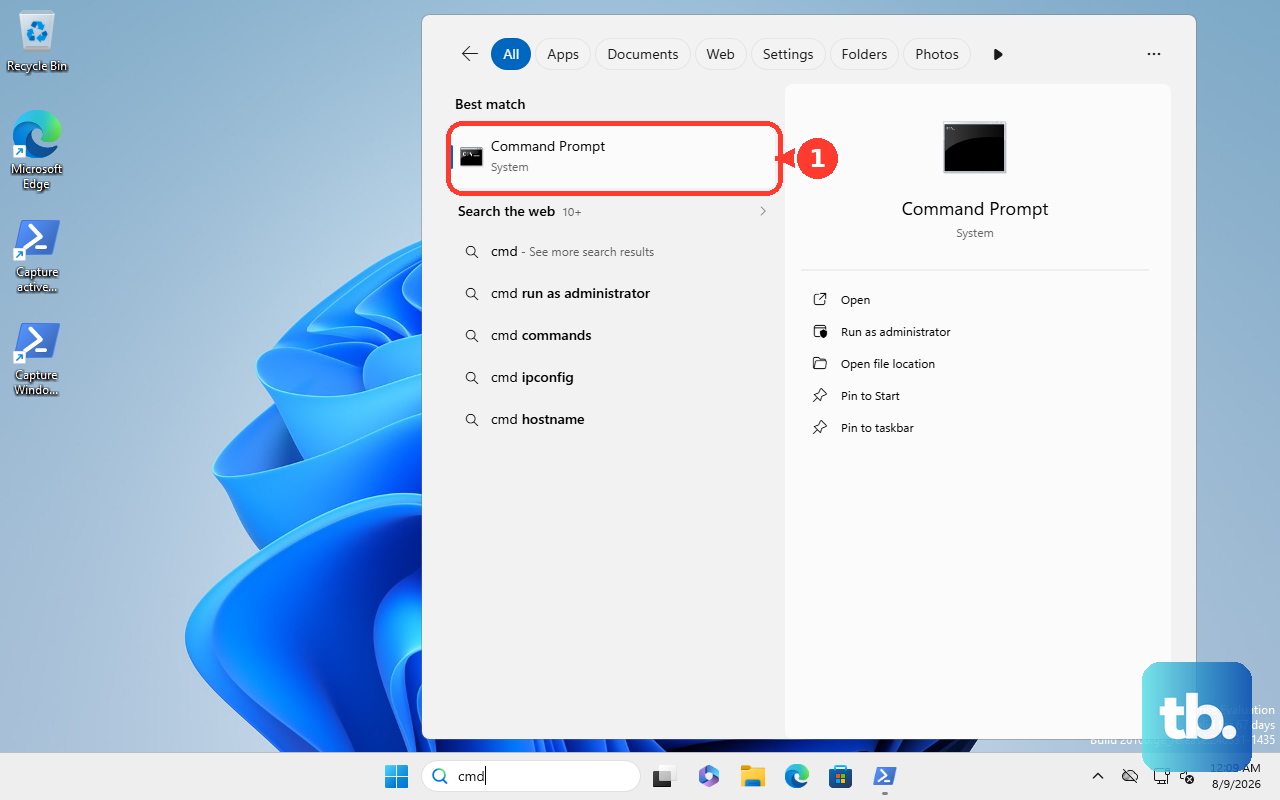
To open a saved connection, enter mstsc.exe <connectionfile>. To edit one, enter mstsc.exe /edit <connectionfile>.
5. Use Windows App on Mac iPhone iPad Android and ChromeOS
On non-Windows devices, use Microsoft's Windows App. The Windows 10 PC still needs Pro, Enterprise, or Education, and Enable Remote Desktop must already be on.
Mac: Install Windows App from the Mac App Store. Open Windows App and finish the first-run tour. Select Done or Skip, then select Devices. Select plus (+), choose Add PC, enter the PC Name or IP address, select Add, and double-click the PC on Devices.
iPhone or iPad: Install Windows App from the App Store. Open it, then select Allow for Bluetooth and local network prompts when you want local devices or PC discovery. Finish the tour and select Done or Skip. Tap plus (+), choose PC, tap PC Name, enter the hostname or IP address, tap Save, and tap the PC on Devices.
Android or ChromeOS: Install Windows App from Google Play. Open it, finish the tour, and tap Got it or Skip. Tap plus (+), choose PC connection, tap PC Name, enter the hostname or IP address, tap Save, and tap the PC on Devices. At the trust prompt, choose the local-resource toggles, then tap Connect.
On Windows, Windows App includes direct Remote PC connections in preview. For a generally available Windows client, use Remote Desktop Connection.
6. Reach the PC from outside your home network
Use a VPN first. After the VPN connects, open your Remote Desktop client and enter the host PC's PC name or IP address as if both devices were on the same network.
Port forwarding is the other documented route. Configure the router to forward traffic from its public IP address to the Windows 10 PC's internal IP address on port 3389. Then connect to the router's public IP address.
Microsoft warns that opening RDP to the internet is not recommended and says VPN is preferable, so use VPN for regular remote access.
7. Choose Quick Assist or Chrome Remote Desktop for different jobs
If Quick Assist is missing, select Start > All apps > Microsoft Store. Search for Quick Assist, select Quick Assist, and select Get or Install. Open Start, type Quick Assist, and select Quick Assist. You can also press Ctrl + Windows logo key + Q.
The helper selects Help someone and shares the 6-digit code. The person getting help enters the code in Code from assistant. The person getting help selects Submit, then selects Allow. The helper selects Request control when full control is needed, and the person getting help selects Allow to grant full control.
Remote Desktop is for signing in to your own Windows 10 Pro, Enterprise, or Education PC. Quick Assist fits trusted one-time support, where one person helps another and the person at the PC approves the session.
Chrome Remote Desktop is a separate current consumer option that uses Google's service, not Microsoft RDP. On the Windows 10 PC, open Chrome and go to remotedesktop.google.com/access. Select Download under Set up Remote Access, follow the setup directions, and set a PIN. From another computer, open Chrome, go to remotedesktop.google.com/access, select the computer, enter the PIN, and select the arrow to connect.
8. Ignore outdated Remote Desktop instructions
Skip old tutorials that tell you to use the Microsoft Remote Desktop assistant for a new Windows 10 setup. Microsoft's own download page points Windows 10 Fall Creators Update version 1709 and later to Settings > System > Remote Desktop instead.
Do not install the old Microsoft Store Remote Desktop app for Windows for a new setup. Microsoft says that app reached end of support on May 27, 2025 and is no longer available for installation or download. Do not use Remote Desktop Connection Manager as your consumer answer either; use built-in Remote Desktop Connection for Windows RDP connections.
Do not use the Remote Desktop web client as a direct route to an unmanaged home Windows 10 PC. For work or school Remote Desktop resources, use the URL your organization gives you, sign in to the web client or Remote Desktop Web Access page, then select the published desktop or resource.
Frequently Asked Questions
Can I use Remote Desktop to connect to Windows 10 Home?
Windows 10 Home can be the device you connect from, but it cannot host incoming Remote Desktop connections. The PC you control must run Windows 10 Pro, Enterprise, or Education.
Can I connect to a Windows 10 PC from Meta Quest?
Yes, through Windows App on Meta Quest 3 or Quest 3S. Microsoft lists Remote PC support on Meta Quest as preview: install Windows App from the Meta Store, open Devices, select the remote PC, sign in if prompted, choose the local-resource toggles, and select Connect.
Can I use a browser to reach my personal Windows 10 PC?
Not as a direct consumer Remote Desktop method for an unmanaged home PC. Microsoft's Remote Desktop web client and Remote Desktop Web Access are for organization-managed resources and use a URL provided by the organization.
Is Chrome Remote Desktop the same as Microsoft Remote Desktop?
No. Chrome Remote Desktop is a current consumer remote-access option from Google, but it uses Google's service rather than Microsoft Remote Desktop Protocol.
Should I open port 3389 on my router?
Use a VPN instead for outside-home access. Microsoft documents port forwarding on port 3389, but warns that opening RDP to the internet is not recommended.