
Keeping your Samsung Galaxy Tab S10+ updated is one of the best things you can do for its performance and security. Samsung pushes out monthly security patches and major One UI upgrades annually, which can also help smooth out any quirks like the occasional S Pen latency spike some users report.
Check for and Install an Update
Open your tablet's Settings app and scroll down to Software update. Tap on Download and install. Your Tab S10+ will check Samsung's servers for any available updates.
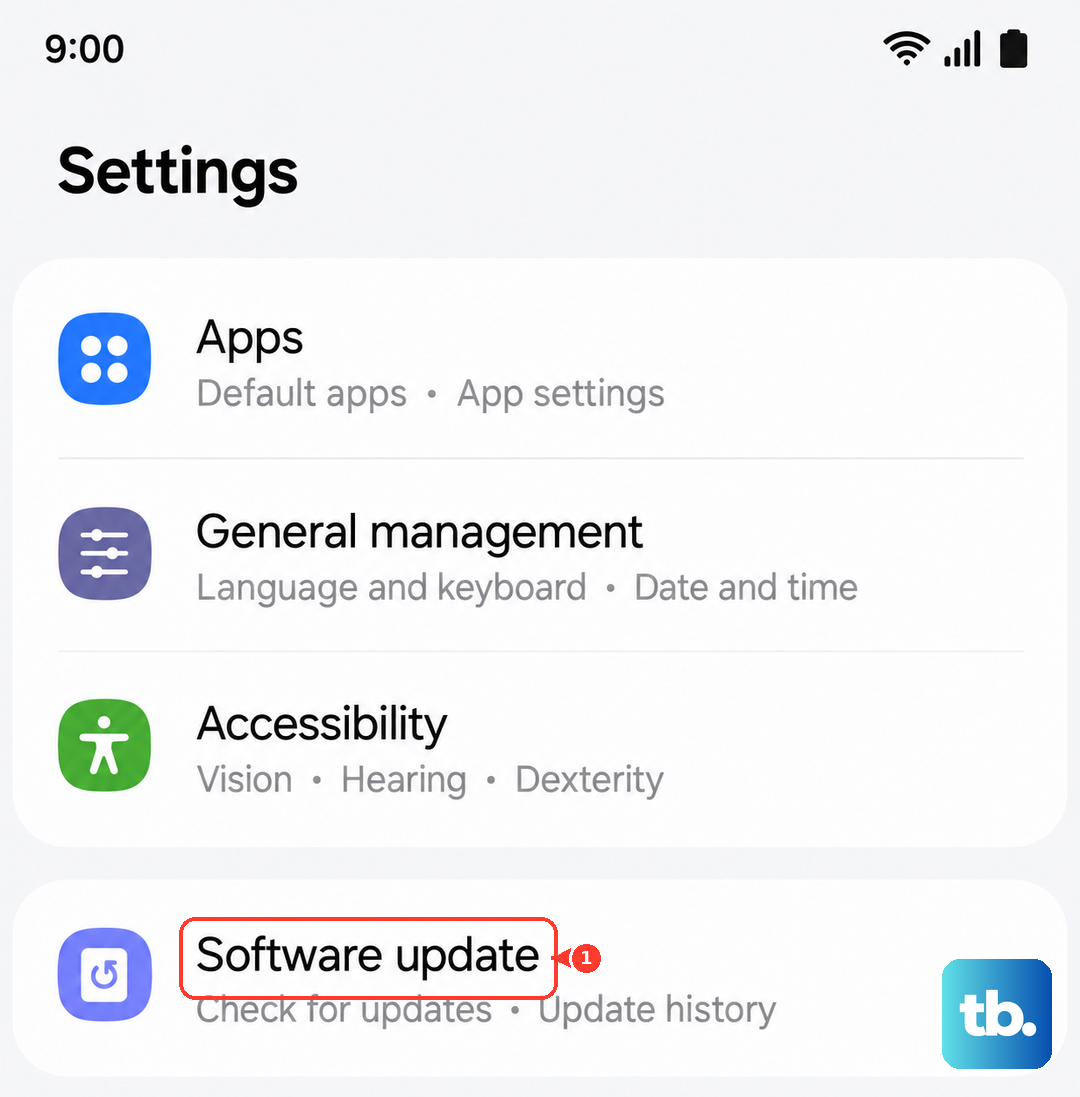
If an update is found, tap Download. Once it's downloaded, you can tap Install now. I'd recommend plugging in your charger for this step, even though the tablet will prompt you if the battery is too low.
Since no charger comes in the box, using a compatible 45W USB-PD charger will ensure you have plenty of power. The installation will take several minutes and your tablet will restart.
Set Up Automatic Updates
You can make this process mostly hands-off. Go back to Settings > Software update and tap the three-dot menu in the top right. Select Auto download over Wi-Fi to toggle it on.
With this enabled, your Galaxy Tab S10+ will automatically download updates when it's connected to Wi-Fi and charging. You'll still get a notification to tap and install it, but the big download part happens without you needing to remember.
Update Using a Computer with Smart Switch
If your tablet is low on storage or the over-the-air update keeps failing, Samsung's Smart Switch desktop app is a great alternative. Download and install Smart Switch on your Windows PC or Mac from Samsung's official website.
Connect your Tab S10+ to the computer using a USB-C cable. Launch Smart Switch, and if an update is available, you'll see a prompt. The app will handle the download and installation directly through the computer's internet connection.
This method is particularly useful for large One UI version upgrades that require more free space than you might have readily available on the tablet itself.
If the Update Gets Stuck or Fails
A force restart is the first thing to try. Press and hold the Volume Down and Power buttons together for about 10 seconds until you see the Samsung logo. This reboots the system and can clear a temporary glitch preventing the update.
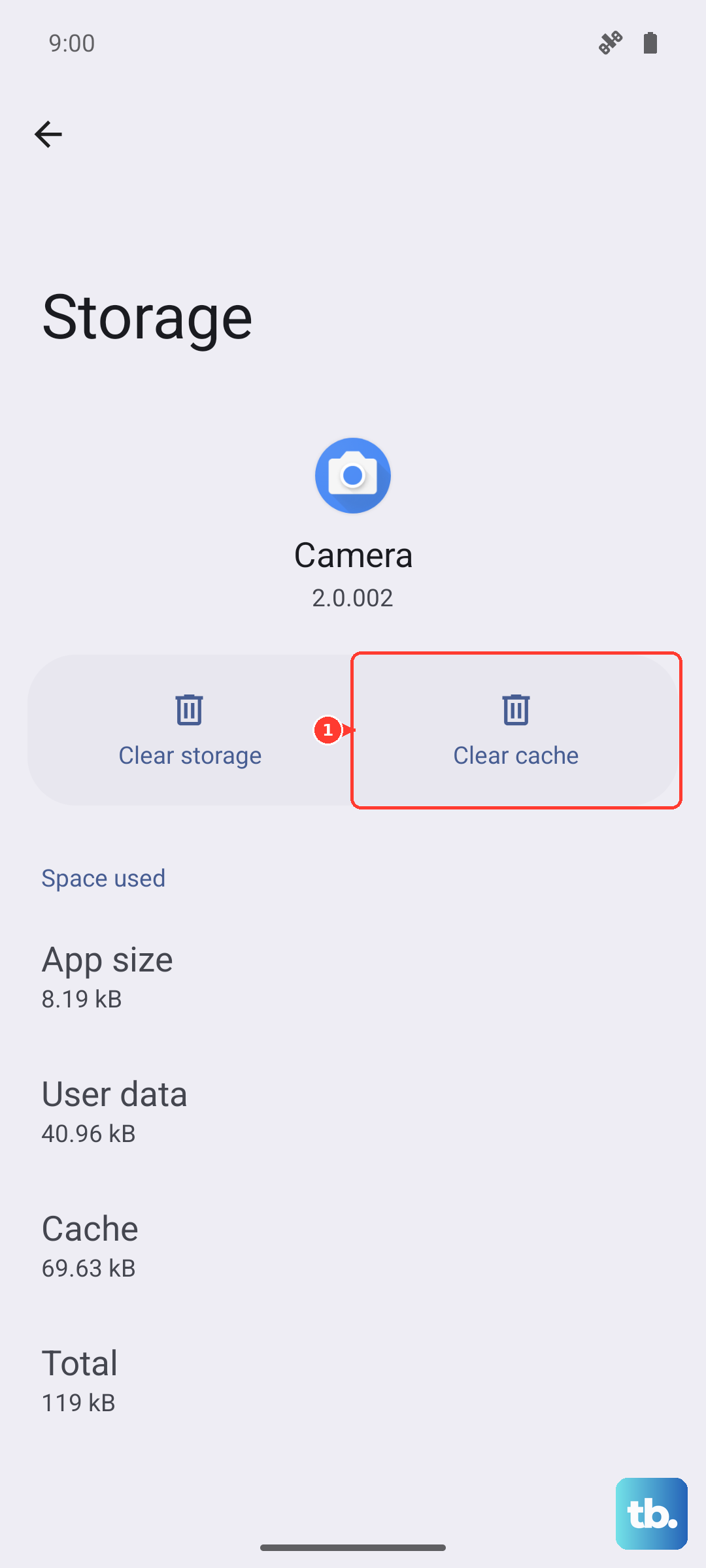
If that doesn't work, you can clear the cache for the update service. Go to Settings > Apps, tap the three-dot menu and select Show system apps. Find and tap Software update, then go to Storage and tap Clear cache. Try checking for the update again.
For more persistent issues, you can wipe the system cache partition. Power off the tablet, then press and hold Volume Up and Power until the recovery menu appears. Use the volume keys to highlight Wipe cache partition and press the power button to select it.
Check Your Current Software Version
It's good to know what you're currently running. Go to Settings > About tablet > Software information. Here you'll see your Android version, One UI version, and the all-important security patch level.
This info is handy if you're reading about a specific new feature or fix and want to confirm if your tablet has received it yet.
Preparing for a Major Update
Before installing a big One UI version jump, a quick backup is a smart move. You can use Samsung Cloud or Google One. Head to Settings > Accounts and backup and choose your preferred backup method.
Also, ensure you have several gigabytes of free storage. Major updates on a device with a screen this large can be sizable. Clearing out old downloads or offloading photos to the cloud can help.
If you use DeX mode for productivity, don't worry your setup will remain intact after the update. The process might even bring refinements to the DeX experience.