
Keeping your Samsung Galaxy S26 Ultra on the latest software is the best way to ensure it runs smoothly and securely. With One UI 8.5 on Android 16, you'll get monthly security patches and major feature updates periodically. The process is straightforward, whether you use Wi-Fi or a computer.
Check for Updates Over Wi-Fi
Open your phone's Settings and navigate to Software update > Download and install. Your S26 Ultra will check Samsung's servers for any available updates. If one is found, you'll see a prompt to download it.
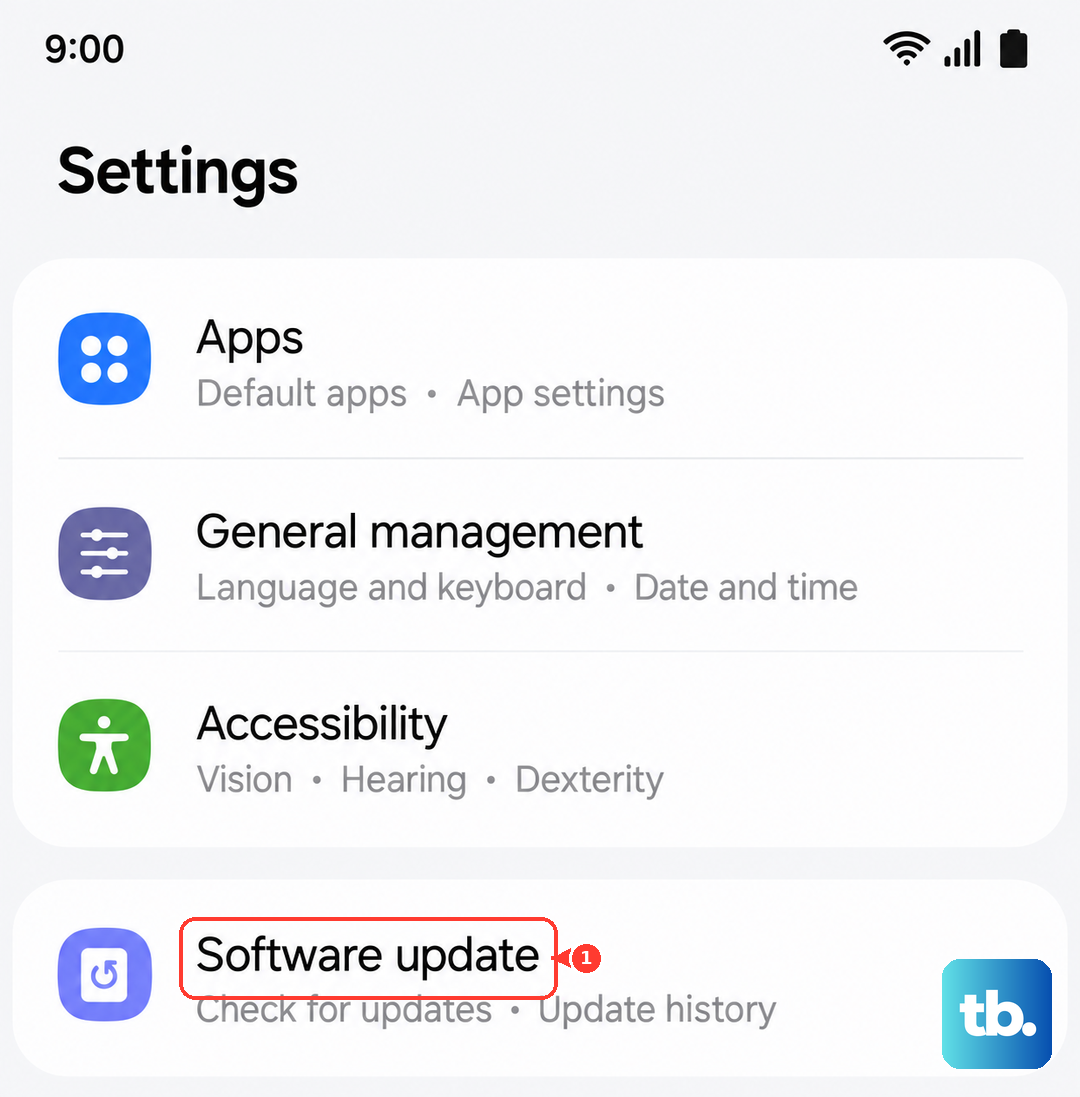
Tap Download to begin. Once the download finishes, you can tap Install now to proceed immediately. For a major One UI upgrade, I'd recommend plugging your phone into its charger, as the installation can take 20 minutes or more.
Enable Automatic Downloads
You can set your phone to handle the downloading part for you. Go back to Settings > Software update. Here, you can toggle on Auto download over Wi-Fi.
With this on, your Galaxy S26 Ultra will automatically fetch updates when connected to Wi-Fi. You'll still need to approve the installation, but it saves you the wait for the download. Some carriers also offer an option to schedule the installation for overnight.
Update Using Samsung Smart Switch on a PC
If an over-the-air update is failing or you're low on storage, using a computer is a reliable alternative. First, download and install the Samsung Smart Switch application on your Windows PC or Mac from Samsung's official website.
Connect your S26 Ultra to the computer using a USB-C cable. Launch Smart Switch, and it should recognize your device. The program will check for any available firmware updates and guide you through the installation process directly from your computer.
If an Update Gets Stuck or Fails
A force restart often clears up a stuck update process. On the Galaxy S26 Ultra, press and hold the Volume Down button and the Side/Power button together for about 10 seconds until the Samsung logo appears. After the phone reboots, try checking for the update again.
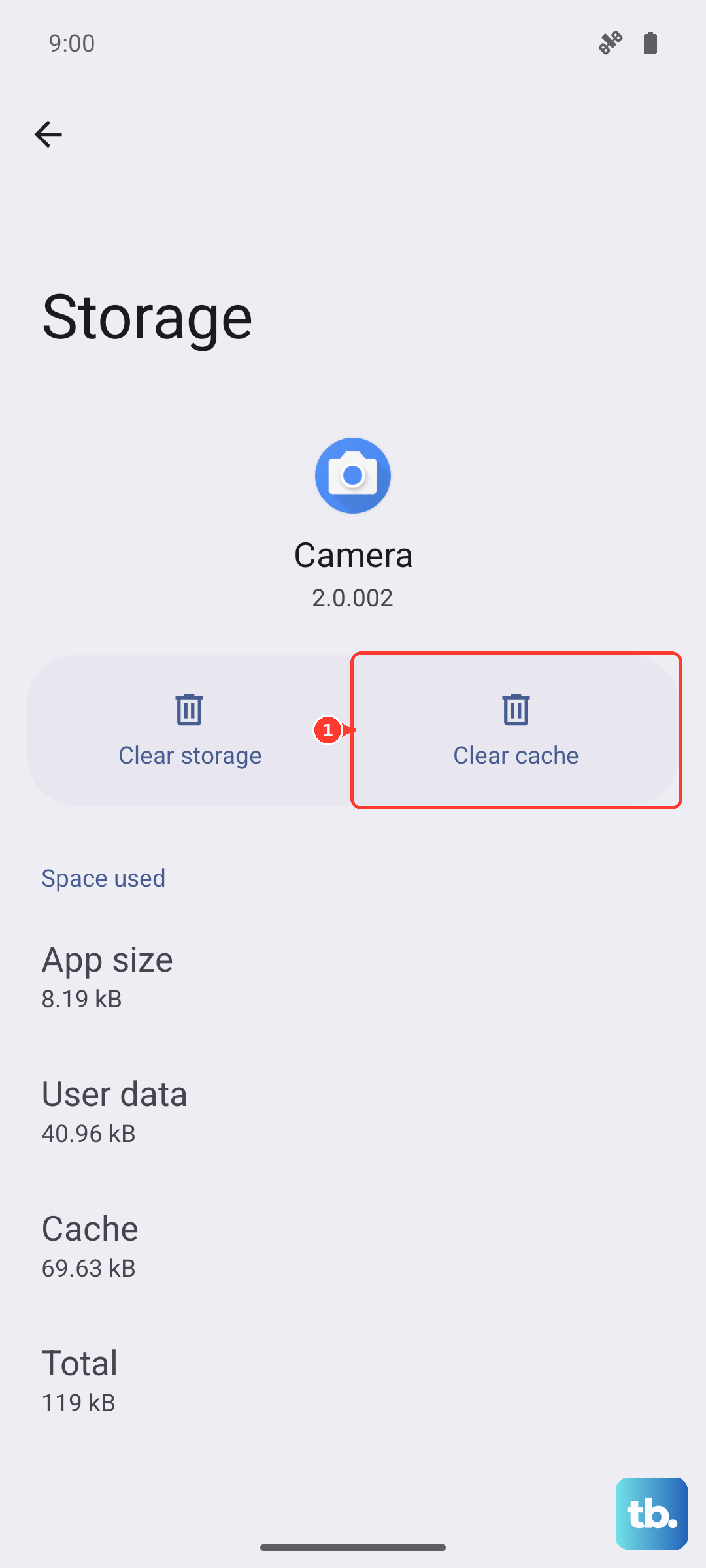
If that doesn't work, you can clear the cache for the update service. Go to Settings > Apps, tap the three-dot menu, select Show system apps, then find and select Software update. Tap Storage and then Clear cache.
As a last resort before a factory reset, you can wipe the system cache partition. Power off the phone, then press and hold Volume Up and the Side/Power button until the recovery menu appears. Use the volume keys to navigate to Wipe cache partition and select it with the power button.
Verify Your Current Software Version
It's helpful to know exactly what version you're running. Go to Settings > About phone > Software information. This screen shows your One UI version (like 8.5), the Android version (16), and the security patch date.
This information is useful if you're checking online forums for a specific update or troubleshooting a known bug tied to a particular software build.
Preparing for a Major Update
Before installing a significant One UI upgrade, it's a good practice to back up your data. You can do this by going to Settings > Accounts and backup > Back up data. Choose what you want to save to your Samsung Cloud or Google account.
Also, ensure you have ample free storage. A major Android version update can require 5GB or more of free space. You can check and manage storage under Settings > Battery and device care > Storage.
The Importance of Regular Updates
Samsung's monthly security updates are crucial for patching vulnerabilities that could affect your privacy and data. The Galaxy S26 Ultra, being a flagship device, will receive these patches promptly.
Major One UI updates bring new features, camera improvements, and battery optimizations specifically tuned for your hardware. Keeping your device updated means you're getting the most out of the technology you paid for.