
Keeping your Samsung Galaxy S26 updated is the best way to get new features, squash early software bugs, and keep your phone secure. With the brand new One UI 8.5 on Android 16, you'll want to grab those first few updates as they roll out to smooth out any initial quirks.
Check for Updates Over Wi-Fi
Open your phone's Settings and scroll down to Software update. Tap on Download and install. Your S26 will check Samsung's servers for any available updates. If one is found, you'll see a prompt to download it.
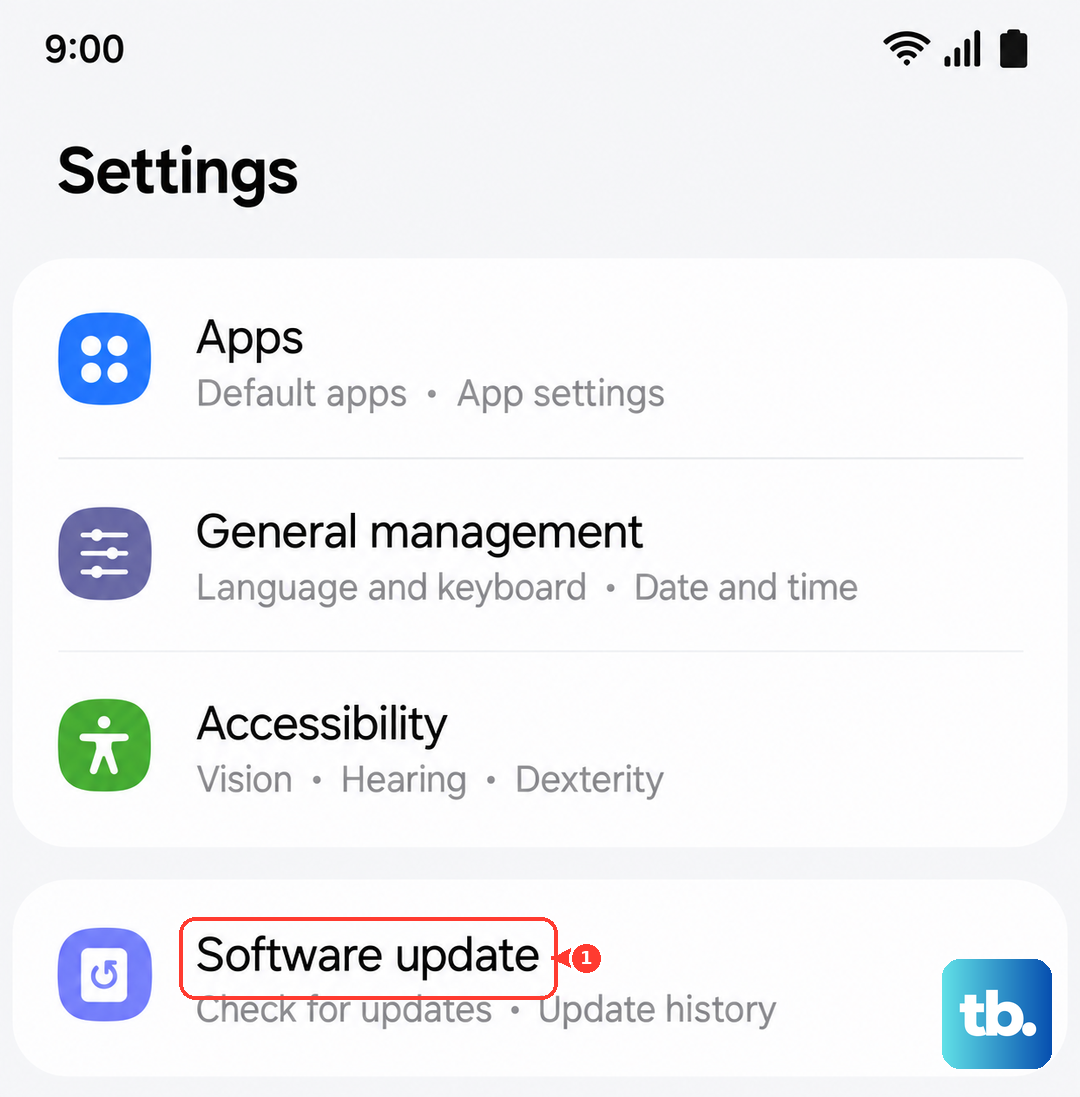
For a major One UI upgrade, I'd recommend plugging your phone into its 60W charger. These updates can be large and you don't want the installation interrupted by a low battery. A strong Wi-Fi connection is also essential for the download.
Set Up Automatic Downloads
You can make this process mostly hands-off. Go back to Settings > Software update and tap the three-dot menu in the top right. Here, you can turn on Auto download over Wi-Fi.
This means your Galaxy S26 will automatically download updates when you're connected to Wi-Fi and charging. You'll still get a notification to tap and install it, but the big download part happens without you having to remember.
Use Samsung Smart Switch on a Computer
If your phone is low on storage or the over-the-air update keeps failing, using a computer is a reliable alternative. Download the Samsung Smart Switch application to your Windows PC or Mac from Samsung's official website.
Connect your S26 to the computer using a USB-C cable. Open Smart Switch, and it should detect your phone. If an update is available, you'll see an Update button. The software will handle the download and installation through the computer's connection.
If an Update Gets Stuck or Fails
A force restart often clears up a frozen update process. On the Galaxy S26, press and hold the Volume Down button and the Side/Power button together for about 10 seconds. Release when you see the Samsung logo.
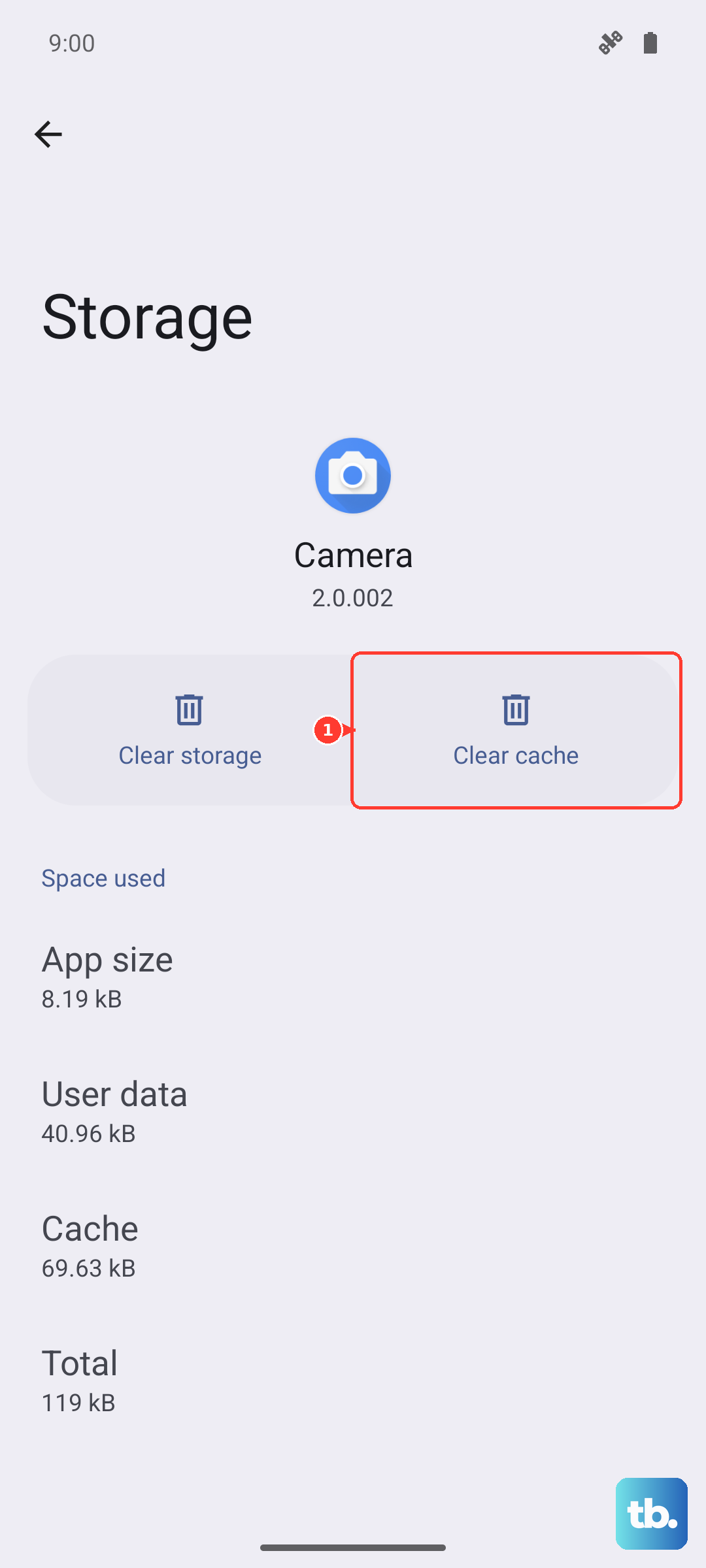
If that doesn't work, you can clear the update service's cache. Go to Settings > Apps, tap the three-dot menu and select Show system apps. Find and tap Software update, then go to Storage and tap Clear cache. Try checking for the update again.
Check Your Current Software Version
It's good to know exactly what's running on your phone. Head to Settings > About phone > Software information. Here you'll see your One UI version, Android version, and the all-important Android security patch level.
Samsung typically releases these security patches monthly. For a 2026 flagship like the S26, you should expect to see a very recent date here, often within the last month or two.
Preparing for a Major One UI Update
Before installing a big annual upgrade, a quick backup is a smart move. Go to Settings > Accounts and backup > Back up data. You can back up to your Samsung Cloud or Google Account.
Also, make sure you have plenty of free space. A jump to a new version of One UI can require 10GB or more of free storage. You can check and manage storage under Settings > Battery and device care > Storage.
Why Updates Are Critical for the S26
Since your phone is running the very latest One UI 8.5, the first few updates will be crucial for stability. Samsung uses these early patches to fix bugs that only show up once millions of people start using the software in the real world.
Beyond that, the monthly security updates are non-negotiable for safety. They patch vulnerabilities that could be exploited by malware. Keeping your S26 updated ensures you get the best performance, battery life, and security that Samsung designed for it.