
Keeping your Samsung Galaxy S24 updated is one of the best things you can do for it. You get the latest security patches, new One UI features, and important bug fixes that keep everything running smoothly. Samsung is pretty good about regular updates, especially for a flagship like the S24.
Check for and Install an Update
Open your phone's Settings app and scroll down to Software update. Tap on Download and install. Your phone will check Samsung's servers to see if anything new is available for your specific model and carrier.
If an update is found, you'll see a button to download it. I'd recommend being on a strong Wi-Fi connection for this, as the files can be large. Once the download finishes, tap Install now. Your phone will restart and apply the update, which usually takes a few minutes.
Set Up Automatic Downloads
You can make the process more hands-off. Go back into Settings > Software update and tap the three-dot menu in the top right. Select Auto download over Wi-Fi to turn it on. With this enabled, your S24 will automatically download updates when they're available, as long as you're connected to Wi-Fi.
You'll still need to manually tap "Install" to start the process, but it saves you from waiting for the download. It's a simple setting that ensures you never miss a critical security patch because you forgot to check.
Use Samsung Smart Switch on a PC or Mac
If an over-the-air update is failing repeatedly, using Samsung's Smart Switch desktop app is a great alternative. First, download and install Smart Switch on your computer from Samsung's website. Then, connect your Galaxy S24 to the computer using a USB-C cable.
Open Smart Switch, and it should recognize your phone. The app will check for any available firmware updates and guide you through installing them directly. This method can sometimes bypass issues related to phone storage or a shaky Wi-Fi connection during the download phase.
If an Update Gets Stuck or Fails
A force restart is the first thing to try if the update process seems frozen. On the Galaxy S24, press and hold the Volume Down button and the Side (power) button together for about 10 seconds. Release when you see the Samsung logo, and the phone will reboot normally.
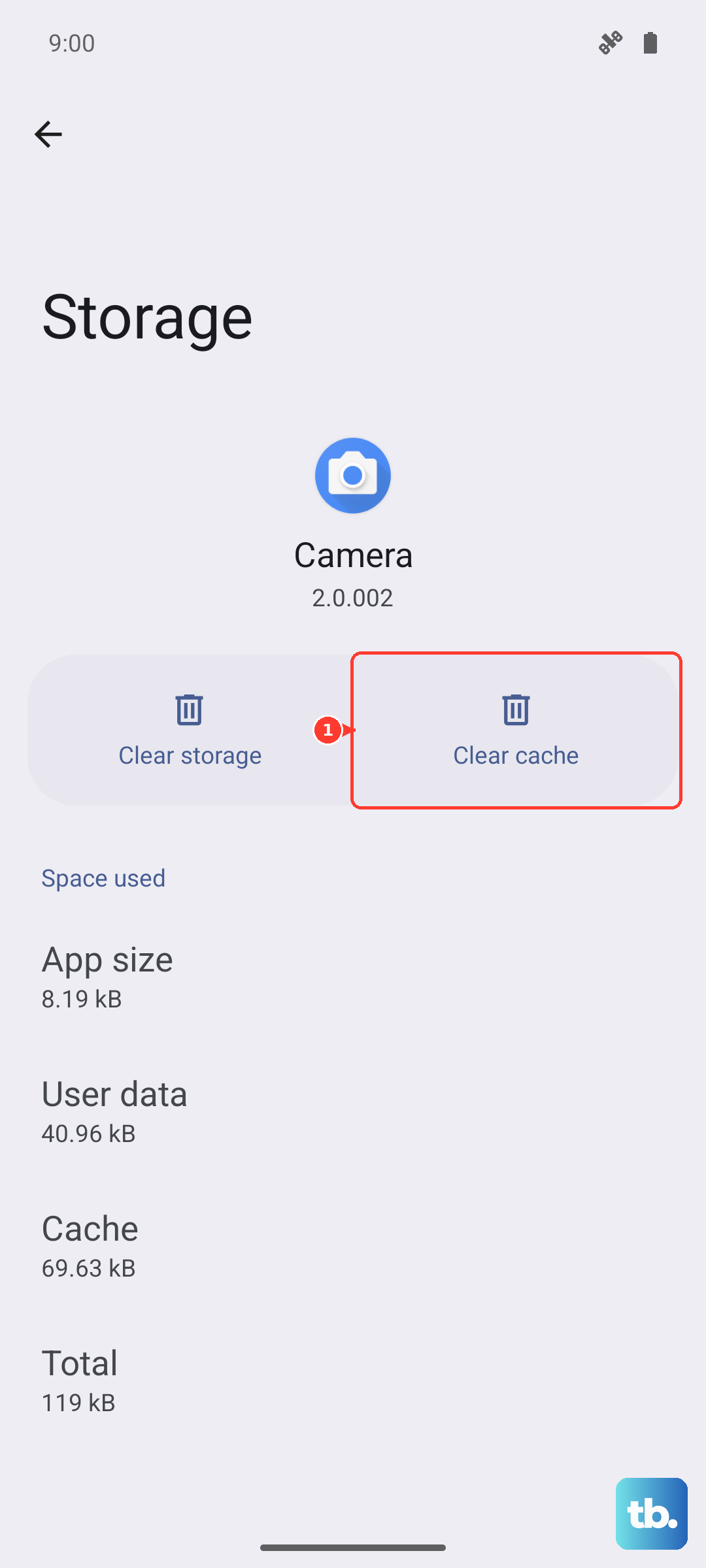
If that doesn't help, you can clear the cache for the update service. Go to Settings > Apps, tap the filter icon and select Show system apps. Find and tap on Software update, then go to Storage and tap Clear cache. Try checking for the update again afterward.
Preparing for a Major One UI Update
When a big annual update to a new One UI version rolls out, it's wise to do a quick backup first. Head to Settings > Accounts and backup > Back up data. You can back up to your Samsung account or Google Drive. Also, make sure you have plenty of free storage, as a major OS upgrade can require 5GB or more of free space to install without issues.
It's also a good idea to plug your phone in during the update. While the S24 should technically install an update with over 50% battery, being on the charger guarantees it won't power off mid-process, which could cause serious problems.
Understanding Update Types on Your S24
You can see exactly what's on your phone by going to Settings > About phone > Software information. Here you'll find your One UI version, Android version, and the Android security patch level.
Monthly security updates are small and focus solely on patching vulnerabilities. The larger One UI upgrades, which usually align with a new Android version, bring visual changes, new apps, and major feature additions. Keeping an eye on your security patch date is the easiest way to know if your phone is currently protected.
Why Updates Are Especially Important for the S24
Samsung often uses updates to fine-tune performance and battery life based on real-world usage data from the first few months after a phone's release. Those updates can include optimizations specifically for the Snapdragon 8 Gen 3 chip inside your S24.
They also fix device-specific bugs. For instance, some early S24 units had a "moisture detected" warning trigger falsely. A subsequent software update included a calibration tool for the USB-C port to help resolve that exact issue. Installing updates is how you get those tailored improvements.











