
Keeping your Samsung Galaxy A56 updated is one of the best things you can do for it. You get the latest security patches, bug fixes, and when the time comes, the newest features of One UI. The process is straightforward, but there are a few ways to go about it.
Check for Updates Over Wi-Fi
Open your phone's Settings and go to Software update > Download and install. Your A56 will check with Samsung's servers to see if an update is ready. If one is available, you'll see a prompt to download it.
Tap Download, and once it's finished, tap Install now. I'd recommend making sure your phone is connected to a Wi-Fi network and has more than 50% battery, or better yet, is plugged into its 25W charger. A major One UI update can be several gigabytes in size.
Set Up Automatic Downloads
You can save yourself a step by having your phone handle the download part. Go back to Settings > Software update. Here, you can toggle on Auto download over Wi-Fi.
With this on, your Galaxy A56 will automatically download available updates when it's on Wi-Fi and charging. You'll still get a notification to tap and install it, but the big download won't wait for you.
Update Using a Computer and USB Cable
Sometimes an over-the-air update might fail, or you might simply prefer using a computer. For that, you'll need Samsung's Smart Switch software. Download and install Smart Switch on your Windows PC or Mac from Samsung's official website.
Connect your Galaxy A56 to the computer using a USB-C cable. Open Smart Switch, and if an update is available, you should see a notification. The software will guide you through downloading and installing the update directly, which can be more reliable if your phone's storage is very full.
If the Update Gets Stuck or Fails
A stuck update can be worrying, but it's usually easy to fix. First, try a force restart. Press and hold the Volume Down button and the Side key (power button) together for about 10 seconds until the Samsung logo appears and the phone reboots.
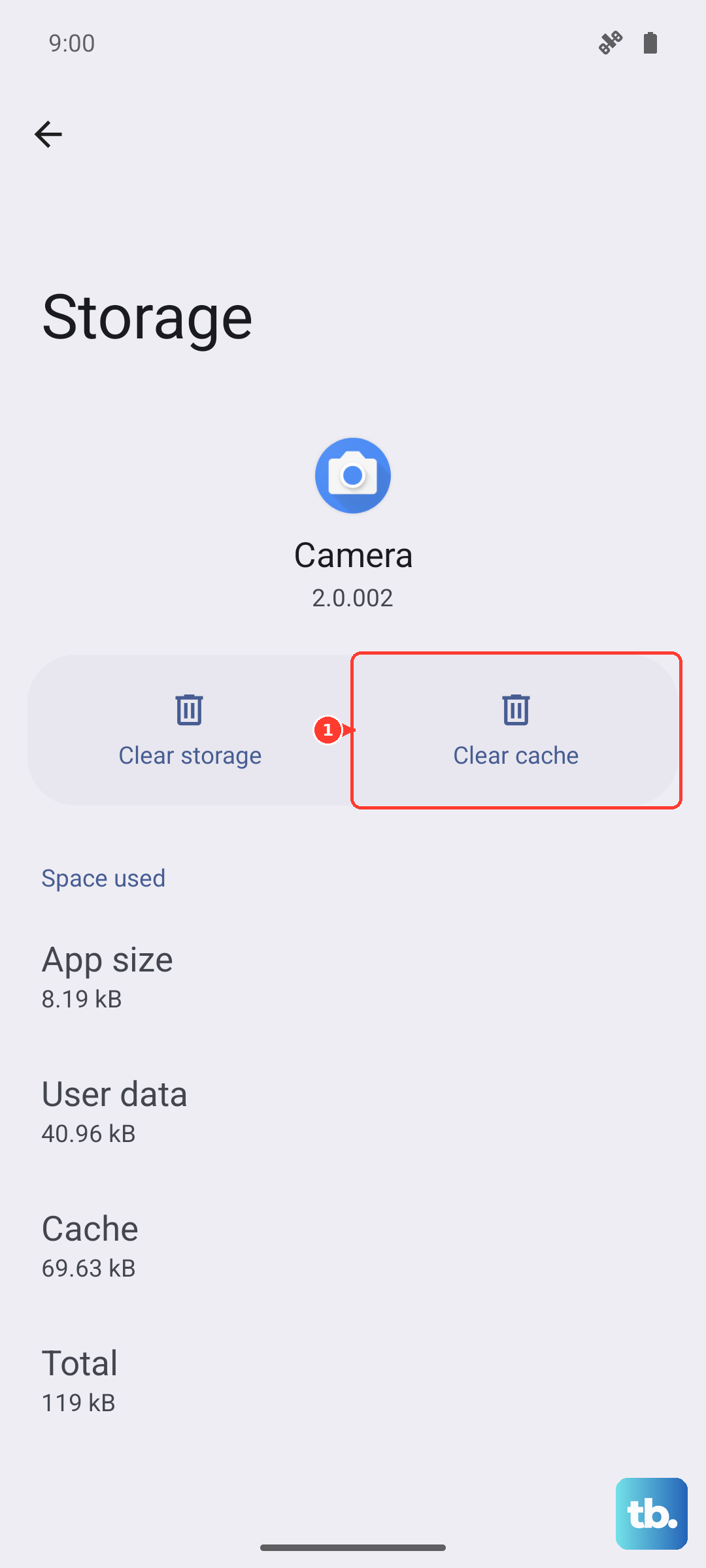
If the update still won't proceed, you can clear the update service's cache. Go to Settings > Apps, tap the three-dot menu, select Show system apps, then find and tap Software update. Go into its Storage and tap Clear cache. Then try checking for the update again.
As a last resort before a factory reset, you can wipe the system cache partition. Turn off your phone, then press and hold Volume Up and the Side key until the recovery menu appears. Use the volume keys to highlight Wipe cache partition and press the side key to select it. This doesn't delete any personal data.
Check Your Current Software Version
It's good to know what you're currently running. Go to Settings > About phone > Software information. Here you'll see your Android version, One UI version, and the all-important security patch level.
Samsung aims for monthly security updates, so if your patch date is several months old, it's definitely time to check manually. This screen tells you exactly where you stand.
Prepare Your Phone Before a Major Update
Before installing a large One UI platform update (like moving from One UI 6 to One UI 7), a little prep goes a long way. First, ensure you have a recent backup. Go to Settings > Accounts and backup > Back up data to back up to your Samsung Cloud or Google account.
Also, check that you have ample free storage, at least 5-10GB for a major OS upgrade. You can free up space by clearing app caches or moving photos to the cloud. Since the A56 doesn't support wireless charging, make sure you have your USB-C cable and a compatible 25W charger handy to keep it powered during the install.
Why Updates Matter for Your A56
Those monthly security updates are critical. They patch vulnerabilities that hackers could exploit, keeping your personal data and passwords safe. The larger One UI upgrades bring tangible improvements, like new customization options, better battery management algorithms, and overall smoother performance.
Installing them ensures your mid-range phone stays secure and continues to get the software polish Samsung develops, often extending its useful life. Given that the phone ships without a charger in the box, using an official 25W Samsung adapter or a certified third-party one is best for ensuring stable power during these important update processes.











