
Keeping your Redmi Note 13 Pro updated is one of the easiest ways to keep it running smoothly. Xiaomi pushes out MIUI updates that bring new features, fix bugs, and patch security holes. I'd check for updates every few weeks, especially since your phone launched with Android 14 and MIUI 15.
Check for MIUI Updates Over Wi-Fi
Open your Settings app and scroll down to About phone. At the top, you'll see a MIUI version card. Tap on it. Your phone will immediately check for any available system updates.
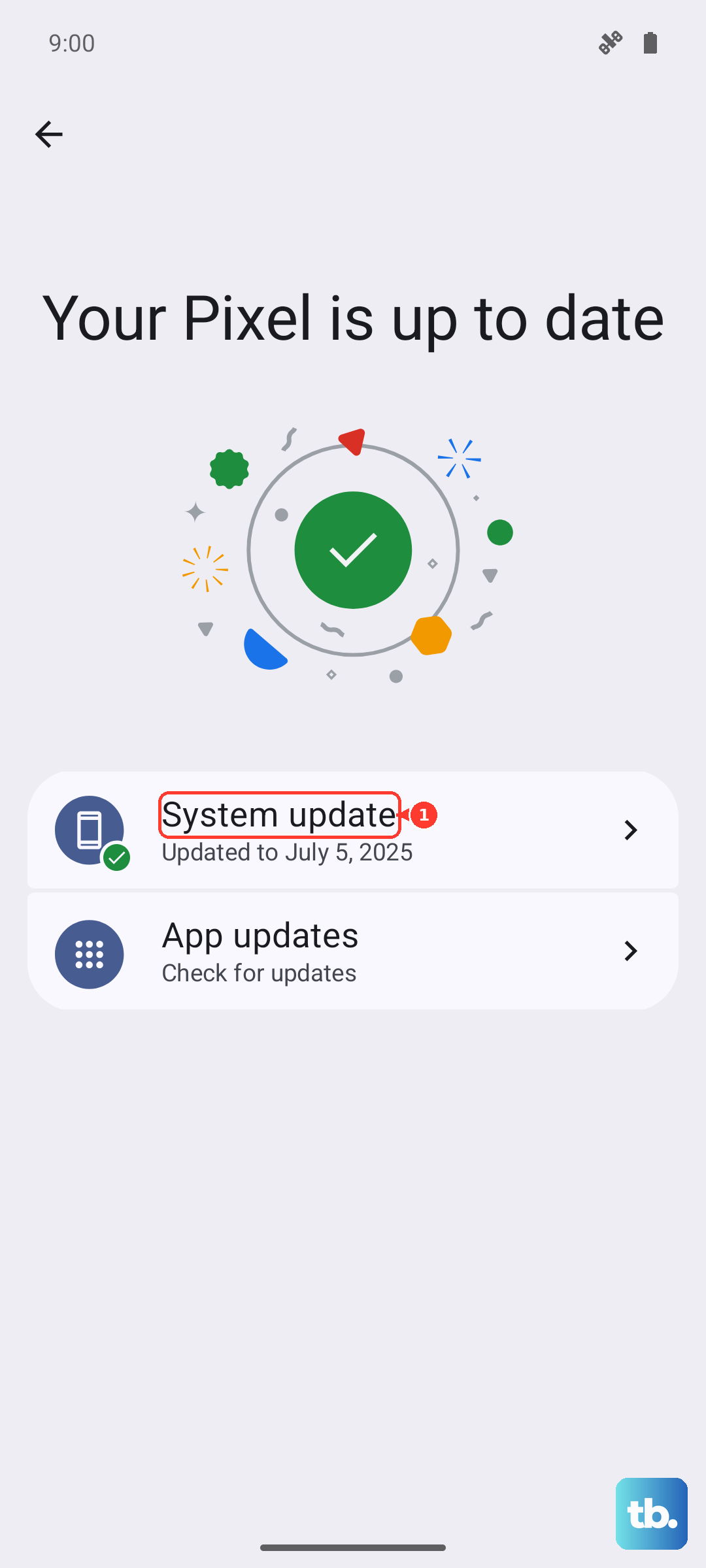
If an update is found, tap Download. Make sure you're connected to a stable Wi-Fi network and your battery is above 30%. It's a good idea to plug in your 67W charger during the download and installation, as the process can generate some heat.
Enable Automatic Updates
You can set your Redmi Note 13 Pro to handle updates automatically. After tapping the MIUI version card in Settings, look for the three-dot menu in the top right corner. Tap it and select Update settings.
Here, you can toggle on Auto download over Wi-Fi. With this on, your phone will grab updates as soon as they're available, but you'll still need to manually tap to install them. I usually keep this enabled so I don't miss a critical security patch.
What to Do If an Update Fails or Gets Stuck
Sometimes a download might fail, or the installation progress bar seems frozen. The first thing to try is a force restart. Press and hold the Power button for about 15 seconds until you feel the phone vibrate and the screen goes black, then release it to let it reboot.
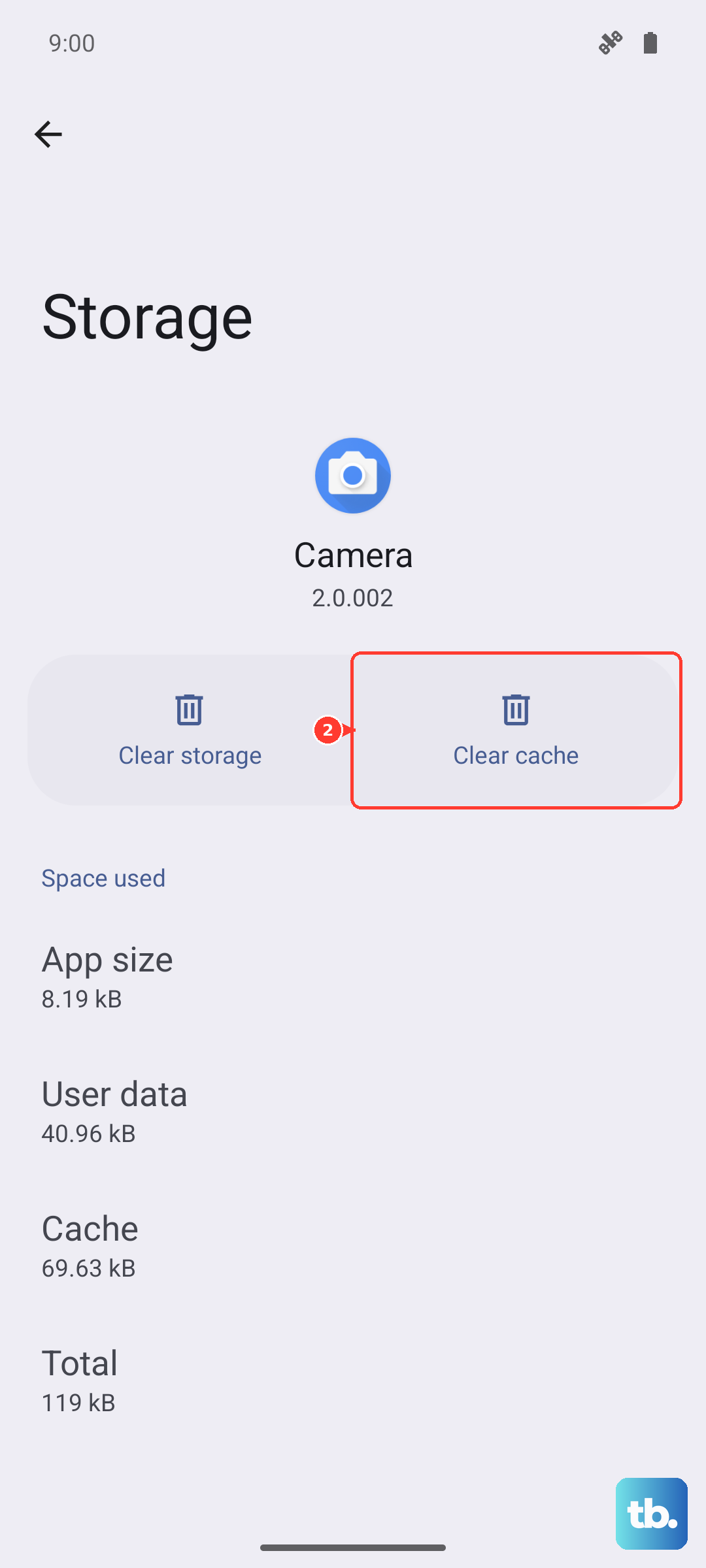
If the update still won't proceed, try clearing the cache for the updater app. Go to Settings > Apps > Manage apps. Tap the search icon and type "Updater". Select the Updater app, tap Storage usage, and then Clear cache. Go back and try checking for the update again.
Verify Your Current Software Version
It's helpful to know exactly what version you're running. Go to Settings > About phone. You'll see your current MIUI version, Android version, and the Android security patch level right there.
This info is useful if you're reading about a specific feature or bug fix online and want to see if your phone has received it yet. Xiaomi often lists update details in the community forums.
Don't Forget Your App Updates
System updates are important, but your apps need love too. Open the Google Play Store, tap your profile picture in the top right, and go to Manage apps & device. Under the "Updates available" section, tap Update all.
Keeping apps updated can resolve random crashes, improve battery life, and close security gaps. Some of the camera processing improvements on the Redmi Note 13 Pro come through app updates for the Camera app itself.
Check for Google Play System Updates
This is a separate update channel from Google that can deliver important security and performance fixes. On your Redmi Note 13 Pro, go to Settings > Security & privacy.
Scroll down and tap on More security settings. Look for Google Play system update and tap it. Your phone will check for updates. If one is available, install it. These updates help keep core Android components secure between major MIUI releases.
Why Updates Matter for Your Phone
Beyond security, updates on the Redmi Note 13 Pro can directly address some of its known behaviors. Xiaomi might release updates that improve thermal management for the Snapdragon 7s Gen 2 chip during gaming or tweak the camera's image processing to be less aggressive with skin smoothing.
Updates can also bring new MIUI features or help manage the system apps and notifications. Staying current ensures you get the most out of your phone's hardware and software.











