
Keeping your iPhone 17e on the latest version of iOS 26 is the best way to ensure it runs smoothly and securely. As a brand new model, early software updates are particularly important for ironing out any initial bugs. The process is straightforward, whether you update wirelessly or with a computer.
Update Over Wi-Fi on Your iPhone 17e
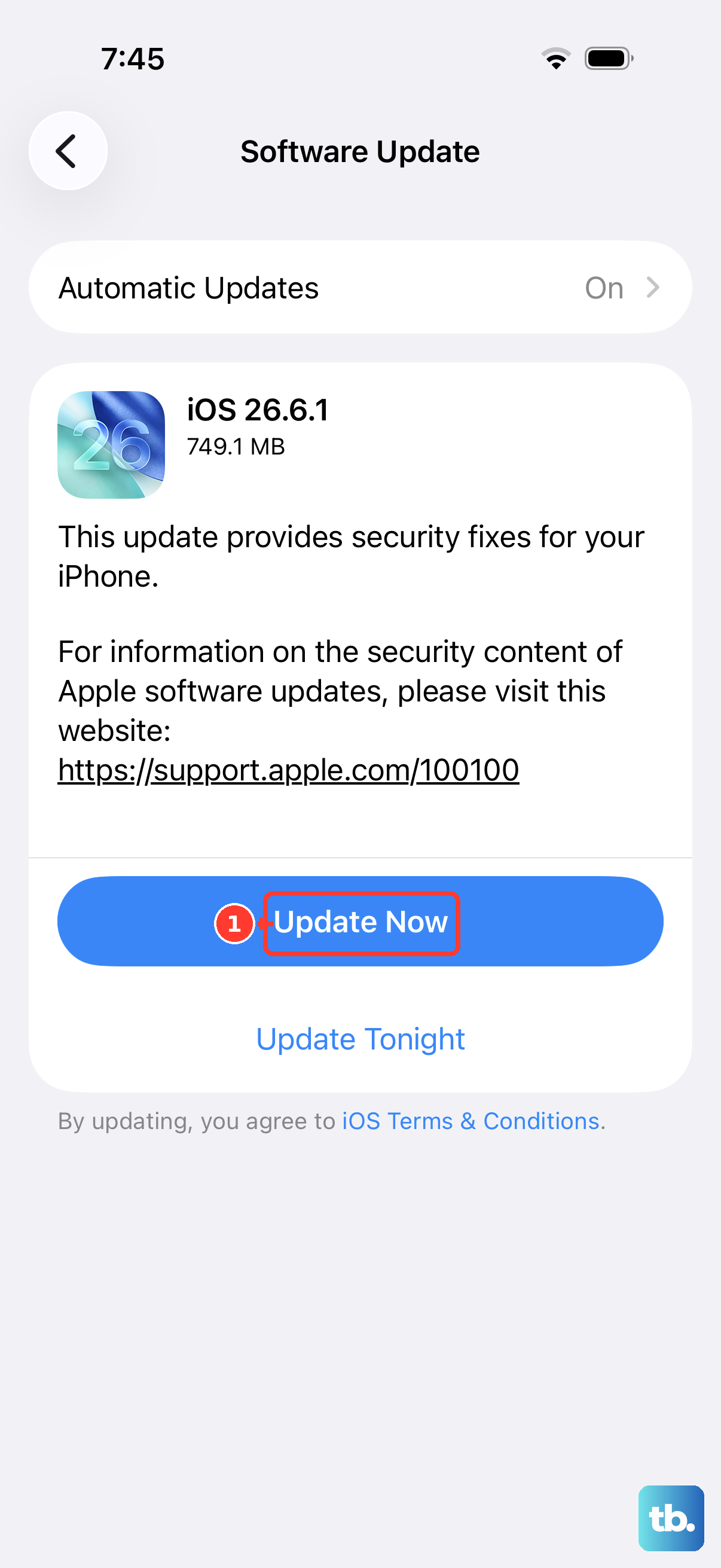
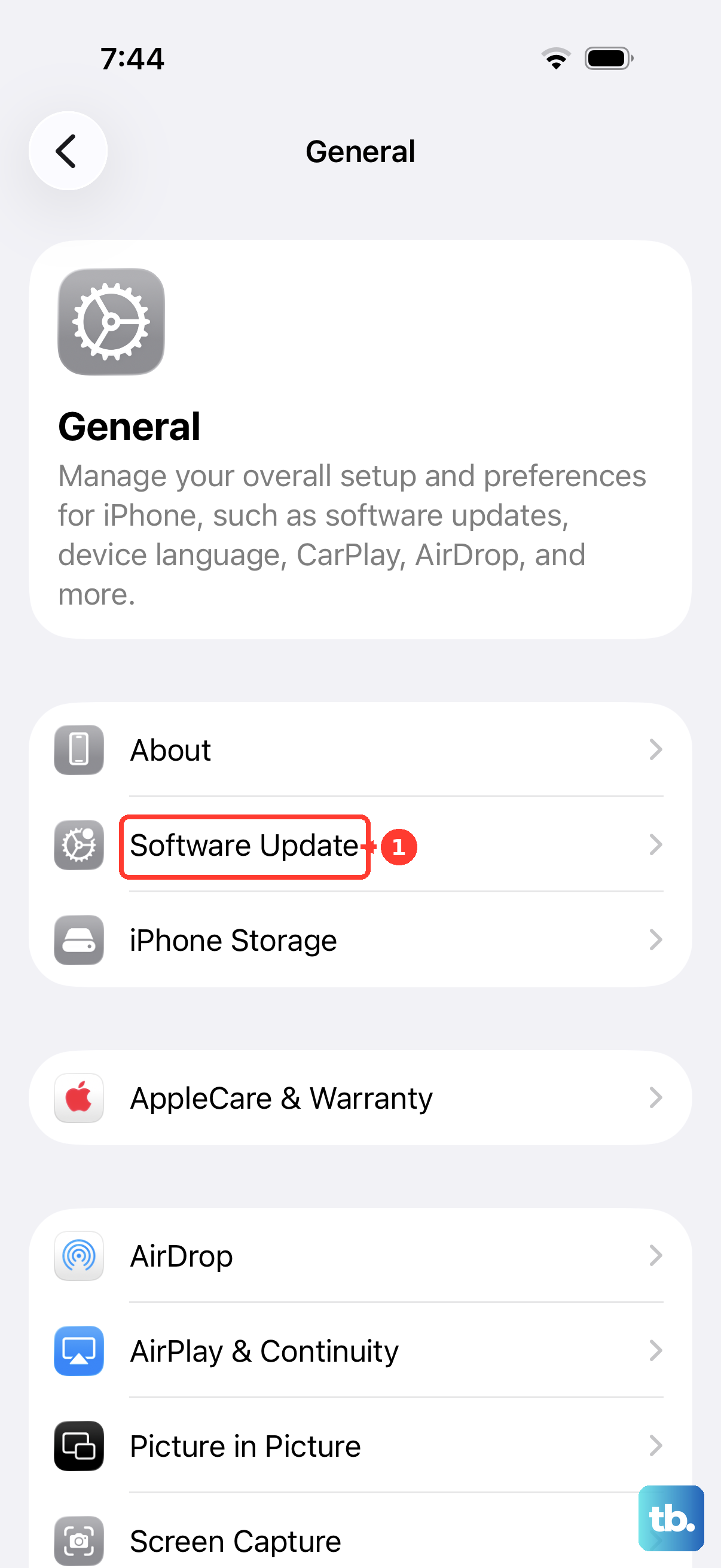
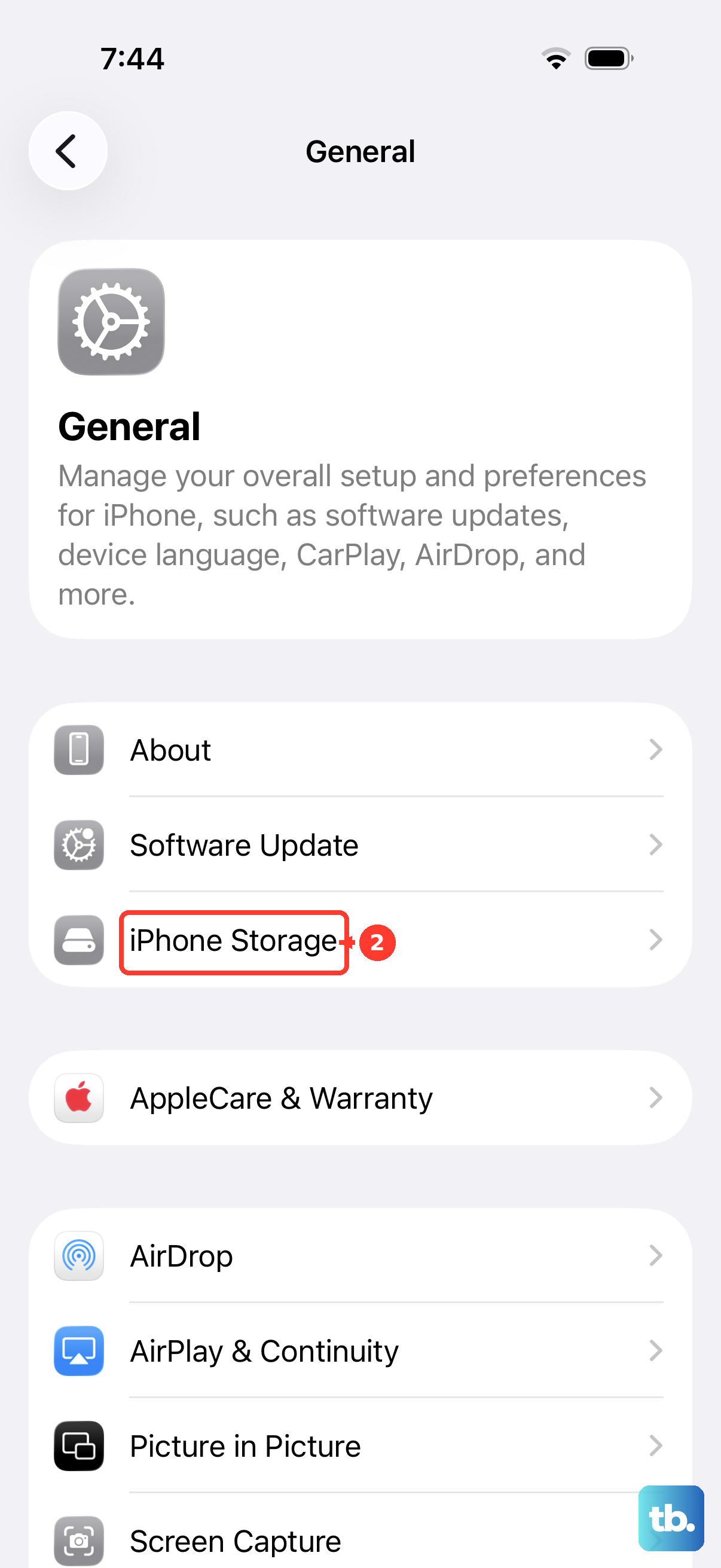
This is the method you'll use most of the time. Open the Settings app and navigate to General > Software Update. Your phone will check for any available updates. If one is found, you'll see details about what's included, like fixes for the A19 chip's thermal management or improvements for the C1X modem.
Tap Download and Install to begin. Make sure your iPhone 17e is connected to a Wi-Fi network and has more than 50% battery, or better yet, plug it in. I'd recommend using the included USB-C cable and a 20W charger, which is perfectly sufficient for this model. The download and installation will take some time and your phone will restart.
Enable Automatic Updates
To have updates handled for you, go to Settings > General > Software Update > Automatic Updates. Here, you can toggle on both Download iOS Updates and Install iOS Updates. With these enabled, your iPhone 17e will download updates in the background.
It will then install them overnight when the phone is connected to power, either via USB-C or on a MagSafe or Qi2 charger, and on Wi-Fi. You'll still get a notification before the installation happens, so you can delay it if needed.
Update Using a Mac or PC
If the over-the-air update fails or your phone doesn't have enough free storage, updating via computer is a reliable alternative. Connect your iPhone 17e to your computer using a USB-C cable. On a Mac with macOS or a Windows PC, you'll use the Finder or iTunes app, respectively.
Select your iPhone when it appears, then click Check for Update. If an update is available, click Download and Update. This method is great because the computer handles the download, bypassing any storage limitations on the phone itself.
Restart and Retry a Stuck Update
Sometimes an update can get stuck, especially on a new device like the 17e. If you see the Apple logo or a progress bar that won't move, perform a force restart. Quickly press and release the Volume Up button, then the Volume Down button, then press and hold the Side button until the Apple logo reappears.
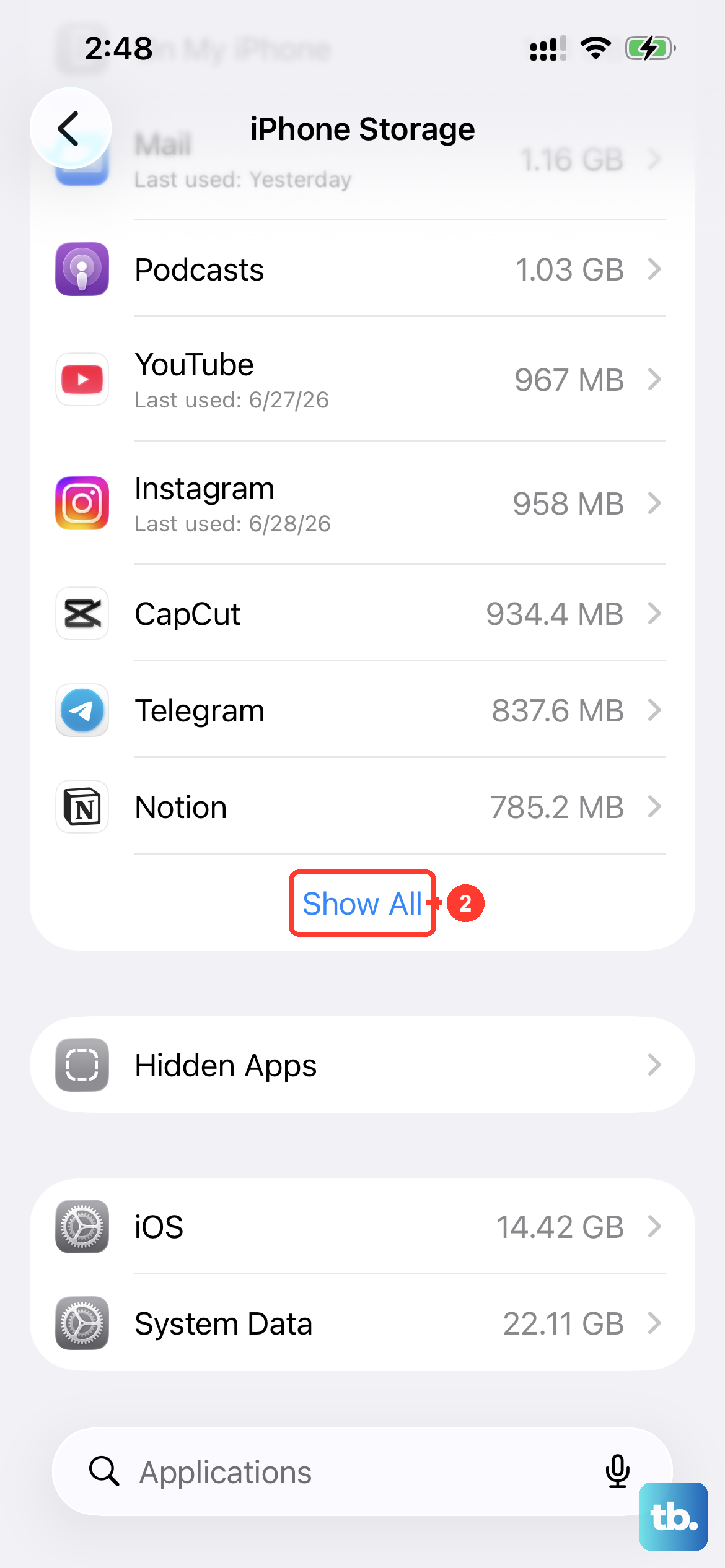
If the update still fails, the computer method described above is your next best step. For errors like "Unable to Verify Update," try switching to a different Wi-Fi network. You can also delete the downloaded update file by going to Settings > General > iPhone Storage, finding the update in the list, and tapping to remove it before trying again.
Check Your Current iOS 26 Version
It's useful to know exactly which software version you're running. Go to Settings > General > About and look for the "Software Version" entry. This helps you confirm if a specific update you heard about, perhaps one addressing charging performance, has been installed on your device.
Back Up Before You Update
It's a good habit to create a fresh backup before any significant update. On your iPhone 17e, go to Settings > [Your Name] > iCloud > iCloud Backup and tap Back Up Now. Ensure the backup completes by checking the time and date listed.
This gives you a safety net. If anything goes wrong during the update process, you can restore your phone and all your data from this backup. Just make sure you have enough iCloud storage space available.
Why Updates Matter for the iPhone 17e
For a new budget model, software updates are crucial for optimizing performance and battery life. They often include security patches that protect your personal data. Updates can also deliver enhancements specifically for your hardware, like better management for the A19 chip during intensive tasks.
While the 17e doesn't have features like ProMotion, updates ensure the features it does have work as intended. Keeping iOS 26 updated is the simplest way to maintain your phone's health and security over time.