
Keeping your iPad mini updated is the best way to ensure it runs smoothly and securely. Apple releases major iPadOS updates annually, with smaller point updates and security patches arriving more frequently throughout the year. The process is straightforward, but knowing the specifics for your 7th generation model can help avoid any hiccups.
Update Over Wi-Fi
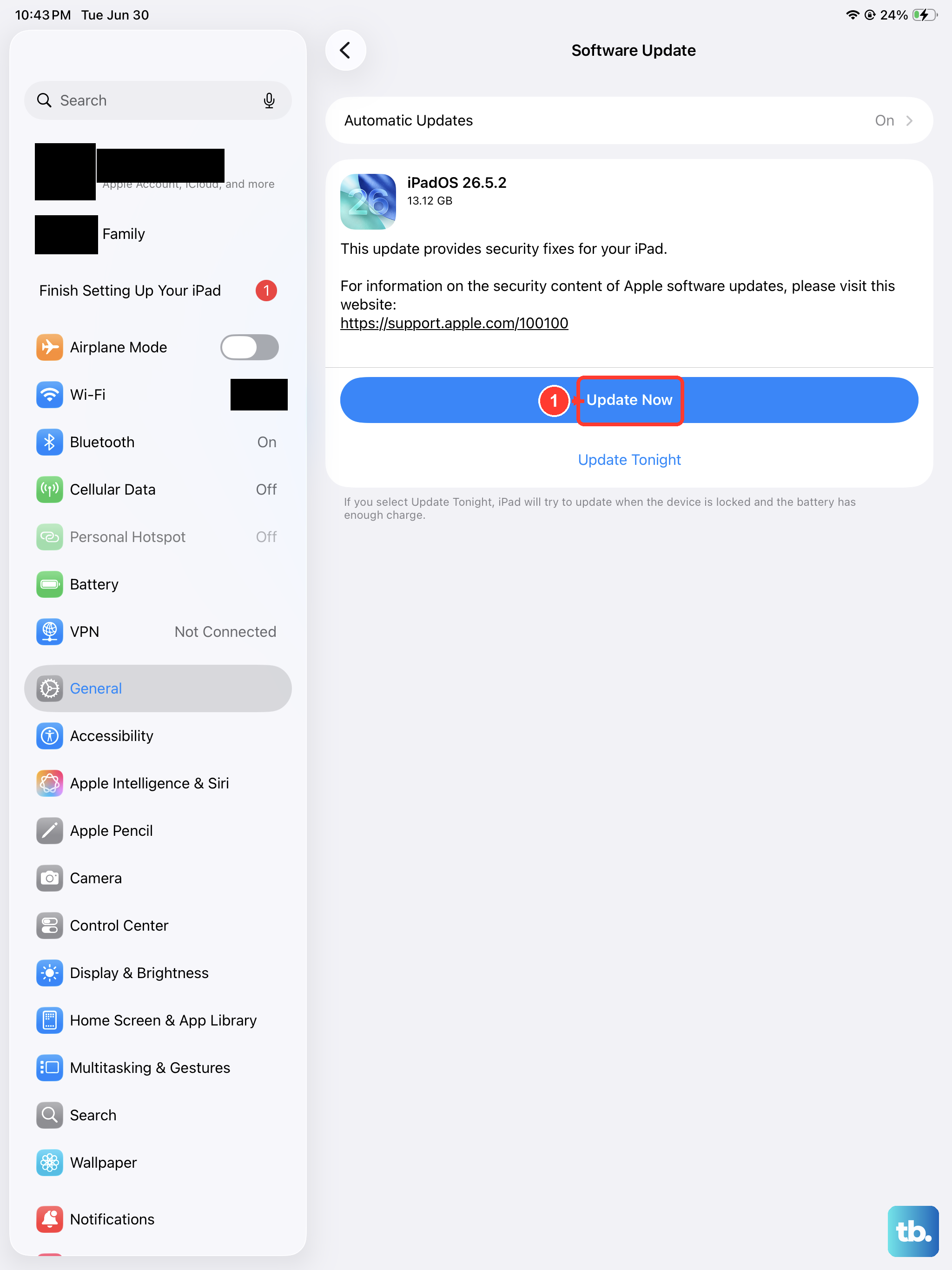
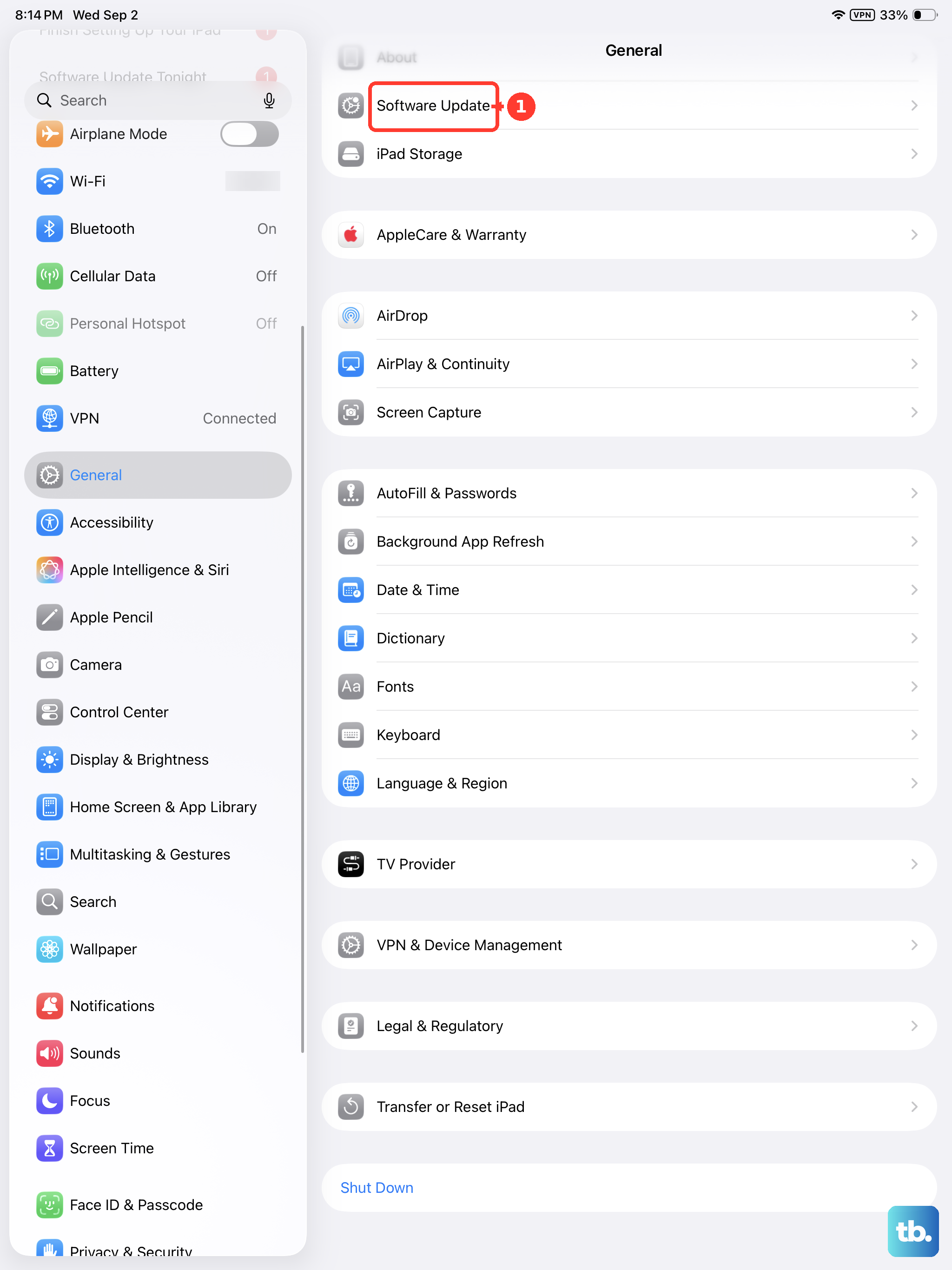
This is the standard method for most people. Open Settings on your iPad mini, then tap General and select Software Update. Your device will check for available updates. If one is found, you'll see details about iPadOS 26.x and what it includes. Tap Download and Install to begin.
Your iPad needs to be connected to a Wi-Fi network and have sufficient battery life. I'd recommend having it plugged into power using the official Apple 20W or 30W USB-C charger. The download can be large, especially for major version jumps, so a stable connection is key. The tablet will restart automatically to complete the installation.
Enable Automatic Updates
To have updates handled for you, go to Settings > General > Software Update > Automatic Updates. Here, you can toggle on Download iPadOS Updates and Install iPadOS Updates. With these enabled, your iPad mini will download updates in the background and install them overnight, provided it's connected to power and Wi-Fi.
You'll still get a notification before an installation happens, giving you a chance to delay it if you're in the middle of something important. This is a great set-it-and-forget-it option for staying current.
Update Using a Mac or PC
If the over-the-air update fails, gets stuck, or if your iPad doesn't have enough free storage, updating via a computer is a reliable alternative. Connect your iPad mini to your computer using a USB-C cable. On a Mac with macOS Catalina or later, open Finder. On a Windows PC or older Mac, open iTunes.
Select your iPad when it appears, then click Check for Update. If an update is available, click Download and Update. This method is particularly useful because the computer handles the download, bypassing any storage limitations on the iPad itself during the installation process.
Resolve a Stuck or Failed Update
If your iPad mini gets stuck on the Apple logo or a progress bar during an update, a force restart usually clears it. On the 7th generation model, quickly press and release the Volume Up button, then quickly press and release the Volume Down button. Immediately after, press and hold the Top button until you see the Apple logo appear, then release.
If the issue persists, the computer method described above is your next best step. For errors like "Unable to Verify Update," ensure your Wi-Fi connection is stable. You can also try deleting the downloaded update file by going to Settings > General > iPad Storage, finding the update in the list, and tapping Delete Update, then attempting the download again.
Check Your Current iPadOS Version
It's helpful to know exactly which version you're running. Go to Settings > General > Software Update to see the currently installed version. This tells you if you're on the latest release or if you have a pending update. This screen also shows your serial number and model identifier, which can be useful for reference.
Prepare Your iPad Before Updating
Before any major update, it's a smart practice to create a fresh backup. Go to Settings > [Your Name] > iCloud > iCloud Backup and tap Back Up Now. Ensure the backup completes. Also, take a moment to check that your charging port is clean and free of lint or debris, as a solid power connection during the update is crucial. Using a magnetic adapter or port cover can help prevent future accumulation.
Regular updates deliver critical security patches that protect your personal data. They also include performance tweaks and new features that keep your iPad mini running its best. While early production models might have occasional quirks, installing the latest iPadOS is typically the solution for improving overall stability and display performance.