
Keeping your iPad Air M3 updated is the best way to get new features, fix bugs, and stay secure. Apple pushes iPadOS updates regularly, major ones once a year, smaller ones in between. Here’s how to get your iPad Air M3 on the latest version, whether that’s iPadOS 18 or a future release like iPadOS 26 in 2026.
Update Over Wi-Fi (Easiest Method)
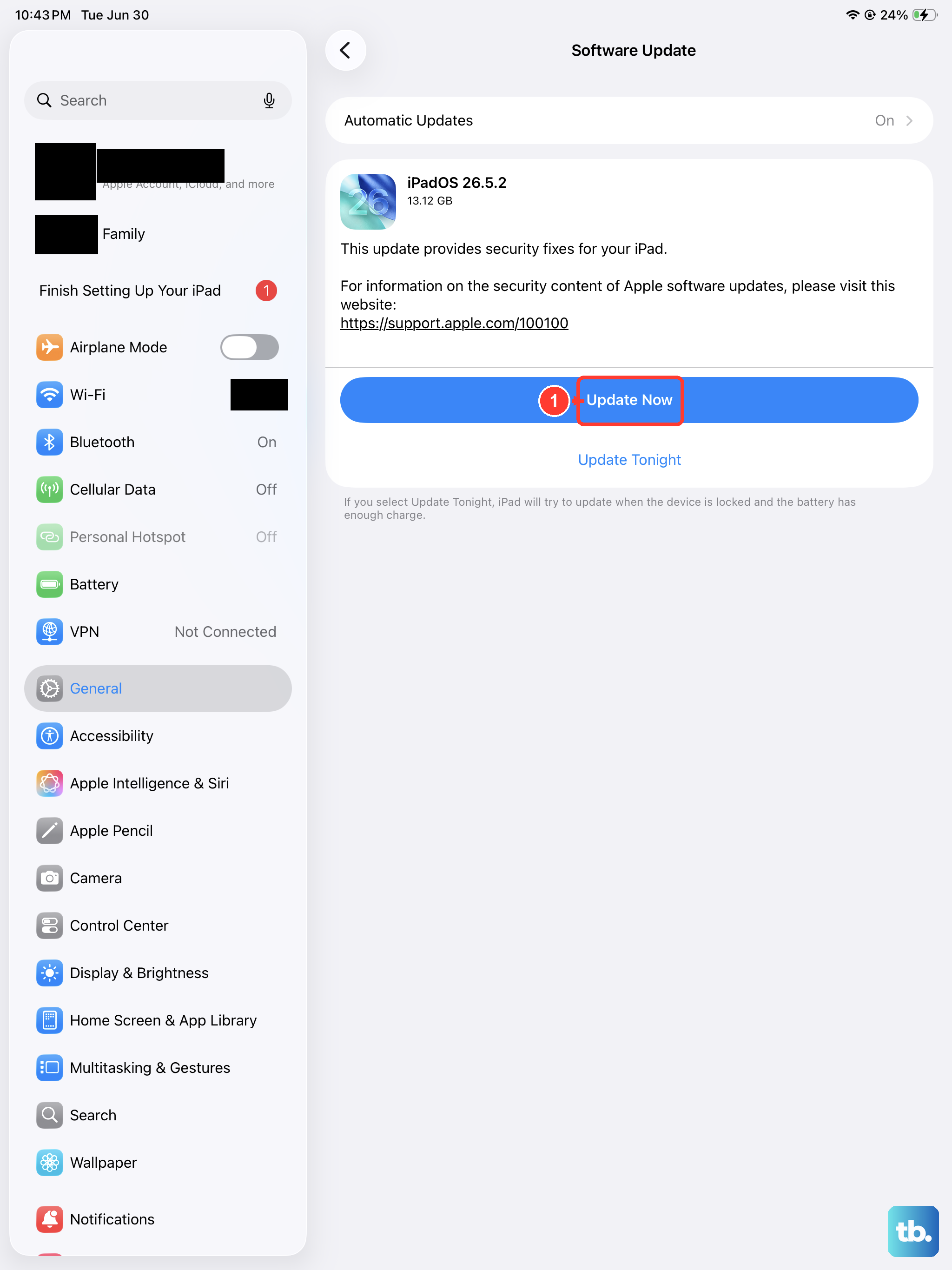
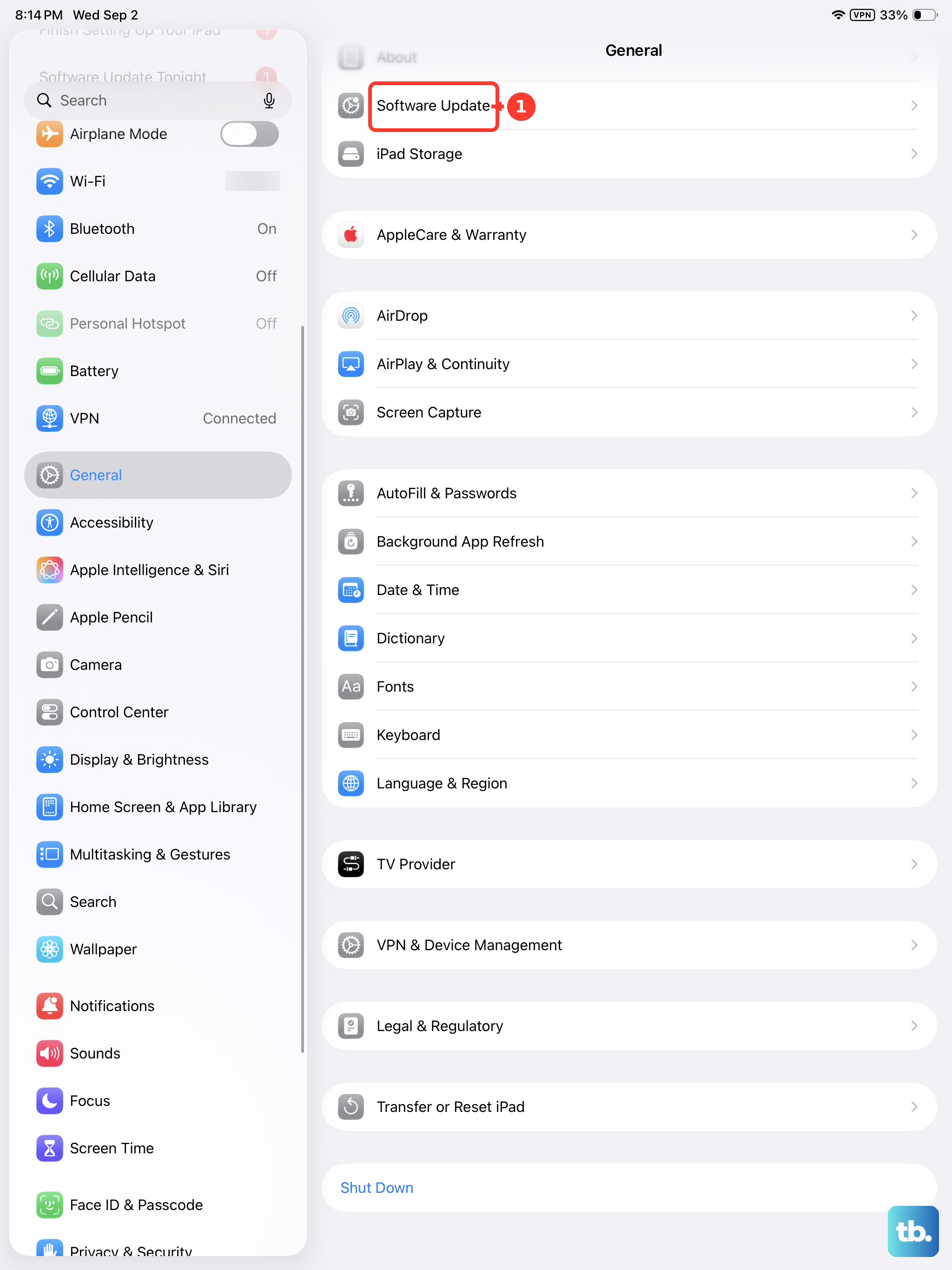
This is what you’ll use most of the time. Open Settings > General > Software Update. Your iPad Air M3 will automatically check for available updates. If one’s there, you’ll see the version number and a brief description. Tap Download and Install.
Make sure your iPad is connected to Wi-Fi and has at least 50% battery, or just keep it plugged into power using the USB‑C port. Major iPadOS updates can be a few gigabytes, so give yourself a solid Wi‑Fi connection and some free storage space. Your iPad will restart during the install.
Turn on Automatic Updates
If you’d rather not think about it, let the iPad handle updates on its own. Go to Settings > General > Software Update > Automatic Updates. Toggle on both Download iPadOS Updates and Install iPadOS Updates. From then on, your iPad Air M3 will download updates in the background and install them overnight when it’s charging and connected to Wi‑Fi.
You’ll still get a notification before the update actually installs, so you can delay it if the timing’s inconvenient.
Update Using a Mac or PC
If the over‑the‑air update won’t work, maybe it’s stuck downloading, your iPad doesn’t have enough free space, or you’re getting errors, use a computer instead. Connect your iPad Air M3 to a Mac or PC using a USB‑C cable. Open Finder on a Mac or iTunes on a Windows PC. Select your iPad, then click Check for Update. If an update is available, click Download and Update.
This method is especially handy when your iPad is low on storage. The computer handles the download and streams the installation to the device, so you don’t need gigabytes of free space on the iPad itself.
Fix a Stuck Update or Progress Bar
Sometimes an update gets stuck on the Apple logo or hangs on a progress bar. Don’t worry, you can kick it back into gear. Force restart your iPad Air M3: press and quickly release Volume Up, then Volume Down, then press and hold the Top button until the Apple logo appears. That usually gets things moving again.
If the update still won’t complete, plug into a computer and try updating through Finder or iTunes. If you see “Unable to Check for Update” or “Unable to Verify Update,” check your internet connection. Switching to a different Wi‑Fi network can help. You can also go to Settings > General > iPad Storage, find the downloaded update file, and delete it. Then go back to Software Update and try downloading again fresh.
Check Your Current iPadOS Version
To see exactly what version you’re running now, go to Settings > General > About. The iPadOS version is listed near the top. This is useful when you’re trying to figure out if a specific feature or fix is already on your iPad.
Prepping for a Major Update
Before you install a big update, especially a yearly one like iPadOS 18 or a future iPadOS 26, back up your iPad. Go to Settings > [Your Name] > iCloud > iCloud Backup > Back Up Now. If something goes wrong during the update, you can restore from that backup. Also make sure you have enough free space on your iPad and in iCloud. Major updates often require a couple of gigabytes free just for the download and install process.
Why Keeping Updated Matters
Every iPadOS update includes security patches that protect your iPad Air M3 from newly discovered vulnerabilities. Skipping updates leaves your device exposed. Beyond security, updates bring performance improvements, battery optimizations, and new features. There’s rarely a good reason to stay on an old version unless a specific app you rely on hasn’t been updated yet.