A stale GTX 1070 driver can break game compatibility, leave NVIDIA features missing, or keep Windows and Ubuntu stuck on a bad display driver. Start with NVIDIA App on Windows, use NVIDIA’s manual download when you want the installer yourself, and move to Windows, OEM, or Ubuntu tools when they fit your setup.
Update with NVIDIA App first
This fixes the normal case where your GTX 1070 works, but you want the newest NVIDIA driver with the least manual work.
Install the NVIDIA App build for Maxwell, Pascal, and Volta GPUs, version 11.0.5.420, linked on NVIDIA's NVIDIA App support page for these architectures. The GTX 1070 is a Pascal GPU, so this is the build it needs.
Open NVIDIA App on your Windows 10 or Windows 11 PC.
Select Drivers.
Click Download for the newest available driver.
Click Install when the download finishes.
The top-right driver-type dropdown switches between Game Ready Drivers and Studio Drivers on GPUs that still receive them. A GTX 1070 is offered the GeForce Security Update Driver instead, because NVIDIA ended Game Ready and Studio updates for Pascal GPUs in October 2025 and now ships security-only driver updates for them through October 2028.
Choose automatic driver downloads
NVIDIA App can download new drivers automatically after release. You still install the driver when prompted, so the final install stays under your control.
Open NVIDIA App, go to Settings, then open Drivers. Enable the option to automatically download a new driver when released.
When NVIDIA App prompts you about the downloaded driver, click Install. This applies to Windows 10 and Windows 11 systems running the Maxwell, Pascal, and Volta build of NVIDIA App, version 11.0.5.420, with a GTX 1000 Series GPU such as the GTX 1070.
Download GTX 1070 drivers from NVIDIA manually
Open NVIDIA’s GeForce drivers page at nvidia.com/en-us/geforce/drivers.
Go to Manual Driver Search.
Set Product Type to GeForce.
Set Product Series to GeForce 10 Series.
Set Product to GeForce GTX 1070.
Choose your Operating System.
Choose your Language.
Select Find Drivers.
Choose Download.
Run the downloaded installer after it finishes.
Use this route when you want the standalone GeForce driver without NVIDIA App.
Clean install the NVIDIA driver when updates fail
This fixes failed NVIDIA App installs, messy upgrades, and cases where you need a clean driver reset before installing the current GeForce Security Update Driver.
Download the latest GeForce Security Update Driver offered for your operating system. On a GTX 1070 this security-only driver replaces the Game Ready Driver: it patches critical security issues but adds no performance tuning, new features, or game-specific fixes.
Right-click the NVIDIA display driver installer file and select Run as administrator.
Approve User Account Control by selecting Yes.
Keep the default extraction path and click OK.
Select NVIDIA Graphics Driver and NVIDIA App.
Choose AGREE AND CONTINUE.
Select Custom (Advanced).
Click NEXT.
Enable Perform a clean installation.
Click Next.
Reboot when the installation is complete.
Use Windows Update for the Microsoft path
Use this when you prefer Microsoft’s update channel or you are setting up a PC and want Windows to find an available GTX 1070 driver. Windows can install recommended display drivers automatically through Windows Update.
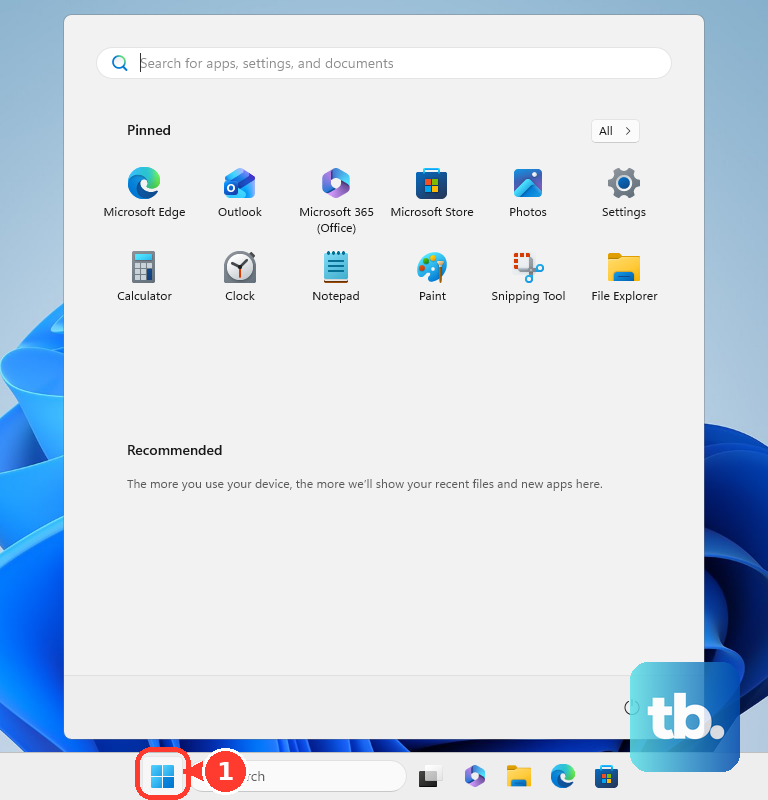
On Windows 11, open Start, then Settings, then Windows Update.
Select Check for updates and let Windows install recommended updates it offers.
For optional driver updates, open Start, go to Settings, choose Windows Update, then open Advanced options.
Under Additional options, select Optional updates.
When driver updates are listed, select the driver you want.
Choose Download and install.
Restart from Start, Shutdown or sign out, and Restart.
Fix missing updates in Device Manager
The most common limit is that Device Manager depends on what Windows Update has available for your GTX 1070.
Right-click Start and open Device Manager.
Expand Display adapters.
Right-click the GTX 1070 device and choose Update driver.
Select Search automatically for updated driver software.
If Windows offers it, choose Search for updated drivers on Windows update.
Select Close when the flow finishes.
When you already have an extracted driver package or an OEM driver folder, return to Update driver.
Choose Browse my computer for drivers.
Select Browse....
Pick the downloaded driver folder.
Choose OK.
Click Next.
Click Close.
Roll back or reinstall after a bad driver
Right-click Start and open Device Manager.
Expand Display adapters.
Right-click the GTX 1070 device and choose Properties.
Open the Driver tab.
Select Roll Back Driver.
Choose a reason.
Click Yes.
Restart if Windows prompts you.
To reinstall instead, right-click the GTX 1070 device in Display adapters.
Choose Uninstall device.
Select Uninstall in Uninstall Device.
Restart from Start, Shutdown or sign out, and Restart.
Roll Back Driver only works when Windows has a previous driver available.
Pick OEM tools for Dell HP and Lenovo PCs
Use your PC maker’s tool when the GTX 1070 came inside a branded desktop or laptop and you want the vendor-validated driver for that exact model. OEM tools can lag NVIDIA’s latest generic driver because they offer packages validated for specific systems.
On Dell systems, install SupportAssist from dell.com/supportassist if needed.
Open SupportAssist from Windows search.
Go to Home, choose Update software, then select Start.
Open View updates, select the driver updates, choose Install, and restart.
On HP systems, open HP Support Assistant from Windows search and go to My Dashboard.
Find your computer, select Updates, choose the listed updates, download and install them, and restart when prompted.
For HP website downloads, open HP Customer Support - Software and Driver Downloads.
Choose Laptop or Desktop.
Enter your model name or serial number in Or, enter your serial number.
Select Submit, open the relevant software or driver category, and choose Download.
On Lenovo systems, open Lenovo Vantage, go to System Update, select Check for Updates, then install all updates or only the updates you select.
Update GTX 1070 drivers on Ubuntu
This applies when your GTX 1070 is in an Ubuntu Desktop system. Ubuntu recommends the most recent NVIDIA driver marked proprietary, tested and says to avoid Server drivers for desktop and gaming use.
- 1.Open the Additional Drivers app, look under NVIDIA Corporation, choose the preferred driver version, select Apply changes, enter your password, and restart.
- 2.For Terminal, open Terminal and run sudo ubuntu-drivers list.
- 3.Run sudo ubuntu-drivers install for automatic selection, or run sudo ubuntu-drivers install nvidia:535 with 535 replaced by the listed branch you chose, then restart.
- 4.Use NVIDIA App instead of GeForce Experience on Windows, because NVIDIA recommends NVIDIA App for drivers and says GeForce Experience will no longer be supported.
- 5.Do not use NVIDIA Control Panel for driver updates, and do not use Project G-Assist for a GTX 1070 because G-Assist requires RTX hardware.
Frequently Asked Questions
Should I use Game Ready or Studio Drivers for a GTX 1070?
Neither, on a GTX 1070. NVIDIA released the final Game Ready Driver for Pascal GPUs in October 2025, so there is no current Game Ready or Studio driver for this card. Install the latest GeForce Security Update Driver offered for your operating system; NVIDIA plans these critical-security updates for Maxwell, Pascal, and Volta GPUs through October 2028.
Can I update GTX 1070 drivers without NVIDIA App?
Yes. NVIDIA still offers standalone GeForce drivers. Use Manual Driver Search, select GeForce, GeForce 10 Series, GeForce GTX 1070, your operating system, and language, then download and run the installer.
Why does Device Manager say I already have the best driver?
Device Manager checks against driver availability through Windows Update. For NVIDIA’s current GeForce driver path, use NVIDIA App or NVIDIA’s manual driver download page.
What if this is a work or school PC?
Driver updates may be controlled by your organization. On managed Windows devices, admins can allow, block, approve, pause, or decline driver updates through Microsoft management policies and Intune.











