Your display adapter driver controls how Windows talks to the graphics hardware behind your screen. When the driver is outdated, missing, or broken after an update, use the current Windows, PC-maker, or GPU-maker update paths instead of old driver tricks. Start with the built-in Windows route, then move to the exact official tool that matches your PC.
1. Start With Windows Update
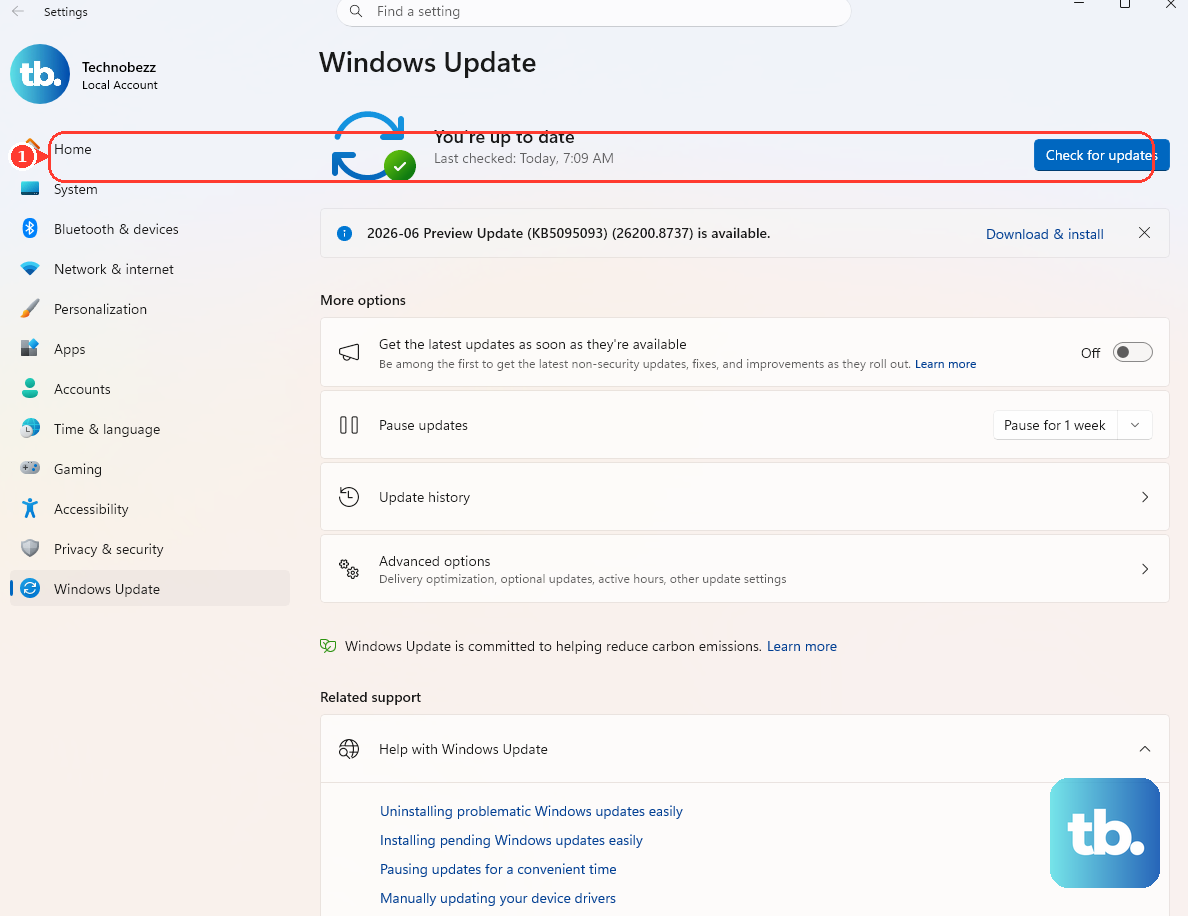
Best first move: let Windows check for a display driver through its normal update system.
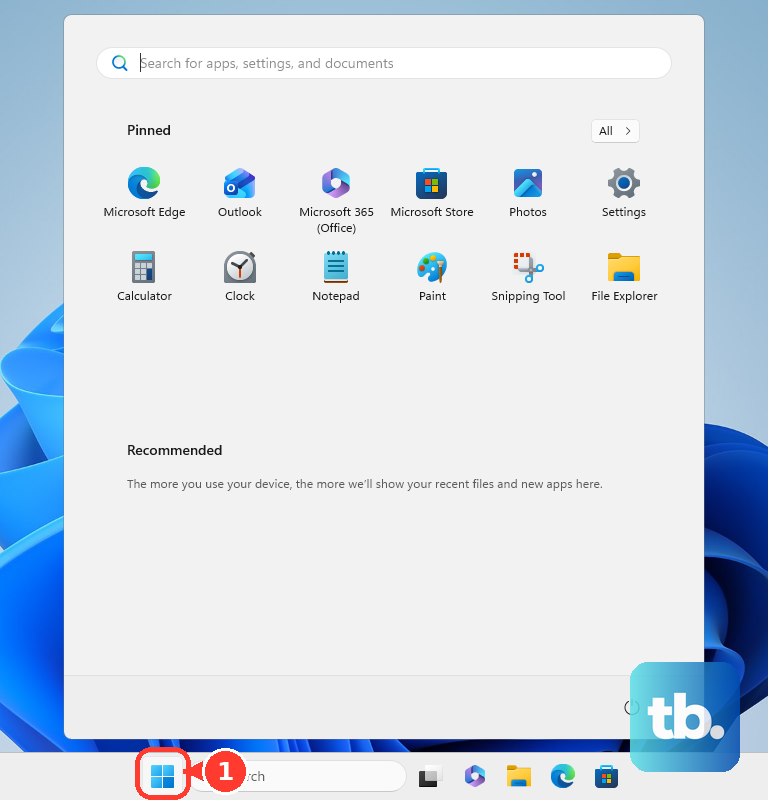
- 1.Open Start.
- 2.Select Settings.
- 3.Choose Windows Update.
- 4.Select Check for updates.
- 5.Install the display-adapter driver offered by Windows.
- 6.Restart the PC when Windows asks.
On Windows 10 that is still supported through ESU, LTSC, or vendor support, use Start > Settings > Update & Security > Windows Update > Check for updates.
2. Pull Optional Driver Updates
Open Start > Settings > Windows Update. Select Advanced options, then open Optional updates.
Select Driver updates. Choose the display-adapter driver, then select Download & install.
Some display drivers sit in Windows Update as optional driver updates instead of installing automatically, so check this screen next. On supported Windows 10, go to Start > Settings > Update & Security > Windows Update > View optional updates > Driver updates, then select Download and install.
3. Search From Device Manager
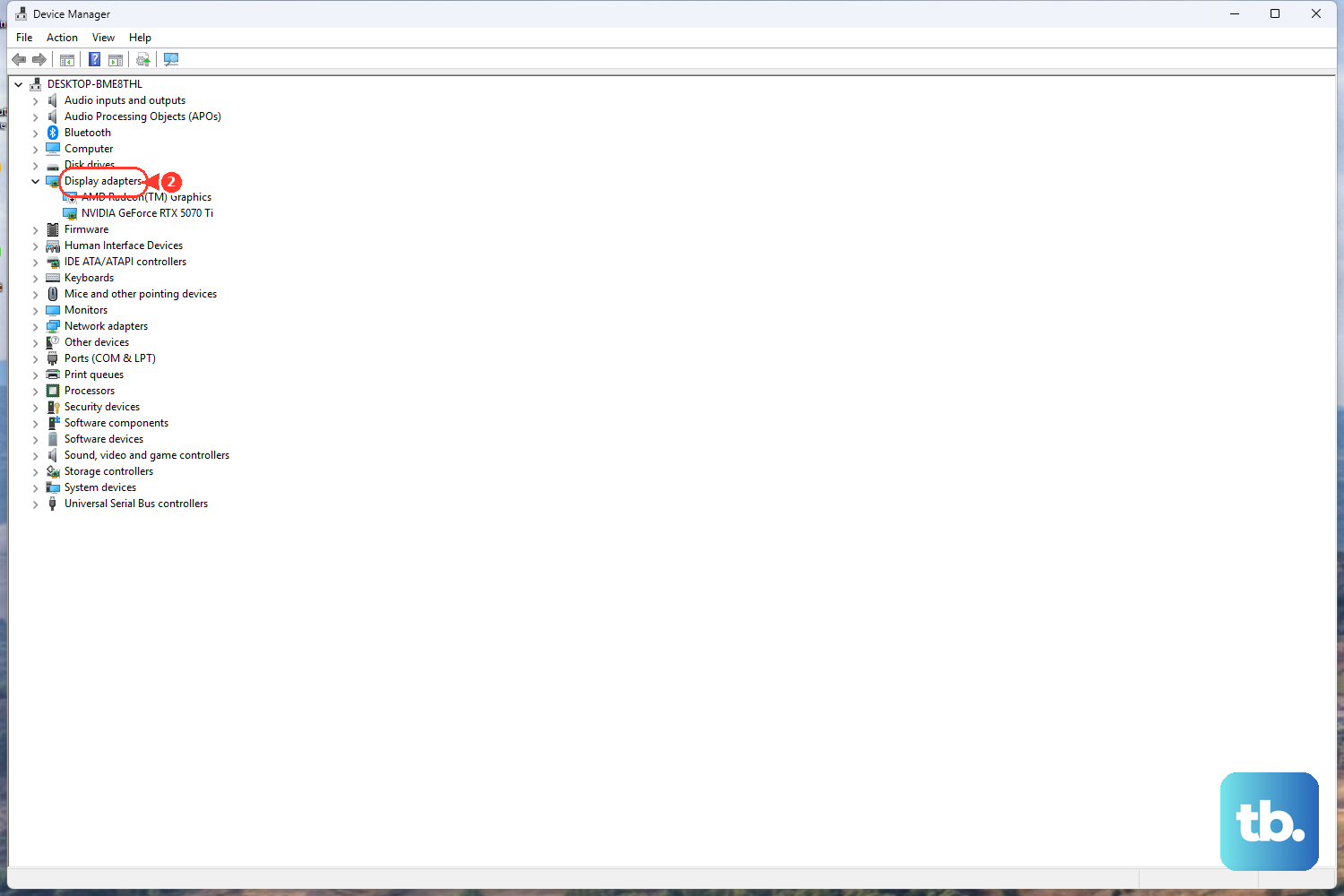
Device Manager gives you a direct display-adapter update button. Microsoft still documents this route, with Windows Update as the better first stop in many cases.
Select Search on the taskbar. Type Device Manager, then open Device Manager.
Expand Display adapters. Right-click the display adapter, choose Update driver, then select Search automatically for drivers.
For the shortcut route, press Windows logo key + X, choose Device Manager, then use the same Display adapters steps.
4. Use Your PC Maker’s Driver
Dell: open SupportAssist > Get drivers & downloads > Run now. Review the available updates, select the video or display driver, then choose Install.
On the Dell Drivers & Downloads page, identify the PC by Service Tag, Express Service Code, or Detect PC, choose the operating system, open Category: Video, then download and install the driver.
HP: open HP Support Assistant > My devices or Fixes & diagnostics > Updates > Check for updates and messages. Select the graphics or display driver, then choose Download and install.
HP Support Assistant needs Windows 10 RS4 or later and is not supported on ARM devices, so on an ARM PC use the HP download page below. On HP Software and Driver Downloads, identify the product, choose the operating system when prompted, open Driver-Graphics, then download and install the driver.
Lenovo: open Lenovo Vantage > System Update > Check For Updates. Select the display or graphics driver, then choose Install selected.
On Lenovo Support, go to PC, use Detect Product or enter the serial or model, open Drivers & Software, then use Manual Update or Automatic Driver Update.
Surface: use Start > Settings > Windows Update > Check for updates. For a manual package, open Microsoft’s Surface driver and firmware page, select the Surface model link, choose Download, select the matching .msi package, install it, then restart.
Dell, HP, Lenovo, and Surface systems have official driver tools and download pages for model-specific display drivers.
5. Get NVIDIA AMD Or Intel Drivers
Use the GPU maker’s current tool when you need the official NVIDIA, AMD, or Intel graphics driver for that hardware.
NVIDIA: open NVIDIA app > Drivers > Check for updates, then choose Download and install for the offered Game Ready Driver or Studio Driver. For a manual install, open NVIDIA Driver Downloads, choose Product Type, Product Series, Product, Operating System, Download Type, and Language, then select Search > Download and run the installer.
AMD: open AMD Software: Adrenalin Edition > System > Manage Updates to launch AMD Install Manager, then download and install the available driver. For a manual install, open AMD Drivers and Support, search or select the product, choose Submit, select the Windows version, then choose Download and run the AMD Software installer.
For supported Windows 10 and Windows 11 systems, use Download Windows Drivers to run AMD’s Auto-Detect and Install Tool.
Intel: install Intel Driver & Support Assistant, open the Intel DSA tray icon or website scan page, choose Check for new drivers, then select Download and Install for the graphics driver offered. For a manual install, open Intel Download Center > Graphics, select the Intel graphics product or search by product name, choose the matching Windows driver, select Download, then run the installer.
Skip old instructions that tell you to update through GeForce Experience, NVIDIA Update, NVIDIA Control Panel update checks, or AMD Radeon Settings. The current consumer paths are NVIDIA app, NVIDIA Driver Downloads, AMD Software: Adrenalin Edition, and AMD Drivers and Support.
6. Point Windows To A Downloaded Driver
Open Search on the taskbar. Type Device Manager and open Device Manager.
Expand Display adapters. Right-click the display adapter, then choose Update driver.
Select Browse my computer for drivers. Choose Browse, select the folder that contains the extracted driver, then select Next.
Use this when you already downloaded an official driver package from Microsoft Update Catalog, the PC maker, or the GPU vendor.
Advanced users can install an extracted official INF package from Terminal or Command Prompt opened as administrator. Run pnputil /add-driver <path-to-inf> /install.
For a folder, run pnputil /add-driver <folder>\*.inf /subdirs /install. For Microsoft Update Catalog, open the catalog website, search the display-adapter name or hardware ID, choose the matching Windows version and architecture driver, select Download, extract the package when needed, then install it through Device Manager > Browse my computer for drivers.
7. Roll Back Or Reinstall A Bad Driver
When the graphics problem starts right after a display-adapter update, roll back to the previous driver package.
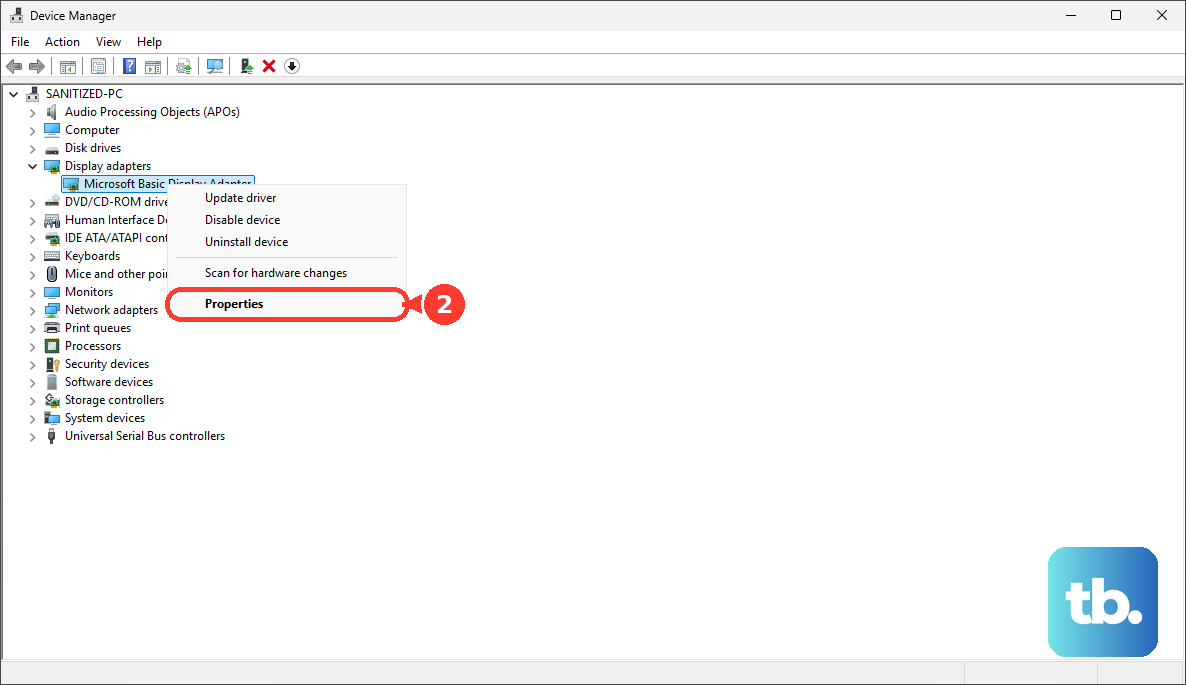
Open Device Manager. Expand Display adapters, then right-click the adapter.
Choose Properties. Open the Driver tab, select Roll Back Driver, choose a reason, then select Yes.
When the driver is broken and needs a fresh Windows reinstall, open Device Manager > Display adapters, right-click the adapter, choose Uninstall device, select Uninstall, then restart the PC. Windows attempts to reinstall the driver after the restart.
8. Check Work Or School Restrictions
Managed Windows PCs can have driver updates blocked, hidden, or replaced by organization controls. That includes Windows Update driver policies, Device Installation Restrictions, Windows Server Update Services, Microsoft Configuration Manager, and Intune.
On a work or school PC, check Settings > Windows Update. If driver updates are restricted there, contact the organization that manages the computer and use its approved update process.
Frequently Asked Questions
What is the safest way to update display adapters in Windows?
Start with Windows Update: Start > Settings > Windows Update > Check for updates. If Windows offers a display-adapter driver, install it and restart when prompted.
Where are optional display driver updates in Windows 11?
Open Start > Settings > Windows Update > Advanced options > Optional updates > Driver updates, select the display-adapter driver, then choose Download & install.
Can Device Manager update a display adapter driver?
Yes. Open Device Manager, expand Display adapters, right-click the adapter, choose Update driver, then select Search automatically for drivers or Browse my computer for drivers.
Which app updates NVIDIA drivers now?
Use NVIDIA app. Open NVIDIA app > Drivers > Check for updates, then choose Download and install for the offered Game Ready Driver or Studio Driver.
What should I do after a bad display driver update?
Open Device Manager, expand Display adapters, right-click the adapter, open Properties > Driver, then use Roll Back Driver. If the driver is broken, uninstall the device and restart so Windows attempts to reinstall it.