Your keyboard stops typing, repeats the wrong command, ignores short presses, or turns number keys into mouse movement. Most lockouts come from an accessibility switch, a number-pad toggle, a function-key mode, a gaming mode, or a disconnected keyboard. Start with the symptom you see, then use the matching fix below.
1. Identify the keyboard lock first
If the number pad does not enter numbers, press Num Lock.
If Excel arrow keys scroll the sheet instead of moving between cells, press Scroll Lock or ScrLk.
If short or repeated presses are ignored on Windows, turn off Filter Keys.
If Ctrl, Alt, Shift, or the Windows key acts held down, turn off Sticky Keys.
If the number pad moves the pointer, turn off Mouse Keys.
If F1 through F12 trigger volume, brightness, or media controls, switch the laptop or keyboard Fn Lock mode.
If the Windows key, Alt + Tab, or Alt + F4 stops working on a gaming keyboard, turn off Gaming Mode.
Use the visible symptom to choose the fastest path. If the physical keyboard cannot type long enough to finish a fix, open an on-screen keyboard first. On Windows 11, go to Start > Settings > Accessibility > Keyboard, then turn On-screen keyboard on.
2. Disable Windows accessibility switches
Windows accessibility features are the cleanest fix when keys respond late, ignore repeated taps, or act stuck.
Press Right Shift for eight seconds to turn Filter Keys off.
Press Shift five times to turn Sticky Keys off.
Press Left Alt + left Shift + Num Lock to turn Mouse Keys off.
Use Settings when the shortcut does not fit the symptom. For Filter keys and Sticky keys, open Start > Settings > Accessibility > Keyboard, then switch the affected feature off. For Mouse keys, open Start > Settings > Accessibility > Mouse, then turn Mouse keys off.
3. Restore Num Lock and Scroll Lock
Number-pad and Excel lockouts look dramatic, but the fix is a single toggle. For number entry, press Num Lock. If your keyboard has no Num Lock key, open Start > Settings > Accessibility > Keyboard, turn On-screen keyboard on, select Options, enable Turn on numeric keypad, then click NumLock.
For Excel arrow-key scrolling, press Scroll Lock or ScrLk. If that key is missing, open Start > Settings > Accessibility > Keyboard, turn On-screen keyboard on, then click ScrLk.
4. Reconnect the keyboard hardware
For a USB keyboard, unplug the USB cable, wait, then plug it back in.
Move the USB cable to another USB port.
Remove the USB hub and plug the keyboard directly into the PC.
For a wireless USB keyboard, unplug the receiver, wait about 10 seconds, then plug it back in.
Check the keyboard batteries or charge level.
Clean dirt blocking the affected keys.
A keyboard that receives no power or has a stale wireless connection behaves like a locked keyboard. Fix the connection before changing deeper settings.
For a Surface Pro Keyboard or Type Cover, detach the keyboard, install the latest updates, force restart or shut down the Surface using Microsoft’s Surface restart steps, then reattach the keyboard and confirm that it connects.
5. Fix Mac and Apple keyboard locks
On a Mac, accessibility settings cover the most common locked-key symptoms. Open Apple menu > System Settings > Accessibility > Keyboard, then turn Slow Keys and Sticky Keys off.
If the keyboard or number pad controls the pointer instead of typing, open Apple menu > System Settings > Accessibility > Pointer Control, then turn Mouse Keys off. You can also press Option + Command + F5, then deselect Mouse Keys.
- 1.To type while troubleshooting, open Apple menu > System Settings > Keyboard.
- 2.Go to Text Input and click Edit.
- 3.Turn on Show Input menu in menu bar.
- 4.Open the Input menu, then choose the keyboard viewer option.
For an Apple Magic Keyboard, turn the keyboard on so green is visible. To pair and charge it, connect it to the Mac with the included cable, wait about 1 minute, then disconnect it. To pair through Bluetooth, open Apple menu > System Settings > Bluetooth, then click Connect when the keyboard appears.
If the keyboard is tied to another Mac, open Bluetooth on that Mac, use the device details or remove control, then click Forget This Device.
6. Reset iPad iPhone Chromebook and Android input
On an iPad with Magic Keyboard, Magic Keyboard Folio, Smart Keyboard, or Smart Keyboard Folio, disconnect the keyboard, clean the Smart Connector on the keyboard and iPad with a soft lint-free cloth, remove other cases or covers, reconnect the keyboard, then restart iPad if it does not respond.
On iPhone or iPad with a physical keyboard, open Settings > Accessibility > Keyboards & Typing, then tap Key Repeat, Sticky Keys, or Slow Keys and adjust or turn off the setting that matches the symptom.
On a Chromebook, select the time at the bottom right, or press Alt + Shift + s, then open Settings > Accessibility. Under Keyboard and text input, turn Sticky keys off or turn On-screen keyboard on.
If a Chromebook key performs the wrong action, select the time, open Settings > Device > Keyboard > Remap keyboard keys, then choose the intended action for each listed key. If ChromeVox Sticky Mode is latched, quickly press the Search key or Launcher key twice.
On Android 16.0 or later, attach the physical keyboard, then open Settings > Accessibility > Physical keyboard accessibility and turn off Sticky Keys, Slow Keys, Bounce keys, or Mouse keys as needed. If that setting is missing, confirm the physical keyboard is attached and try again.
When Gboard itself is frozen, open Settings app > Apps > Gboard > Force stop, then reopen the keyboard. To clear the cache, open Settings app > Apps or Apps & notifications > Gboard > Storage and cache > Clear cache.
7. Switch Fn Lock and gaming modes
On supported Lenovo laptops, press Fn + Esc to switch Fn Lock or hotkey behavior.
On many HP notebooks, press fn + left Shift to enable or disable FN Lock.
On supported Dell keyboards, press Fn + Esc to activate or deactivate function lock.
On ASUS ExpertWidget-supported commercial notebooks, open ExpertWidget > Settings > General, then choose Locked Fn Key or Standard Fn Key. You can also press Fn + Esc.
On supported Logitech keyboards, press Fn + Esc to swap between media keys and F-keys. Use Logi Options+ for current Logitech customization on supported devices.
Function-key behavior belongs to the keyboard model, so use the shortcut or vendor app that matches the device in front of you.
For current Razer keyboards, turn off Gaming Mode with the shortcut for your model: press fn + F10 on full-size and tenkeyless keyboards, fn + U on Razer Huntsman Mini and Huntsman Mini Analog, or fn + O on Razer Huntsman V3 Pro Mini. In Razer Synapse 4, open Synapse, select the keyboard under DEVICES, then change the GAMING MODE dropdown.
8. Remove remapping apps and update drivers
Keyboard lockers, remapping utilities, browser extensions, and broken drivers sit behind the less obvious cases.
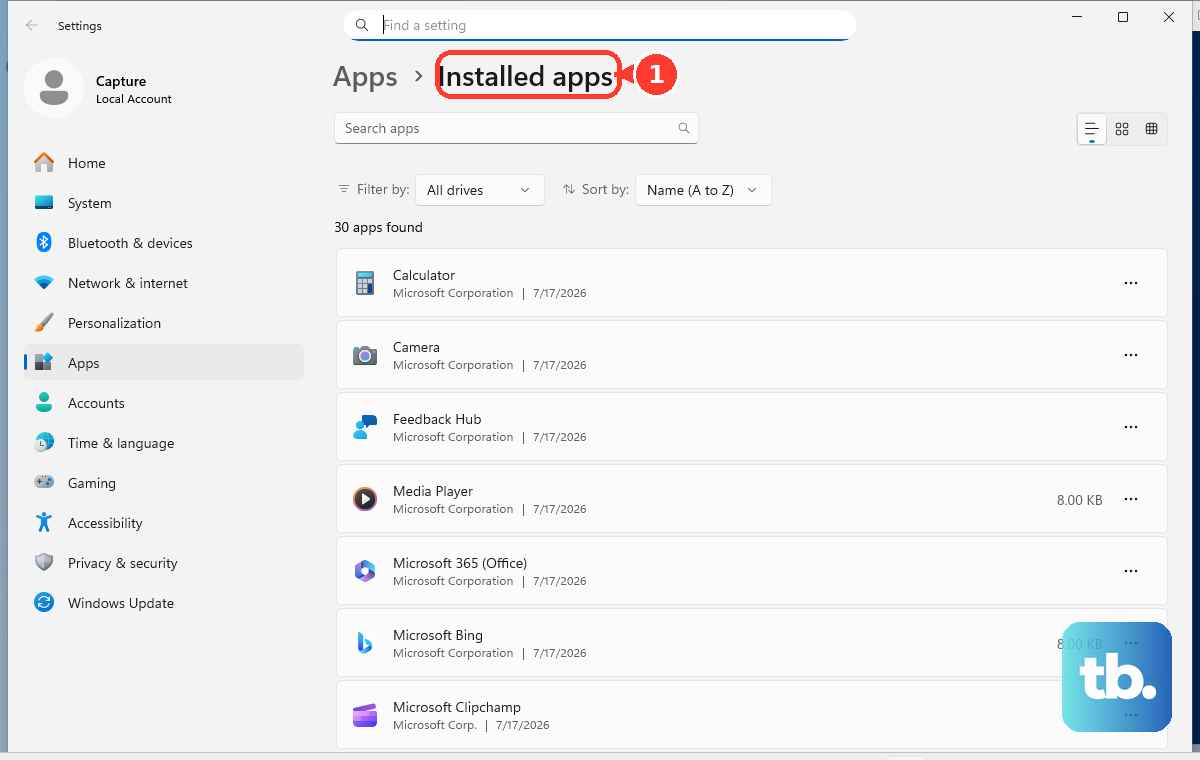
On Windows 11, remove a keyboard app from Start > Settings > Apps > Installed apps. Find the app, select More, then select Uninstall.
On Mac, open Finder > Applications. If the app has an uninstaller, open the app folder and double-click Uninstall [App] or [App] Uninstaller. Otherwise, select the app and choose File > Move to Trash.
In Chrome, select More > Extensions > Manage Extensions. Next to the extension, select Remove, then confirm Remove.
On iPhone or iPad, remove a keyboard-locking app by touching and holding the app, tapping Remove App, tapping Delete App, then tapping Delete.
For Windows driver repair, type Device Manager in the taskbar search box, select Device Manager, find the keyboard or Bluetooth device, double-click the device name, select the Driver tab, select Update Driver, and follow the prompts. For a Bluetooth driver reinstall, open Device Manager > Bluetooth, right-click the Bluetooth adapter, select Uninstall device, then restart the PC.
On a work, school, kiosk, or managed device, keyboard shortcuts and virtual keyboards can be blocked by policy. Ask the IT administrator to remove the Windows Keyboard Filter, change the Windows Assigned Access configuration, or adjust the ChromeOS VirtualKeyboardEnabled and accessibility policies for the affected account.
Frequently Asked Questions
Why is my keyboard locked but the mouse still works?
The keyboard input path is separate from the mouse. Turn off Filter Keys, Sticky Keys, Mouse Keys, Num Lock, Scroll Lock, Fn Lock, or Gaming Mode based on the exact symptom, then reconnect the keyboard if no keys respond.
How do I unlock a keyboard without typing a password?
Use the on-screen keyboard. On Windows 11, open Start > Settings > Accessibility > Keyboard and turn On-screen keyboard on. On Chromebook, select the time, open Settings > Accessibility, and turn On-screen keyboard on.
Why do my F keys change volume instead of working as F1 to F12?
Fn Lock or hotkey mode is active. Supported Lenovo and Dell keyboards use Fn + Esc, many HP notebooks use fn + left Shift, supported ASUS ExpertWidget models use Fn + Esc or ExpertWidget settings, and supported Logitech keyboards use Fn + Esc.
Why does my keyboard stop working only in Chrome?
A Chrome extension can intercept shortcuts or input. Open Chrome > More > Extensions > Manage Extensions, select Remove next to the extension, then confirm Remove.











