Your Yahoo Mail account holds years of conversations, receipts, password resets, and contacts, which makes it a tempting target for anyone who manages to guess or steal your password. A password alone is no longer enough to keep that account safe, especially if you reuse it on other sites or have ever clicked a suspicious link. Two-step verification closes that gap by asking for a second piece of proof, something you have, before anyone can sign in. This guide walks you through turning it on, choosing the right verification method for how you actually use email, and keeping access to mail apps that don't use Yahoo's own sign-in page.
What Two-Step Verification Actually Protects
Two-step verification adds a second checkpoint on top of your password. Even if someone learns your password, they still cannot reach your inbox without the second factor, whether that's a code on your phone, a tap inside a Yahoo app, or a physical key plugged into your computer.
In Yahoo's world, this single setting protects everything tied to your account, not just Yahoo Mail. Two-step verification is managed through the central Yahoo Account Security page, which covers all Yahoo services. Turn it on once, and the extra layer applies across the board.
Get Two Prerequisites Out of the Way First
Before you can switch on 2-step verification, your account needs an actual password. If you have never created one, set it up first so the system has a primary credential to build the second factor on top of.
There is also a conflict to clear. If you currently use Yahoo Account Key to sign in, you must disable it before continuing, because Account Key and 2-step verification cannot both be active at the same time. Turn Account Key off first, then move on to the steps below.
Open Your Account Security Page
Everything happens on one page. Head to your Account Security page at login.yahoo.com/account/security and sign in with your Yahoo email address and password. This is the same hub for any Yahoo service, so it works whether you reach it from a browser on your computer or your phone.
Once you are signed in, look for the section labeled "Ways of signing in." This is where Yahoo groups all of the available sign-in and verification options.
- 1.Go to your Account Security page and sign in with your Yahoo email address and password.
- 2.Find the "Ways of signing in" section on the page.
- 3.Click "2-step verification" to begin setup.
Pick the Verification Method That Fits You
After you start setup, Yahoo lets you choose how you want to receive that second factor. There are four options, and the right one depends on what you carry, how often you sign in from new devices, and how much security you want.
The available methods are a Push notification you approve inside a Yahoo app, your phone number (Yahoo texts or calls you a code), an authenticator app such as Google Authenticator, Microsoft Authenticator, LastPass Authenticator, or Authy, and a physical security key. Select one, then follow the on-screen prompts to finish. The sections that follow cover what each method involves so you can decide before you commit.
Using Your Phone Number
This is the most familiar option. If you choose "Your phone number," follow the on-screen prompts, and Yahoo sends a verification code to your phone by text or voice call. Enter that code and click "Verify" to finish enabling 2-step verification.
From then on, you'll be asked for a fresh code whenever you sign in from a new device or browser. Signing in from devices you already trust won't trigger the prompt every single time, so the friction stays low after the first setup.
Approving a Push Notification
If you would rather tap a button than type a code, pick "Push notification" and follow the on-screen prompts. This method leans on the Yahoo apps already installed on your phone.
Later, when you sign in, open any Yahoo app on your phone, tap "Approve from phone," and confirm the notification to complete sign-in. It is quick, and there is no code to read off a screen and retype.
Using an Authenticator App
An authenticator app generates rotating codes on your device without needing a text message, which is handy when you have weak signal or travel internationally. One condition applies: the authenticator app option appears only if you have at least 2 recovery methods on your account, so add a second recovery method first if you don't see it.
When it is available, the flow is straightforward. Select "Authenticator app," click Continue, scan the on-screen QR code with your authenticator app (for example Google Authenticator, Microsoft Authenticator, LastPass Authenticator, or Authy), click Continue, then enter the code your app generates and click Done.
Pay attention to one detail during this setup. You may be given a separate emergency recovery code to use if you ever can't access your authenticator app, so print it or write it down and keep it somewhere safe. Losing your phone without that code can lock you out.
Using a Physical Security Key
For the strongest protection, a hardware key is hard to beat because it cannot be phished or copied remotely. To set one up, select "Security key" as your verification method and complete the on-screen setup prompts.
There are compatibility requirements to know in advance. The key must be a FIDO Universal 2nd Factor (U2F) compatible security key that connects by USB, USB-C, Bluetooth, or NFC. You also need to use it with the latest version of Chrome, Edge, Firefox, Safari, or Opera.
As with the authenticator method, you'll receive an emergency recovery code during setup. Keep it safe in case your key is ever lost, damaged, or simply not with you when you need to sign in.
Keep Third-Party Mail Apps Working
Once 2-step verification is on, a problem can surface with email apps that don't use Yahoo's branded sign-in page. Because those apps can't show you the second-factor prompt, your normal password may stop working in them. The fix is an app password, a one-off credential generated just for that app.
On your Account Security page, click "Generate app password" (or "Generate and manage app passwords"), enter the app's name, and click "Generate password." Follow the instructions shown and click Done.
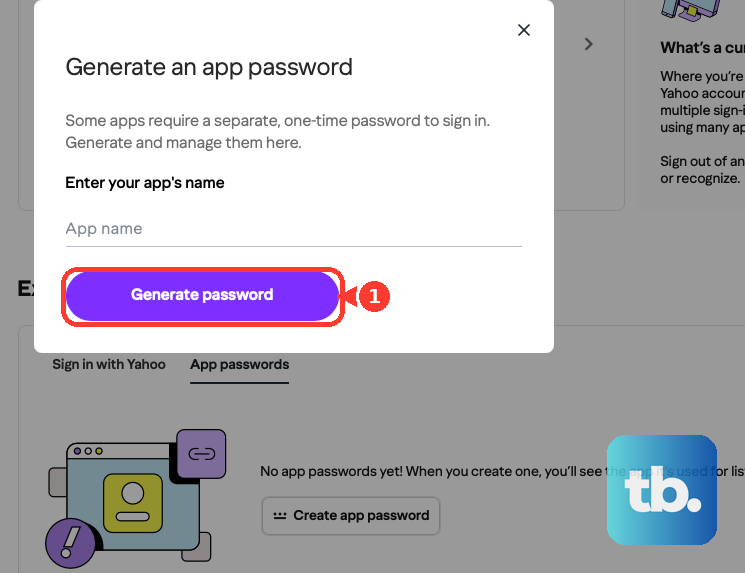
- 1.Open your Account Security page and click "Generate app password."
- 2.Enter a recognizable name for the app you are setting up.
- 3.Click "Generate password" and follow the instructions shown.
- 4.Click Done, then use that app password along with your email address to sign in to the third-party app.
Keep in mind that this password is for the app, not for your everyday Yahoo sign-in. Use the generated app password together with your email address inside the third-party app, and your regular password stays separate.
Switching the Feature Back Off
If you ever need to disable two-step verification, perhaps because you are changing devices or troubleshooting an app, you can reverse it from the same place you turned it on. Return to your Account Security page, open "2-step verification" under "Ways of signing in," and follow the on-screen prompts to turn it off.
Before you do, weigh the tradeoff. Turning the feature off removes the second checkpoint entirely, so your account is only as strong as your password again. If the goal is just to fix a stubborn app, an app password is usually the better answer than disabling protection across your whole account.
Frequently Asked Questions
Do I have to set up two-step verification separately for Yahoo Mail?
No. Two-step verification is managed through the central Yahoo Account Security page, and that single setting covers all Yahoo services, including Yahoo Mail. Once you enable it from login.yahoo.com/account/security, the protection applies to your mail automatically.
Why don't I see the authenticator app option?
The authenticator app method appears only if you have at least 2 recovery methods on your account. If it isn't showing, add a second recovery method first, then return to the "2-step verification" setup and the option should become available.
Will my email app stop working after I turn this on?
It can, if the app doesn't use Yahoo's branded sign-in page. For those apps, generate an app password from your Account Security page and sign in with that app password and your email address instead of your normal password.
What happens if I lose access to my second factor?
During setup for the authenticator app and security key methods, you may receive a separate emergency recovery code. Print it or write it down and keep it safe, because that code is what lets you back in if you can't reach your authenticator app or your security key is unavailable.
Can I use Yahoo Account Key and two-step verification together?
No. Account Key and 2-step verification cannot both be active at the same time. If you currently sign in with Yahoo Account Key, disable it first, then set up 2-step verification.











