You searched for something on Amazon once, and now the same category of product seems to follow you across the web. Maybe you want a cleaner browsing experience, or you simply do not want your shopping history shaping the ads you see everywhere else.
Amazon builds interest-based ads from your activity on its store and services, then shows those ads both on Amazon and on third-party sites and apps. You can turn that personalization off, but it lives in more than one place: your account, each device, and (on iPhone) Apple's own tracking permission.
This guide walks through every verified method, quickest and most common first. Set one toggle to cover your account, then set the rest to cover every screen you use.
What Turning It Off Actually Does
Opting out does not remove ads. Amazon is explicit: you will still see ads on Amazon and on other sites, they just will not be based on your interests. You may also still see personalized product recommendations on Amazon itself.
The setting that matters most is tied to your account when you are signed in. When you are signed out, Amazon falls back to a per-browser cookie instead, which behaves differently (more on that below).
Turn Off Interest-Based Ads in Your Amazon Account (Desktop Web)
This is the single most important step. Do it while signed in so the choice attaches to your account rather than to one browser.
Go to amazon.com and sign in to your account.
Then open the Accounts & Lists menu at the top right and look for Advertising preferences in your account settings. The fastest route is to go straight to amazon.com/adprefs.
In the Interest-based ad preferences section, choose Do not show me interest based ads provided by Amazon to opt out.
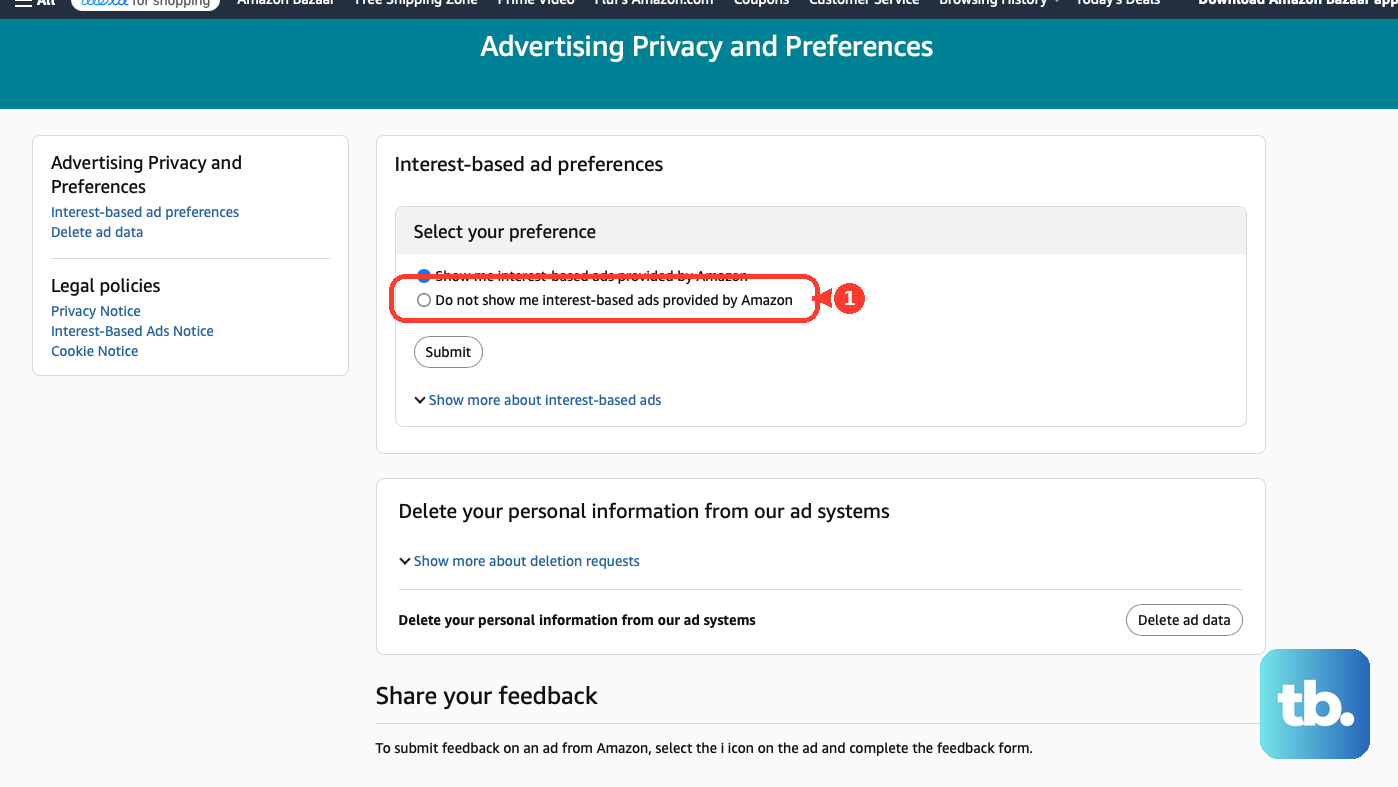
That one choice is what stops the personalization. You are not closing an account or losing recommendations, only the targeting. Because you made the choice while signed in, Amazon can recognize it across your browsers and devices; if you were signed out, it might not be remembered when you switch browsers or clear cookies.
Delete Your Past Ad Data (Optional, but Recommended)
On the same Advertising preferences page, you can also clear what Amazon already has tied to this device.
Stay on amazon.com/adprefs.
Click Delete ad data to remove personal information (such as cookies) associated with this device from Amazon's advertising systems.
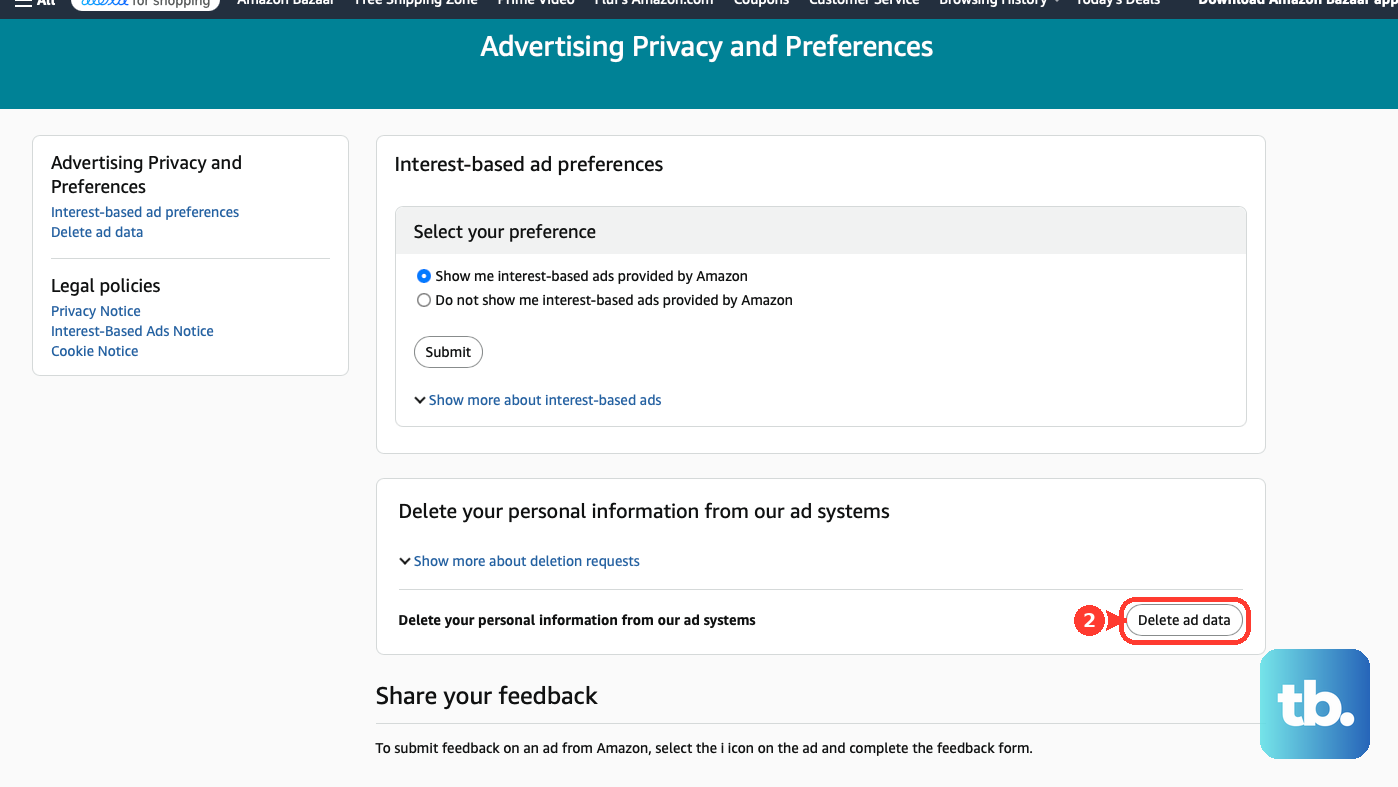
One important gotcha: Delete ad data only clears past interactions. Amazon will keep serving interest-based ads based on activity that happens after you delete, unless you also chose the opt-out above. Deleting alone is not a permanent opt-out; pair it with the toggle.
Redo the Opt-Out Per Browser When Signed Out
If you browse Amazon without signing in, the opt-out is stored as a cookie in that one browser. This is the older, browser-specific behavior.
Go to amazon.com/adprefs in the browser you want to opt out.
Next, select the per-browser opt-out option (historically labeled Do Not Personalize Ads from Amazon for this Internet Browser), then click Submit if prompted.
Repeat in every browser and on every device you use, because the choice applies only to the current browser.
Because it is a cookie, clearing your cookies removes this opt-out and you will have to set it again. Signing in and using the account-level setting avoids this fragility.
Opt Out of Cross-Context Behavioral Ads (US Privacy Choices)
Separate from the standard interest-based toggle, Amazon offers a privacy-law opt-out for the sale or sharing of your data for ads.
Go to amazon.com/privacyprefs (Your Ads Privacy Choices).
Use the provided control to opt out of cross-context behavioral advertising, or the sale or sharing of your personal information for ads, as applicable under your US state's privacy law.
An option labeled Opt out of cross-context behavioral ads is reported to appear in the Amazon mobile app and not on desktop web, so check the app if you do not see it on your computer.
Turn Off Interest-Based Ads on a Fire TV or Fire TV Stick
Your account setting does not cover your streaming device. Fire devices use a per-device Advertising ID, so handle each one separately. On current Fire OS 8:
From the Fire TV home screen, open Settings.
Select Preferences.
Select Privacy Settings.
Select Interest-Based Ads and toggle it OFF. This stops Fire OS from providing the advertising ID to apps for interest-based ads.
Optional: select Your Advertising ID and reset it to a new random ID.
Menu names vary by Fire OS version; on older firmware this lived under Settings > System > Advertising ID. Two cautions: resetting the ID alone does not opt you out (you must turn off the toggle too), and on some older Fire TV models the setting has been reported to switch back ON after a restart, so re-check it after a reboot.
Limit Interest-Based Ads on a Fire Tablet
Fire tablets use the same Advertising ID concept, reached through Security and Privacy.
Swipe down twice from the top of the screen to show Quick Settings, then tap the Settings icon.
After that, tap Security & Privacy.
Tap Advertising ID.
Tap the switch next to Interest-based Ads to turn the feature off.
To create a new Advertising ID for the device, tap Reset.
Block Cross-App Tracking on iPhone or iPad
On iOS, the Amazon app's cross-app tracking depends on Apple's App Tracking Transparency permission, which is a device-level lever separate from Amazon's own setting.
When the Amazon app prompts to track your activity, tap Ask App Not to Track instead of Allow.
To change it anytime, open the iPhone or iPad Settings app.
Tap Privacy & Security.
Tap Tracking.
Turn off the toggle next to Amazon, or turn off Allow Apps to Request to Track to deny tracking for every app at once.
Choosing Ask App Not to Track blocks the app's access to the identifier used for cross-app tracking. As with the other methods, this makes ads less personalized rather than removing them.
Handle the Advertising ID on Android
On Amazon Fire devices, the Advertising ID is reached via Settings > Security & Privacy > Advertising ID (the same place as the Fire tablet steps above). Turn off Interest-based Ads to opt out, or use Reset to generate a new ID.
On a standard, non-Amazon Android phone, ad personalization is controlled by Google's Advertising ID in the Android system settings, not by Amazon. That lever sits outside Amazon's own controls, so manage it there if you want full coverage.
Cover Every Surface for a Clean Sweep
The web opt-out and each device's Advertising ID are independent. To minimize personalized ads everywhere, set every layer that applies to you: the account preference at amazon.com/adprefs, each device's ad setting (Fire TV, Fire tablet, Android), and, on iPhone or iPad, App Tracking Transparency. Setting only one leaves the others personalizing.
Frequently Asked Questions
Will opting out stop me from seeing ads on Amazon?
No. Amazon states you will still see ads both on Amazon and on other sites; they simply will not be based on your interests. You may also still see personalized product recommendations on the Amazon store.
Is clicking "Delete ad data" enough on its own?
No. Delete ad data only clears past interactions tied to that device. Amazon keeps serving interest-based ads based on activity that happens afterward unless you also select the opt-out option. Use both together.
Why did my opt-out disappear after I cleared my cookies?
When you are signed out, the opt-out is stored as a per-browser cookie. Clearing cookies, switching browsers, or using another device removes it, so you have to redo it. Signing in and using the account-level setting avoids this.
Does resetting my Advertising ID opt me out?
No. Resetting only gives the device a new random ID, which can still be used for interest-based ads. You must also turn OFF the Interest-Based Ads toggle on that device to actually opt out.
I turned it off on my Fire TV but the ads came back. Why?
On some older Fire TV models, the Interest-Based Ads setting has been reported to revert to ON after a device restart, while newer generations retain it. Re-check the setting after any reboot.
Does turning off tracking on my iPhone remove Amazon ads?
No. Choosing Ask App Not to Track blocks access to the identifier used for cross-app tracking, so ads become less personalized, but you may still see ads in the app. It is one layer, not a full ad removal.











