Game Assist can sit on top of your game when all you want is a clean screen. On current Windows 11 PCs, Microsoft Edge Game Assist is now called Microsoft Edge for Game Bar, and you can close it, unpin it, or remove it completely.
Start with the quickest fix, then uninstall it if you do not want the widget on your PC.
1. Close Game Assist for this session
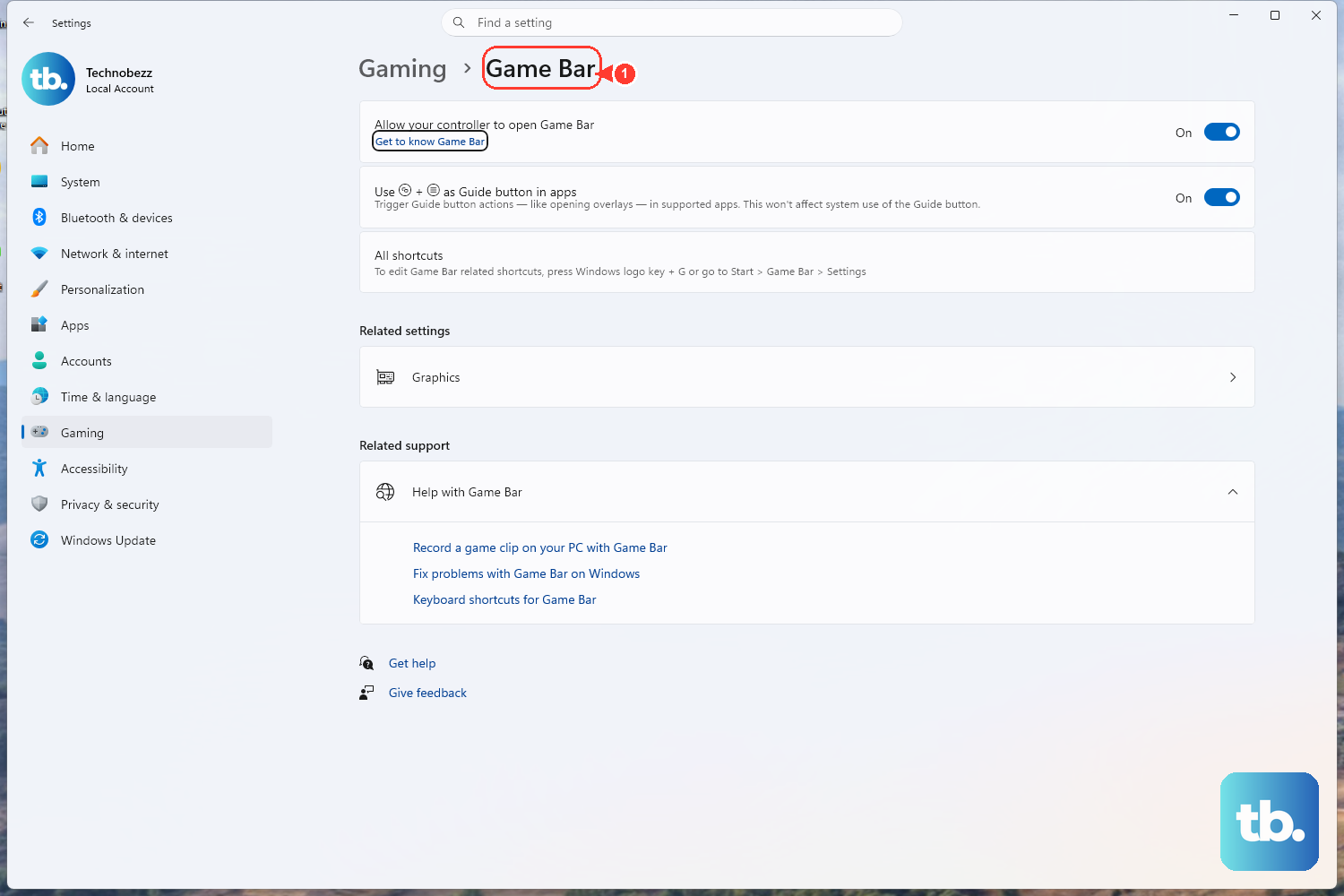
Use this when the widget is open right now and you only need it off your screen. Press Windows key + G to open Game Bar, then select Game Assist or Edge for Game Bar.
Select Close in the widget title bar. You can also open Settings and more (...) in the widget, then select Close Game Assist.
2. Unpin Edge for Game Bar so it stops staying on top
Press Windows key + G to reopen Game Bar. Select Game Assist or Edge for Game Bar, then select Unpin next to Close in the widget title bar. Dismiss Game Bar.
Closing Game Bar is not enough when the widget is pinned. Unpinning tells it to stop floating over your game after Game Bar is dismissed.
3. Uninstall Game Assist from Windows Settings
This is the cleanest removal path for most Windows 11 PCs. Open Start.
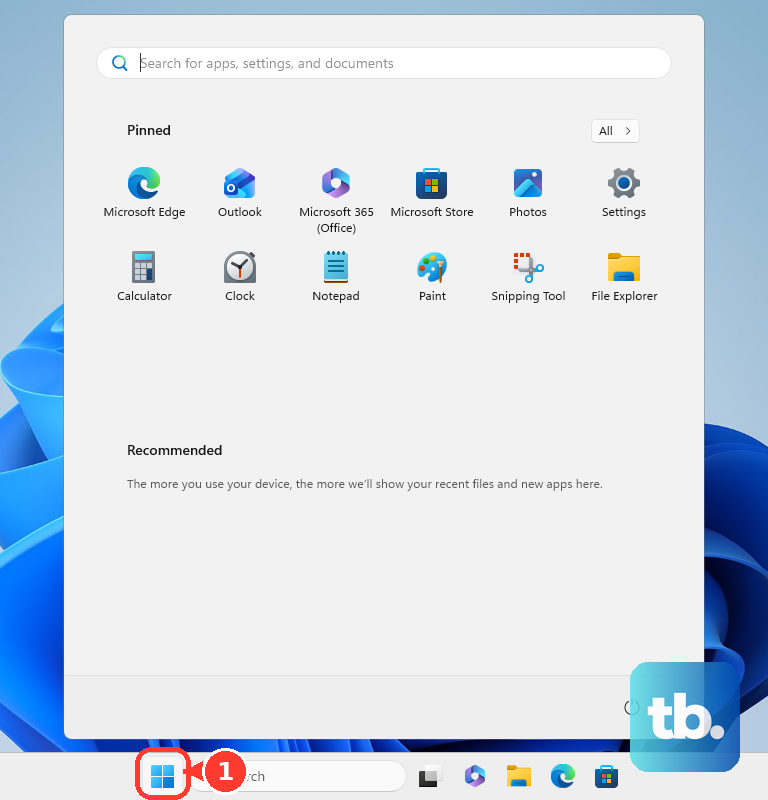
Select Settings, then go to Apps. Open Installed apps and find Game Assist, Microsoft Edge Game Assist, or Microsoft Edge for Game Bar.
Select More (...), then choose Uninstall. The app name can differ during the rename from Microsoft Edge Game Assist to Microsoft Edge for Game Bar.
4. Remove the widget from Game Bar
Press Windows key + G, then open the Widget menu. Select Widget Store and open Installed.
Find Microsoft Edge Game Assist or Edge for Game Bar. Select More (...), then choose Uninstall. If you are already inside Game Bar, remove it from the Widget Store instead.
5. Cut off game context access
Keep the widget installed but stop its game-aware access from Game Bar settings: press Windows key + G, open Settings, select More settings, review the widget and game-context permissions, then turn off access for Game Assist or Edge for Game Bar where it appears.
Microsoft says game context for Game Bar widgets is controlled in Game Bar settings. Its public docs do not give one fixed subpage label for that permission.
6. Remove the package with PowerShell
Open PowerShell as the target user. Run Get-AppxPackage -Name Microsoft.Edge.GameAssist | Remove-AppxPackage.
Use this advanced option when the normal uninstall options do not remove the app package. The commands above remove it for the current Windows user.
To remove it for all users on the PC, open PowerShell as an administrator. Run Get-AppxPackage -AllUsers -Name Microsoft.Edge.GameAssist | Remove-AppxPackage -AllUsers.
Microsoft Q&A notes that Edge updates can reinstall it on some systems, so PowerShell removal is removal, not a permanent block.
7. Check management controls on work or school PCs
Work and school devices can have gaming and Game Bar features controlled by an organization. If Uninstall is missing or the widget returns after removal, the device manager needs to handle it.
Microsoft documents admin controls for blocking Windows Game Recording and Broadcasting. Microsoft does not document that policy as a complete Edge for Game Bar uninstall method.
8. Skip old Edge Beta setup advice
Do not use older preview instructions that depend on Microsoft Edge Beta or Dev as the default browser.
Current Microsoft docs say Edge for Game Bar comes with Microsoft Edge 137 and later on Windows 11 Home, Pro, and Education, with the latest Game Bar and Windows 11 22H2 (or newer) updates installed. To update or reinstall the current Edge components, download Microsoft Edge from the official Microsoft Edge download page, then manage Edge for Game Bar from Edge Settings and Game Bar.
Frequently Asked Questions
Why does Windows show Edge for Game Bar instead of Game Assist?
Microsoft renamed Microsoft Edge Game Assist to Microsoft Edge for Game Bar. The close, unpin, uninstall, and Widget Store steps apply to the current name.
Does closing Game Assist remove it from Windows 11?
No. Closing only removes it from the current Game Bar session. To remove it from the PC, uninstall it from Windows Settings or the Game Bar Widget Store.
Can I reinstall Edge for Game Bar later?
Yes. Microsoft says Edge for Game Bar can be installed or reinstalled from Microsoft Edge settings on Windows 11 with Microsoft Edge 137 or later.
Is there a supported Edge desktop switch that permanently disables Game Assist?
No current Microsoft documentation lists a standalone Edge desktop toggle that permanently disables it. The supported consumer options are closing, unpinning, uninstalling, and managing it through Game Bar.