Netflix can stop loading while YouTube, email, and every other website works. That points to a Netflix outage, a bad app session, VPN routing, Wi-Fi signal at the device, browser data, or a Netflix Household check. Start with the quick checks, then move through the fixes that match where you watch.
1. Check Netflix service status first
Check Netflix before changing settings. If Netflix has a streaming interruption, your TV, phone, browser, router, and account are not the problem. Open Netflix’s service status page and check whether Netflix reports a streaming service interruption.
If Netflix reports an interruption, wait for service to return, then try Netflix again. On a smart TV, streaming stick, cable box, Apple TV, Xbox, or PlayStation, run Netflix’s built-in network test too.
From the Netflix home screen, press Back on the remote. If the menu is at the top, move left to the profile icon, then choose Get Help and Check your Network. If the menu is on the left, go to the bottom, choose Get Help, then choose Check your Network. If Get Help is missing, go up and select Settings.
2. Test the Netflix connection with Fast.com
Open a browser on a phone, tablet, or computer connected to the same network as the problem device. Go to Fast.com, wait for the test to finish, then compare the result with Netflix’s recommended streaming speeds.
Your internet connection can pass normal browsing and still fail on the route Netflix uses. Fast.com is operated by Netflix, so it is the right speed test here. If you use a VPN, select Show more info after the test.
Check the country next to Client. If that country does not match your location, turn off the VPN or contact the VPN provider.
3. Restart the device and router properly
Turn off the smart TV, streaming stick, cable box, Apple TV, Xbox, PlayStation, or other TV-connected device. If it has a power cable, unplug it. Make sure the device is fully off, not in sleep or standby mode. Leave it off for 15 seconds, then turn it on and try Netflix again.
A TV app or streaming box can stay half-awake in standby, which leaves the same Netflix problem waiting when you turn the screen back on. Power it off completely. For stubborn TV or console errors, use the deeper power cycle.
Unplug the device from power. Press the device’s physical Power button once and wait 1 minute, or leave it unplugged for 3 minutes. Plug it back in, then turn it on and try Netflix again.
Restart your home network next. Turn off the Netflix device, then unplug the modem and router from power. Wait 30 seconds, plug in the modem and router, and wait 1 minute. Turn on the Netflix device and try again.
4. Refresh the Netflix app session
A broken Netflix session looks a lot like a network failure. Sign out first, then clear or reset the app only when signing back in does not fix it.
On most TV apps and TV-connected devices, press Back from the Netflix home screen. Open Get Help, choose Sign out, and select Yes. Sign back in and try Netflix again.
If Get Help or Sign out is not available, open the hidden support menu from the Netflix screen. On Apple TV, this sequence does not work; instead sign out with the Get Help and Sign out steps above, or delete and reinstall Netflix.
Press Up, Up, Down, Down, Left, Right, Left, Right, Up, Up, Up, Up. Choose Sign out, Reset, or Deactivate. Use the matching phone or streaming-device reset when Netflix still fails.
iPhone or iPad: Open Netflix. Tap My Netflix, then tap your profile name. Tap Sign Out, then tap Sign Out again. To force quit, open the app switcher, swipe up on Netflix, and reopen it.
Android: Tap and hold Netflix. Choose App info, open Storage & cache, then tap Clear storage. Tap OK. This removes downloads and signs you out.
Fire TV: Open Settings. Choose Applications, open Manage installed applications, and select Netflix. Choose Clear data, choose Clear data again, then choose Clear cache. Unplug the Fire TV for 30 seconds, plug it back in, and try Netflix.
Apple TV: Open the app switcher. Select Netflix, swipe up to force quit Netflix, and open Netflix again.
5. Reinstall or update Netflix on your device
Android: Open the Netflix page in Google Play Store. Tap Update when shown. To reinstall, tap Uninstall, then tap Install.
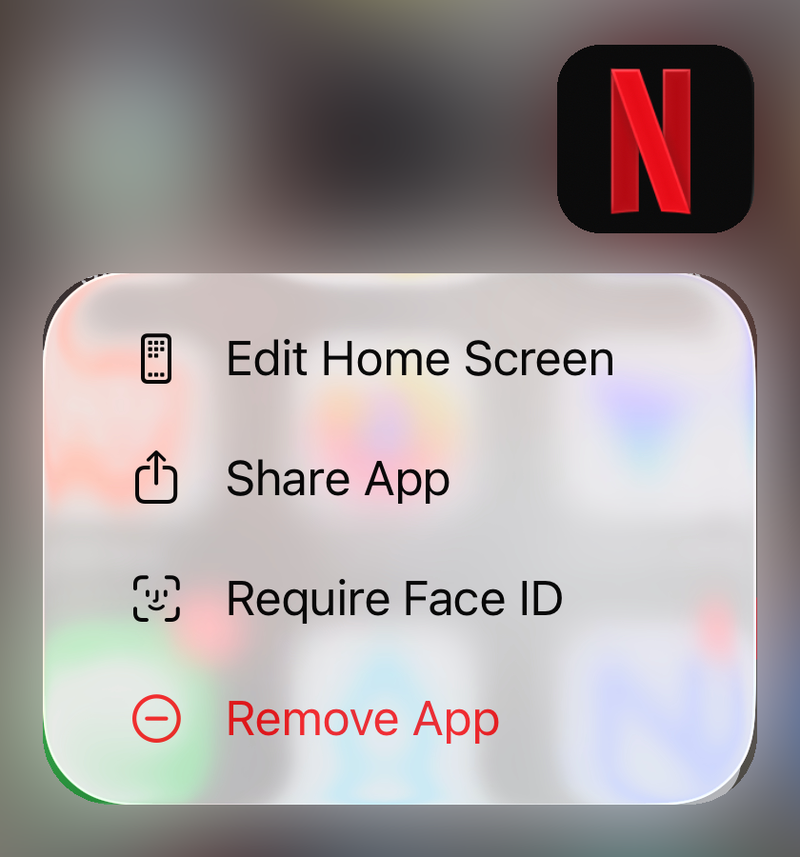
iPhone or iPad: Open App Store. Tap Search, enter Netflix, and choose Netflix. Tap Update when shown. To reinstall, touch and hold Netflix on the Home screen, tap Remove App, tap Delete App, tap Delete, and install Netflix again from App Store.
Apple TV: Highlight Netflix on the Apple TV home screen. Press and hold the center of the remote touch surface or clickpad ring until the app wiggles. Press Play/Pause, choose Delete, choose Delete again, and reinstall it from App Store.
Xbox One: Open My Games & Apps. Choose Apps, highlight Netflix, and press the Menu button. Choose Manage App, choose Uninstall All, choose Uninstall All again, and reinstall Netflix from Store or Search all apps.
Windows: Open Microsoft Store. Select Library, then choose Get updates to update Netflix when an update appears.
When sign-out and reset steps do not hold, replace the app with a fresh copy or install the latest app update. Reinstalling Netflix signs you out and removes downloads. For a fresh official install, use Netflix’s app-download page or the device’s built-in app store.
6. Fix browser playback on Netflix.com
If the app is broken on a computer, use Netflix.com in a supported browser. Netflix supports current versions of Edge, Chrome, Firefox, Opera, and Safari on its listed platforms.
Chrome: Open More, Help, About Google Chrome. Wait for Chrome to check for updates. Select Relaunch when offered.
Edge: Open Settings and more, Help and feedback, About Microsoft Edge. Choose Download and install, then choose Restart.
Firefox: Open Menu, Settings. Scroll to Firefox Updates. Choose Restart to Update Firefox when shown.
Update the browser first, then clear the Netflix browser data path. Chrome: Open More, Delete browsing data, Advanced. Set Time Range to All time, select Cached images and files, and choose Delete data.
Firefox: Open Menu, Settings, Privacy & Security, Clear History. Set Time Range to Clear to Everything. Leave only Cache checked, then choose OK.
Edge: Open More, Settings, Privacy, Search, and Services, Choose What to Clear. Select Cached images and files and Cookies and other site data. Set Time range to All time, then choose Clear now.
Opera: Open History from the sidebar. Choose Clear Browsing Data, Advanced. Set Time range to All time. Leave only Cached images and files checked, then choose Clear Data.
For Netflix-specific browser fixes, go to netflix.com/clearcookies. Select Sign In, and sign in again.
In Chrome, enter chrome://extensions in the address bar. Turn off extensions that are on, then test Netflix. Turn extensions back on one at a time.
Use current browser playback. Do not install Microsoft Silverlight; Netflix ended Silverlight support on September 13, 2023. Do not rely on Windows XP, Vista, 7, or 8.1 as current Netflix platforms.
7. Clear VPN and Netflix Household blocks
If Netflix shows VPN or proxy error E106, turn off the VPN or proxy. Open Fast.com, select Show more info, and check the country next to Client. If the country does not match your location, turn off the VPN or contact the VPN provider.
Open your Netflix Account page if you use an ad-supported plan, because Netflix’s ad-supported experience and live events do not support VPN viewing. VPN and Household checks are account-access problems, not ordinary internet outages. If Netflix says the TV or streaming device is not part of your Netflix Household, update it from the TV.
- 1.From the Netflix home screen, press Back on the remote, or press Menu on Apple TV.
- 2.If the menu is at the top, move left to the profile icon. If the menu is on the left, go to the bottom.
- 3.Open Get Help or Settings.
- 4.Choose Manage Netflix Household.
- 5.Select Update Netflix Household and follow the verification prompts.
If the error screen offers Confirm Device, select it and follow the prompts. If it offers Troubleshoot This TV, connect a mobile device to home Wi-Fi.
Scan the QR code on the TV. Tap Next, then tap Get Code when needed. Scan the new QR code, then select Start Watching.
8. Improve Wi-Fi then escalate the right way
Fix the signal at the device before replacing hardware when Netflix fails on one TV and the rest of the internet looks fine. Move the router and Netflix device closer together, preferably in the same room. Move the router away from wireless devices, metal appliances, refrigerators, and microwaves. Keep the router in an open, raised location.
Add a wireless repeater in the same room when distance is the problem. Ask your ISP about router firmware or a newer router. On café, hotel, school, apartment, work, or other shared Wi-Fi, ask the network owner or administrator whether video streaming services like Netflix are blocked.
When Netflix still times out or shows network errors on a home network, contact your internet provider. Ask them to check outages, router or modem issues, incorrect network settings, DNS problems, and whether the device can reach secure.netflix.com, appboot.netflix.com, uiboot.netflix.com, and fast.com. Before ending the call, retry Netflix and run Fast.com again.
If Netflix opens but crashes, stutters, shows a black screen, or fails on one display, update the device software and inspect the video path. Android: Open Settings, System. Choose Software update or Software updates, and follow the on-screen instructions.
iPhone or iPad: Back up the device. Plug it into power, then connect to Wi-Fi. Open Settings, General, Software Update. Choose Update Now when available.
Windows 11: Open Start, Settings, Windows Update. Choose Check for updates.
Windows 10: Open Start, Settings, Update & Security, Windows Update. Choose Check for updates. Windows 10 is past free support as of October 14, 2025, though Netflix’s Windows app page still says Windows 10 or later.
Apple TV: Open Settings, System, Software Updates, Update Software. Choose Download and Install when available.
Fire TV: Press Home. Open Settings, My Fire TV or Device & Software, About. Choose Check for System Update. Netflix notes that multiple updates may be needed.
Chromebook: Connect over Wi-Fi or Ethernet. Click the lower-right status area. Open Settings, About Chrome OS. Check for and apply updates.
For streaming boxes, consoles, set-top boxes, and computers connected to a TV, secure every cable. Set the TV to the correct input, reverse the HDMI ends, bypass the receiver or sound system, try a different HDMI port, try a new HDMI cable, or test another TV or monitor.
Netflix lists HDMI, HDMI Mini, USB-C, Thunderbolt, DisplayPort, and DisplayPort Mini as supported cable types. USB-C and Thunderbolt adapters need a display path that supports HDCP 2.2.
If only one movie or show fails while other titles play normally, open Netflix viewing activity in a browser. Find that title, choose Report a Problem, follow the instructions, and choose Report Problem.
For smart TVs, streaming players, Blu-ray players, projectors, and other embedded devices with model-specific menus, contact the device maker and ask for help updating firmware. Ask for help restoring the device to factory settings if updates do not fix Netflix.
Frequently Asked Questions
Why does Netflix fail when YouTube and other apps work?
Netflix depends on its own service status, app session, VPN route, browser cookies, Wi-Fi signal to that device, Netflix Household verification, and ISP routing to Netflix-specific addresses.
What should I do when Netflix works on my phone but not my TV?
Run Netflix’s TV network test from Get Help, restart the TV or streaming device fully, sign out of Netflix on the TV, then check Wi-Fi signal and Netflix Household prompts on that TV.
Does clearing Netflix app data delete downloads?
Yes. Netflix says clearing Android app data, resetting the iPhone or iPad app, or reinstalling Netflix removes downloads and signs you out.
Should I change DNS manually to fix Netflix?
No. Netflix’s console steps set DNS to Automatic on Xbox and PlayStation. For home-network DNS or routing failures, contact your ISP and ask them to check Netflix connectivity.