Turning off a computer sounds simple until the Power button is missing, the screen is frozen, or the device is managed by work or school. The safest move is to use the operating system's shutdown command first, then switch to a keyboard, hardware, or terminal option only when it fits the device. Here are the current Windows, Mac, Chromebook, and Linux paths that shut the machine down cleanly.
1. Shut down Windows from the Start menu
Select Start.
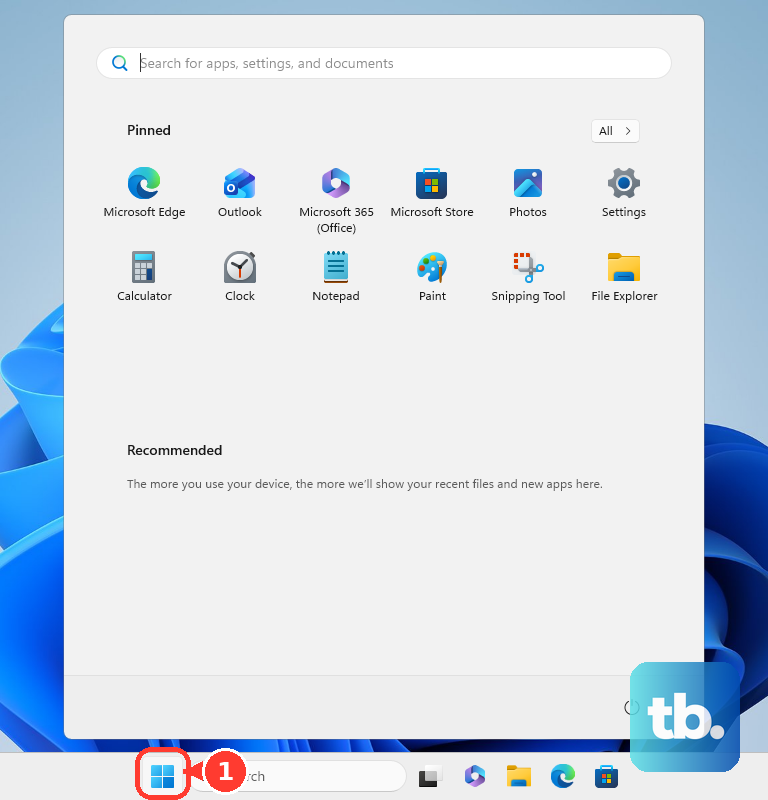
Select Power.
Select Shut down.
Use this path first on Windows 11.
2. Choose another Windows shutdown path
From the desktop, press and hold or right-click Start, select Shut down or sign out, then choose Shut down.
Another option is to press Ctrl+Alt+Delete, select Power in the lower-right corner, then choose Shut down.
At the sign-in screen, select the Power button, then select Shut down.
To make the physical power button shut Windows down, select Search on the taskbar, enter control panel, select Control Panel > Power options > Choose what the power buttons do, set the power button action to shut down when that option is available, then press the PC's Power button.
On supported Microsoft Surface models, press and hold the Power button for 4 seconds, then swipe down.
3. Turn off a Mac from the Apple menu
On a Mac, choose Apple menu > Shut Down, then confirm the shutdown.
Before confirming, macOS lets you deselect Reopen windows when logging back in.
On a built-in keyboard without Touch ID, press Control-Power to open the restart, sleep, or shutdown dialog, then choose shutdown.
Press Control-Option-Command-Power to quit all apps, answer any unsaved-changes prompts, and shut down.
4. Power off a Chromebook from the status area
At the bottom right, select the time.
Then select Power.
From the menu that opens, select Shut down.
To use the keyboard instead, press and hold the Power key for 3 seconds.
To use a physical button, press and hold the Power button until the menu appears, then choose Power off.
5. Use the GNOME menu on Linux
On GNOME, choose system menu > Shutdown button > Power Off... from the right side of the top bar.
This is the desktop shutdown path for GNOME environments used by many current Linux distributions.
6. Force shutdown only when the computer is frozen
This fixes a frozen Mac or Surface when normal shutdown controls are unavailable.
On a Mac, press and hold the Power button until the Mac shuts down; on Mac laptops with Touch ID, press and hold the Touch ID button. Use this only when the Mac is unresponsive because Apple warns unsaved changes may be lost.
On a Microsoft Surface, press and hold the Power button until the screen turns off, about 10 seconds, then release it.
7. Check work or school shutdown limits
Managed computers can hide or limit shutdown controls.
Windows admins control Start shutdown commands in Computer Configuration > Administrative Templates > Start Menu and Taskbar or User Configuration > Administrative Templates > Start Menu and Taskbar.
ChromeOS admins control device shutdown in Devices > Chrome > Settings > Device settings > Power and shutdown > Allow shutdown.
Managed Macs can show or hide the login-window shutdown button in Login Window payload > Login Window window options > Show buttons > The Shut Down button.
8. Run a command or schedule shutdown
On Windows Command Prompt, run shutdown.exe /s /t 0 to shut down immediately.
To schedule a Windows shutdown, run shutdown.exe /s /t <seconds>, then cancel during the timeout with shutdown /a.
On Windows PowerShell, run Stop-Computer -ComputerName localhost. Add -Confirm when you want a confirmation prompt before shutdown.
On a Mac, open Terminal and use a pmset command to schedule shutdown. Use pmset -g sched to see the current schedule and sudo pmset repeat cancel to cancel it.
On Linux systems using systemd shutdown, open Terminal and run shutdown now for an immediate poweroff, or shutdown +m to shut down after m minutes. Use shutdown -c to cancel a pending timed shutdown.
Frequently Asked Questions
Can I shut down without signing in?
On Windows, the sign-in screen can show a Power button with Shut down. On managed devices, administrators can hide shutdown controls.
Does a scheduled Mac shutdown work while the Mac is asleep?
No. Apple's scheduled shutdown guidance says the Mac must be awake and the user must be logged in for the scheduled shutdown to occur.
What is the safest way to shut down a frozen Mac?
Use the normal Apple menu > Shut Down path when it responds. Hold the Power button or Touch ID button only when the Mac is unresponsive, because unsaved changes may be lost.
Can a Chromebook administrator block the shutdown icon?
Yes. In Google Admin console, admins can allow shutdown from the shutdown icon and physical power button, or allow shutdown only from the physical power button.