Windows audio breaks in a few familiar ways: speakers go silent, headphones connect with no sound, audio crackles, or the microphone works nowhere. Start with the output picker, volume mixer, cables, and permissions before touching drivers. Current Windows 11 paths apply here, with outdated MSDT and Easy Fix methods left out.
Before changing anything, play a quick speaker test in your browser. It sends a tone to the left and right channels separately, so you immediately know whether the speakers produce any sound at all.
1. Choose the right speaker or headset
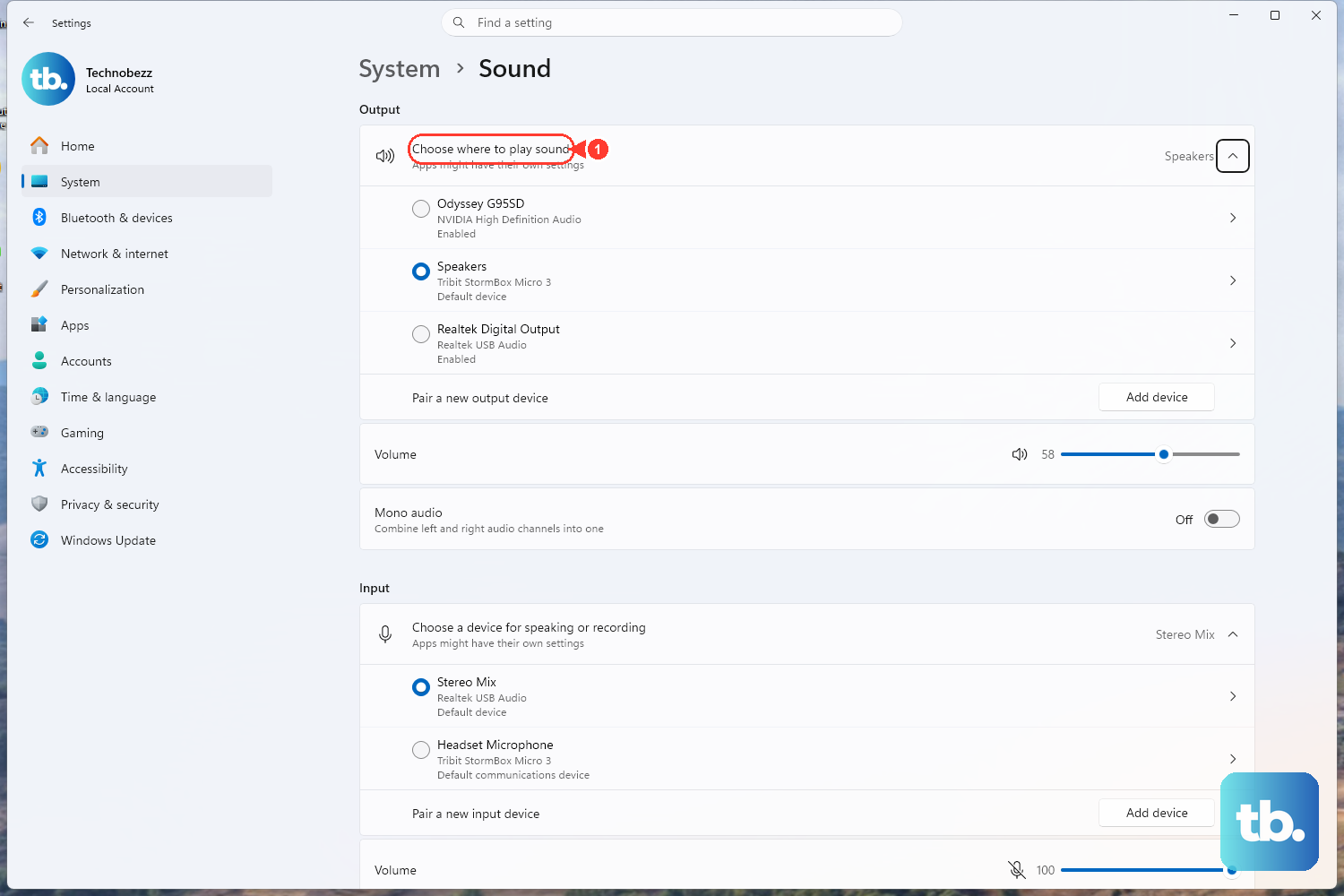
Select the Speakers icon on the taskbar.
Next, select the arrow next to the speaker volume slider, labeled Select a sound output.
Then choose the speaker, headphones, monitor, TV, or headset you want.
Start here when Windows sends sound to the wrong device. A monitor, TV, headset, or Bluetooth speaker can take over without making it obvious.
You can set the same thing from Start > Settings > System > Sound. Under Output, select the correct device, then turn up the volume slider and make sure it is not muted.
If Windows still picks the wrong device, open Start > Settings > System > Sound > More sound settings > Playback. Right-click the device you use and select Set as default.
2. Check cables and unmute the app
Rule out the hardware and the muted app before changing anything deeper.
Push speaker and headphone plugs firmly into the correct jack.
After that, confirm powered speakers are turned on.
Raise the speaker or headset volume.
Make sure the headset Mute button is off.
Then check app volume. Open Start > Settings > System > Sound > Volume mixer.
Under Apps, turn up the affected app and make sure it is not muted. Check System volume on the same screen.
When only one app is silent, stay in Volume mixer. Under Apps, select the correct Output device for that app.
3. Run the Windows audio troubleshooter
- 1.Open the Get Help app.
- 2.In Search, enter audio troubleshooter.
- 3.If Windows asks for diagnostic consent, select Yes.
- 4.Wait for the scan to finish.
- 5.Follow each prompt until the troubleshooter completes.
Windows has a current audio troubleshooter in Get Help. Use this instead of old Control Panel troubleshooters, msdt.exe commands, or Microsoft Easy Fix downloads.
There is also a Settings path for input and output checks. Select Start > Settings > System > Sound, scroll to Advanced, then under Troubleshoot common sound problems, choose Output devices or Input devices.
4. Reconnect Bluetooth headphones or speakers
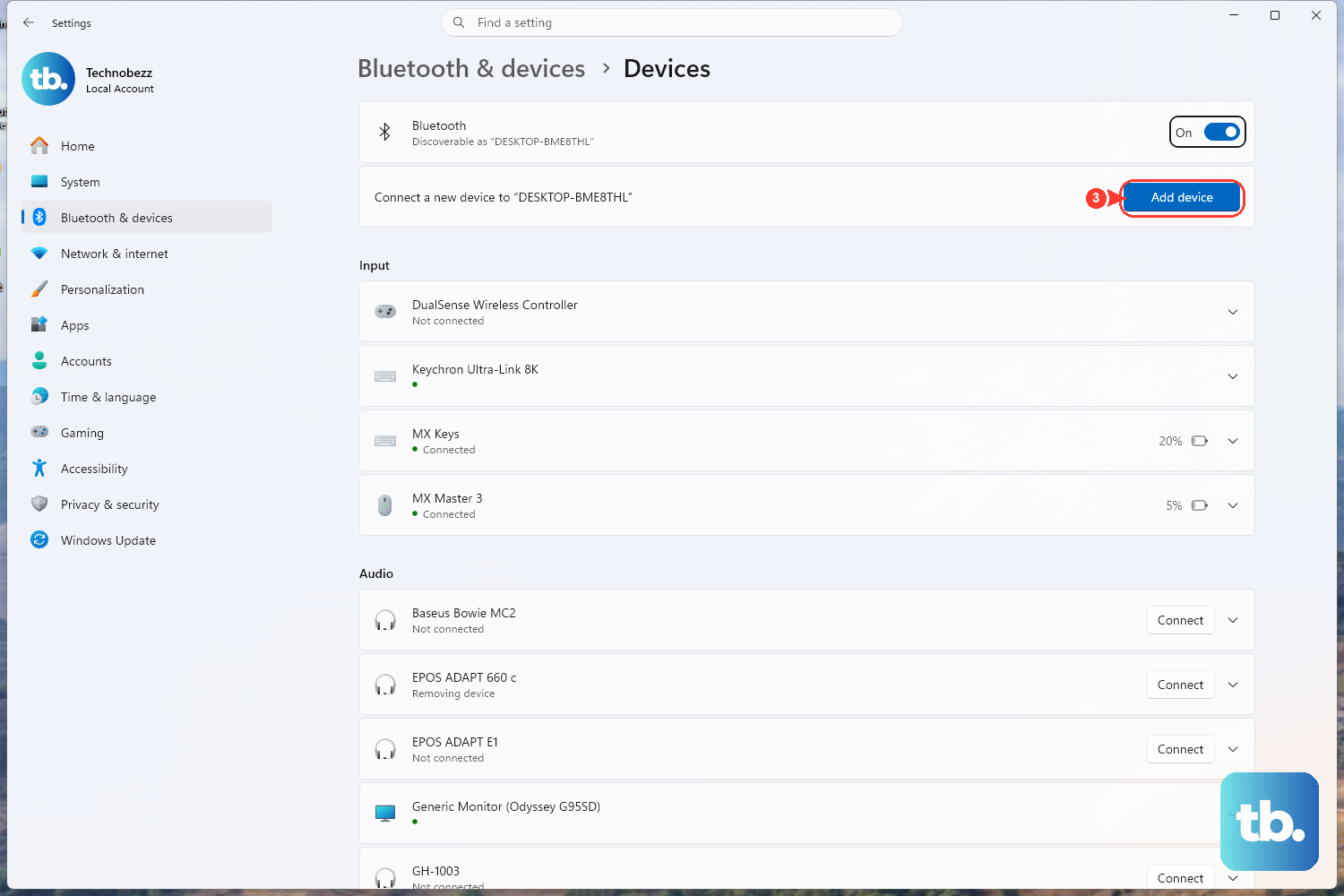
Bluetooth audio needs three quick checks: Bluetooth on, Airplane mode off, and the device paired cleanly.
Select the Network, Sound, or Battery icons on the right side of the taskbar, then select Bluetooth to turn it on.
Alternatively, open Start > Settings > Bluetooth & devices and turn on Bluetooth.
Turn off Airplane mode.
To pair again, open Start > Settings > Bluetooth & devices > Devices, select More options for the problem device, then select Remove device > Yes. Pair the device again.
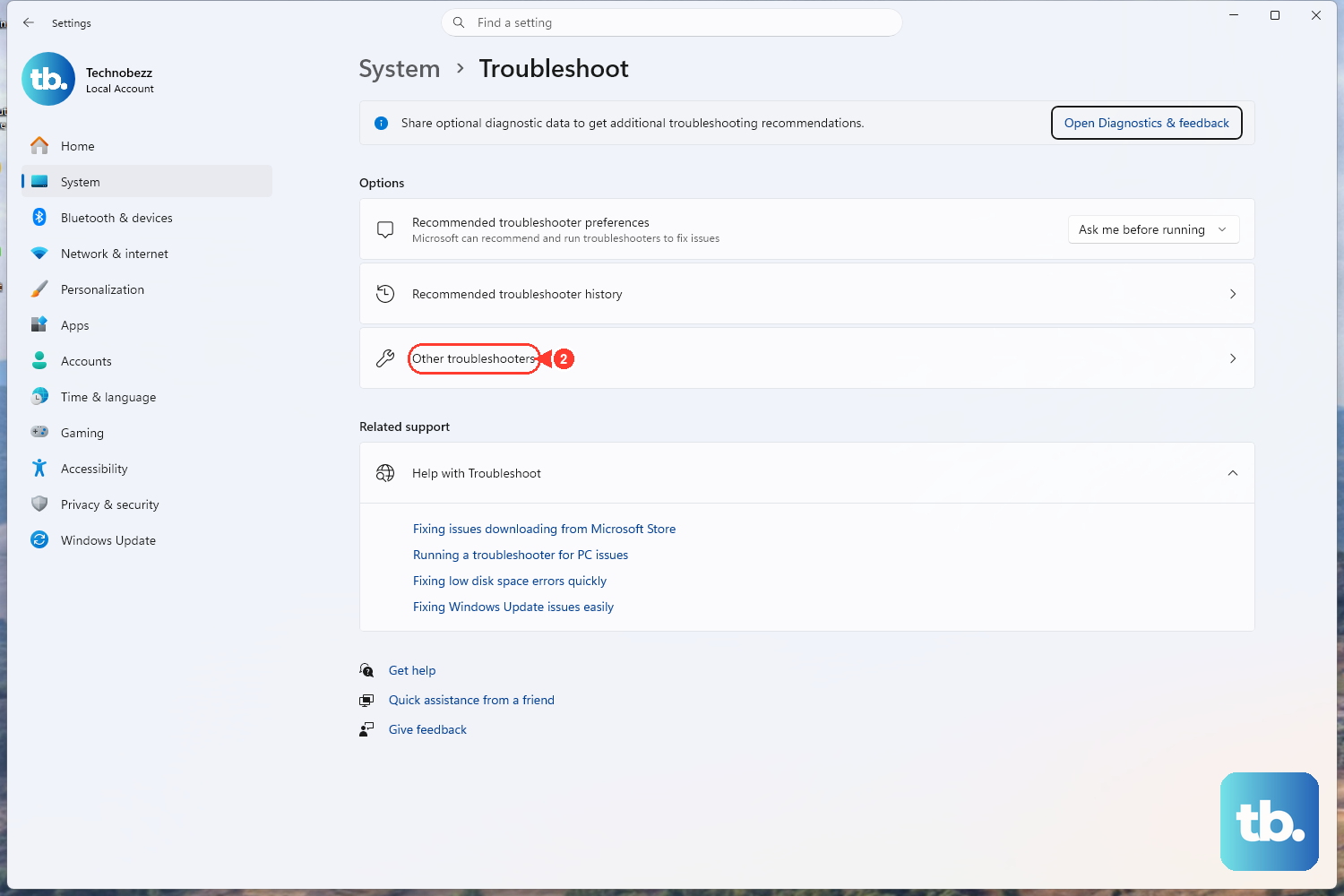
If Bluetooth still fails, run its troubleshooter. Go to Start > Settings > System > Troubleshoot > Other troubleshooters.
Next to Bluetooth, select Run and follow the instructions.
5. Turn off enhancements and test the format
Open Start > Settings > System > Sound. Under Output, select your audio device, then set Audio enhancements to Off.
Next, open Advanced. Under Default format, choose a different format and test the sound again.
Use this step for crackling, distorted, or strange-sounding audio. Audio processing settings and the default format sit in the device properties.
6. Refresh the audio driver
Move to drivers when Windows does not detect the audio device, sound stopped after an update, or the settings above did not restore playback.
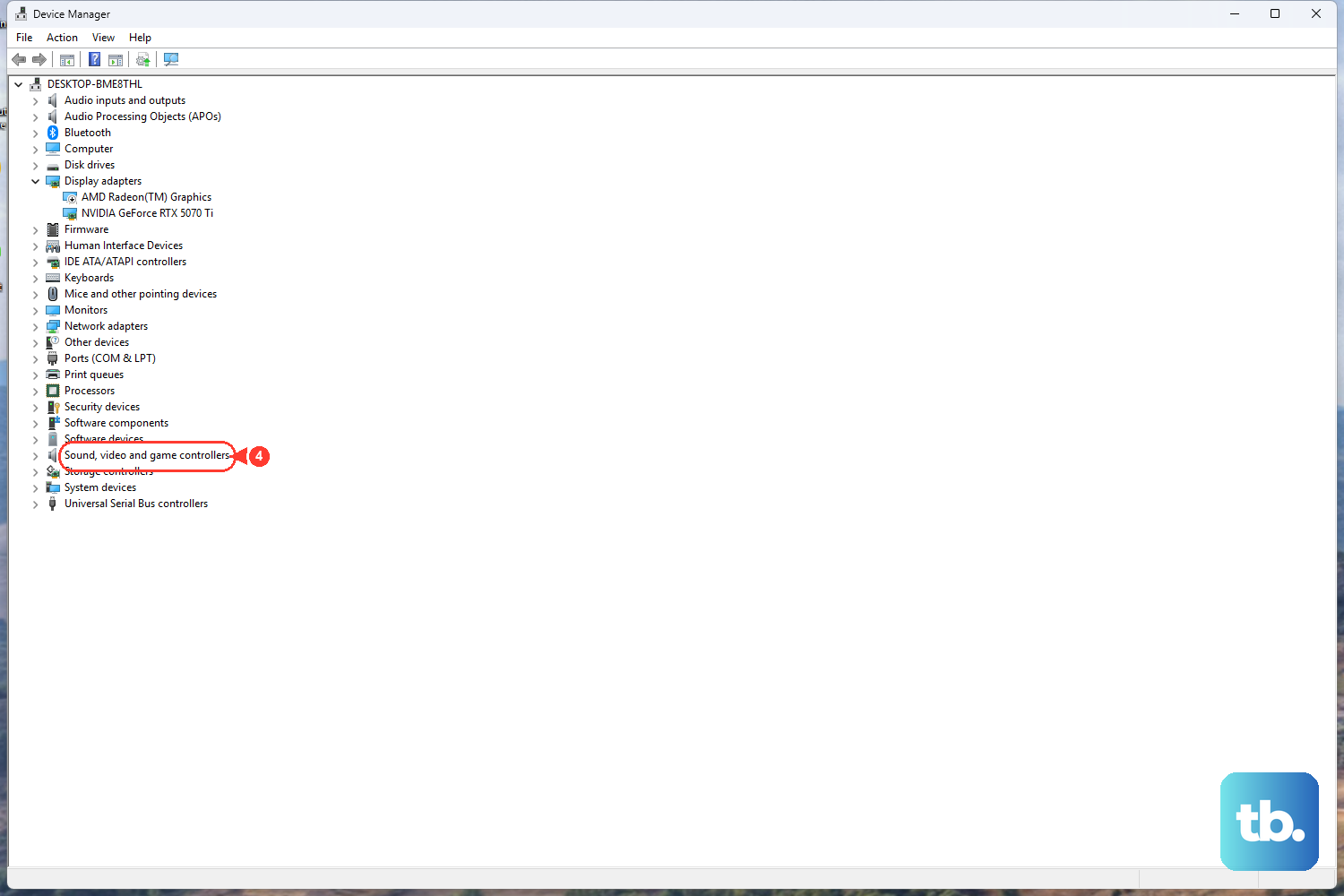
Select Start, type Device Manager, and select Device Manager.
Expand Sound, video and game controllers.
Right-click your audio device and select Update driver.
Select Search automatically for drivers.
Follow the prompts, then restart your PC.
If the device is missing, open Device Manager, expand Sound, video and game controllers, then select View > Show hidden devices and Action > Scan for hardware changes. If the device is disabled, right-click it and select Enable device.
To reinstall the driver, right-click the audio device in Device Manager, select Uninstall device, confirm the prompt, and restart your PC.
To undo a bad driver update, open the device Properties, select the Driver tab, select Roll Back Driver, and restart. Roll Back Driver appears only when Windows has a previous driver version.
For model-specific drivers, use the official support site for your PC maker. On Dell, HP, and Lenovo support pages, select or detect your exact model, download the current audio driver for your Windows version, install it, and restart.
7. Restart audio services and update Windows
Select Start, type services.msc, and press Enter.
In the services window, right-click Windows Audio and select Restart.
Right-click Windows Audio Endpoint Builder and select Restart.
Check Remote Procedure Call (RPC) from the same services window.
Use those service restarts when sound drops out after Windows has been running for a while.
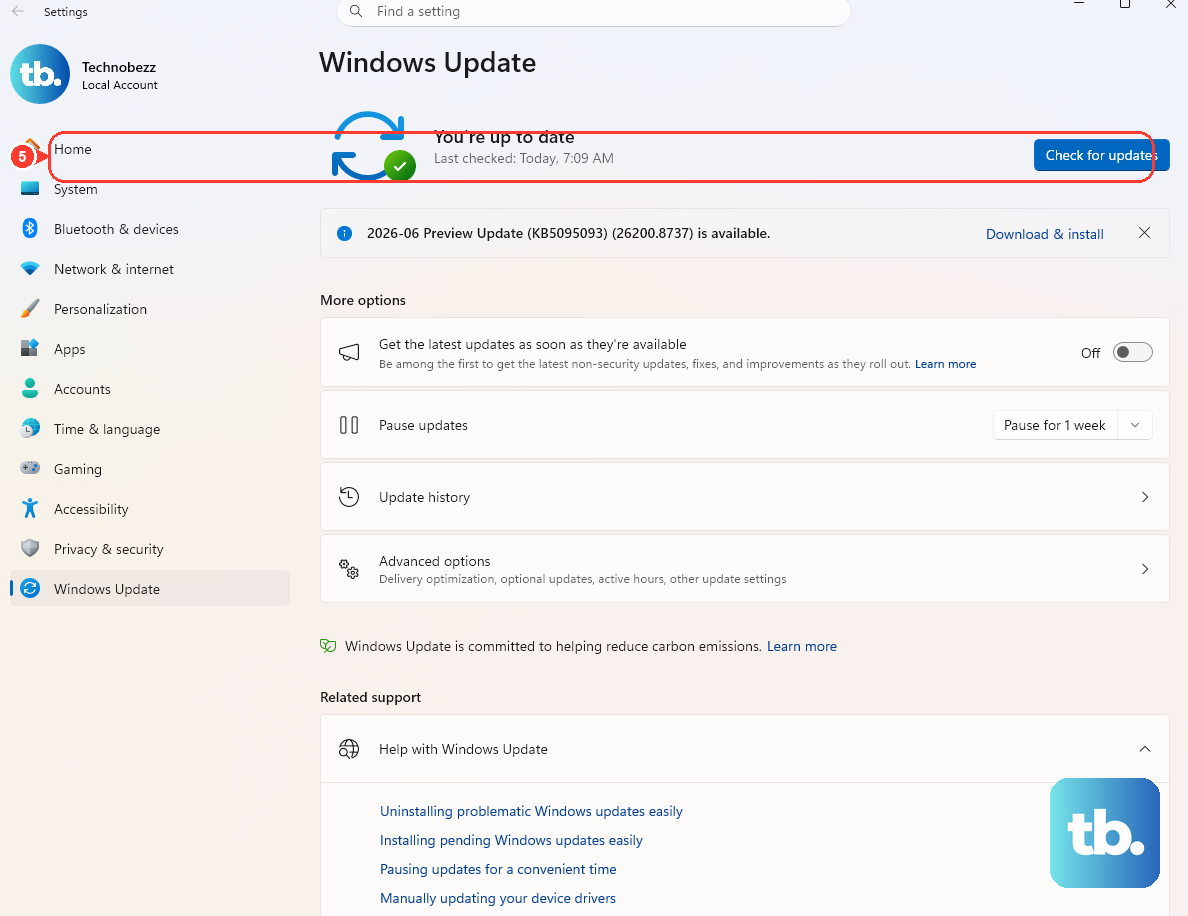
Then install Windows updates. Open Start > Settings > Windows Update and select Check for updates.
Install available updates and restart when Windows asks.
If the power menu shows Update and restart or Update and shut down, choose one after saving your work. If it does not, use Start > Power > Restart.
8. Fix microphone and single app audio
For microphone problems, start with Windows privacy settings: Start > Settings > Privacy & security > Microphone. Turn on Microphone access, Let apps access your microphone, and the app you want.
For desktop apps, turn on Let desktop apps access your microphone.
Test the input next from Start > Settings > System > Sound. Under Input, select your microphone, choose Start test, speak normally, select Stop test, then select Play.
Adjust Input volume after the test.
For browser calls in Microsoft Edge, open Settings and more > Settings > Privacy, search, and services > Site Permissions > All sites, select the website, and set Microphone to Allow.
In Chrome, open the site and choose Allow while visiting the site or Allow this time when prompted.
To change it later, open More > Settings > Privacy and security > Site settings > Microphone, then set the site permission to Allow.
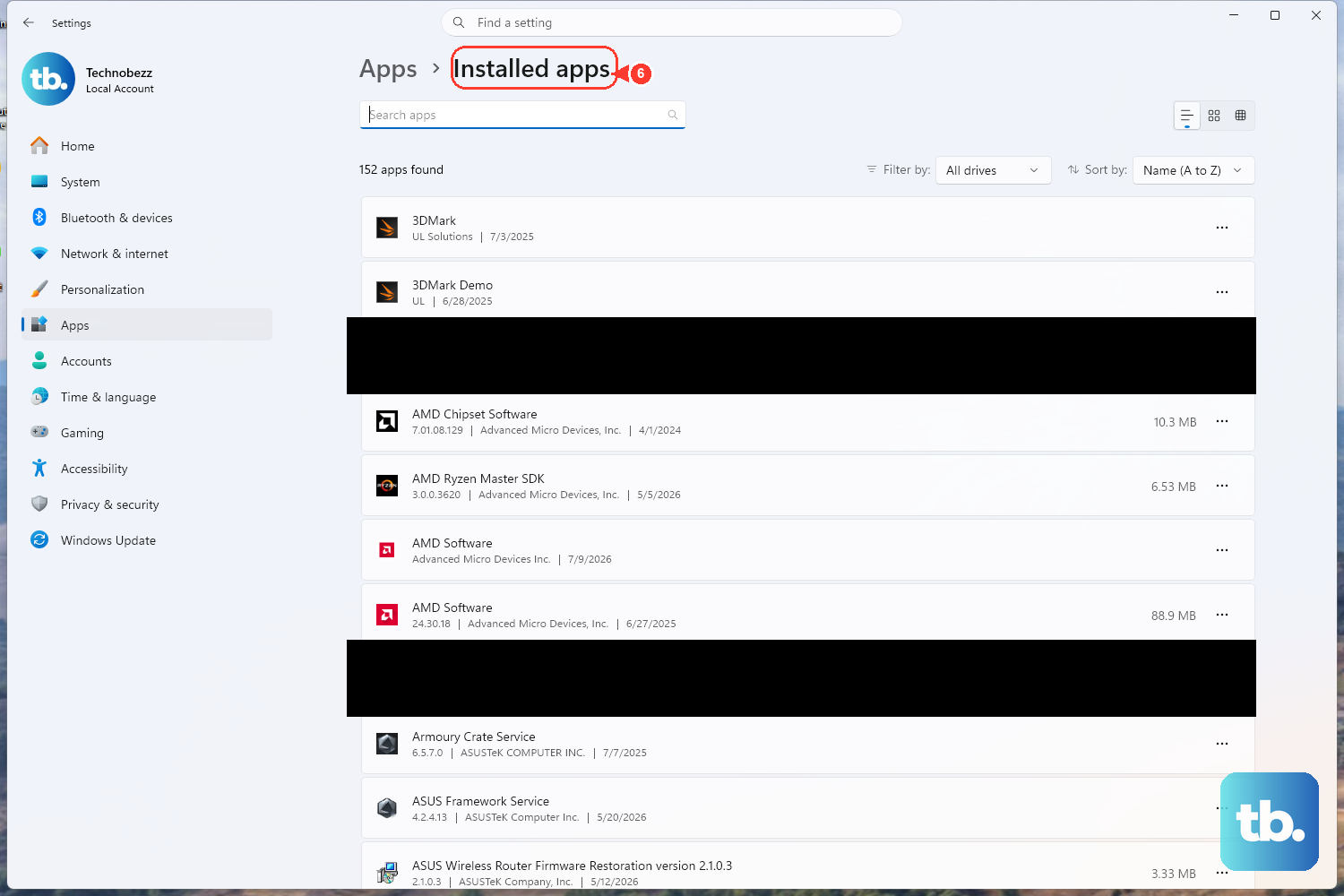
When only one Windows app has audio trouble, repair it from Start > Settings > Apps > Installed apps.
Select More next to the app, then choose Advanced options and select Repair if those options appear.
Some apps do not show them; if Repair is unavailable or does not fix it, select Reset where offered.
To reinstall, select the app in Installed apps, choose Uninstall, then reinstall it from Microsoft Store or the app vendor's official site.
On a work or school PC, your organization can control microphone access. When the microphone switches are locked or keep changing back, contact your admin.
Frequently Asked Questions
Why does Windows show sound playing but I hear nothing?
Windows is sending audio to a different output device, the app is muted in Volume mixer, the output slider is down, or the headset is connected to another output. Use the taskbar sound output picker first, then check Sound settings and Volume mixer.
How do I fix crackling sound on Windows 11?
Open Sound settings, select the output device, turn Audio enhancements Off, then change Default format under Advanced and test again.
What should I do when my Bluetooth headphones connect but have no sound?
Turn Bluetooth on, turn Airplane mode off, remove the device from Bluetooth & devices, pair it again, then run the Bluetooth troubleshooter from Other troubleshooters.
Why does my microphone work in Windows but not in Chrome or Edge?
The browser or website does not have microphone permission, or the calling site has its own mute or device setting selected. Allow microphone access in Windows, then allow the site in Edge or Chrome permissions.
Should I use old MSDT audio commands to fix sound?
No. Microsoft now directs users to Get Help and Settings troubleshooters, and legacy MSDT troubleshooters are being redirected or removed on newer Windows 11 releases.