Getting your new Samsung Galaxy Tab S9 up and running with all your stuff from your old device is a straightforward process. Whether you're moving from another tablet, an Android phone, or an iPhone, Samsung's tools have you covered. I'd start with Smart Switch, as it's the most comprehensive method.
Use Smart Switch for a Complete Transfer
Smart Switch is Samsung's official migration app and it's pre-installed on your Galaxy Tab S9. To begin, open the app from your home screen or app drawer. You'll be presented with connection options: Wireless, Cable, or External storage.
For a wireless transfer, you'll need to install the Smart Switch app on your old Android device from the Google Play Store. On your old device, open Smart Switch and tap Send data, then select Wireless. On your Tab S9, choose Receive data and then Android. The two devices will find each other, and you can pick exactly what to bring over.
This includes your apps, home screen layout, contacts, messages, call logs, photos, videos, documents, and most settings. Keep the devices close together and plugged in, as a large transfer can take a while and drain batteries.
Connect with a USB Cable for Speed
If you have a lot of data, using a cable is much faster. You'll need a USB-C to USB-C cable to connect two modern Android devices directly. For an older phone with a Micro-USB port, you'll need a USB-OTG adapter, which often comes in the box with Samsung tablets.
Connect the cable between the two devices, and Smart Switch on your Tab S9 will automatically detect the connection. Follow the on-screen prompts to select your data. This method is reliable and doesn't require a Wi-Fi network, making it great for setting up your tablet anywhere.
Move Your Data from an iPhone or iPad
Switching from Apple? Smart Switch handles that too. On your Tab S9, open Smart Switch and select iPhone/iPad as your source device. You have two main paths: transfer directly via cable or restore from an iCloud backup.
For the cable method, you'll need a Lightning to USB-C cable. Connect your iPhone to your Tab S9, and follow the instructions on both screens to initiate the transfer. To use iCloud, simply sign into your Apple ID within the Smart Switch app on your tablet. You can then choose a backup to restore from.
Your contacts, calendar events, photos, and videos will come over smoothly. Note that paid apps will need to be downloaded again from the Google Play Store, and some app data may not transfer.
Restore from a Samsung Cloud Backup
If you're upgrading from an older Samsung device, you might have a backup in Samsung Cloud. During the initial setup of your Tab S9, you'll be prompted to sign into your Samsung account. After signing in, you should see an option to Restore data.
Select your most recent backup to restore your apps, home screen, settings, and more. This process syncs your device back to the state of your old phone or tablet, which is incredibly convenient if Smart Switch isn't an option.
Let Google Sync Your Essentials
Your Google account is the backbone of your Android experience. When you sign into your Google account on the new Tab S9, a ton of data syncs automatically in the background. This includes your Gmail, Google Contacts, Calendar events, Chrome bookmarks and history, and notes from Google Keep.
To check what's syncing or to manually trigger a sync, go to Settings > Accounts and backup > Manage accounts. Select your Google account and tap Sync account. Make sure all the categories you want, like Drive or Photos, are toggled on.
Transfer WhatsApp Chats
WhatsApp requires a separate transfer within the app itself. On your old Android device, open WhatsApp and go to Settings > Chats > Chat transfer. Tap Start and then use your old phone to scan the QR code displayed on your new Galaxy Tab S9.
If moving from an iPhone, the process is different and uses iCloud. You'll need to create a backup on your iPhone within WhatsApp settings first, then install WhatsApp on your Tab S9 and restore from that iCloud backup during setup. Your chat history, including media, should come across.
Finish Setting Up Your Tablet
After the major data transfer is complete, take some time to get your Tab S9 personalized. Log into any apps that require fresh authentication, like banking or social media apps. Arrange your home screens and app drawer to your liking.
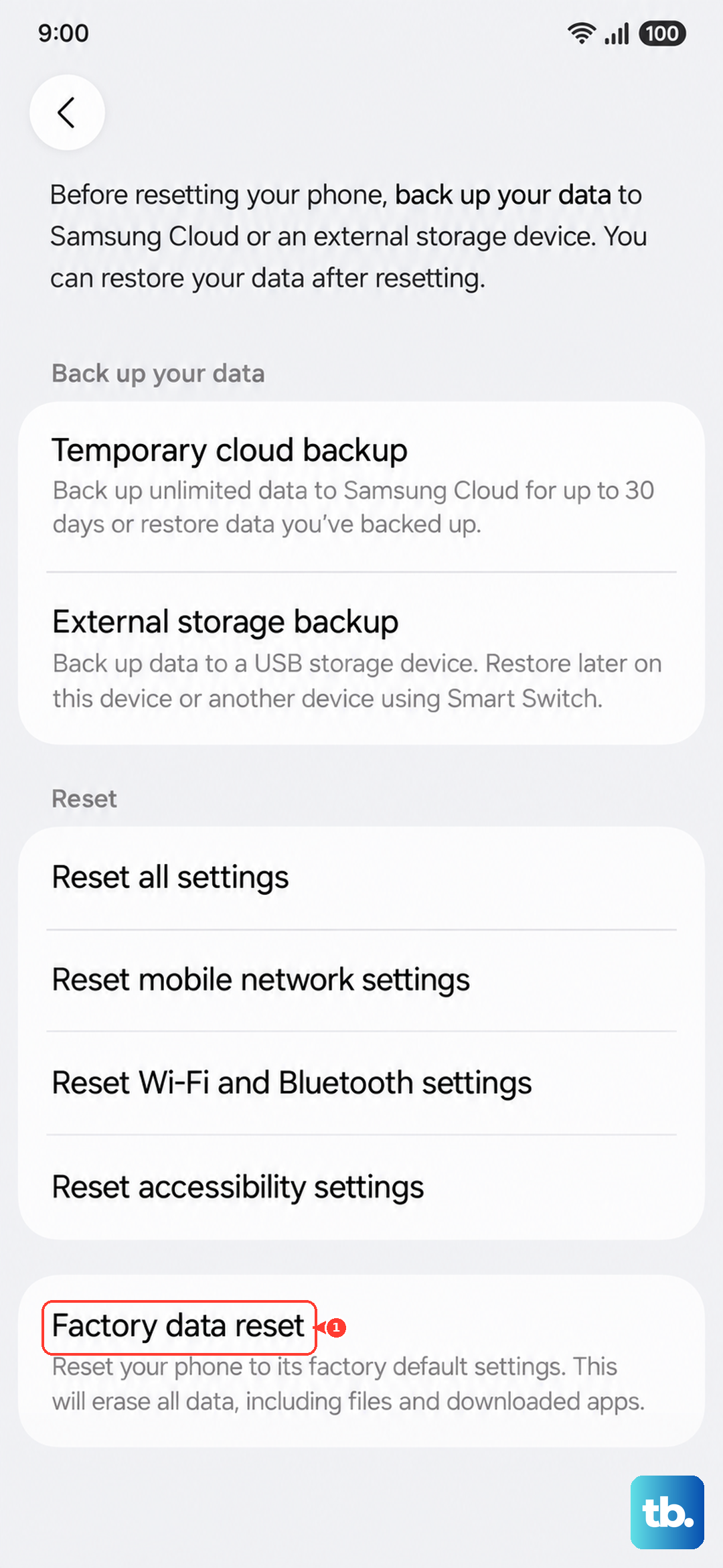
Don't forget to set up Samsung DeX if you plan to use your tablet for a desktop-like experience. Once you're absolutely certain everything is working on your new tablet, you can securely wipe your old device. On most Android phones, you'll find this in Settings > General management > Reset > Factory data reset.