Switching to your new Samsung Galaxy S26 Ultra is a big upgrade, and you shouldn't have to leave your photos, messages, or settings behind. The process is straightforward, whether you're moving from an older Galaxy, a different Android phone, or an iPhone. I'd start with Samsung's own tool, as it's designed to handle almost everything.
Start with Samsung Smart Switch
Smart Switch is the official way to move your life to your new phone. On your Galaxy S26 Ultra, you'll find it right in the setup wizard when you first turn it on. If you've already set up the phone, you can open it by going to Settings > Accounts and backup > Bring data from old device. The app will guide you through choosing a connection method.
You have three main options: a direct wireless connection over Wi-Fi, a cable connection for speed, or restoring from a backup stored on an SD card or computer. For most people, the wireless method is the simplest. Just make sure both phones are plugged in or have plenty of battery, as the transfer can take a while.
Connect Your Phones Wirelessly
If you choose wireless, you'll need the Smart Switch app on your old phone too. If it's a Samsung, it's already there. For other Android phones, download "Samsung Smart Switch" from the Google Play Store. On your old device, open the app and tap Send data, then select Wireless.
On your S26 Ultra, tap Receive data and Wireless. The phones will find each other. You'll then get a checklist of everything you can transfer: contacts, call logs, messages, photos, videos, apps, and even your home screen layout. Select what you want and tap Transfer. Keep the phones within a few feet of each other until it's done.
Use a Cable for a Faster Transfer
For a much quicker move, especially if you have a lot of photos and videos, use a cable. You'll need a USB-C to USB-C cable to connect the two phones directly. If your old phone has a different port (like Micro-USB or Lightning), you'll need to buy the appropriate adapter separately, as it isn't included in the S26 Ultra's box.
Connect the phones, and Smart Switch will detect the cable automatically. This method bypasses Wi-Fi entirely and is the most reliable. It's also the best choice if you're in a spot with poor wireless connectivity. The transfer speed takes full advantage of the S26 Ultra's fast USB-C port.
Moving from an iPhone to Your S26 Ultra
Smart Switch handles iPhone transfers well. On your new Galaxy, in the Smart Switch app, select iPhone/iPad as your old device. You can transfer directly using a cable (you'll need a Lightning to USB-C cable) or from an iCloud backup.
For the iCloud method, you'll sign into your Apple ID right within Smart Switch. It will show your available backups. You can bring over contacts, calendar events, photos, videos, and even your text messages. Remember, iPhone apps won't transfer; you'll need to download their Android equivalents from the Galaxy Store or Google Play Store afterward.
Restore from a Samsung Cloud Backup
If you've been using a Samsung phone and backing up to Samsung Cloud, restoring is easy. During the initial setup of your S26 Ultra, you'll be asked to sign into your Samsung account. After signing in, you should see an option to Restore data.
Select your most recent backup. This will restore your contacts, messages, settings, and even the layout of your home screen and apps. It's a seamless way to pick up right where you left off, assuming your old backups are up to date.
Let Google Sync Your Core Data
Your Google account is working in the background to sync key information. When you sign into your Google account on the new phone, your contacts, calendar, Gmail, and Chrome bookmarks should appear automatically. To check what's syncing, go to Settings > Accounts and backup > Manage accounts, select your Google account, and review the sync settings.
Many apps, especially games, save your progress through Google Play Games. Make sure you're signed into the same account on your new device. For other apps, check their settings for a cloud backup or account sync option before you switch.
Transfer Your WhatsApp Chats
WhatsApp requires a separate, in-app transfer. On your old phone, open WhatsApp and go to Settings > Chats > Chat transfer. Tap Start and then use your old phone to scan the QR code that appears on your new S26 Ultra. Make sure both phones are connected to the same Wi-Fi network for this to work.
Your chat history will move over, including media. After the transfer is complete, you'll need to verify your phone number on the new device. Your groups and contacts will repopulate once your number is active on the S26 Ultra.
Final Steps After Everything is Moved
Once the transfer is complete, take some time to look around. Open your Gallery to see if all photos and videos came over. Check your Messages and Contacts apps. Some apps, like banking or social media, will require you to log in again for security.
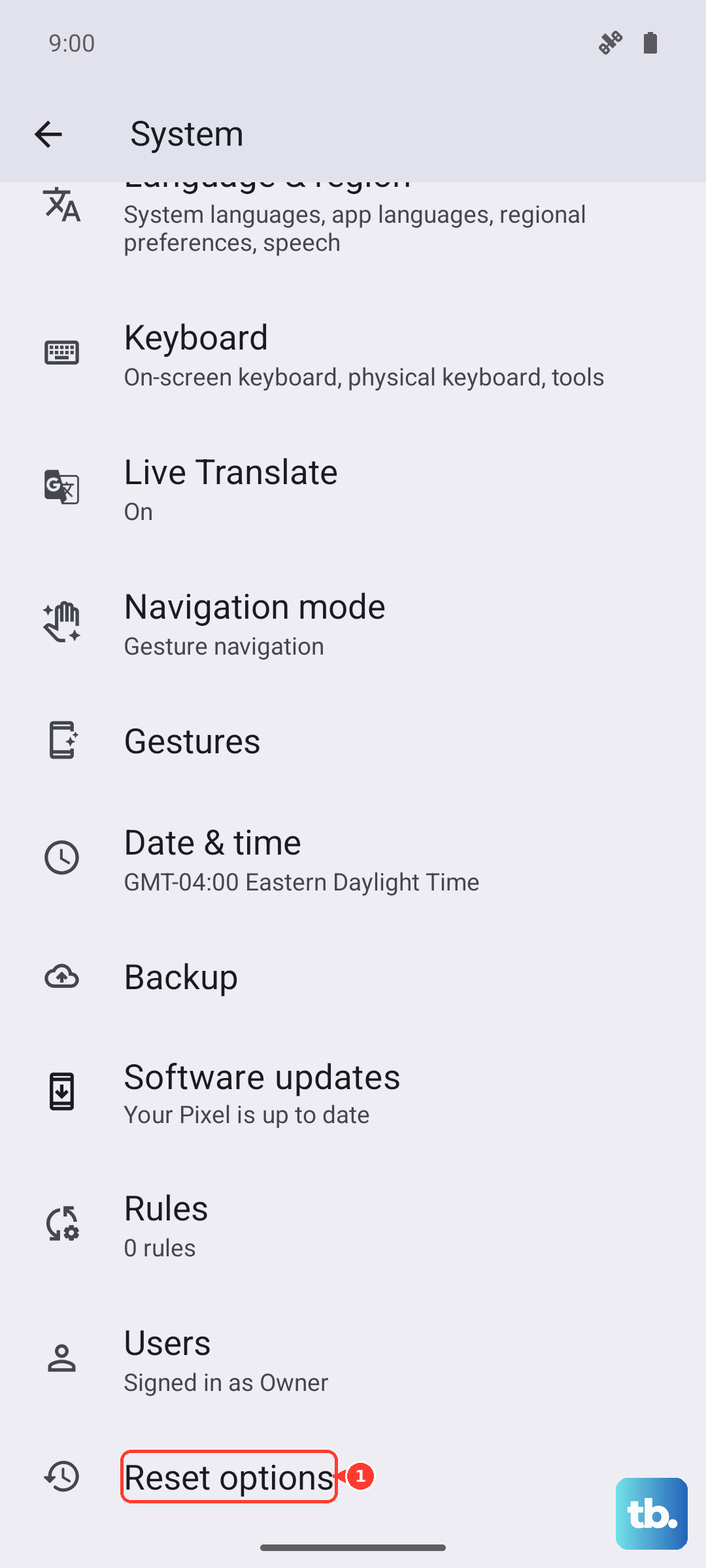
When you're absolutely certain everything is on your new Galaxy S26 Ultra and working, you should wipe your old phone. On most Android devices, you can find the reset option under Settings > System > Reset options > Erase all data (factory reset). For an iPhone, it's in Settings > General > Transfer or Reset iPhone.