You want your Yahoo Mail on your iPhone so messages, contacts, and calendar events land where you actually read them. The good news: Apple's Mail app and the dedicated Yahoo Mail app both connect in a couple of minutes, and you rarely need to touch a single server setting.
There is one thing worth knowing before you start. Yahoo retired plain-password (basic authentication) access for mail clients, so your iPhone now signs in through Yahoo's secure branded sign-in page instead of just accepting your password in a generic form. That sounds technical, but in practice it just means you tap the Yahoo logo (or enter your yahoo.com address) and sign in on Yahoo's own screen.
This guide covers every verified way to set up Yahoo Mail on iPhone, ordered fastest and most common first: the Yahoo Mail app, Apple's automatic setup, manual server configuration as a fallback, and the exact fixes if sign-in fails. Pick the first method that fits and stop there.
Confirm Your Yahoo Password Works First
Before adding the account anywhere, make sure the credentials are correct. Most iOS Mail issues are caused by invalid settings or a problem with the Yahoo Mail account you are trying to add.
Open a desktop browser and sign in at mail.yahoo.com. Your Yahoo ID is your full email address (for example, [email protected]). Compose a quick test email to yourself and confirm it arrives within about five minutes.
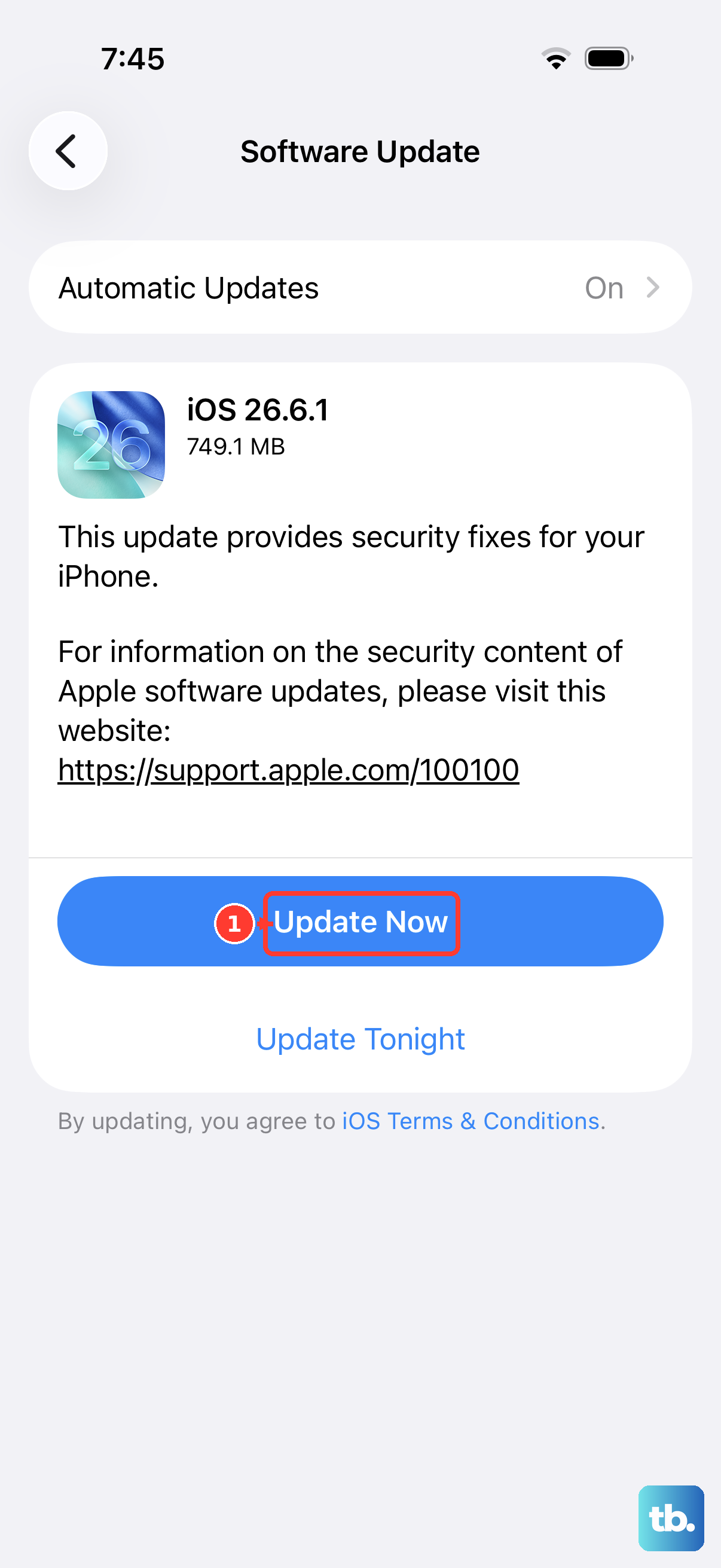
While you are here, update your iPhone to the latest iOS if you can. Updates can fix issues with Mail, but changes to apps and systems can also leave connection settings incorrect or corrupt, so removing and re-adding the account can help.
Set Up the Yahoo Mail App (Recommended)
The dedicated Yahoo Mail app gives you real-time mail and the full feature set (folder management, account info, themes) that Apple's Mail app does not expose. This is the smoothest path for most people.
- 1.Install the Yahoo Mail app from the App Store, then open it.
- 2.Tap the Sidebar icon.
- 3.Tap Sign in.
- 4.Enter your Yahoo ID (your email address), then tap Next.
- 5.Enter your password, then tap Sign in. Complete Two-Step Verification if you are prompted.
To switch between accounts later, tap the Sidebar icon, then Manage Accounts, and toggle each account on or off. To sign out, tap the Sidebar icon, then Sign out.
Add Yahoo to Apple's Mail App (Newer iOS)
If you prefer using the built-in Mail app, Apple's current path lives under the per-app settings. This works on recent iOS versions.
Open the Settings app. Tap Apps. After that, tap Mail, then tap Mail Accounts. Tap Add Account.
Tap choose from a list or enter your Yahoo Mail email address, then tap Yahoo. Follow the prompts to enter your email address and password on Yahoo's branded (secure) sign-in page. If you see Next, tap it and wait for Mail to verify the account. Follow any remaining prompts, then tap Save if it appears.
One thing to expect: Apple's Mail app uses Fetch, not Push, for Yahoo, so new messages arrive at set intervals rather than the instant they are sent. If you want instant delivery, use the Yahoo Mail app described above.
Add Yahoo on Older iOS (Legacy Menu Path)
The navigation differs by iOS version. If your iPhone runs an older release, the menu sits one level higher.
Open the Settings app. Tap Mail. Then tap Accounts. Tap Add Account.
Tap Yahoo. Follow the prompts to sign in with your Yahoo email and password on the Yahoo sign-in page.
Either path lands in the same place. The key is choosing the Yahoo provider so the secure sign-in screen appears.
Configure Yahoo Manually With IMAP (Fallback)
Use this only if the Yahoo provider option is unavailable (for example, on very old iOS) and automatic setup does not work. Manual setups that do not use Yahoo's branded sign-in page need an app password instead of your normal password (see the app-password steps below). IMAP is the recommended type: it is two-way sync with full folder access and keeps your mail on the server.
In Settings, go to Add Account, tap Add Other Account, then tap Mail Account. Enter your name, full Yahoo email address, password (use an app password), and a description; tap Next. If automatic discovery fails, choose IMAP.
Incoming Mail Server: Host Name imap.mail.yahoo.com, User Name your full email address, Password your app password (Port 993, SSL: Yes). Outgoing Mail Server (SMTP): Host Name smtp.mail.yahoo.com, User Name your full email address, Password your app password (Port 465 or 587, SSL: Yes, authentication required). Tap Next, then Save when the settings verify.
If you specifically need POP instead, use pop.mail.yahoo.com on Port 995 (SSL: Yes) for incoming, with the same smtp.mail.yahoo.com outgoing server. Be aware POP is one-way sync and downloads only your Inbox, which is why IMAP is the better default.
Generate an App Password for Apps That Need One
Some setups cannot use Yahoo's secure branded sign-in. You need an app password when you are configuring Yahoo manually without that sign-in page, or when removing and re-adding the account does not restore access.
If you use Yahoo two-step verification, you may need an app password, and with Account Key turned on some older third-party apps need one too. This also applies to a client like Outlook Desktop or Outlook for Mac if its setup does not use Yahoo's branded sign-in page.
Use a browser you have signed into Yahoo with for several days in a row. Do not use Incognito or Private mode, or generation may fail.
Sign in to your Yahoo Account Security page. Under External connections, click Create app password. Enter a name for the app in the text field.
Click Generate password. Copy the one-time password immediately and enter it as the password in your mail app. Click Done.
Two cautions. The app password is shown only once and cannot be recovered; if you lose it, generate a new one. It also stays active even after you change your main Yahoo password. To delete it, open Account Security, click the app passwords under External connections, click Delete next to the password, then click Delete to confirm.
Fix "Cannot Get Mail" or Incorrect Password Errors
If Mail shows "Cannot Get Mail" or says your username or password is incorrect, work through these steps in order. Removing and re-adding the account can help.
Verify your login on a desktop at mail.yahoo.com and confirm a test email to yourself arrives. Make sure you are on the latest iOS, since updates can fix issues with Mail. Remove the Yahoo account, then add it back to refresh the stored info.
On re-add, choose the Yahoo provider so the secure (OAuth) sign-in is used. This avoids the discontinued basic authentication. If problems persist, use the dedicated Yahoo Mail app instead. If your app does not use Yahoo's branded sign-in page, or you use Yahoo two-step verification or Account Key and secure sign-in still fails, create and use an app password.
To remove the account before re-adding, open Settings, go to Apps, then Mail, then Mail Accounts, tap your Yahoo Mail account, tap Delete Account, then confirm with Delete from my iPhone. Note that removing the account also removes its locally synced mail, which downloads again once you sign back in.
Frequently Asked Questions
Should I use the Yahoo Mail app or Apple's Mail app?
Use the Yahoo Mail app if you want real-time delivery and full features like folder management, account info, and themes. Apple's Mail app works well for basic reading and sending, but it uses Fetch for Yahoo, so new mail arrives at intervals rather than instantly, and it does not expose Yahoo's advanced features.
Do I need an app password to set up Yahoo on iPhone?
Not for the normal flow. When you add Yahoo through the provider option or the Yahoo Mail app, you sign in on Yahoo's secure page and no app password is needed. You need one for manual IMAP or POP setup or for clients that do not use Yahoo's branded sign-in page. You may also need one if you use Yahoo two-step verification, and some older apps need one when Account Key is turned on.
What are the Yahoo Mail server settings?
For IMAP, use imap.mail.yahoo.com on Port 993 with SSL. For POP, use pop.mail.yahoo.com on Port 995 with SSL. The outgoing server is smtp.mail.yahoo.com on Port 465 or 587 with SSL and authentication required. Use your full email address as the username, and an app password as the password.
Why does my password keep getting rejected?
First confirm the password works at mail.yahoo.com on a desktop. If it does, the issue is usually on the iPhone side: it may be signing in the old way or auto-filling a saved or wrong credential. Update iOS, remove and re-add the account, and choose the Yahoo provider so the secure sign-in page appears. If your app does not use Yahoo's branded sign-in page, or you use two-step verification and sign-in still fails, use an app password.
I lost my app password. How do I get it back?
You cannot recover it; Yahoo shows each app password only once at creation and never displays it again. Generate a new app password and update it in your mail app. If you no longer use the old one, delete it under Account Security, then External connections.
Is IMAP or POP better for Yahoo Mail?
IMAP is better for almost everyone. It is two-way sync, gives access to all your folders, and keeps mail on the server so it stays consistent across devices. POP is one-way and downloads only your Inbox, so choose it only if you have a specific reason to.