You want your traffic on Windows 11 routed through a VPN, whether that's to reach files on a work network or to add a layer of privacy at home. Maybe IT sent you a server address and told you to "set up the VPN," or maybe you just subscribed to a VPN service and aren't sure where it plugs into Windows.
Good news: Windows 11 has a VPN client built right into Settings, and most consumer VPN services also ship their own app. You don't need extra software for a work or self-hosted connection, and you don't need to touch Settings at all if your provider has its own app.
This guide covers both routes, quickest first. Before you start, make sure you have a working internet connection (a VPN runs on top of it), and have your connection details ready: the server address, the VPN type your provider uses, and your sign-in method.
Decide Which Setup Route You Need
There are two legitimate ways to set up a VPN on Windows 11, and which one you use depends on where the VPN comes from.
Use the built-in Windows client when you're connecting to a work network, a self-hosted server, or any service that gives you a server address and protocol to enter manually. Use a dedicated provider app when you've subscribed to a consumer VPN service that offers its own Windows app.
For a work VPN, look for VPN settings or a VPN app on your company's intranet, or contact your company's support person. For a personal VPN, check the Microsoft Store for an app, or visit the VPN service's website to see if the connection settings are listed there.
Install Your Provider's App (Fastest for Consumer VPNs)
If you pay for a consumer VPN service, its own app is the simplest path. It handles servers, protocols, and credentials for you, so there's no manual configuration.
- 1.Register or subscribe with a reputable VPN provider and get your account credentials.
- 2.Download the provider's Windows app, either from the Microsoft Store or from the provider's website.
- 3.Run the installer and sign in with your VPN account.
- 4.Choose a server location and connect.
That's the whole process for most subscription services. The rest of this guide covers the built-in client, which you'll want for work and manually configured connections.
Add a VPN Profile in Settings
Before you can connect with the built-in client, you must create a VPN profile. This is where the server address and protocol go. Navigate to Settings > Network & internet > VPN > Add VPN.
Open the Settings app (press Windows key + I).
Select Network & internet > VPN, then select Add VPN (the button sits next to "VPN connections").
Under "Add a VPN connection," for VPN provider choose Windows (built-in).
In the Connection name box, enter a name you'll recognize, for example "My Personal VPN."
In the Server name or address box, enter the address for the VPN server.
For VPN type, choose the type your provider requires (see the protocol list below).
For Type of sign-in info, choose your credential type: User name and password, One-time password, Certificate, or Smart card.
If you chose User name and password, you can optionally enter your username and password now. These fields are optional; leave them blank and Windows will prompt you at connect time.
Select Save.
Take a breath: once you select Save, the profile exists and stays there until you remove it. You only do this once per connection.
Choose the Right VPN Type
The VPN type (protocol) must match what your provider or IT department specifies. The built-in client offers these options: Automatic, Point to Point Tunneling Protocol (PPTP), L2TP/IPsec with certificate, L2TP/IPsec with pre-shared key, Secure Socket Tunneling Protocol (SSTP), and IKEv2.
A few practical notes to guide the choice:
IKEv2 is modern, fast, and stable when you roam between networks.
SSTP is SSL/TLS based and works well behind restrictive firewalls.
L2TP/IPsec requires either a pre-shared key or a certificate, so pick the matching variant.
PPTP is legacy and widely considered insecure; avoid it unless a system specifically requires it.
Automatic tries the available protocols in order, which is the safe pick if you're unsure.
Connect to Your VPN
With a profile saved, you can connect from Settings. Go to Settings > Network & internet > VPN.
Next to the VPN connection you want, select Connect.
If prompted, enter your username and password or other sign-in info.
When connected, the connection name shows "Connected" underneath it on the VPN settings page.
When you're connected to a recognized VPN, a blue shield appears on the taskbar. Note that the shield shows only for recognized VPNs, so its absence does not always mean you're disconnected; check the VPN settings page to be sure.
Connect From the Taskbar Instead
Once a profile exists, you don't have to open full Settings every time. The taskbar's Quick Settings has a VPN toggle.
On the taskbar, select the Network, Volume, Battery icon (or press Windows key + A).
Select VPN.
If you have one VPN configured, turn it on or off by toggling the left side of the VPN quick setting.
If you have more than one, select Manage VPN connections, choose the VPN you want, then select Connect.
Edit or Remove a VPN Connection
To change a saved profile, go to Settings > Network & internet > VPN, select the connection, then select Advanced options. Select Edit next to the detail you want to update (such as connection properties or proxy settings for this VPN), make your changes, and save.
To delete a profile, open Settings > Network & internet > VPN, select (expand) the connection or open its Advanced options, then select Remove and confirm.
Don't Confuse a VPN With a Proxy
Windows also has a proxy section at Settings > Network & internet > Proxy, with options for Automatically detect settings, Use setup script, and Use a proxy server. A proxy is not the same thing as a VPN; Microsoft notes that a VPN provides a more secure connection compared to a proxy server. Don't configure a proxy expecting VPN-level privacy.
When a Connection Fails, Work Through This Checklist
If a profile won't connect, run through these common fixes before assuming the profile itself is broken:
Double-check the server address and credentials, and keep Windows updated.
If you left the username and password blank, Windows prompts at connect time; duplicate or stale entries in Windows Credential Manager can cause repeated auth failures. Delete duplicate VPN entries there, re-enter your password, and reconnect.
Confirm the VPN is allowed through Windows Firewall, and temporarily disable third-party antivirus to test.
Recreate the profile if it may be corrupt; flush DNS; reinstall or upgrade your network drivers, including WAN Miniport (IP) in Device Manager.
Make sure the Windows services "Remote Access Connection Manager" and "Secure Socket Tunneling Protocol Service" are running.
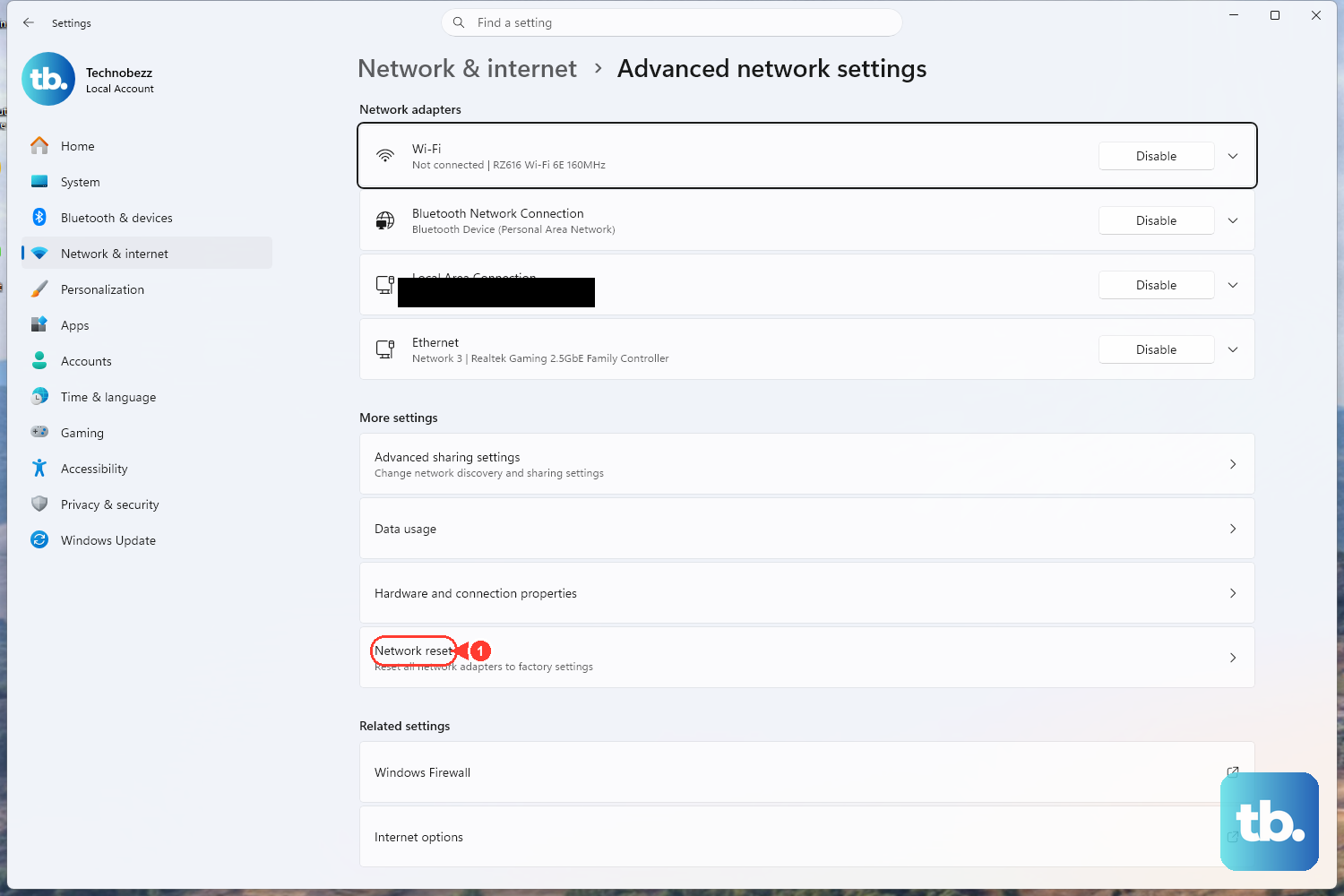
As a last resort, use Network reset at Settings > Network & internet > Advanced network settings > Network reset.
Two error messages worth recognizing: "Unable to establish the VPN connection" usually points to wrong credentials, a wrong server, or a corrupt profile, while "The VPN service is not available" points to a stopped VPN-related Windows service.
Frequently Asked Questions
Do I need to install software to use a VPN on Windows 11?
Not for a work or self-hosted connection; the built-in client under Settings > Network & internet > VPN handles those once you create a profile. For a consumer subscription service, you'll typically install that provider's own app from the Microsoft Store or its website.
Which VPN type should I pick if I don't know?
Choose Automatic, which tries the available protocols in order. If you have specifics from your provider, IKEv2 is modern and stable, SSTP works well behind restrictive firewalls, and PPTP is legacy and best avoided.
How do I know I'm actually connected?
The connection name shows "Connected" under it on the VPN settings page, and a blue shield appears on the taskbar for a recognized VPN. Because the shield only shows for recognized VPNs, check the settings page if you don't see it.
My VPN stopped working after a Windows update. What now?
Some users have reported a previously working third-party VPN failing after a Windows 11 feature update while it still worked on other devices. Reported workarounds include resetting Windows Credential Manager entries. Make sure Windows is fully updated, since fixes ship through updates.
Is a VPN the same as a proxy server?
No. They live in different Settings sections, and Microsoft states a VPN provides a more secure connection than a proxy. Configure a VPN, not a proxy, if your goal is a private, encrypted connection.
Why does my VPN keep asking for my password every time?
If you left the username and password blank when creating the profile, Windows prompts you at connect time by design. If you entered them but still get repeated auth failures, look for duplicate or stale VPN entries in Windows Credential Manager, delete them, re-enter the password, and reconnect.