Running a VPN on your router protects every device on your network at once, including the ones that can't run a VPN app of their own: smart TVs, game consoles, streaming sticks, and IoT gadgets. The router handles the encryption, so anything connected to its Wi-Fi or Ethernet is covered automatically.
The catch is that not every router can do this, and the setup differs by brand. This guide walks you through confirming compatibility, gathering what you need, and the exact menu paths for the most common routers, ordered from the quickest built-in methods to the more involved custom-firmware route.
Work through it in order. The first three sections apply to everyone; after that, jump to the section matching your router.
Confirm Your Router Can Act as a VPN Client
This is the single most important check, and it trips people up constantly. You need a router that supports a VPN client (it dials out to a commercial VPN provider), not just a VPN server (which lets you reach your home network from afar).
Here is how the categories break down.
ISP-issued routers: usually incompatible, with locked settings.
Consumer routers (Netgear, TP-Link): potentially compatible, but may need manual setup.
Custom-firmware routers (DD-WRT, Tomato, OpenWRT): fully compatible.
Pre-configured or pre-flashed VPN routers: ready to use out of the box.
Check your printed or online manual, or search "[your router model] VPN compatibility".
A common pitfall: Netgear Nighthawk's built-in VPN Service (under ADVANCED > Advanced Setup > VPN Service) is a server for reaching your home network remotely, not a client to a commercial provider.
To route home traffic out through a commercial provider on a Netgear, you must flash custom firmware.
If your ISP gateway doesn't support VPNs at all, you may need to put it in bridge mode and add a compatible router behind it.
Gather Your Credentials and Config File
You need an active subscription with a provider that supports manual or router configuration, plus the right files for your chosen protocol. WireGuard, IKEv2, and OpenVPN are the most secure choices; WireGuard is favored on lower-powered routers because it typically outperforms OpenVPN.
For NordVPN, log into my.nordaccount.com and select NordVPN.
Since June 14, 2023, you cannot use your account email and password to authenticate on routers.
Scroll to Advanced Settings, click "Set up NordVPN manually", complete the email verification, then open the "Service credentials" tab and copy that separate Username and Password.
For an OpenVPN config, choose "OpenVPN configuration files", browse for your server, and click Download UDP or Download TCP.
Note that NordVPN does not offer .conf files for WireGuard manual setup; NordLynx works only through the native apps, pre-configured routers, or the integrated token method on supported TP-Link models.
For Surfshark WireGuard, log into the dashboard, go to VPN > manual setup, choose WireGuard, select "I don't have a key pair", name it, then generate and save both the public and private keys.
Open the Locations tab and click the download icon next to your server to get the .conf file.
Find Your Router's Admin Page and Log In
You need the router's IP address (its Default Gateway) and admin login.
On Windows, open Command Prompt, type ipconfig, press Enter, and read the "Default Gateway" line.
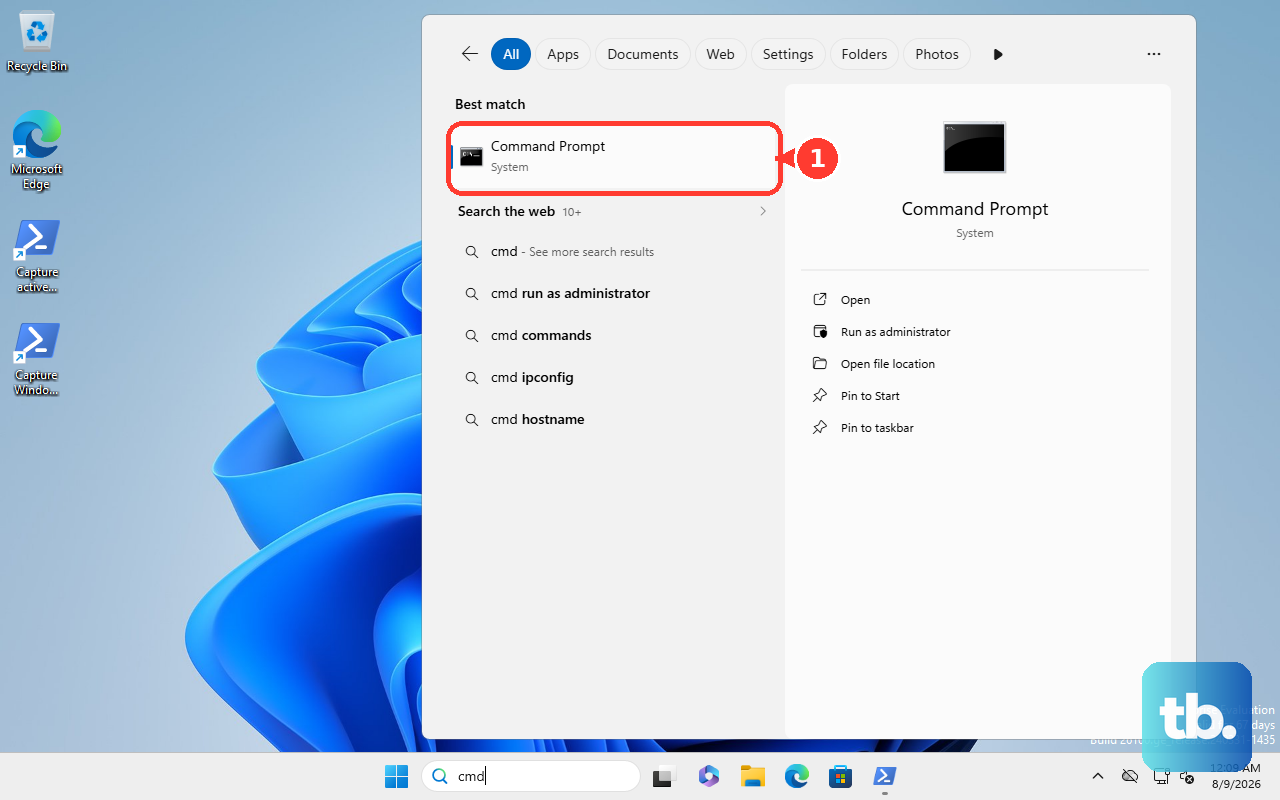
Common defaults are 192.168.0.1 and 192.168.1.1; ASUS also uses 192.168.50.1 or router.asus.com, GL.iNet uses 192.168.8.1, and OpenWRT uses 192.168.1.1 with the user "root".
Type that IP into a browser and sign in with the router admin credentials (not your VPN credentials).
The VPN settings usually live under an Advanced, Security, or Network tab, often labeled "VPN" or "VPN Client".
Set Up an ASUS Router With VPN Fusion
ASUS has a built-in client called VPN Fusion.
OpenVPN needs firmware 3.0.0.4.388.xxxxx or later; WireGuard requires a more recent build (ASUS states later than 3.0.0.4.388.23000, so update to the latest firmware your model offers if WireGuard is missing).
Sign in at http://www.asusrouter.com or the LAN IP.
- 1.Go to VPN > VPN Fusion and click the add or plus icon to create a profile.
- 2.Set VPN Type to OpenVPN (or WireGuard). The server and client must be the same type.
- 3.For OpenVPN, enter a Connection name, click "Import .ovpn file", select your file, and optionally add Username and Password. For WireGuard, click "Upload Config" and import the .conf; fields auto-populate.
- 4.To cover only certain devices, turn off "Apply to all devices", click "Edit Device", choose them, and confirm.
- 5.Click Apply and Enable (OpenVPN) or "Apply all settings", then enable the profile.
Critical gotcha: the router's LAN IP must differ from the VPN server's IP or the connection fails.
ASUS permits only one OpenVPN connection per router, and legacy models RT-AC66U (non-B1) and RT-N66U are not compatible.
Set Up a TP-Link Router
First confirm your model supports the VPN Client feature; not all do.
Supported protocols are OpenVPN, PPTP, L2TP/IPSec, and WireGuard (WireGuard on select models only).
Log in at tplinkwifi.net or http://192.168.0.1/, then go to Advanced > VPN Client and enable the toggle.
For a manual OpenVPN config, in Server List, click Add and choose "Set up manually".
Enter a Description, select OpenVPN, and import the .ovpn file (it must be under 20 KB; only one file is accepted).
Add Username/Password if needed, then Save.
In Device List, click Add, pick which devices route through the VPN, confirm, and Save.
For NordVPN WireGuard via token (no .conf file), click Add in Server List, select NordVPN, paste the authorization token from your Nord account, choose a server location, and Save.
The status shows "connecting" then "connected".
You can store up to six server profiles, but only one can be active at a time.
Set Up a GL.iNet Router
Open the admin panel (typically 192.168.8.1) and go to VPN > OpenVPN Client.
For the integrated NordVPN option, click the NordVPN button and authenticate; the router downloads server configs automatically.
For other providers, click "Add Manually", name the group, upload your .ovpn, choose the authentication type (No authentication; Username and Password only; Passphrase only; or all three), and click Apply.
Select your server, click the three-dot icon to connect, and watch for a green dot.
WireGuard lives under VPN > WireGuard Client.
Set Up a DD-WRT or OpenWRT Router
Custom firmware gives full compatibility but flashing can void your warranty and cause problems if done wrong.
On DD-WRT, go to Services > VPN, set "Start OpenVPN Client" to Enable, then enter the Server IP/Name (the "remote" line from your .ovpn), Port 1194, Tunnel Device TUN, Protocol UDP.
Enable Userpass Authentication with your credentials, set cipher AES-256-CBC and Hash SHA512, paste the <tls-auth> and <ca> blocks into their fields, and in Additional Config add: tun-mtu-extra 32 / mssfix 1450 / persist-key / persist-tun.
Click Apply Settings and confirm "CONNECTED SUCCESS" under Status > OpenVPN.
OpenWRT (OpenVPN only) requires installing packages via System > Software: openvpn-openssl, ip-full, and optionally luci-app-openvpn.
Upload your .ovpn, append an auth-user-pass line pointing to a .auth file holding your username and password, create a "nordvpntun" interface on device tun0, add a firewall zone with masquerading and MSS clamping, and set DNS forwardings to 103.86.96.100 and 103.86.99.100 to prevent leaks.
Use a Pre-Configured Router Like ExpressVPN Aircove
If you'd rather skip manual config entirely, a dedicated VPN router is the easiest path.
With ExpressVPN Aircove (or Aircove Go), assemble and plug in the power adapter (Aircove Go can run off USB-C or a power bank); it boots in about a minute.
Connect the Aircove's Internet port to your modem or existing router's LAN port.
Join the default Wi-Fi named "Aircove-XXX" using the password on the underside label.
Go to expressvpnrouter.com and select "Get Started".
Enter ISP credentials if prompted and connect.
Choose "Sign in to ExpressVPN" with your activation code, start the 30-day trial, or Skip.
Pick a data-sharing option, create a new Wi-Fi name and password, and continue.
Create a dashboard admin password; the router then installs firmware updates automatically.
Aircove counts as one connection on your subscription but protects unlimited devices, with device groups that route different devices through up to five VPN locations at once, plus Threat Manager, parental controls, and ad blocking built in.
Verify the Connection and Disable It Later
Once the router status reads "connected", confirm your public IP actually changed by visiting any "what is my IP" site.
Do not run a VPN on both the router and a device at the same time; stacking them decreases speed significantly.
To turn the VPN off later, uncheck the "Enable VPN" box (or disable the profile) in your router's settings.
Frequently Asked Questions
Why won't my NordVPN account email and password work on my router?
Since June 14, 2023, NordVPN no longer accepts your account email and password on routers or third-party OpenVPN apps. Generate separate "Service credentials" from Nord Account > NordVPN > Manual setup. The change does not affect the native NordVPN app.
Can I use NordVPN's WireGuard (NordLynx) on my router?
Not through standard manual setup; NordVPN does not provide .conf files for WireGuard, and self-configured ASUS routers won't support NordLynx. Your options are the integrated token method on supported TP-Link models, the native apps, or a pre-configured router.
Can different devices use different VPN servers through one router?
With a single router tunnel you generally can't change the server per device easily. The workarounds are device-group or per-device features such as ExpressVPN Aircove device groups, ASUS VPN Fusion per-device assignment, or the TP-Link Device List.
Will a router VPN slow down my internet?
It can, because the router encrypts all traffic, so speed depends on the router's processing power and the VPN server load. WireGuard is generally faster than OpenVPN on lower-powered routers. Avoid running a VPN on both the router and the device, which compounds the slowdown.
My ASUS OpenVPN connection keeps failing. Why?
The most common cause is that the router's LAN IP matches the VPN server's IP; they must be different. Also confirm your model is compatible (RT-AC66U non-B1 and RT-N66U are not) and that it runs OpenVPN 2.4.x.
Can my Netgear Nighthawk's built-in VPN Service route my traffic through NordVPN?
No. That feature is a VPN server for remote access into your home network, not a client to a commercial provider. To route outbound traffic through a commercial provider on a Netgear, you must flash custom firmware such as DD-WRT or OpenWRT.