You set up your router, connected your devices, and the WiFi works. That is usually where most people stop. The problem is that a router left on factory defaults is one of the easiest targets on your network, and 2026 made that painfully clear.
In April 2026, U.S. federal agencies disrupted a campaign that compromised thousands of home and small-office routers by exploiting known router flaws, hijacking DNS, and stealing credentials. The fix was not exotic. It was the same hardening steps that have always been recommended: update firmware, change default logins, turn off remote management, and use modern encryption.
This guide walks you through every verified step, ordered quickest and most common first, with the exact menu paths for NETGEAR, TP-Link, ASUS, and Google Nest Wifi. Do the first few items today; the rest take minutes each.
Before You Start: Two Passwords and One Login
Two things trip people up before they touch a single setting.
First, your WiFi password (the network key your devices use to join) is not the same as your router admin password (the one that logs you into the router's settings). They are separate, and changing one does not change the other. Keep them distinct.
Second, you need to reach your router's settings. Use a web browser or the vendor app:
- NETGEAR: browser at www.routerlogin.net, or the Nighthawk app.
- TP-Link: browser at tplinkwifi.net or 192.168.0.1, or the Tether app.
- ASUS: browser at www.asusrouter.com (or a LAN IP such as 192.168.1.1), or the ASUS Router app.
- Google Nest Wifi / Google Wifi: the Google Home app only. There is no web admin page; trying to reach a router IP will fail.
Default admin usernames on NETGEAR and ASUS are typically 'admin'. Logins are case-sensitive. If you have never changed your WiFi credentials, the factory defaults are printed on a sticker on the router.
Change the Default Admin Login First
This is the single most exploited weakness. Federal guidance issued after the 2026 router campaign puts changing default credentials near the top of the list, alongside firmware updates.
Replace any 'admin' or 'default' login with a password at least 16 characters long, not reused anywhere else, using a random mix of letters, numbers, and symbols. Store it in a password manager. The FTC adds a rule worth keeping: do not use a login name or password that contains your name, address, or the router's brand.
Update Your Router Firmware
Outdated firmware is how the 2026 attacks got in. Federal guidance describes updating it as the most important step.
Log in to your router settings, check for a firmware update, and turn on automatic updates if the option exists. On ASUS, you can enable automatic updates through the ASUS Router app or the Web GUI. The FTC recommends checking the manufacturer's website for newer software before setting up a new router or making changes.
Set Encryption to WPA3 (or WPA2-AES)
Encryption is what keeps nearby strangers off your network. CISA calls WPA3-Personal with AES the most secure router configuration available for home use. Only WPA3-Personal or WPA2-AES are considered safe. Do not use WPA, TKIP, or WEP.
If your router only offers WPA or WEP, the FTC's advice is to update the software first; if WPA2 or WPA3 still are not available, replace the router rather than stay on outdated encryption.
One requirement: both your router and the connecting device must support WPA3. Most routers made after roughly 2020 support it (all ASUS AX and BE series do), and WPA3-capable TP-Link models often just need a firmware update.
NETGEAR (browser): Your router must be WiFi 6 or newer. Go to www.routerlogin.net, log in with 'admin' and your password, select Wireless, then under each band's section set Security Options to WPA3-Personal and enter your password. You can enable it on one band or both.
TP-Link (browser): Go to tplinkwifi.net or 192.168.0.1, log in, then open Advanced > Wireless > Wireless Settings. For Security, TP-Link recommends WPA2-PSK[AES] or WPA3-Personal+WPA2-PSK[AES]. Click SAVE.
ASUS (browser): Go to www.asusrouter.com and log in. On newer firmware, open Network > Main network profile and edit Wireless Security. On older firmware, open Wireless > General. Under Authentication Method choose WPA2-Personal, WPA3-Personal, or WPA2/WPA3-Personal, then click Apply.
If older devices drop off after switching to pure WPA3, use WPA2/WPA3-Personal mixed mode, or fall back to WPA2-Personal. ASUS notes some older devices simply cannot connect to WPA3.
Change Your WiFi Name and Password
Change the default network name (SSID) and set a strong WiFi password. A long passphrase of at least 16 characters is a good target. ASUS suggests more than 10 characters mixing capitals, numbers, and special characters, and warns against sequences like 1234567890 or qwertyuiop.
NETGEAR (browser): Select Wireless from the dashboard (on Nighthawk Pro Gaming, use Settings > Wireless Setup), edit the Name (SSID) and Password (Network Key) fields, then tap Apply.
NETGEAR (Nighthawk app): Tap WiFi Settings, update the Network Key (Password) and name, then tap SAVE.
TP-Link (browser): Under Advanced > Wireless > Wireless Settings, set the Network Name (SSID) and Password (case-sensitive), then SAVE.
TP-Link (Tether app): Tap More > Wi-Fi Settings, pick the band, edit Network Name and Password, then Save.
ASUS (browser): On newer firmware, Network > Main network profile; on older firmware, Wireless > General (edit the WPA-PSK Key). WiFi names allow up to 32 characters; passwords are 8 to 63 characters.
ASUS (app): Settings > Network > Main network profile (newer) or Settings > WiFi > Wireless Settings > Network Settings (older), then Apply.
Google Nest Wifi / Google Wifi: In the Google Home app, tap Home > Wifi > Network settings, enter your existing password, type the new one, and tap Save. Passwords are 8 to 63 alphanumeric characters with no spaces.
Expect every connected device to drop after a password change until you reconnect each one with the new key.
Disable Remote Management
Remote management lets the admin interface be reached from the internet, which is exactly what attackers want. Turn off 'remote access' or 'remote management' in your router settings so the admin page is reachable only from inside your home.
On ASUS specifically, disable WAN access to the admin page, leave Telnet and SSH off when you are not using them, and avoid the DMZ (use Port Forwarding for specific services instead).
Turn On the Firewall
Most routers include a firewall. The FTC's advice is to check your settings and confirm it is turned on. On ASUS, enable the firewall to block suspicious inbound traffic, and turn on AiProtection for threat detection.
Disable WPS
WiFi Protected Setup makes joining easier, and that convenience increases the likelihood of unauthorized access. CISA recommends disabling WPS entirely. As a bonus, this avoids a known conflict: WPS connections fail on WPA3-Personal anyway.
Harden ASUS Further (Optional, ASUSWRT)
If you run an ASUS router, a few extra toggles tighten things considerably:
- DNS Rebind Protection: enable it to catch abnormal or incorrect IP addresses in DNS responses.
- HTTPS admin access: Advanced Settings > Administration > System > Local Access Config, set Authentication Method to https, then reach the GUI at https:// on port 8443 (for example, https://router.asus.com:8443).
- Restrict login by IP: Advanced Settings > Administration > System > Specified IP Address.
- Disable UPnP if you do not need it: Advanced Settings > WAN > Basic Config > Enable UPnP.
- MAC address filtering: Advanced Settings > Wireless > Wireless MAC Filter, set mode to Accept to whitelist devices.
Monitor your connected devices regularly for anything unknown, unusual activity, or unexpected setting changes.
Reboot Periodically and Retire Old Routers
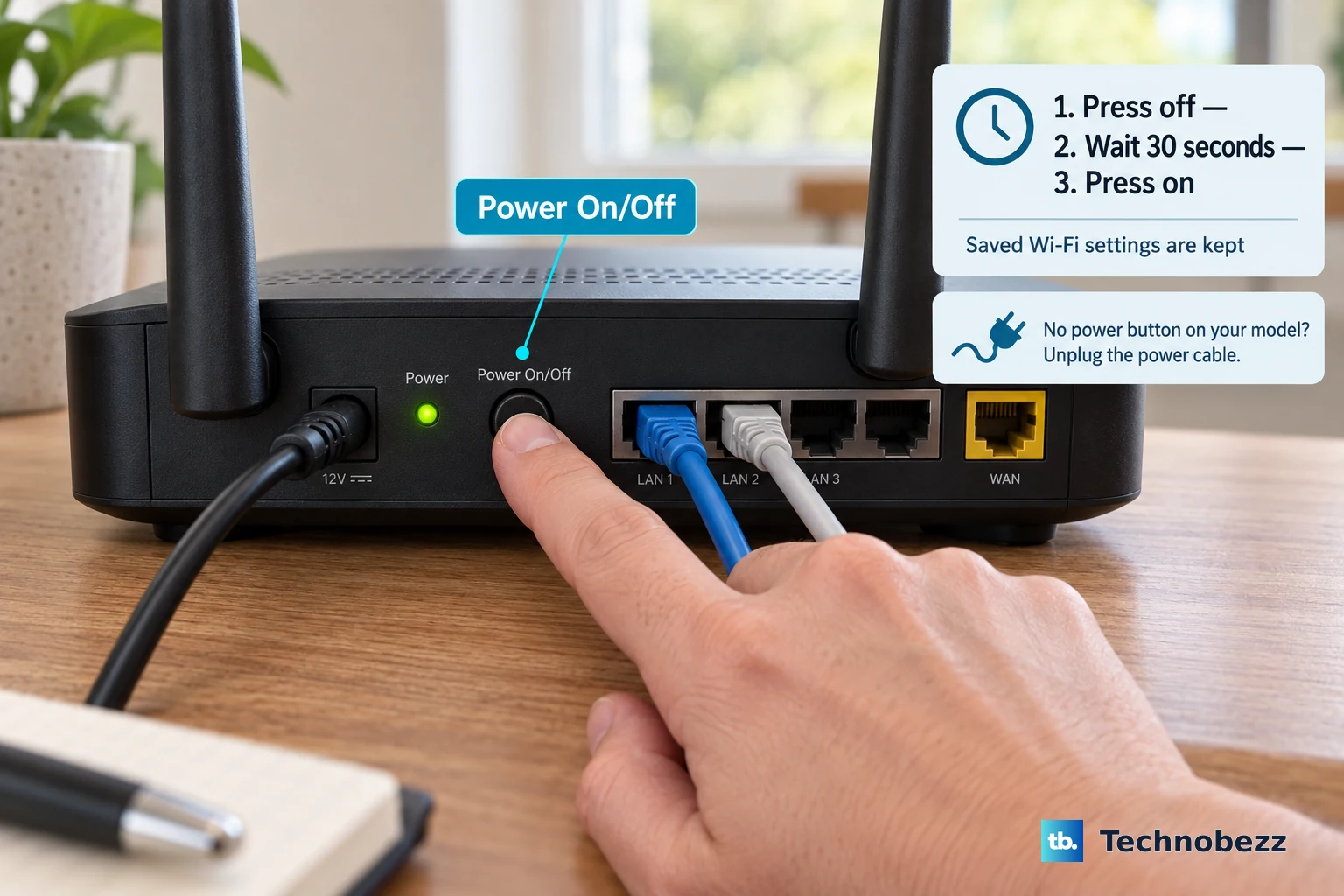
Rebooting your router on a schedule disrupts certain malware and clears the temporary connections attackers exploit. Guidance after the 2026 advisory suggests monthly as a good place to start, with some federal messaging suggesting weekly.
Finally, check whether your router is end-of-life. If the manufacturer no longer supports it, replace it with a model from a trusted manufacturer. An unpatched router cannot be made safe.
When you finish in the admin interface, log out as administrator so an open session cannot be hijacked.
Frequently Asked Questions
My WiFi password and router login are different. Which one secures my network?
Both matter, for different reasons. The WiFi password (network key) controls which devices can join your network. The admin login controls who can change your router's settings. Set strong, distinct values for each; changing one does not change the other.
I enabled WPA3 and some older devices stopped connecting. What now?
Some older phones, computers, and IoT devices cannot use pure WPA3. Switch to WPA2/WPA3-Personal mixed mode so old and new devices both connect, or fall back to WPA2-Personal if needed. On ASUS AiMesh, mixing WPA3-capable and non-WPA3 nodes can also cause connectivity issues.
How often should I reboot my router?
Monthly is a reasonable starting point, and some federal messaging in the 2026 advisory suggested weekly. Rebooting disrupts certain malware and clears temporary connections that attackers rely on.
Why can't I reach a settings page for my Google Nest Wifi?
Nest Wifi and Google Wifi have no web admin page. All configuration, including the password change, happens in the Google Home app on iOS or Android. Trying to load a router IP address will fail.
I typed the new WiFi password correctly but a device still won't join. Why?
Check for a stray space at the very start or end of the network name or password, a common cause of failed joins on Google systems. Also confirm capitalization, since logins and WiFi passwords are case-sensitive on NETGEAR, TP-Link, and ASUS.
My router only offers WPA or WEP. Is that good enough?
No. WPA and WEP are outdated and not secure. Update the router software first, then look for WPA2 or WPA3. If neither becomes available after updating, replace the router rather than continue on old encryption.