Taking a screenshot on your iPad mini is one of those essential skills you'll use all the time, whether you're saving a recipe, capturing a game score, or sharing a funny meme. The 7th generation model running iPadOS 26 offers a few different ways to do it, and knowing them all makes the process seamless.
Use the Button Combination
The quickest method is using the physical buttons. Press the Top button and the Volume Up button at the same time, then release them both immediately. You'll see a quick flash on the screen and hear a camera shutter sound if your iPad isn't muted. A small preview thumbnail will pop up in the bottom-left corner of the display.
You can tap that thumbnail to jump straight into editing, where you can crop, draw, or add text. If you just ignore it, the screenshot will save automatically to your Photos app in the Screenshots album.
Use the Apple Pencil
If you have an Apple Pencil (2nd generation) paired with your iPad mini, this is arguably the fastest method. Just swipe up from the bottom-left or bottom-right corner of the screen with the Pencil. The screen will flash, and the markup editor will open immediately, ready for you to annotate.
This gesture is incredibly intuitive and feels very natural for jotting quick notes on a screenshot. You can adjust the sensitivity for this gesture in your iPad's settings if you find it's triggering accidentally.
Use AssistiveTouch
For a software-based method, you can enable AssistiveTouch. Go to Settings > Accessibility > Touch > AssistiveTouch and toggle the switch on. A small, movable gray button will appear on your screen.
Tap that floating button, then navigate to Device > More > Screenshot. Your iPad will capture the screen. You can also customize the menu to add Screenshot as a top-level option, or set a gesture like a double-tap on the AssistiveTouch button to trigger it directly.
Ask Siri
When your hands are busy, just say "Hey Siri, take a screenshot." Your iPad mini will capture whatever is currently displayed and save it directly to your Photos app. This works even if Siri is set to only show responses on screen without voice feedback.
I find this especially handy when my iPad is propped up on a stand and I'm following along with a tutorial or video call.
Capture a Full-Page Screenshot in Safari
When you need to save an entire webpage, document, or long note, the full-page screenshot feature is perfect. First, take a regular screenshot using any of the methods above. Then, tap the preview thumbnail that appears.
At the top of the editing screen, you'll see two options: Screen and Full Page. Tap Full Page. Your iPad will render the entire scrollable content, which you can then save as a PDF to the Files app or share directly.
Edit and Organize Your Screenshots
After taking a screenshot, that brief preview window is your gateway to quick edits. Tap it to open the markup tools, where you can crop, highlight with the pen tool, add shapes, or insert text. The share icon in the top right lets you send the image via AirDrop, Messages, or any other app instantly.
All your screenshots are collected in the Photos app under the Screenshots album for easy access. From there, you can create folders, delete old ones, or make shared albums.
Adjust Your Screenshot Preferences
To take screenshots silently, simply flip the mute switch on the side of your iPad mini. The shutter sound will be disabled until you switch it back. If you prefer a different save location for your full-page PDFs, you can choose a destination like iCloud Drive directly from the share sheet after capturing.
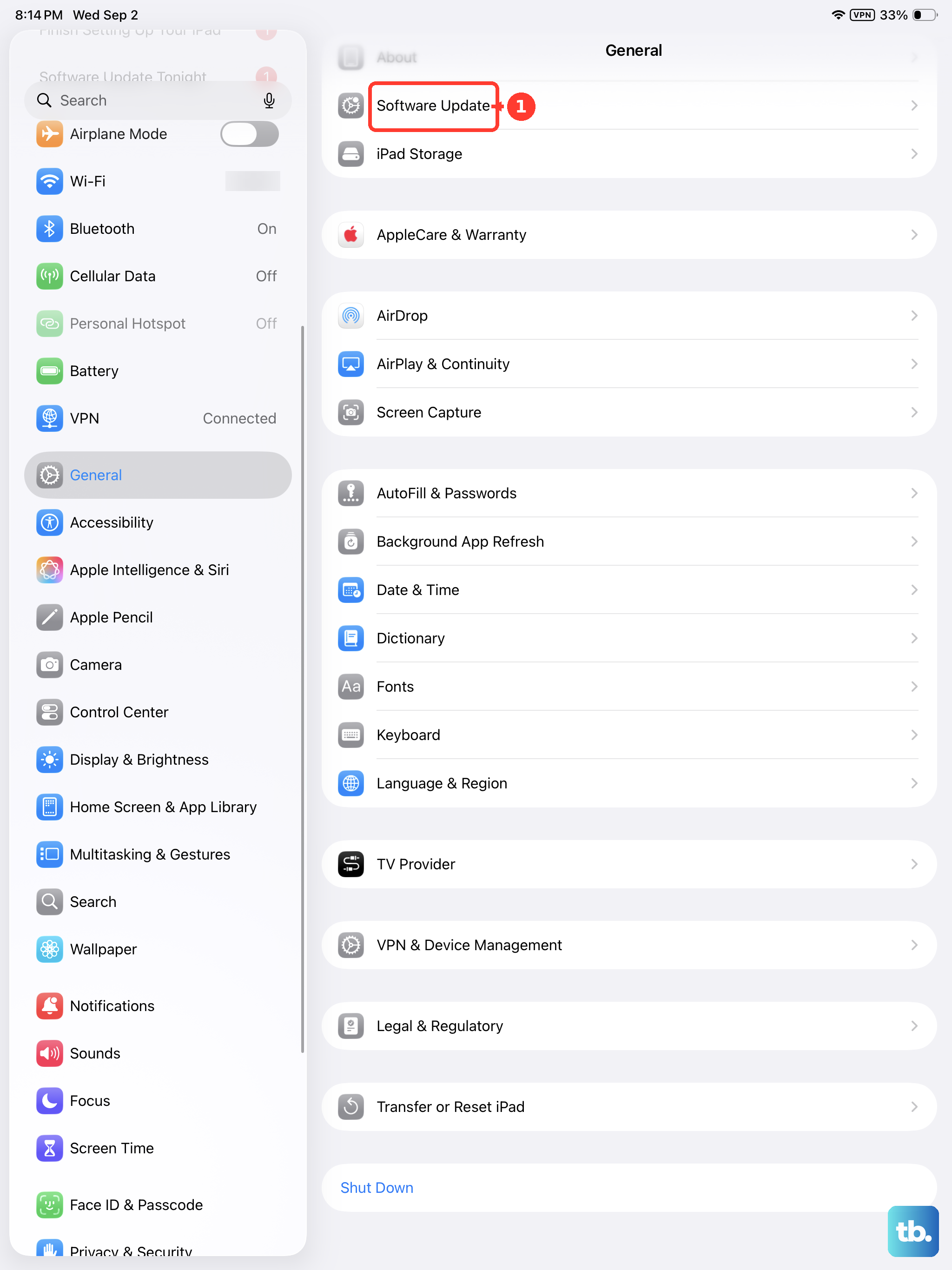
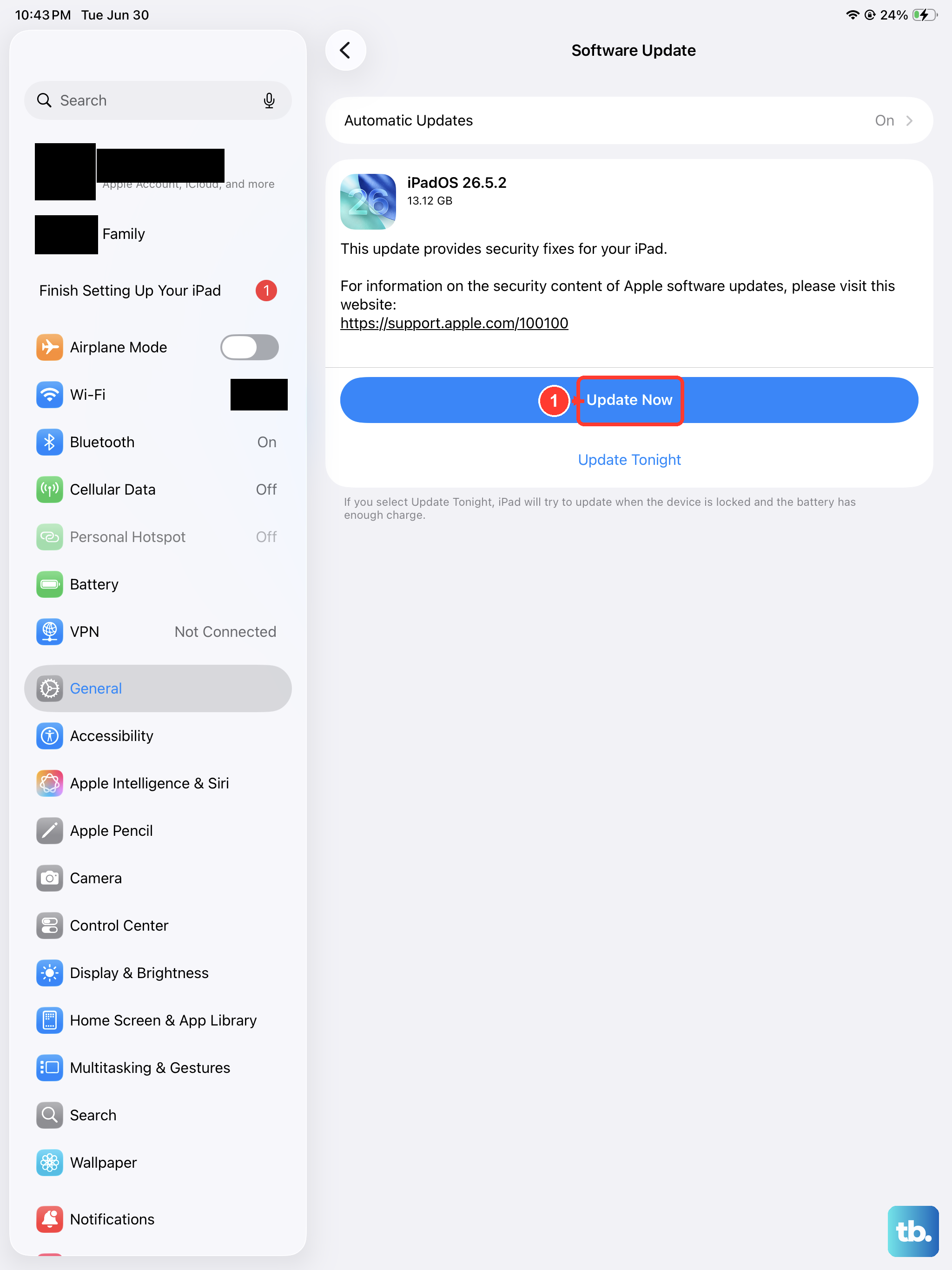
Keeping your iPad mini updated to the latest version of iPadOS 26 ensures you have the most reliable performance for these features. A quick check in Settings > General > Software Update is always a good idea.