

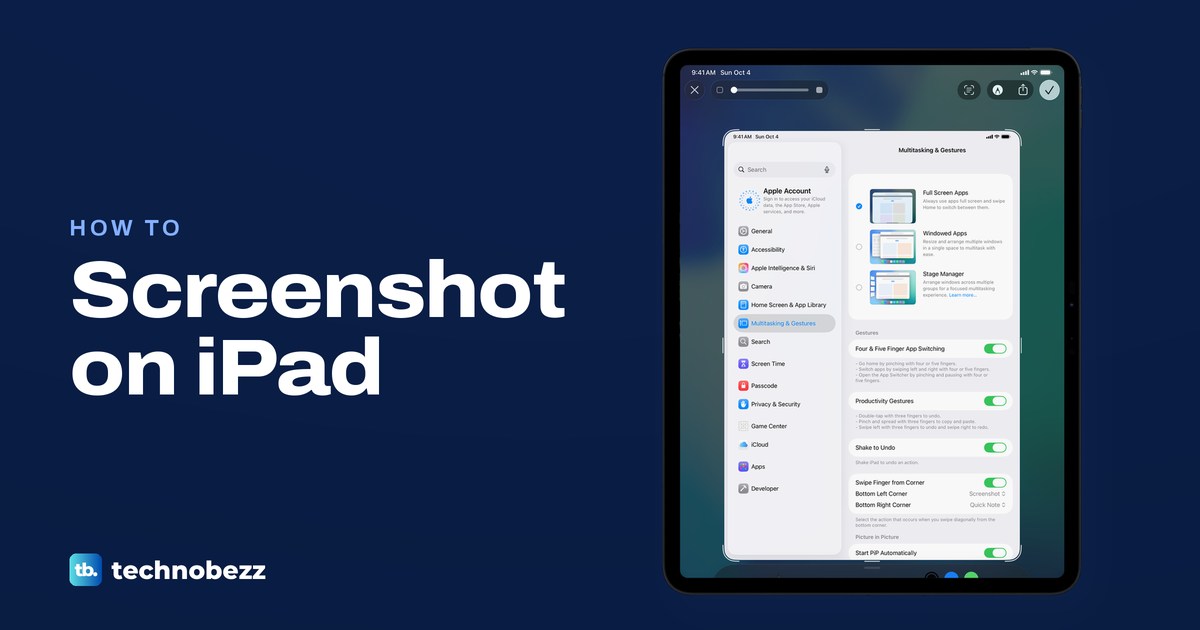
To take a screenshot on an iPad, quickly press and release the top button and either volume button at the same time, or the top button and the Home button if your iPad has one. Apple says the screenshot then opens full screen by default; tap Done and choose Save to Photos after you crop or mark it up.
You can also skip the buttons. Swipe up from the bottom-left corner with an Apple Pencil, or with a finger once you turn on one switch, use AssistiveTouch, press Command + Shift + 3 on a keyboard, or ask Siri. We turned on the finger swipe on an iPad Pro 11-inch with iPadOS 26.5, took a screenshot with it and followed it through the editor to Photos, so those parts show the real screens.
The short version
- No Home button: quickly press the top button and either volume button together.
- Home button: quickly press the top button and the Home button together.
- Apple Pencil, or a finger once Swipe Finger from Corner is on: swipe up from the bottom-left corner. The bottom-right corner makes a Quick Note by default.
- Keyboard: press Command + Shift + 3, or Command + Shift + 4 to mark it up at once.
- Whole webpage: open the screenshot, tap Full Page, then save it to Photos or as a PDF.
iPad screenshot methods at a glance
Choose a capture method below. Ordinary screenshots go to Photos by default; Full Page can also save a webpage as a PDF in Files.
| What to press or do | Works on | What happens |
|---|---|---|
| Top button and either volume button, pressed and released quickly | iPads without a Home button: iPad Pro since 2018, iPad Air (4th generation and later), iPad mini (6th generation and A17 Pro), iPad (10th generation) and iPad (A16) | Apple says the screenshot opens full screen by default |
| Top button and Home button, pressed and released quickly | iPads with a Home button, such as the iPad (9th generation) | The same screenshot and editor |
| Swipe up from the bottom-left corner with Apple Pencil | iPads that support Apple Pencil | The screenshot opens ready to draw on |
| Swipe up from the bottom-left corner with a finger | Any iPad that runs iPadOS 26, after you turn on Swipe Finger from Corner in Multitasking & Gestures; on our iPad it worked in Full Screen Apps | On our iPad the full editor opened at once |
| AssistiveTouch menu button | Any iPad, under Settings, Accessibility, Touch | A screenshot with no buttons pressed |
| Command + Shift + 3 | Any iPad with a Magic Keyboard, Smart Keyboard or other keyboard | A screenshot |
| Command + Shift + 4 | The same keyboards | A screenshot that opens straight into Markup |
| Ask Siri | Any iPad with Siri on and an internet connection | A screenshot of what is on screen |
| Full Page in the editor | A long webpage in Safari | The whole page, saved to Photos or as a PDF in Files |
Take a screenshot on an iPad without a Home button
Quickly press and release the top button and either volume button at the same time. Apple means either one: volume up and volume down both work, so use whichever your thumb reaches first. The top button is on the top edge at the right when you hold the iPad upright, and the volume buttons sit either on the right side or on the top edge, depending on the model.
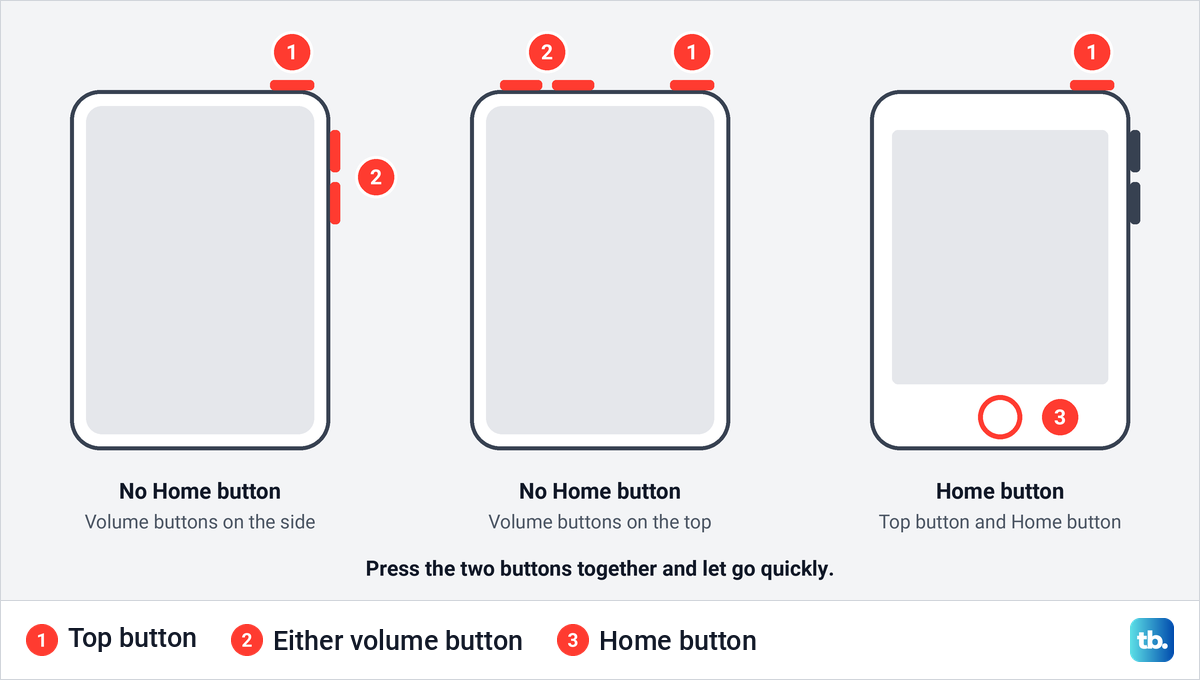
This covers every iPad Pro that runs iPadOS 26, the iPad Air from the 4th generation on (including the M2, M3 and M4 models), the iPad mini (6th generation) and iPad mini (A17 Pro), and the iPad (10th generation) and iPad (A16). Only the iPad Pro has Face ID, but the buttons are the same on all of them. If you are not sure which buttons your iPad has, you can check which iPad model you have from its serial number.
Press both together and let go at once: holding the top button activates Siri, and a single press puts the iPad to sleep. Apple's word is "quickly" in every version of its instructions.
Take a screenshot on an iPad with a Home button
Quickly press and release the top button and the Home button at the same time. Holding the Home button by itself starts Siri, so the same rule applies: press together, release together. The volume buttons play no part on these models.
Few iPads still have a Home button. Among the models that run iPadOS 26, they are the iPad (8th and 9th generation), the iPad Air (3rd generation) and the iPad mini (5th generation), and Apple's iPadOS 27 list keeps only the iPad (9th generation). Settings, General, About shows your iPadOS version, and you can check for updates on your iPad from the same General screen.
What you see after you take a screenshot
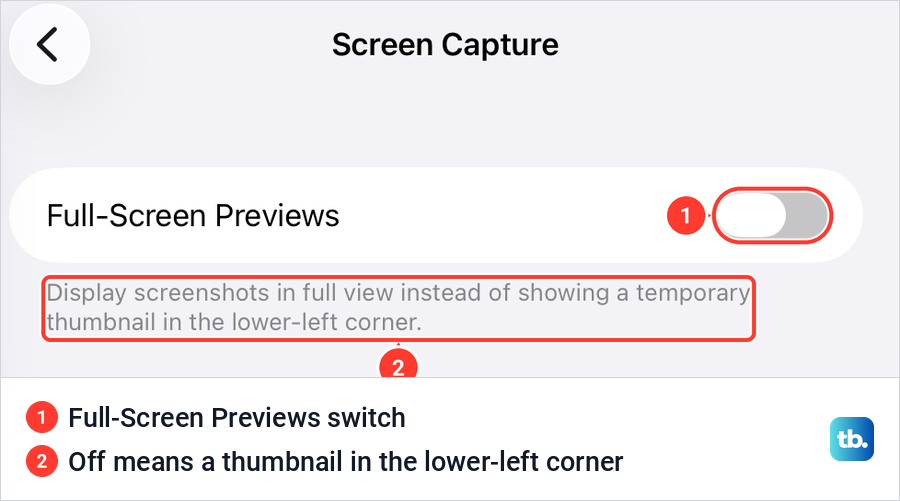
Apple's iPadOS 26 and iPadOS 27 settings pages both say a new screenshot appears full screen by default. Apple's own support article still describes the older behavior, a small thumbnail in the lower-left corner that you tap to open or swipe left to dismiss. Apple ties the choice to one switch, though on our iPad the finger swipe from the corner opened the full editor even with that switch off.
Go to Settings, then General, then Screen Capture. On iPadOS 26.5, our Screen Capture screen showed one switch, Full-Screen Previews, with iPadOS's own explanation underneath: on means full view, off means a temporary thumbnail in the lower-left corner. Apple says it is on by default; if a button screenshot shows a thumbnail instead, it is off, and turning it on brings back the full editor.
The thumbnail is not a lesser option. Apple says screenshots are saved to your photo library automatically, so you can ignore the thumbnail and keep going, which is handy when you take several in a row. On iPadOS 27, Apple adds a second switch on the same screen, Automatic Visual Look Up, which identifies objects and places in your screenshots on supported models. To capture something that moves, record your iPad screen as a video instead.
Crop, mark up and save a screenshot
The editor that opened on our iPad had six controls along the top. From the left, Close cancels or deletes, a slider changes the screenshot's opacity, the Live Text button picks out the text in the picture, Markup brings up the drawing tools, Share sends it, and the check mark is Done. Thin white handles sit at each corner and edge of the screenshot.
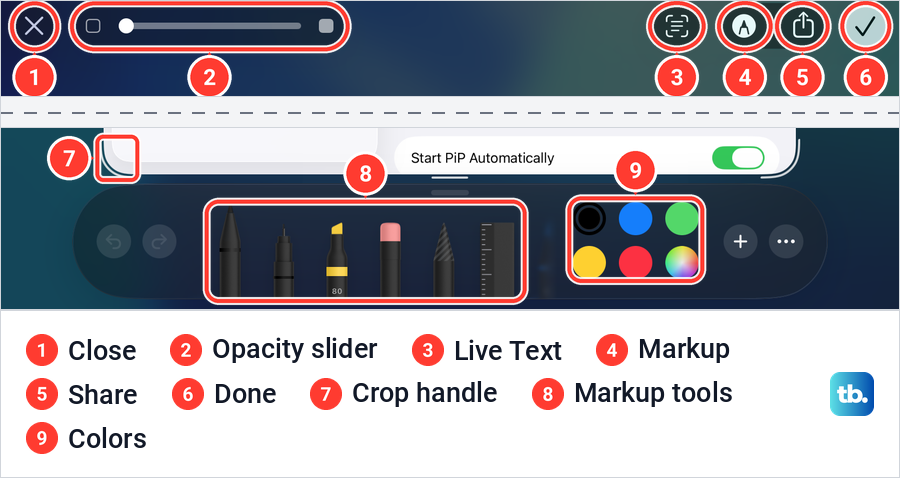
To crop, drag a handle inward until only the part you want is inside it. To draw, use the Markup tray at the bottom: pens, a highlighter, an eraser, a pencil and a ruler, with undo and redo on the left and five colors and a color picker on the right. The + button next to the colors opens more Markup tools.
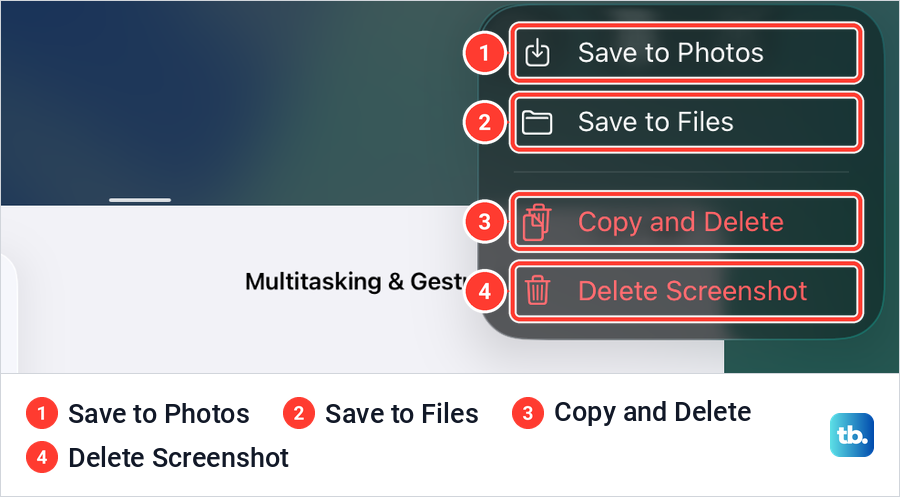
When you are finished, tap Done. Our iPad offered four choices: Save to Photos, Save to Files, Copy and Delete and Delete Screenshot. Save to Photos is the one most people want, and Delete Screenshot throws the capture away.
On iPadOS 27, Apple adds Siri tools to the same screen when Siri AI (Beta) is on: an Ask button for questions about the screenshot and a Search button for similar images. Apple says that needs an Apple Intelligence iPad (an iPad mini (A17 Pro) or a model with M1 or later) set to a supported language, and that it starts in English and outside the EU.
Take a full page screenshot on iPad
A full-page screenshot captures a whole webpage, not just the part on screen. Take an ordinary screenshot of the page in Safari, open it in the editor, and tap Full Page. Apple says a preview of the page then sits on the right, and you drag your finger on it to scroll through what was captured. Tap the crop button if you want only part of it.
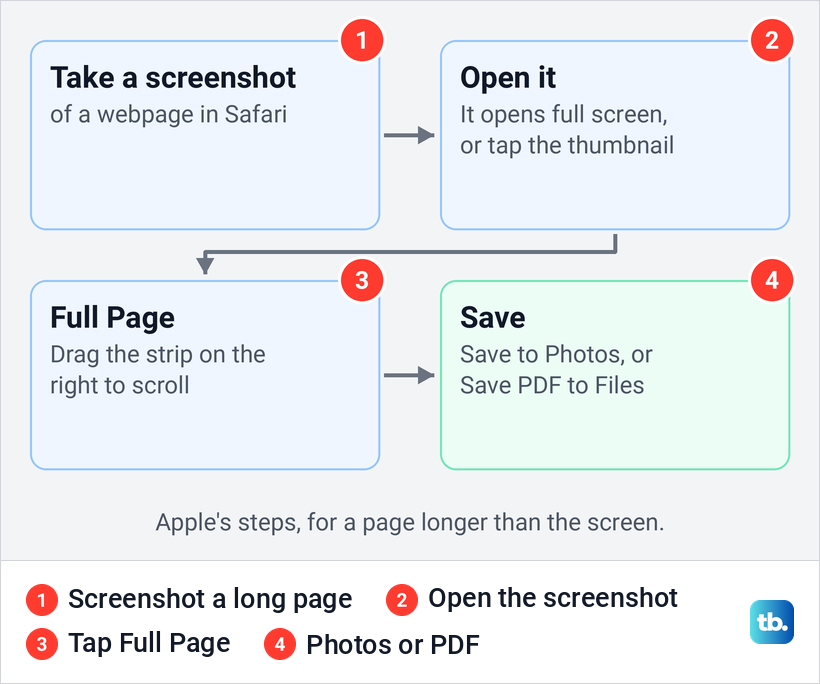
Then tap Done and choose how to keep it. Save to Photos keeps it as one long image, and Save PDF to Files saves a PDF to a folder you pick. A capture saved as a PDF opens in Files, where you can mark it up again or edit the PDF afterwards.
Apple's example is a webpage in Safari. On our iPad a screenshot of a Settings screen showed no Full Page option at all, so the option depends on what you capture. If it is missing, take the screenshot in Safari on a page that is longer than the screen.
Take a screenshot with Apple Pencil
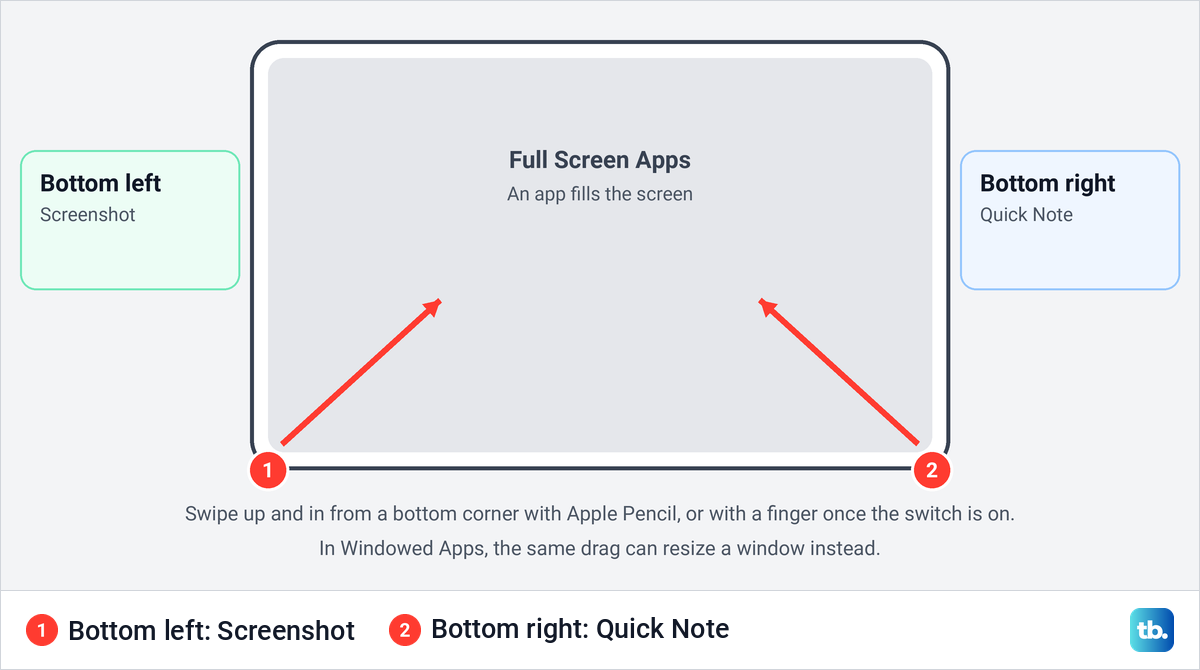
Swipe the tip of the Apple Pencil up and inward from the bottom-left corner of the screen. Apple says the screenshot opens ready for you to draw on with the Pencil, and that you tap Done when you are finished, then choose where to save it. Apple's support article says this works on iPad models that support Apple Pencil.
Apple's screenshot pages say either bottom corner works. Its Quick Notes page tells a different story: a swipe from the bottom-right corner makes a Quick Note, so use the bottom-left corner unless you change it. Our finger settings showed the same split, with the bottom-left corner set to Screenshot and the bottom-right to Quick Note.
Take a screenshot with your finger from the corner
You do not need a Pencil for the corner swipe. Go to Settings, then Multitasking & Gestures, scroll to the Gestures group and turn on Swipe Finger from Corner. On our iPad, turning it on revealed two more rows right there: Bottom Left Corner, set to Screenshot, and Bottom Right Corner, set to Quick Note.
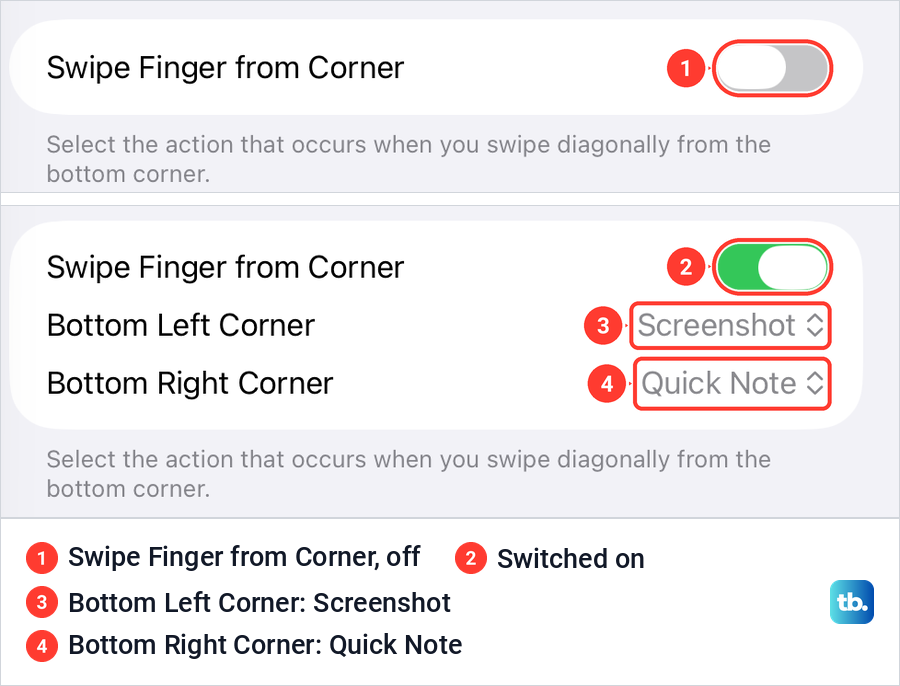
Now swipe up and in from the very bottom-left corner. When we did it in Full Screen Apps, the screenshot opened straight in the full editor, even with Full-Screen Previews switched off. So the finger swipe can take you straight to the editor, even though Apple says button screenshots show the thumbnail when that switch is off.
The multitasking mode can get in the way. If the drag from the corner resizes a window instead of taking a screenshot, as it did on our iPad in Windowed Apps, switch to Full Screen Apps at the top of the same screen.
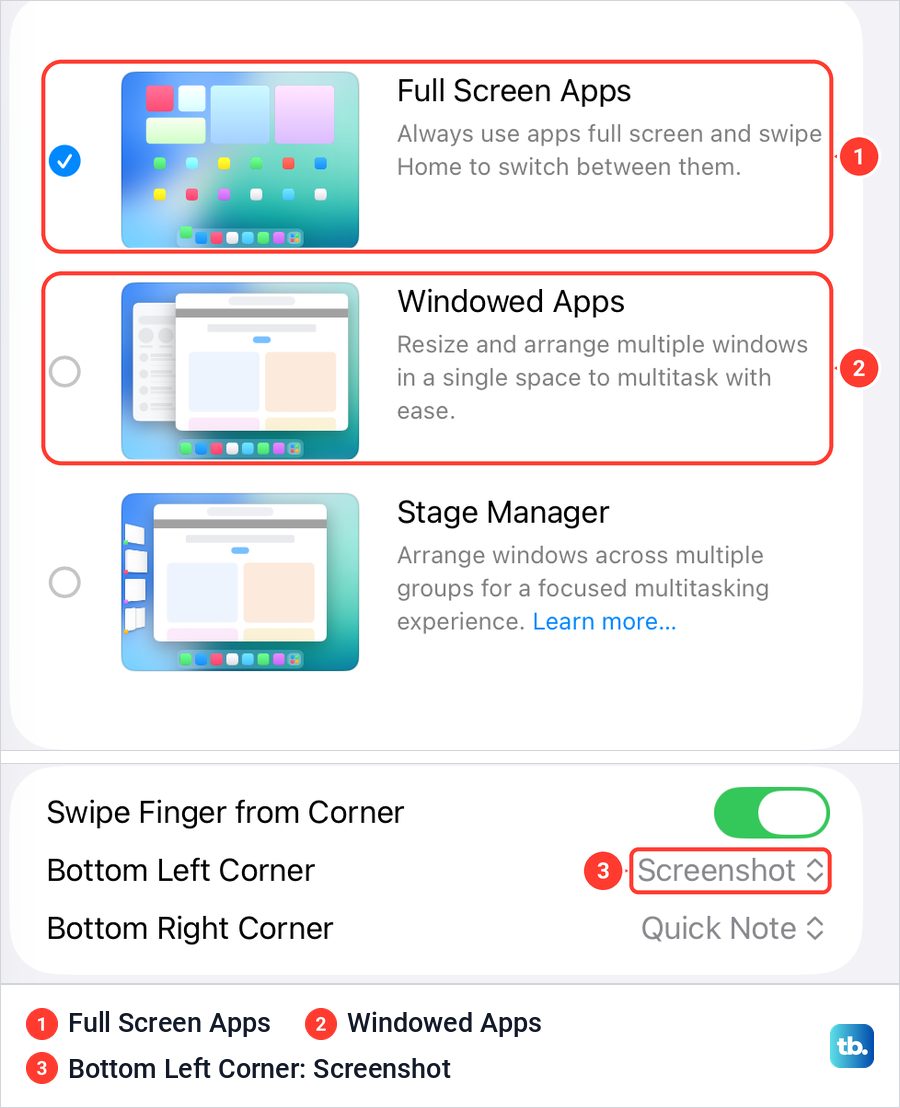
Choose which corner takes the screenshot
Tap the value next to either corner to change it. Each corner offered the same three choices on our iPad: Off, Quick Note and Screenshot. Set both corners to Screenshot if you never use Quick Notes, or set one to Off if your palm keeps triggering it.
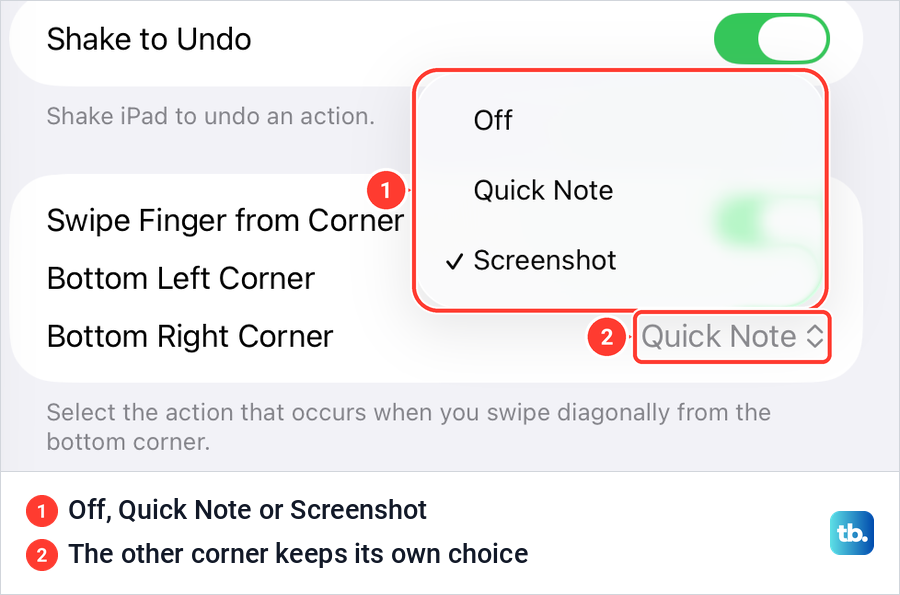
Apple also documents the corners in a second place, under Settings, Apps, Notes, Corner Gestures, with a Left Corner Swipe, a Right Corner Swipe and an Allow Finger to Swipe from Corner switch. That page is the place to look if your corner swipe opens Notes instead of taking a screenshot.
Take a screenshot with AssistiveTouch
AssistiveTouch puts a floating menu button on the screen that can do what the hardware buttons do. Go to Settings, then Accessibility, then Touch, then AssistiveTouch, and turn it on. Apple lists taking a screenshot among the actions the menu can run, and the same menu can go to the Home Screen, change the volume and even restart your iPad without a button.
For one-tap screenshots, use the Single-Tap, Double-Tap or Long Press settings on the AssistiveTouch page, which Apple says run a custom action you choose. Assign the screenshot action to Single-Tap and one tap on the floating button captures the screen. Apple's steps open the menu with that same tap, so if you want to keep the menu one tap away, put the screenshot on Double-Tap or Long Press and double-tap or hold the button instead.
AssistiveTouch is the way around a top button or volume buttons that stopped working. Once you set up the Accessibility Shortcut, Apple says a triple-click of the top or Home button turns AssistiveTouch on and off. With a mouse or trackpad, Apple's Dwell Control can also take a screenshot when the pointer rests in a hot corner of the screen.
iPad screenshot shortcut on a keyboard
With a keyboard attached, press Command + Shift + 3 to take a screenshot. Press Command + Shift + 4 instead and Apple says the screenshot opens in Markup straight away. Apple describes both as taking a screenshot; to keep only part of the screen, crop it in the editor afterwards.
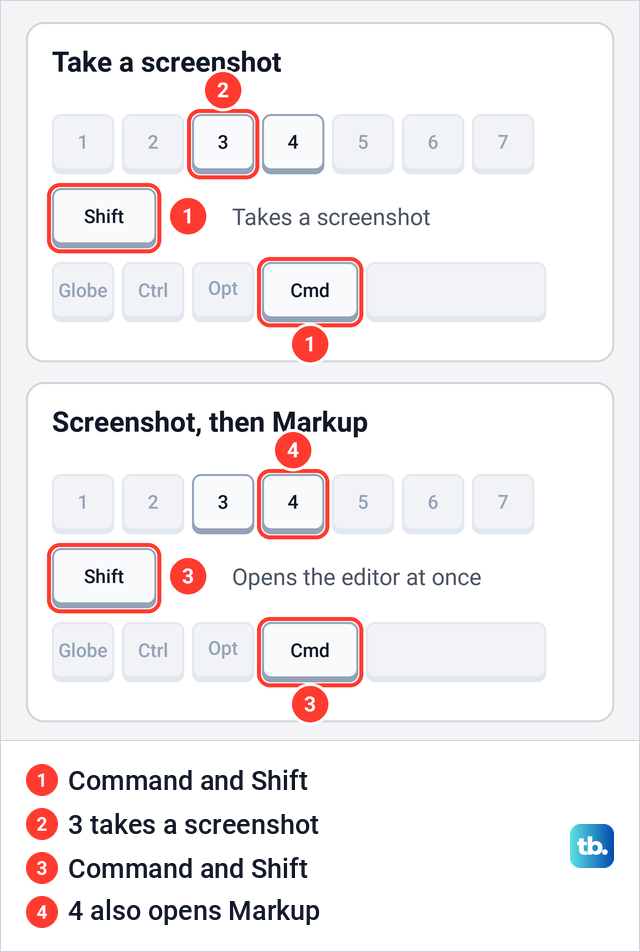
Any keyboard works, not just Apple's. If your keyboard has no Command key, check or change which key does that job under Settings, General, Keyboard, Hardware Keyboard, Modifier Keys. If the shortcut does nothing at all, start with our fixes for an iPad keyboard that does not respond.
Ask Siri to take a screenshot
Apple lists Siri as a way to take a screenshot, so you can capture the screen without touching it. Say "Siri" or "Hey Siri", or press and hold the top button (the Home button on older iPads), then ask Siri to take a screenshot. Apple's iPadOS 27 guide puts it the same way: Siri or AssistiveTouch instead of the hardware buttons.
In a quiet room you can type instead, on an iPad with Apple Intelligence turned off. Apple's Siri page puts the Type to Siri switch for those iPads under Settings, Accessibility, Siri. Siri also needs an internet connection, and our guide covers what to do when Siri stops responding on your iPad.
Where screenshots are saved on iPad
Screenshots go to the Photos app by default. Open Photos, tap Collections, scroll down to Media Types and tap Screenshots. On our iPad, Screenshots also sat in the Pinned row near the top of Collections, which saves the scroll.
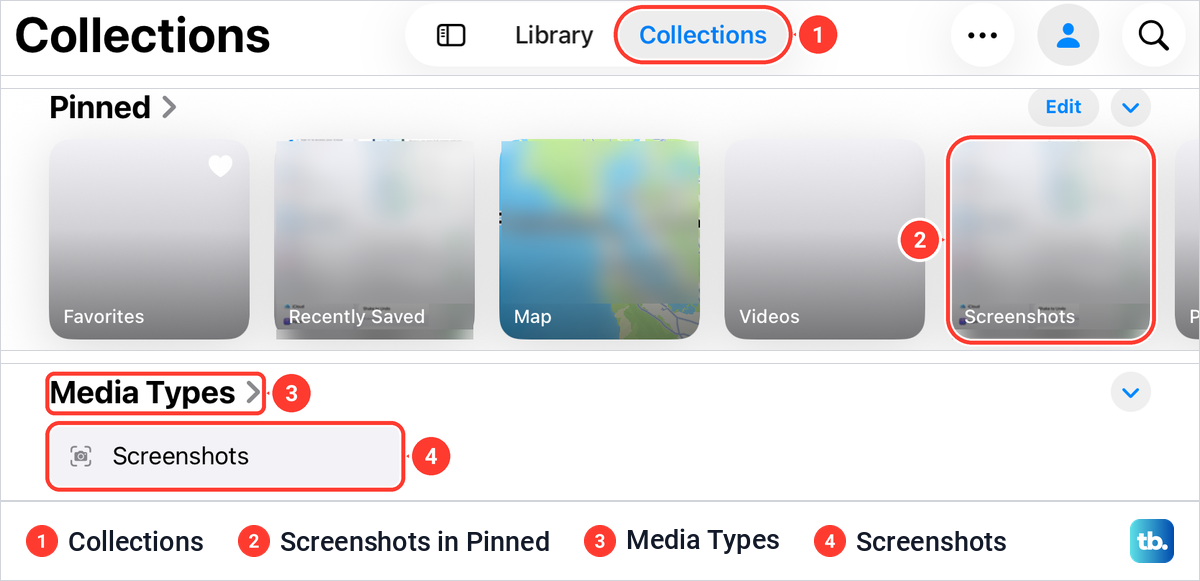
Because they live in your photo library, screenshots sit among your other photos too. A full-page capture saved as a PDF does not go to Photos: it lands in the Files folder you picked when you saved it. Old screenshots add up, and the Screenshots collection is a quick place to start when your iPad storage is full.
When an iPad screenshot does not work
If nothing happens, check the timing: Apple's instruction is to press both buttons at the same moment and release them quickly. Holding the top button activates Siri on iPads without a Home button; on Home-button models, holding Home activates Siri. If one button is faulty, switch to AssistiveTouch or the finger swipe, which need no buttons at all.
A school or work iPad may block screenshots on purpose. Apple's device management settings include a restriction under which users "can't save a screenshot or recording of the screen." If your iPad belongs to a school or an employer and no method works, ask whoever manages it.
If the corner swipe does nothing, check that Swipe Finger from Corner is on and that the corner is set to Screenshot, and if the drag resizes a window, try Full Screen Apps. Apple notes that with Hold Duration on under Touch Accommodations, taps and swipes inside the hold time are ignored. If the screen ignores every swipe and tap, not just the corner, see our fixes for an iPad screen that does not respond to touch.
Back Tap, the double tap on the back of an iPhone, is not an iPad method. Apple lists it as a screenshot method for iPhone, and its iPad touch settings page has no Back Tap option. If you also need the keys for a computer or a phone, our guide to taking a screenshot on any other device has them.
How we tested this guide
We worked through the settings, the finger swipe, the editor and Photos on an iPad Pro 11-inch with iPadOS 26.5. We read the Screen Capture setting, turned on Swipe Finger from Corner and checked the choices for each corner. We took a screenshot with a finger swipe from the bottom-left corner in Full Screen Apps and tried the same drag in Windowed Apps, then went through the editor and the Done menu, saved a screenshot to Photos and found it under Media Types.
The button combinations, the Apple Pencil, AssistiveTouch, the keyboard shortcuts, Siri and the full-page steps follow Apple's instructions. Where Apple's iPadOS 27 guide words a step differently, the article says so.
Frequently Asked Questions
How do I take a screenshot on an iPad without a Home button?
Quickly press and release the top button and either volume button at the same time. This works on every iPad Pro that runs iPadOS 26, the iPad Air from the 4th generation on, the iPad mini (6th generation) and iPad mini (A17 Pro), and the iPad (10th generation) and iPad (A16).
How do I screenshot on an iPad without using the buttons?
Swipe up from the bottom-left corner with an Apple Pencil, or with a finger after you turn on Swipe Finger from Corner in Multitasking & Gestures. You can also use AssistiveTouch, press Command, Shift and 3 on a keyboard, or ask Siri.
Why does swiping up from the corner open a note instead of a screenshot?
The bottom-right corner makes a Quick Note by default. Use the bottom-left corner, or change the corner's action to Screenshot in Settings, Multitasking & Gestures, or in Settings, Apps, Notes, Corner Gestures.
Where do screenshots go on an iPad?
Into Photos by default. Open Collections, scroll to Media Types and tap Screenshots. A full-page screenshot saved as a PDF goes to the folder you chose in Files.
What is the keyboard shortcut for a screenshot on iPad?
Command, Shift and 3 takes a screenshot. Command, Shift and 4 takes one and opens Markup straight away, and it works on Apple's keyboards and other makers' keyboards alike.
Why is the Full Page option missing?
Apple's example for Full Page is a webpage in Safari, and on our iPad a screenshot of a Settings screen showed no Full Page option. Take the screenshot in Safari on a page longer than the screen, then open it in the editor.
How do I turn off the screenshot sound on an iPad?
Apple gives two ways to mute your iPad: press and hold the volume down button, or open Control Center and turn on Silent mode. Apple says Silent mode silences sound effects as well as alerts.